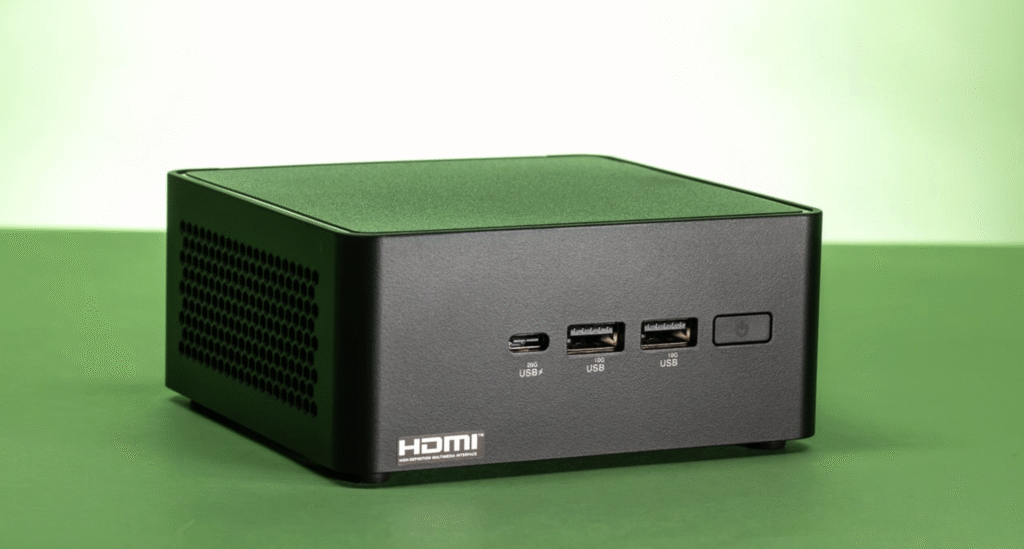
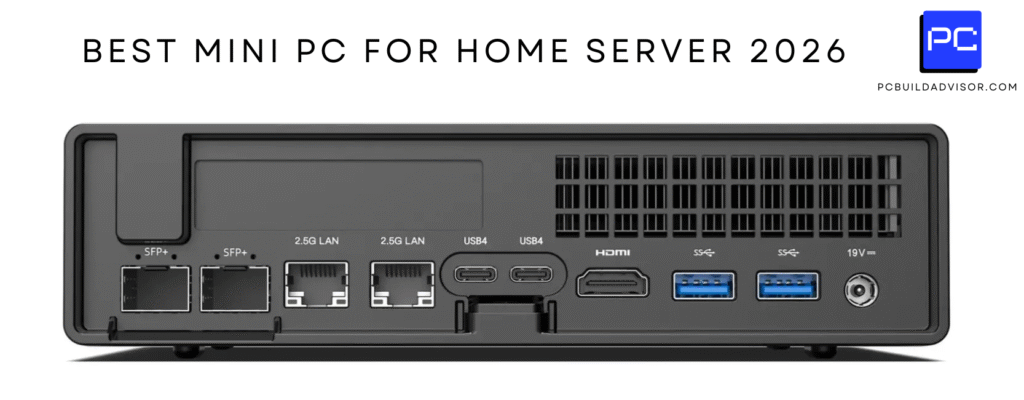
Yes, you can absolutely leave a mini PC on 24/7. Modern mini PCs from reputable brands like Beelink, Minisforum, and Geekom are designed for continuous operation and can reliably run for years without shutting down. Quality models feature adequate cooling systems, components rated for extended use, and typically draw only 10-30 watts at idle—making them far more practical for 24/7 operation than traditional desktop computers. With proper ventilation, regular maintenance, and reasonable ambient temperatures, a mini PC can serve as an always-on home server, media center, or workstation with minimal issues.
Why Run a Mini PC 24/7?
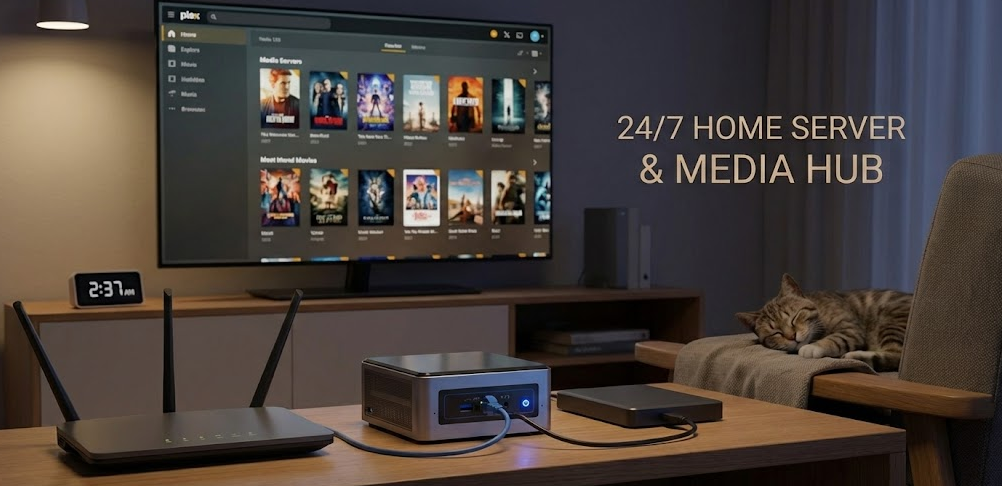
When I first set up a mini PC as my home server three years ago, one question kept nagging me: “Is it actually safe to leave this thing running all the time?” Coming from a background of traditional desktop PCs that I’d shut down every night, the idea of continuous operation felt risky.
The reality is that many use cases genuinely benefit from 24/7 operation. If you’re running Plex Media Server, Home Assistant, network-attached storage (NAS), ad-blocking DNS services like Pi-hole or AdGuard, automated backup solutions, or self-hosted applications like Nextcloud, shutting down defeats the entire purpose. These services need to be available whenever you or your household needs them—not just during specific hours.
Additionally, modern computing components are actually designed with continuous operation in mind. Server-grade hardware runs 24/7 for years in data centers. While mini PCs use consumer-grade components, the principles remain: proper cooling, reasonable workloads, and regular maintenance matter far more than whether you power cycle daily.
Real-World Experience: How Long Do Mini PCs Last Running 24/7?
The encouraging news from the mini PC community is that continuous operation reliability is excellent when using quality brands.
Reddit users in r/MiniPCs report running Beelink systems for 4-5 years continuously without failure, Minisforum units in Proxmox clusters achieving 98% uptime over 3+ years, and Intel NUCs operating 24/7 since 2019 with only occasional reboots for updates. One user ran a Gigabyte Brix for 9 years straight before the cooling fan finally died—and even then, the system itself was still functional.
According to manufacturer specifications and independent testing, quality mini PCs like ASUS NUC systems report mean time between failures (MTBF) ratings of approximately 50,000 hours—equivalent to 5.7 years of continuous 24/7 operation. Real-world deployments consistently meet or exceed these ratings when proper maintenance is followed.
The typical mini PC lifespan ranges from 4-6 years under continuous use, with cooling efficiency and workload intensity being the primary limiting factors. This matches or exceeds the practical lifespan of desktop PCs (5-7 years) and significantly surpasses laptops (3-5 years), making mini PCs surprisingly well-suited for always-on applications.
Power Consumption: What Does 24/7 Operation Actually Cost?
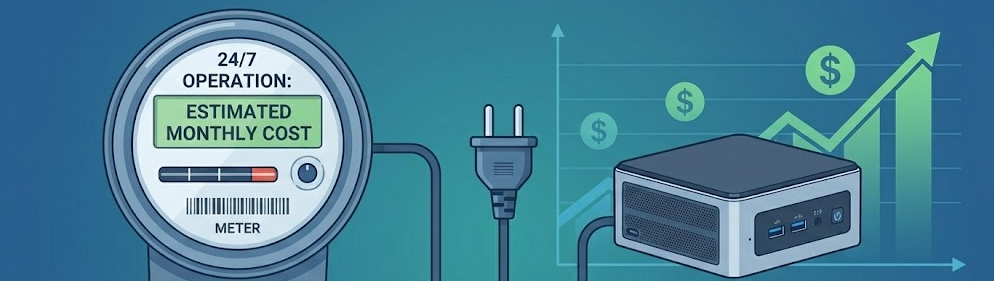
One of the biggest advantages of mini PCs for continuous operation is their remarkably low power consumption compared to traditional desktops.
Typical mini PC power draw:
- Idle: 10-20 watts
- Light tasks (web browsing, media streaming): 20-35 watts
- Heavy workloads (transcoding, virtualization): 45-65 watts
Compare this to traditional desktop computers that draw 100-150 watts at idle and 300-700 watts under load. The difference in electricity costs is substantial.
Mini PC vs Desktop: 24/7 Electricity Cost Comparison (2025)
| System Type | Idle Power | Active Power | 24/7 Monthly Cost (US avg $0.1745/kWh) | Annual Cost |
|---|---|---|---|---|
| Mini PC (N100) | 10W | 25W | $2.70 | $32.40 |
| Mini PC (Core i5) | 20W | 50W | $5.25 | $63.00 |
| Desktop PC | 100W | 250W | $26.19 | $314.28 |
| Gaming PC | 150W | 600W | $65.48 | $785.76 |
Based on national average electricity rates, running a typical mini PC 24/7 costs approximately $3-5 per month, or $36-60 annually. Even if electricity rates in your area are higher, the cost remains manageable. A gaming desktop running continuously would cost 10-15 times more.
For environmental context, a mini PC running 24/7 consumes roughly the same annual electricity as two standard refrigerators—but provides always-on computing services that would otherwise require keeping a much larger, more power-hungry system running.
The Real Risks: What Can Go Wrong?
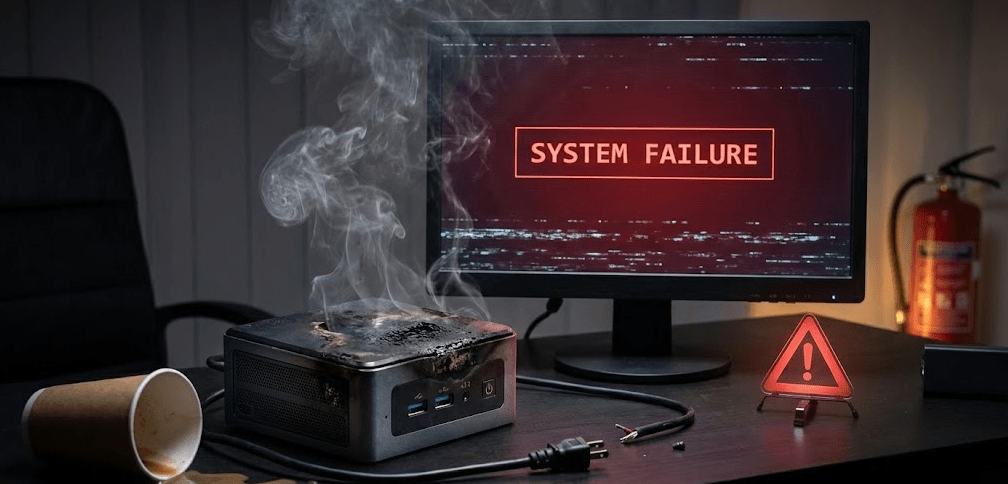
While mini PCs handle 24/7 operation well, legitimate concerns exist that you should understand before committing to continuous use.
Cooling system failure is the primary risk
The most common failure mode for always-on mini PCs is cooling fan death. Fans contain mechanical bearings that wear over time. A fan running continuously for 3-5 years will eventually develop bearing noise, wobble, or complete failure.
The good news: fan failure is usually gradual, not sudden. You’ll hear increasing noise or rattling for weeks before complete failure. This gives you time to order a replacement fan (typically $10-25) and perform the repair. Video tutorials like this one show the replacement process, which takes 15-30 minutes for most mini PC models.
Thermal throttling reduces performance and lifespan
If your mini PC runs hot continuously, the CPU will throttle performance to prevent damage. Sustained high temperatures accelerate component degradation and can cut your device’s lifespan significantly.
Proper placement, regular dust cleaning, and monitoring temperatures prevent this issue. Keep CPU temperatures below 80°C under load as a general guideline.
SSD wear from continuous writes
If your mini PC performs heavy write operations continuously (like database servers, logging systems, or surveillance footage recording), SSD endurance becomes a consideration. Modern SSDs have Terabytes Written (TBW) ratings that indicate total data the drive can write before potential failure.
Most consumer SSDs offer 150-600TB TBW ratings, which translates to decades of typical use. However, if you’re writing 100GB+ daily to your SSD, calculate your actual TBW requirements and choose drives accordingly. For most 24/7 home server applications (media streaming, file hosting, DNS), SSD writes are minimal and longevity isn’t a concern.
Power delivery and surge protection
Continuous operation increases your exposure to power fluctuations, brownouts, and surges. A single power spike can damage your mini PC’s motherboard, power adapter, or storage drives.
Solution: Use a quality surge protector or uninterruptible power supply (UPS). For critical always-on systems, a UPS provides both surge protection and battery backup during brief outages, allowing graceful shutdowns and preventing data corruption.
Best Practices for 24/7 Mini PC Operation
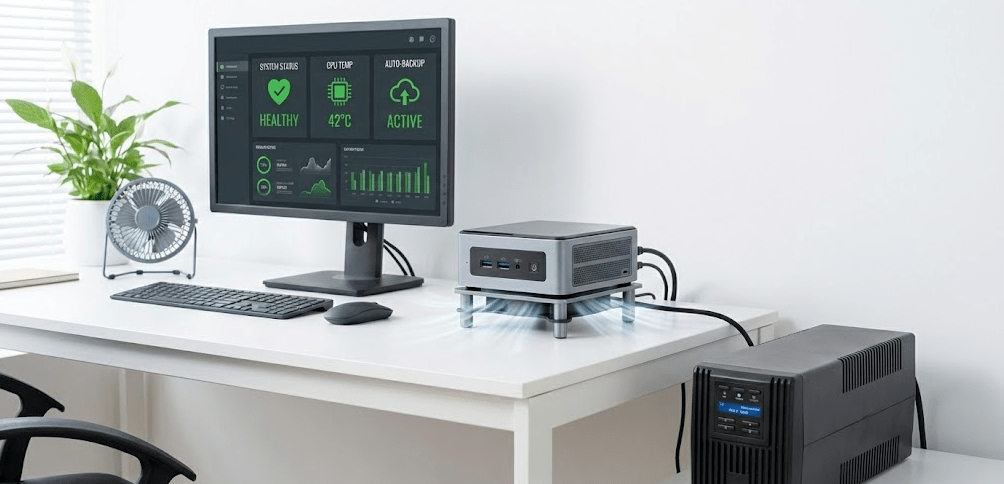
Based on my experience running mini PCs continuously and community feedback from thousands of users, these practices maximize reliability:
Ensure adequate ventilation and airflow
Place your mini PC with 3-4 inches of clearance on all sides. Never enclose it in a cabinet or tight space where heat accumulates. Elevated placement (using a small stand) improves airflow underneath the unit and helps cooling efficiency.
Ambient room temperature should remain between 20-24°C (68-75°F) for optimal operation. If your mini PC is in a hot attic or poorly ventilated closet, cooling will struggle regardless of the system’s design.
Clean dust from vents every 3-4 months
Dust accumulation is the silent killer of mini PCs. Use compressed air to blow dust from intake and exhaust vents every few months. For systems in particularly dusty environments (workshops, pet-filled homes), increase cleaning frequency to monthly.
When cleaning, hold compressed air cans upright to prevent liquid propellant from spraying into components. Use short bursts rather than continuous spraying to avoid moisture buildup.
Monitor temperatures regularly
Install monitoring software like HWiNFO64 or your mini PC manufacturer’s utility to track CPU and SSD temperatures. Set up alerts if temperatures exceed safe thresholds (85°C for CPU, 70°C for NVMe SSDs).
If you notice temperatures climbing over time despite unchanged workloads, it’s time to clean dust or check for fan degradation.
Update BIOS and drivers periodically
Manufacturers release BIOS updates that improve thermal management, fan curve optimization, and power efficiency. Check for updates quarterly and apply them during scheduled maintenance windows.
Consider undervolting for reduced heat and power
Advanced users can undervolt their mini PC’s CPU using tools like Intel XTU (for Intel processors) or AMD Ryzen Controller. Undervolting reduces the voltage supplied to the CPU, lowering heat output by 5-15°C without significantly impacting performance.
This technique requires research and careful testing but can substantially improve thermal performance for always-on systems.
Use sleep mode during low-activity periods if appropriate
If your use case allows it, configure your mini PC to enter sleep mode during predictable low-activity periods (like 2-6 AM). Sleep mode draws only 2-5 watts while keeping RAM powered, allowing near-instant wake when needed.
This balances the benefits of 24/7 availability with reduced power consumption and component wear. However, true server applications (databases, network services) typically can’t use sleep mode without disrupting functionality.
Pro Tip: “If your mini PC runs hot under load, do not ignore it. Sustained high temperatures accelerate component degradation and can cut your device’s lifespan in half. A few simple maintenance steps and smart placement can make all the difference.”
Step-by-Step: Setting Up Your Mini PC for 24/7 Operation
Step 1: Choose the right mini PC for your workload
Not all mini PCs are equally suited for 24/7 use. For always-on applications, prioritize:
- Quality cooling systems (avoid fanless models unless workload is extremely light)
- Reliable brands with proven 24/7 track records (Beelink, Minisforum, Geekom, Intel NUC)
- Adequate power delivery (don’t underspec—choose a model with 20-30% more performance than your minimum requirement)
- Dual storage support if running critical services (allows RAID mirroring for data protection)
Intel N100/N200 processors are excellent for low-power 24/7 applications (media servers, DNS, lightweight virtualization). Core i5/i7 models handle heavier workloads like Plex transcoding, Home Assistant with many integrations, or multi-VM setups.
Step 2: Select optimal placement location
Survey your space for locations that meet these criteria:
- Consistent room temperature year-round
- Away from direct sunlight or heat sources
- Accessible for periodic cleaning
- Good natural airflow (not in enclosed furniture)
- Proximity to ethernet connection (WiFi works but wired is more reliable for servers)
I place my always-on mini PCs on small elevated stands near floor vents in climate-controlled rooms. This provides consistent cooling and easy access for maintenance.
Step 3: Install operating system and configure power settings
After installing your OS (Windows, Linux, or a specialized server OS like Proxmox or TrueNAS), configure power settings for 24/7 operation:
Windows:
- Go to Settings > System > Power & Sleep
- Set screen timeout but configure “Put the computer to sleep” to “Never”
- Open Control Panel > Hardware and Sound > Power Options
- Choose “High Performance” or create a custom plan with sleep disabled
- Verify “Allow the computer to sleep” is unchecked in advanced settings
Linux:
- Disable sleep/suspend:
sudo systemctl mask sleep.target suspend.target hibernate.target hybrid-sleep.target - Configure screen blanking only: edit power management settings in your desktop environment
- Ensure automatic updates don’t force reboots: configure unattended-upgrades or equivalent
Step 4: Configure automatic restart after power loss
Access your mini PC’s BIOS (usually by pressing Delete, F2, or F12 during boot). Look for settings labeled “AC Power Loss” or “After Power Loss” and set to “Power On” or “Last State.” This ensures your mini PC automatically restarts after brief power outages, maintaining 24/7 availability.
Step 5: Install monitoring and alerting tools
Set up monitoring to catch problems before they cause failures:
- Install temperature monitoring (HWiNFO64, lm-sensors on Linux)
- Configure disk health monitoring (CrystalDiskInfo, smartmontools)
- Set up uptime monitoring (Uptime Kuma, Healthchecks.io)
- Create email or notification alerts for temperature spikes, disk errors, or unexpected shutdowns
Step 6: Establish maintenance schedule
Create calendar reminders for:
- Monthly: Check system temperatures and fan noise
- Quarterly: Clean dust from vents, check for BIOS/driver updates
- Annually: Open case for deep cleaning, replace thermal paste if temperatures have increased, verify all fans spin freely
Step 7: Test power failure recovery
Before relying on your mini PC for critical services, test its behavior during power loss. Unplug it while running, wait 30 seconds, and plug back in. Verify it automatically powers on and all services start correctly. If you’re using a UPS, test that your mini PC successfully shuts down gracefully when battery runs low.
FAQ: 24/7 Mini PC Operation
Will running my mini PC 24/7 void the warranty?
No. Continuous operation is a normal use case and does not void manufacturer warranties. However, physical damage from overheating due to poor ventilation or inadequate maintenance might not be covered. Follow manufacturer guidelines for placement and care.
Should I restart my mini PC periodically even if it’s running fine?
Yes, but infrequently. Monthly restarts help clear memory leaks, apply Windows updates that require reboots, and refresh system processes. Schedule restarts during low-usage periods (like 3 AM) to minimize disruption. Linux systems typically need restarts only for kernel updates.
Can fanless mini PCs run 24/7?
Yes, but with strict limitations. Fanless mini PCs rely entirely on passive cooling through metal chassis and heatsinks. They work well for very light 24/7 workloads (digital signage, basic file serving, DNS) but will throttle under sustained moderate loads. If your workload consistently uses more than 20-30% CPU, choose a fan-cooled model.
What’s better for longevity: leaving a mini PC on 24/7 or powering it off daily?
For components like SSDs, CPUs, and RAM, continuous operation causes less stress than repeated power cycling. However, fans wear faster with continuous use. The consensus among server administrators and long-term mini PC users is that proper cooling and maintenance matter far more than on/off cycles. If you need 24/7 services, run continuously. If you don’t, power off to save electricity.
How much does a UPS cost for a mini PC, and is it worth it?
Quality UPS units for mini PCs range from $80-200 depending on capacity. For a single mini PC drawing 30 watts, a 600VA/360W UPS provides 30-60 minutes of runtime during outages—plenty of time for automatic graceful shutdown. If your mini PC hosts critical services (home automation, security cameras, backups), a UPS is absolutely worth the investment to prevent data corruption and downtime.
Will my mini PC’s SSD wear out from 24/7 use?
For typical home server workloads, no. A 500GB SSD with 300TBW endurance writing 10GB daily would last over 80 years. Even heavy users rarely exceed 50GB of daily writes. SSD endurance only becomes a concern for specialized applications like surveillance systems recording 24/7 or database servers with extreme write loads.
Can I run a mini PC 24/7 in my bedroom without noise issues?
Depends on the model and your noise sensitivity. Intel N100-based mini PCs typically run nearly silent at idle and produce minimal fan noise under load. Higher-performance models with Core i7/i9 processors generate more heat and consequently more fan noise. If bedroom placement is essential, prioritize models marketed as “silent” or “quiet” and consider fanless options for ultra-light workloads.
What’s the best mini PC for 24/7 home server use?
For budget-conscious 24/7 operation, Intel N100-based models (Beelink S12 Pro, GMKtec NucBox K1) offer excellent power efficiency and reliability at $150-250. For more demanding workloads, Minisforum MS-01 provides enterprise-grade features including dual 2.5GbE NICs, multiple drive bays, and excellent cooling. For maximum performance, ASUS NUC systems with Core i5/i7 processors deliver server-grade reliability with 50,000-hour MTBF ratings.
When 24/7 Operation Makes Sense (And When It Doesn’t)
Not every mini PC needs to run continuously. Here’s how to decide:
Ideal 24/7 use cases:
- Home servers hosting Plex, Jellyfin, or Emby for media streaming
- Network-attached storage (NAS) for file access from multiple devices
- Home automation hubs (Home Assistant, OpenHAB)
- Network services (Pi-hole, AdGuard, DNS, VPN servers)
- Backup destinations that accept scheduled backups from other devices
- Self-hosted services (Nextcloud, Bitwarden, WikiJS)
- Development/testing environments that need consistent availability
- Cryptocurrency nodes or lightweight mining (though profitability is questionable in 2025)
Better with scheduled operation or sleep mode:
- Personal desktop computing (turn off when not actively using)
- Gaming systems (no benefit to 24/7 operation)
- Video editing workstations (only need power during active projects)
- Office work computers (sleep during nights and weekends)
If your mini PC sits idle 70%+ of the time with no services running, 24/7 operation wastes electricity without providing value. Configure sleep mode or simply shut down when not in use.
Advanced: Extending Lifespan for Long-Term 24/7 Operation
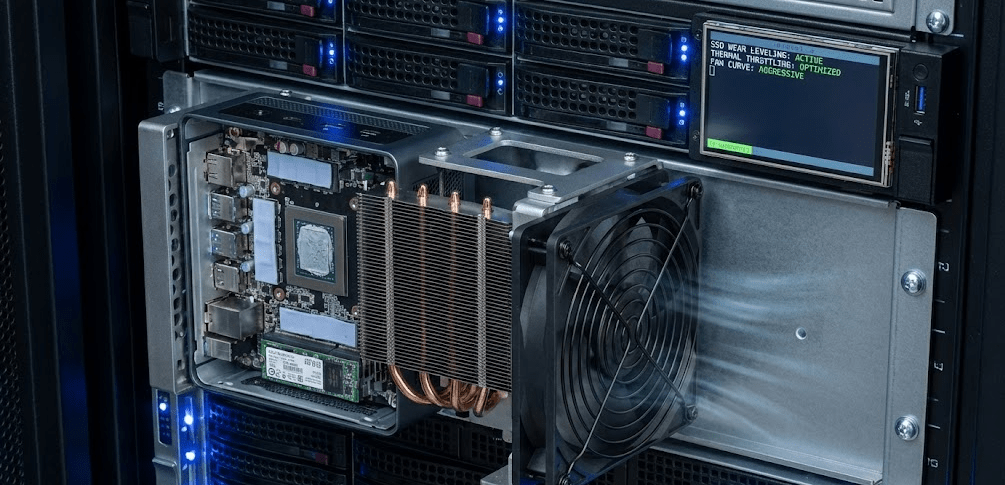
For users planning 5+ years of continuous operation, these advanced techniques maximize longevity:
Configure custom fan curves in BIOS
Many mini PCs allow fan speed customization in BIOS. Create a fan curve that prioritizes cooling over noise, keeping fans running at 40-50% minimum speed even at idle. This ensures consistent airflow and prevents heat spikes during sudden load increases.
Replace thermal paste every 2-3 years
Thermal paste between CPU and heatsink degrades over time, especially under continuous heat cycling. If you notice temperatures increasing despite clean fans and good airflow, thermal paste replacement (a 30-minute procedure) can restore 5-10°C cooler operation.
Use scheduled task automation for maintenance
Create automated scripts that:
- Restart specific services weekly to prevent memory leaks
- Clear temporary files and log directories monthly
- Email you temperature and health reports weekly
- Trigger automatic shutdowns if temperatures exceed safe thresholds
Implement RAID for data protection
If using your mini PC as a NAS or critical data storage, implement RAID 1 (mirroring) across two drives. This protects against single drive failure—which becomes more likely as your system runs continuously for years.
Keep a spare fan on hand
Fan failure is the most common hardware issue for 24/7 systems. Order a spare fan matching your mini PC model and keep it in storage. When your installed fan shows signs of wear (noise, vibration), you can immediately replace it rather than waiting days for shipping while your system overheats.
The Bottom Line: Yes, But Do It Right
Can you leave a mini PC on 24/7? Absolutely—and millions of people do exactly that with excellent results. Modern mini PCs are reliable, power-efficient, and well-suited for continuous operation when you follow basic best practices.
The key factors for successful 24/7 operation are proper ventilation, regular maintenance, temperature monitoring, and choosing quality hardware from reputable brands. A $200 mini PC with an Intel N100 processor drawing 15 watts can reliably serve media, host services, and handle backups for years without issue—all while costing less than $40 annually in electricity.
Don’t overthink it. If you need always-on services, set up your mini PC properly, monitor it periodically, and trust that it’s designed for this purpose. The real risk isn’t running 24/7—it’s neglecting maintenance and ignoring warning signs like increasing temperatures or fan noise.
Start conservatively with your first 24/7 mini PC. Choose a reliable brand, implement monitoring, and maintain a maintenance schedule. After a few months of problem-free operation, you’ll wonder why you were ever concerned in the first place.