If you have ever stared at MSI Afterburner or Task Manager during a gaming session and wondered why your expensive graphics card is sitting at 40 percent usage (low GPU usage), while your CPU is sweating at 100 percent, you are not alone.
After more than a decade of reviewing graphics cards, building custom loops, and troubleshooting frame rate issues for readers, this remains one of the most frequent emails I get.
Low GPU utilization is frustrating because it means you are leaving performance on the table, and you are not managing your gpu workload effectively. You paid for the whole graphics card, so you should be able to use the whole graphics card by increasing your gpu efficiency.
The good news is that in ninety percent of cases, your hardware is fine. The issue is usually a configuration quirk, a software conflict, or a bottleneck that we can solve with the right adjustments. So you don’t really need multiple GPUs, but just basic GPU optimizations.
In this guide, I am going to walk you through exactly how to increase GPU utilization in games and creative applications. We are going to move past the generic advice and look at the real solutions that I use on my test bench.
By the way, if you’re looking for some great GPUs for Image Generations & AI Models, please take out some time to read this article.
What Does GPU Utilization Actually Mean?
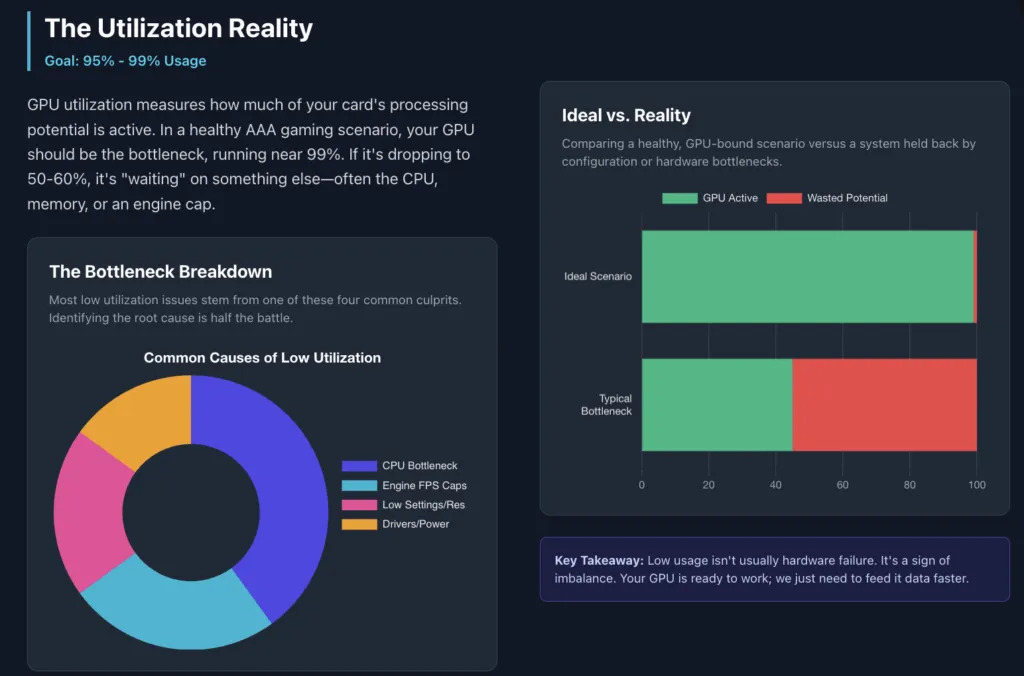
Before we start flipping switches in Windows, it is vital to understand what we are looking at. GPU utilization is a metric that tells you how much of your graphics card’s processing potential is actively being used at any given second.
In an ideal gaming scenario, specifically for AAA titles, you want this number to be between 95 and 99 percent. This indicates that your GPU is the limiting factor, which is exactly what you want. The GPU should be the component working the hardest to pump out pretty visuals.
If that number drops to 50 or 60 percent during intense gameplay, it means your GPU is waiting. It has finished drawing the frame, but it is sitting idle waiting for instructions from the CPU or waiting on data from the system memory.
My Real-World Testing Experience
Embarking on my journey to boost GPU utilization, I set up a dedicated testing environment. My hardware included a high-end NVIDIA GPU, a powerful CPU, ample RAM, and SSD storage. I used a combination of benchmarking tools, GPU monitoring software, and the cuda occupancy calculator spreadsheet to analyze performance.
Initially, I noticed surprisingly low GPU utilization during some demanding tasks, sometimes hovering below 50%. This was perplexing because my GPU was more than capable of handling the workload. After digging deeper, I realized the bottleneck was often caused by high CPU load, inefficient data loading, or suboptimal application settings.
Through trial and error, I learned the importance of thorough testing. For example, I experimented with different batch sizes in AI training, adjusted data pipeline configurations, and monitored how system changes affected GPU usage. These lessons underscored that achieving high GPU utilization requires a holistic approach, sometimes it’s not just about the GPU but the entire system.
The Top Reasons Your GPU Utilization Is Low
There are generally four main culprits when it comes to low usage. Identifying which one fits your situation will save you a lot of time.
1. The CPU Bottleneck
This is the most common cause. If your CPU cannot calculate the game logic and physics fast enough to tell the GPU what to render next, the GPU sits idle. This creates a ceiling on your performance.
2. Engine Limitations and Caps
If you are playing a game capped at 60 FPS or 144 FPS and your card is powerful enough to hit that target easily, utilization will drop. The card does not need to run at full speed to hit the cap, so it downclocks.
3. Poor Optimization
Sometimes the software is just bad. Early access titles or unoptimized ports often fail to utilize multi-core CPUs effectively, which throttles data flow to the GPU.
4. Driver and Power Settings
Windows and GPU drivers sometimes try to be too smart for their own good, prioritizing power saving over raw performance.
Step-by-Step: How to Increase GPU Utilization
I have ordered these steps from the easiest to the most technical. I recommend following them in order.
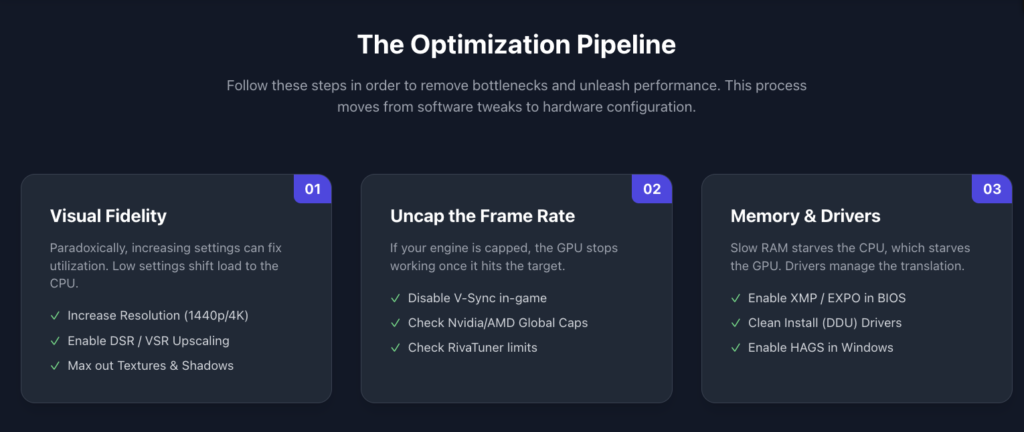
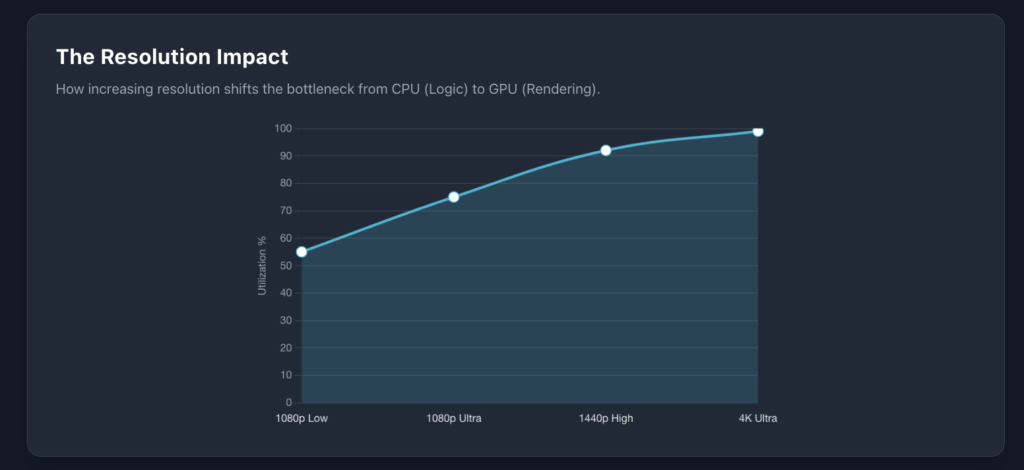
1. Crank Up Your Graphics Settings and Resolution
This sounds counterintuitive to many people. Usually, when we want better performance, we lower settings. However, if your goal is to increase utilization, you often need to do the opposite.
If you are running a high-end card like an RTX 4080 or an RX 7900 XTX on a 1080p monitor, your GPU is bored. It renders the frame so fast that the CPU cannot keep up.
The Fix:
- Increase Resolution: If you have a 1440p or 4K screen, ensure the game is actually running at native resolution.
- Use DSR or VSR: If you are on a 1080p screen, use Nvidia DSR (Dynamic Super Resolution) or AMD VSR (Virtual Super Resolution) to render the game at 1440p or 4K and downscale it. This forces the GPU to work harder, often resulting in a sharper image without losing much frame rate because the GPU had headroom anyway.
- Max Out Textures and Shadows: These are GPU-heavy tasks. Turning them up shifts the load from the processor to the graphics card.
2. Remove Frame Rate Caps and V-Sync
I cannot tell you how many times I have troubleshot a “broken” GPU only to find that the user had a global frame rate cap enabled.
Check these three places:
- In-Game Menus: Turn off V-Sync and set the FPS limit to “Unlimited.”
- Nvidia Control Panel / AMD Adrenalin: Check the global 3D settings to ensure “Max Frame Rate” is off.
- Third-Party Tools: RivaTuner Statistics Server (often installed with MSI Afterburner) can set global FPS caps. Check there as well.
3. Check Your RAM Speed (XMP and EXPO)
This is a classic builder mistake. You buy fast 6000MHz RAM, install it, and forget to enable the profile in the BIOS. By default, DDR4 and DDR5 RAM will run at a sluggish JEDEC standard speed (like 2133MHz or 4800MHz).
Slow RAM forces your CPU to wait for data. When the CPU waits, the GPU waits.
How to fix it: Restart your PC and enter the BIOS (usually by pressing Del or F2). Look for a setting called XMP (for Intel) or EXPO / DOCP (for AMD). Enable Profile 1. This simple change can sometimes increase GPU utilization by 10 to 15 percent in open-world games.
4. Perform a Clean Driver Install with DDU
Overwriting old drivers with new ones repeatedly can eventually cause conflicts. If you are seeing utilization drops or stuttering, you need a clean slate.
I swear by a tool called Display Driver Uninstaller (DDU). It completely wipes every trace of your video drivers from the registry.
The Process:
- Download the latest driver for your card but do not install it yet.
- Disconnect your internet (to stop Windows Update from interfering).
- Run DDU in Safe Mode and select “Clean and Restart.”
- Install the fresh driver you downloaded.
5. Force “Prefer Maximum Performance”
Modern GPUs are aggressive about saving power. Sometimes they downclock too aggressively in between frames, causing utilization to report lower numbers. You can tell the card to ignore power savings.
For Nvidia Users:
- Right-click your desktop and open Nvidia Control Panel.
- Go to Manage 3D Settings.
- Find Power Management Mode.
- Set it to Prefer Maximum Performance.
For Windows Power Plans:
- Type “Edit Power Plan” in the Windows search bar.
- Go to Power Options.
- Select High Performance or Ultimate Performance.
6. Enable Hardware-Accelerated GPU Scheduling (HAGS)
This is a feature in Windows 10 and 11 that allows the GPU to manage its own video memory directly, bypassing the operating system’s management. This can reduce latency and improve utilization in CPU-limited scenarios.
- Search for Graphics Settings in Windows.
- Click “Change default graphics settings.”
- Toggle Hardware-accelerated GPU scheduling to On.
- Reboot your PC.
7. Address the CPU Bottleneck
If you have done everything above and your GPU usage is still hovering at 60 percent while your CPU usage is high, you have a hardware bottleneck.
This does not always mean you need a new processor. You can mitigate this by:
- Closing Background Apps: Web browsers, RGB software (like iCUE or Armoury Crate), and animated wallpapers (Wallpaper Engine) eat up CPU cycles. Close them.
- Overclocking: If you have an unlocked processor and thermal headroom, a mild overclock can help feed the GPU faster.
- Upgrading: If you are pairing a modern RTX 4070 with an i7 from six years ago, no amount of software tweaking will fix the utilization gap. It is time to upgrade the platform.
Troubleshooting Specific Scenarios
Not all low utilization is created equal. Here is how to handle specific use cases.
Competitive Shooters (Valorant, CS2, Overwatch)
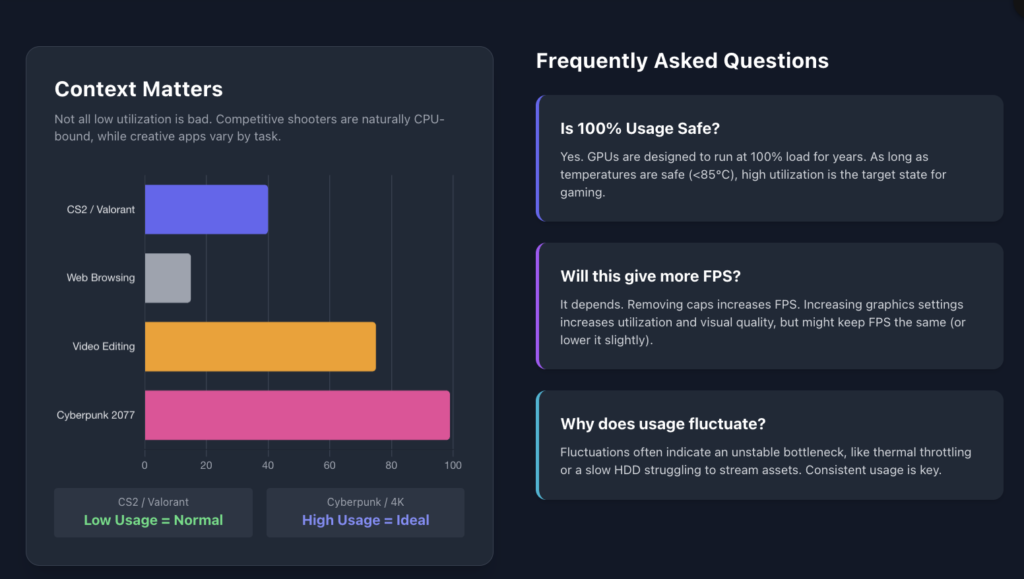
In these games, low GPU utilization is actually completely normal. These engines are designed to push hundreds of frames per second. At 1080p Low settings, the bottleneck will almost always be the CPU, even on the fastest processors in the world.
If you are getting 400 FPS in CS2 but only 40 percent GPU usage, do not panic. That is expected behavior. The only way to increase usage here is to increase the resolution scale, which will make the game look sharper but likely won’t increase your FPS.
Laptop Gaming
If you are gaming on a laptop and seeing low usage, ensure your laptop is plugged into the wall. Laptops throttle heavily on battery power. Additionally, check the Nvidia Control Panel to ensure the game is using the “High-performance NVIDIA processor” rather than the integrated Intel or AMD graphics.
Rendering and Creative Work
If you are in Premiere Pro, Blender, or DaVinci Resolve and utilization is low:
- Check the software preferences to ensure CUDA (Nvidia) or OpenCL/Metal (AMD) is selected as the renderer.
- Understand the workload. exporting a video is often CPU-heavy. However, applying effects like noise reduction or color grading should spike the GPU usage.
Frequently Asked Questions
Is 100% GPU usage safe?
Yes, absolutely. Graphics cards are designed to run at 100 percent load for years. As long as your temperatures are within a safe range (usually below 85C), running at full utilization is the ideal state for gaming.
Will increasing GPU utilization give me more FPS?
It depends. If you increase utilization by removing a frame cap or fixing a driver bug, yes, your FPS will go up. If you increase utilization by raising graphics settings (shifting load to the GPU), your FPS might stay the same or drop slightly, but the game will look much better.
Why does my GPU usage fluctuate wildly?
This usually indicates an unstable bottleneck. It could be thermal throttling (the card gets hot, slows down, usage drops, it cools down, usage goes up) or the CPU struggling to load new assets in an open-world game. Consistent usage is better than high peaks and low valleys.
Can a slow hard drive affect GPU usage?
Yes. In modern open-world games, textures stream in from the storage drive. If you are playing on an old mechanical HDD, the GPU might sit idle waiting for the drive to deliver the texture data. Always install modern AAA games on an SSD.
Final Thoughts
Achieving high GPU utilization is about balance. It is about ensuring that the processor, memory, and software are all getting out of the way so the graphics card can do what it does best.
If you have gone through this entire guide, updated your drivers, enabled XMP, and checked your power plans, and you are still seeing low usage, take a hard look at your CPU. In the world of PC hardware, every component relies on the other. Sometimes, letting the GPU run free requires giving the rest of the system a boost.