Skip to content
Yes, you can install Chrome OS on a mini PC — but with important distinctions depending on which version you use and what you expect from it. ChromeOS Flex is Google’s official, free, supported method for installing a version of Chrome OS on non-Chromebook hardware. It installs cleanly on any 64-bit Intel or AMD mini PC with at least 4GB of RAM and 16GB of storage, runs stably, and is easy to set up. The main limitation is that ChromeOS Flex does not include the Google Play Store or Android app support — it is a browser-and-Linux-based environment. If you want full Chrome OS with Android app support on a mini PC, that requires a more complex unofficial method using the Brunch framework, which comes with meaningful technical caveats — including strict processor generation limits. This guide covers both methods, exactly what each delivers, and what mini PC hardware to use.
What Is the Difference Between ChromeOS and ChromeOS Flex?
Before choosing an installation method, understanding the difference between these two products is essential, because many guides conflate them and the distinction directly determines which features your mini PC will and will not have.
| Feature | ChromeOS (Official Chromebooks) | ChromeOS Flex |
|---|---|---|
| Hardware | Google-certified Chromebook hardware only | Any 64-bit Intel/AMD x86-64 PC or Mac |
| Google Play Store | Yes (on most modern Chromebooks) | No |
| Android apps | Yes (via ARC++ container) | No |
| Linux (Crostini) | Yes | Yes |
| Chrome browser | Yes | Yes |
| Web apps (PWAs) | Yes | Yes |
| Automatic updates | Yes | Yes |
| Cost | Paid with Chromebook hardware | Free |
| Installation method | Pre-installed | USB installer |
| Primary target users | Consumers | Enterprise and education IT |
The fundamental reason ChromeOS Flex does not support Android apps is architectural: Android runs on ChromeOS inside a virtualization layer called ARC++ (App Runtime for Chrome), which requires specific hardware virtualization instruction sets and a verified hardware configuration. Because ChromeOS Flex runs on an enormous range of consumer and business hardware with unpredictable configurations, Google has not brought ARC++ to Flex, keeping Android app support exclusive to certified Chromebook hardware.
ChromeOS Flex is not a cut-down or inferior product — it is genuinely a different target audience. As Google’s ChromeOS Flex product page positions it, Flex is designed for IT administrators deploying it across existing PC and Mac fleets in enterprise and education environments. For individual users installing it on a personal mini PC, it is fully functional as a browser-first, Linux-capable operating system — it just does not have the Android app layer.
Method 1: ChromeOS Flex (Official, Recommended)
ChromeOS Flex is the right choice for the majority of mini PC users. It is free, officially supported by Google, receives regular automatic updates, and installs cleanly on any qualifying hardware.
Minimum Hardware Requirements
According to Google’s official ChromeOS Flex installation requirements:
- Architecture: Intel or AMD x86-64-bit processor (no 32-bit or ARM CPUs)
- RAM: 4GB minimum (8GB strongly recommended for comfortable everyday use)
- Storage: 16GB minimum internal storage (64GB+ recommended)
- USB: 8GB+ USB drive for the installer
- BIOS/UEFI: Full administrator access to BIOS/UEFI settings required
- Graphics: Components made before 2010 may produce a poor experience. Intel GMA 500, 600, 3600, and 3650 graphics are explicitly unsupported
The good news for mini PC buyers: Every modern mini PC meets these requirements comfortably. An Intel N100 mini PC with 16GB RAM and 256GB SSD is significantly above the minimum requirements. Even older mini PCs like the Intel NUC 6th-gen or AMD Ryzen 3xxx-based units run ChromeOS Flex without issues.
Certified vs. Non-Certified Devices
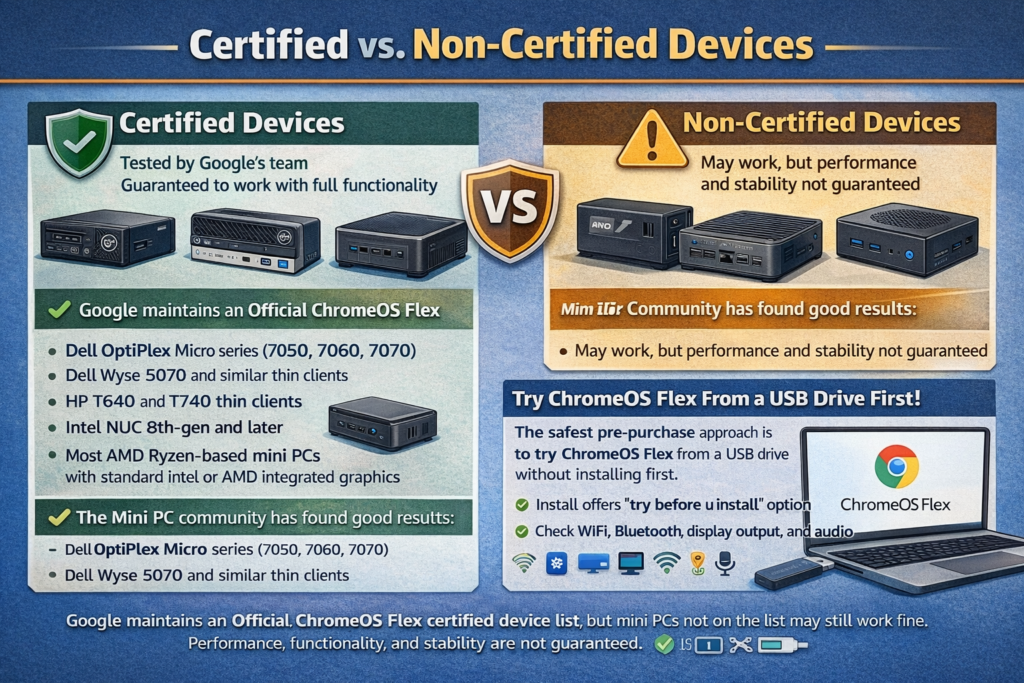
Google maintains an Official ChromeOS Flex certified device list. Certified devices have been tested by Google’s team and are guaranteed to work with full functionality. Non-certified devices (which includes most mini PCs not on the list) may still work fine, but performance, functionality, and stability are not guaranteed.
In practice, the mini PC community has found good results with:
- Dell OptiPlex Micro series (7050, 7060, 7070)
- Dell Wyse 5070 and similar thin clients
- HP T640 and T740 thin clients
- Intel NUC 8th-gen and later
- Most AMD Ryzen-based mini PCs with standard Intel or AMD integrated graphics
The safest pre-purchase approach is to try ChromeOS Flex from a USB drive without installing (the installer offers a “try before you install” option) and confirm that WiFi, Bluetooth, display output, and audio all work on your specific hardware before committing to a full installation.
Step-by-Step: Installing ChromeOS Flex on a Mini PC
What you need:
- Your mini PC
- A USB drive of 8GB or larger (its contents will be erased)
- A computer with Google Chrome installed to create the USB installer
- A monitor, keyboard, and mouse connected to the mini PC
Phase 1: Create the ChromeOS Flex USB Installer
Step 1: Install the Chromebook Recovery Utility
On any computer running Google Chrome:
- Open the Chrome Web Store and search for Chromebook Recovery Utility
- Click Add to Chrome and confirm by clicking Add extension
- Open the extension from your Chrome extensions menu
Step 2: Create the installer
- Click Get started in the Recovery Utility
- Click Select a model from a list
- Under Manufacturer, select Google ChromeOS Flex
- Under Product, select ChromeOS Flex — if you see it listed as ChromeOS Flex (Developer-Ready), select that option, as Google has updated the dropdown labeling in recent versions of the utility and both refer to the same installation image
- Click Continue
- Insert your USB drive and select it from the dropdown
- Click Create now
- The tool will download ChromeOS Flex and write it to the USB drive. This typically takes 10 to 30 minutes depending on your internet speed
⚠️ Important: The Chromebook Recovery Utility will completely erase everything on the USB drive. Back up any files on the drive before proceeding.
Phase 2: Boot the Mini PC from USB
Step 1: Access the BIOS/UEFI boot menu
Power off your mini PC completely. Insert the ChromeOS Flex USB drive. Power the mini PC on and immediately press the BIOS/boot menu key. The key varies by manufacturer:
| Mini PC Brand | Boot Menu Key |
|---|---|
| Intel NUC | F10 |
| Beelink, Kamrui, GMKtec | F7 or Del (check your manual) |
| ACEMAGIC | Del or F2 |
| Minisforum | F7 or F11 |
| Generic mini PCs | F8, F11, or F12 |
If you miss the window, power off and try again. The window is short (1 to 3 seconds after power-on).
Step 2: Select the USB drive as the boot device
In the boot menu, look for your USB drive listed by brand name or as a generic USB storage device. Select it and press Enter. The mini PC will boot from the USB drive.
Step 3: Wait for ChromeOS Flex to load
After a short loading screen, the ChromeOS Flex welcome screen will appear with the option to:
- Try ChromeOS Flex (runs from the USB without installing — recommended first step)
- Install ChromeOS Flex (installs to internal storage permanently)
Always choose Try ChromeOS Flex first to verify that WiFi, display output, sound, Bluetooth, and keyboard/mouse all function correctly before committing to installation.
Phase 3: Test Hardware Compatibility
While running ChromeOS Flex from the USB drive, check each of the following before installing:
- WiFi connects to your network successfully
- Display output works at your monitor’s native resolution
- Audio plays (YouTube or a web-based audio test)
- Bluetooth detects devices (if you plan to use Bluetooth peripherals)
- All USB ports function
- Keyboard and mouse input are responsive
If any of these fail, check the ChromeOS Flex certified device list for your specific model or search the ChromeOS Flex community forums for your hardware. Many compatibility issues on non-certified hardware have community workarounds.
Phase 4: Install ChromeOS Flex Permanently
Once you have confirmed hardware compatibility:
Step 1: Begin the installation
From the ChromeOS Flex try screen, click Install ChromeOS Flex (or find the option in the system tray). Click Next to confirm.
⚠️ Critical Warning: Installing ChromeOS Flex will permanently erase everything on your mini PC’s internal storage, including any existing Windows or Linux installation. There is no dual-boot option with the standard ChromeOS Flex installer. Back up all important data before proceeding.
Step 2: Confirm the installation
The installation process typically takes 10 to 20 minutes. Your mini PC will restart once or twice during the process.
Step 3: Complete initial setup
After installation:
- Select your language and keyboard layout
- Connect to your WiFi network
- Sign in with your Google account
- Complete the setup wizard
ChromeOS Flex will now boot directly from the internal storage on every subsequent startup.
Phase 5: Post-Installation Configuration
Enable Linux (Crostini) for expanded app support:
ChromeOS Flex supports a full Debian Linux environment through Crostini, which gives you access to Linux applications including VS Code, GIMP, LibreOffice, VLC, and hundreds of other desktop apps via the terminal.
To enable:
- Open Settings → Advanced → Developers
- Click Turn on next to Linux development environment
- Follow the setup wizard to allocate disk space and username
- A terminal window will open. Install apps using standard Debian package commands:
bashsudo apt update && sudo apt upgrade
sudo apt install [package-name]
Linux apps installed via Crostini appear in your ChromeOS app launcher alongside web apps.
Method 2: Full ChromeOS with Google Play Store (Brunch Framework)
If your use case specifically requires Android apps or Google Play Store access on a non-Chromebook PC, the Brunch framework is the most widely used community method to achieve this. This method is unofficial, unsupported by Google, technically complex, and requires significantly more setup work than ChromeOS Flex.
What the Brunch Method Does
The Brunch framework acts as a compatibility layer that allows an official ChromeOS recovery image (intended for a specific Chromebook model) to run on generic x86-64 hardware. Because it uses an official ChromeOS image rather than ChromeOS Flex, it includes the full feature set — including Google Play Store and Android app support.
Brunch Requirements and Realities
Processor compatibility — the most critical limitation:
Brunch has strict and narrow CPU support that disqualifies the majority of mini PCs sold in 2026. Brunch relies on official ChromeOS recovery images that were compiled for specific Intel hardware platforms. As a result:
- Intel 11th Gen (Tiger Lake) and older: The best-supported CPU range for Brunch. If you are running an Intel Core i3, i5, i7, or i9 from 10th or 11th generation, Brunch has the widest compatibility
- Intel 12th Gen (Alder Lake) and newer: Not supported. Alder Lake introduced a hybrid architecture (P-cores and E-cores) that the ChromeOS recovery images Brunch depends on were not built to handle. Users with 12th-gen or newer Intel processors — which includes Intel N100, N200, Core i-13xxx, and Core i-14xxx chips common in modern mini PCs — cannot use Brunch reliably
- AMD processors: Not supported without extreme, highly unstable workarounds. Brunch was built around Intel’s platform and AMD compatibility is not a functional path for general users
⚠️ What this means in practice: The vast majority of mini PCs sold in 2025 and 2026 — including virtually every Beelink, Kamrui, GMKtec, and Minisforum model with a modern Intel N-series or 12th/13th/14th-gen Intel Core CPU — cannot run Brunch. If you own one of these mini PCs and need Android apps, ChromeOS Flex + a Linux workaround or an alternative device is your realistic path, not Brunch.
Additional technical requirements:
- Comfort working in the Linux command line
- Ability to use Windows Subsystem for Linux (WSL) on Windows, or a native Linux environment
- Understanding that the result is unofficial, may break with ChromeOS updates, and has no Google support
What you get that ChromeOS Flex doesn’t have:
- Google Play Store access
- Android app support (with mixed compatibility depending on the app and hardware)
- The full ChromeOS feature set as found on Chromebooks
What you give up compared to ChromeOS Flex:
- Stability (Brunch installs can break on ChromeOS updates)
- Official support (Google does not support or acknowledge this method)
- Simplicity (significantly more complex setup process)
- Guaranteed update continuity
Brunch Installation Overview
The Brunch installation process requires:
- Downloading a ChromeOS recovery image for a compatible Chromebook model from the ChromeOS update server
- Downloading the Brunch framework from its GitHub repository
- Setting up a Linux environment (WSL on Windows or native Linux)
- Running the Brunch installation script with your USB drive as the target
- Booting from the USB and completing the ChromeOS setup
- Optionally migrating the installation to internal storage
This is not a beginner-level operation. The Brunch method is appropriate only for technically confident users running Intel 11th Gen or older hardware who specifically need Android apps on a mini PC and understand the trade-off between functionality and stability. For everyone else — and that means most mini PC owners in 2026 — ChromeOS Flex is the correct choice.
ChromeOS Flex on a Mini PC: What You Can and Cannot Do
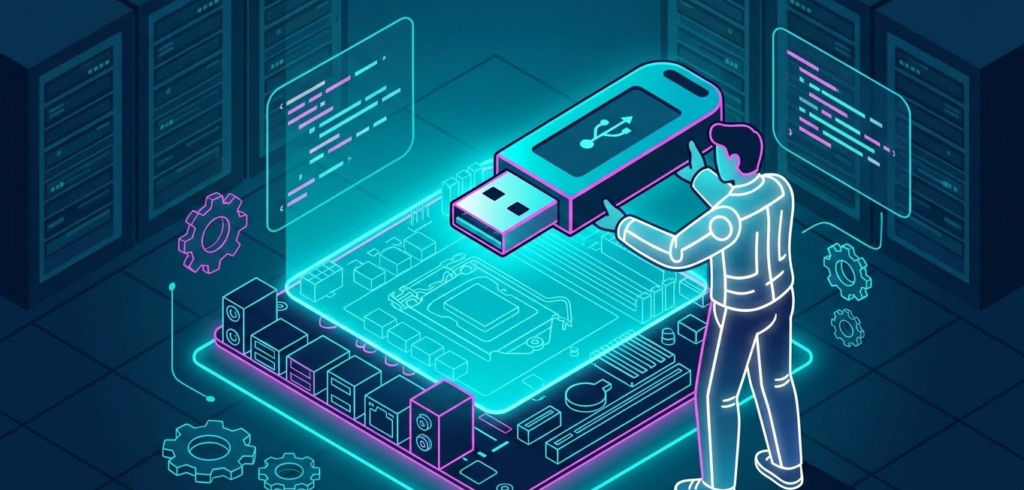
Understanding the realistic day-to-day capabilities of ChromeOS Flex on a mini PC helps set correct expectations before installation.
What Works Well
Web apps and browser-based tools:
Everything that runs in a Chrome browser works flawlessly. This includes Google Workspace (Docs, Sheets, Slides, Drive), Microsoft 365 web apps, Gmail, YouTube, Netflix, Spotify, Notion, Figma in browser, Canva, Slack, Discord web, Zoom web, and thousands of Progressive Web Apps (PWAs) that install to the app launcher.
Linux desktop applications:
With Crostini enabled, you have access to the full Debian Linux software ecosystem:
- Development: VS Code, Git, Python, Node.js, Docker (on supported hardware)
- Media: VLC, Audacity, Kdenlive
- Design: GIMP, Inkscape
- Office: LibreOffice
- Utilities: Any standard Linux CLI tool
Everyday productivity:
ChromeOS Flex is genuinely fast and responsive on modern mini PC hardware. The Intel N100 and Ryzen 5000-series mini PCs that are widely available in 2026 run ChromeOS Flex with noticeably snappier performance than they run Windows 11, because ChromeOS’s resource footprint is dramatically lighter than Windows. Boot time is typically under 10 seconds from power-on.
Security and maintenance:
ChromeOS Flex updates automatically in the background, requires no antivirus software, has verified boot that detects tampering, and is sandboxed by design. This makes it one of the most secure operating systems available for non-technical users who do not want to manage security themselves.
What Does Not Work
Android apps and Google Play Store: This is the biggest limitation. No Google Play Store, no sideloaded APKs, no Android gaming. Apps that exist only on Android and have no web equivalent are simply unavailable on ChromeOS Flex.
Windows software: .exe files do not run on ChromeOS Flex. There is no Wine layer built in. If your workflow depends on specific Windows applications that have no web or Linux equivalent, ChromeOS Flex is not the right choice for that use case.
Windows virtual machines: ChromeOS Flex does not support running Windows virtual machines.
High-end local gaming: ChromeOS Flex on a mini PC is not a gaming platform. Steam is not available on Flex, and the Linux gaming ecosystem through Crostini on mini PC hardware is limited. Web-based cloud gaming services (Xbox Game Pass cloud streaming, GeForce Now, Amazon Luna) all work fine through the browser.
Local video and audio production: Professional video editing workflows requiring DaVinci Resolve, Premiere, or Final Cut are not viable on ChromeOS Flex. GIMP and Kdenlive via Linux cover basic creative needs, but professionals with demanding production workloads should stay on Windows or Linux.
Which Mini PCs Work Best with ChromeOS Flex?
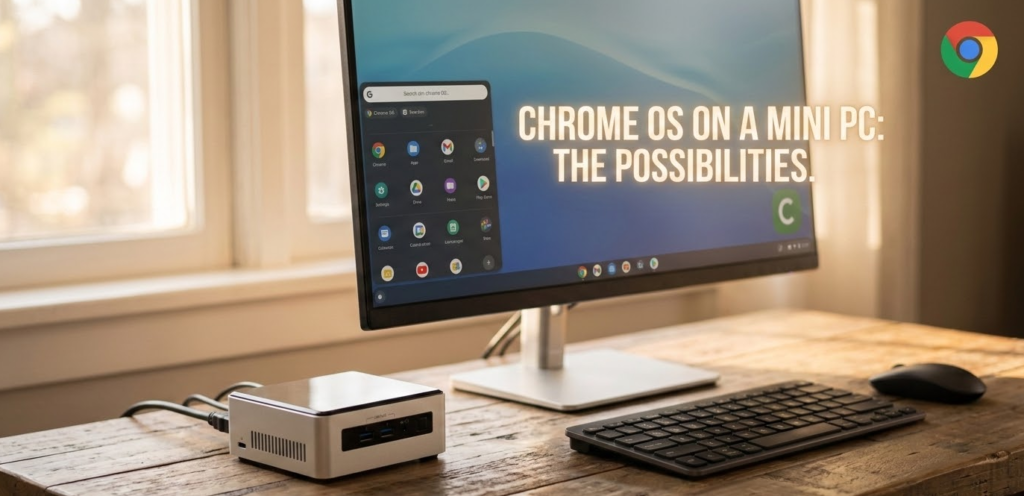
Based on community testing across r/ChromeOSFlex and r/MiniPCs, here are the hardware categories that work most reliably:
Best compatibility tier (consistently reported working):
- Intel NUC 8th through 12th generation
- Dell OptiPlex Micro series (7050, 7060, 7070, 7080)
- Dell Wyse 5070 thin client
- HP T640 and T740 thin clients
- Any mini PC with Intel integrated graphics (UHD 600 series and newer)
Good compatibility tier (works with occasional minor issues):
- Beelink EQ12 and SEi series (Intel 12th/13th gen)
- GMKtec NucBox series (Intel N100/N200)
- Kamrui GK3 Plus (Intel N95/N100)
- Minisforum UM series with AMD Ryzen integrated graphics
- ACEMAGIC mini PCs with Intel processors
Caution tier (hardware-specific issues possible):
- Very new or very old mini PCs not yet community-tested
- Mini PCs with discrete GPUs (the discrete GPU drivers may not be recognized)
- ARM-based mini PCs (ChromeOS Flex does not support ARM architecture at all)
Key hardware tips:
- Intel integrated graphics (Intel UHD) has the broadest driver support in ChromeOS Flex. AMD Radeon integrated graphics also works well on most modern mini PCs
- WiFi cards are the most common compatibility pain point. If your mini PC’s built-in WiFi does not work, a USB WiFi adapter using an Intel or Realtek chipset is a reliable fix
- NVMe SSDs work correctly for installation on all tested modern mini PCs
ChromeOS Flex vs. Windows vs. Linux on a Mini PC
If you are deciding whether ChromeOS Flex is the right OS for your mini PC rather than keeping Windows or switching to Linux, here is how they compare:
| Factor | ChromeOS Flex | Windows 11 | Linux (Ubuntu/Mint) |
|---|---|---|---|
| Resource usage | Very low | High | Low |
| Boot speed | Under 10 seconds | 15 to 40 seconds | 10 to 20 seconds |
| Android apps | No | No (natively) | No |
| Google Play Store | No | No | No |
| Windows software | No | Yes | Partial (Wine) |
| Linux apps | Yes (Crostini) | Partial (WSL) | Yes (native) |
| Security maintenance | Automatic | Manual | Manual |
| Virus/malware risk | Very low | High | Low |
| Technical skill needed | Very low | Low | Medium |
| Best for | Browser users, cloud workflows | Windows-dependent software | Developers, power users |
ChromeOS Flex makes the most sense when your workflow is primarily browser and web-app based, you want a low-maintenance system with minimal security overhead, or you want to repurpose an older mini PC that runs Windows poorly. It makes less sense when you depend on specific Windows or professional Linux software with no web equivalent.
Frequently Asked Questions
Can I install Chrome OS on any mini PC?
You can install ChromeOS Flex on any mini PC with a 64-bit Intel or AMD x86-64 processor, at least 4GB RAM, at least 16GB internal storage, and UEFI BIOS access. ARM-based mini PCs are not supported. Most mini PCs sold since 2015 meet these requirements. The experience on certified devices is guaranteed; non-certified mini PCs may work perfectly or may have driver issues with WiFi, audio, or display.
Is ChromeOS Flex the same as Chrome OS?
No. ChromeOS Flex is based on the same codebase as Chrome OS but is a distinct product designed for non-Chromebook hardware. The most significant functional difference is that ChromeOS Flex does not include Google Play Store or Android app support. Both include the Chrome browser and Linux (Crostini) support.
Can I get Google Play Store on ChromeOS Flex?
Not officially. Google has not brought Android app support to ChromeOS Flex. The unofficial Brunch framework method can install a full ChromeOS image with Play Store on a mini PC, but it only works on Intel 11th Gen and older processors — most modern mini PCs with 12th-gen or newer Intel chips, or AMD processors, are not compatible with Brunch.
Will installing ChromeOS Flex erase my existing Windows installation?
Yes. The ChromeOS Flex installer replaces the existing operating system entirely and formats the internal storage. There is no official dual-boot option with the standard installer. Back up all important files to an external drive before installing.
Can I try ChromeOS Flex before installing it permanently?
Yes. The ChromeOS Flex USB installer includes a “try before installing” mode that runs the OS entirely from the USB drive without touching your internal storage. This is strongly recommended before any permanent installation to verify hardware compatibility.
Does ChromeOS Flex support Linux apps?
Yes. ChromeOS Flex includes Crostini, which is a full Debian Linux environment accessible through the terminal. This gives you access to the entire Debian package ecosystem including VS Code, GIMP, LibreOffice, VLC, and command-line development tools. Enable it in Settings → Advanced → Developers → Linux development environment.
How do I update ChromeOS Flex after installation?
ChromeOS Flex updates automatically in the background, similar to a Chromebook. You can check for and apply updates manually by going to Settings → About ChromeOS → Check for updates. Updates download and install without interrupting your current work and take effect after the next restart.
Does ChromeOS Flex work without an internet connection?
ChromeOS Flex requires a Google account and internet connection for initial setup. After setup, basic functions like Linux apps, locally stored files, and some web apps cached as PWAs can work offline. However, most ChromeOS Flex use cases are cloud-dependent, and the experience offline is significantly more limited than Windows or Linux.
Can I run ChromeOS Flex on a mini PC with only 4GB RAM?
Technically yes — 4GB meets the minimum requirement. In practice, the experience is acceptable for very light use (one or two browser tabs, basic web tasks) but noticeably limited if you open multiple tabs or enable Crostini. For comfortable everyday use, 8GB RAM is the practical minimum. All modern mini PCs sold with 8GB or more RAM are well-suited to ChromeOS Flex.
What is the boot key to access the BIOS on my mini PC?
It varies by manufacturer. The most common keys are F2, F7, F10, F11, F12, and Delete. Consult your mini PC’s manual or the manufacturer’s website for the exact key. Pressing it repeatedly immediately after powering on is the most reliable technique.
Is ChromeOS Flex free?
Yes. ChromeOS Flex is completely free to download and install. There is no license fee for personal or enterprise use. Google’s revenue from Flex comes from Google account ecosystem usage (Workspace, Google services) rather than OS licensing.
How long will ChromeOS Flex receive updates and security support?
ChromeOS Flex follows a support lifecycle based on hardware platform rather than a single end-of-life date. Certified devices receive a defined support window (typically several years from certification). Non-certified devices receive updates as long as the underlying hardware platform is supported. Unlike Windows 10’s forced upgrade cliff, ChromeOS Flex’s lightweight architecture means it continues to run well on older hardware throughout its support window.
Bottom Line
Yes, you can install Chrome OS on a mini PC, and for many use cases it is a genuinely excellent choice. ChromeOS Flex is the right method for the vast majority of users: it is free, officially supported, automatically updated, dramatically faster and lighter than Windows on the same hardware, and installs cleanly on any modern mini PC in under 30 minutes. The main thing to go in knowing is that ChromeOS Flex does not include Google Play Store or Android apps — if your use case is browser-based, web app-based, or Linux-based, that limitation will likely not affect you at all. If you specifically need Android app support, the Brunch framework is the community path forward, but it only works on Intel 11th Gen and older hardware — ruling out the majority of mini PCs sold today. For a complete visual walkthrough of the ChromeOS Flex installation from start to finish including the USB creation, BIOS boot process, and OS tour, This step-by-step ChromeOS Flex installation guide on YouTube covers the full process clearly on real hardware.