Skip to content
Yes, mini PCs can overheat, but whether yours will depends on several factors including the model, cooling design, workload intensity, and environmental conditions. The compact nature of mini PCs inherently creates thermal challenges that full-sized desktops simply do not face. However, modern mini PCs in 2025 have come a long way in addressing these issues with improved cooling solutions, smarter thermal management software, and more efficient processors. In this guide, I will break down why mini PCs overheat, why they get loud, how they compare to desktop computers for heat management, and most importantly, how you can overcome these challenges.
Having tested numerous mini PCs over the years, I can tell you that overheating is a real concern but not an inevitable one. Understanding the root causes and knowing the right preventive measures can help you enjoy the compact convenience of a mini PC without sacrificing performance or longevity.
Why Does My Mini PC Overheat?
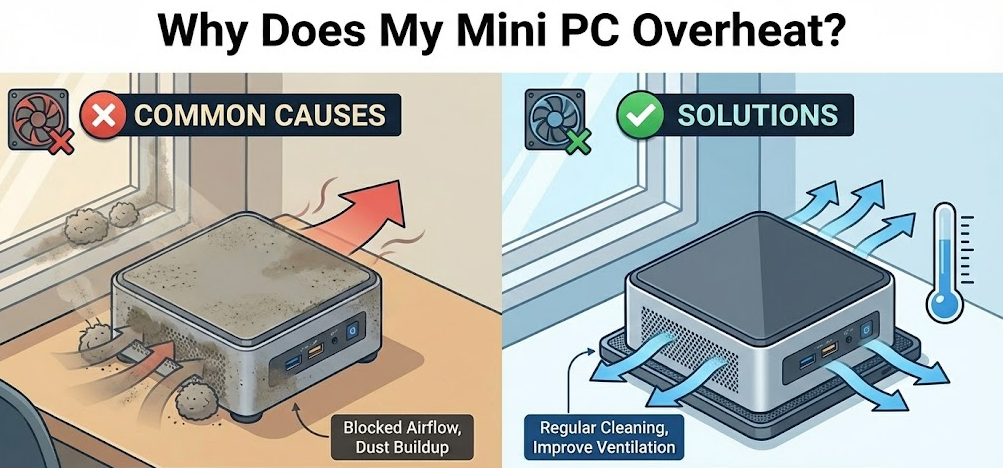
Mini PCs overheat for several interconnected reasons, all stemming from their compact form factor. Unlike traditional desktop towers with ample room for large heatsinks, multiple fans, and natural airflow, mini PCs must pack powerful components into a chassis that is often smaller than a lunchbox.
Limited Space for Airflow
The most significant factor is restricted internal space. Mini PCs have tightly packed components with minimal room for air to circulate. This compact design can obstruct airflow paths and reduce the efficiency of cooling systems. Heat accumulates quickly when there is nowhere for it to go, and the small fans inside many mini PCs simply cannot move enough air to compensate.
High-Performance Components Generating Heat
Modern mini PCs are equipped with powerful processors, integrated graphics, and in some cases dedicated GPUs that generate substantial heat during operation. Components like the AMD Ryzen 9 HX 370 or Intel Core i9-14900HX are designed for high performance, but that performance comes at the cost of increased thermal output. When running intensive applications, games, or sustained workloads, internal temperatures can spike rapidly.
Dust Accumulation
Dust is a silent killer for mini PCs. Because of their small vents and compact fans, dust particles can quickly clog the cooling system. Over time, this reduces the fan’s ability to dissipate heat effectively, leading to thermal throttling where the CPU and GPU reduce their clock speeds to prevent damage. Regular cleaning is essential but often overlooked.
Poor Thermal Paste Application
In some cases, especially with budget mini PCs, the factory-applied thermal paste may be excessive or of low quality. Excess thermal paste can actually insulate heat rather than transfer it, leading to higher temperatures. Replacing stock thermal paste with a high-quality thermal compound can make a noticeable difference.
Why Does My Mini PC Get So Loud?
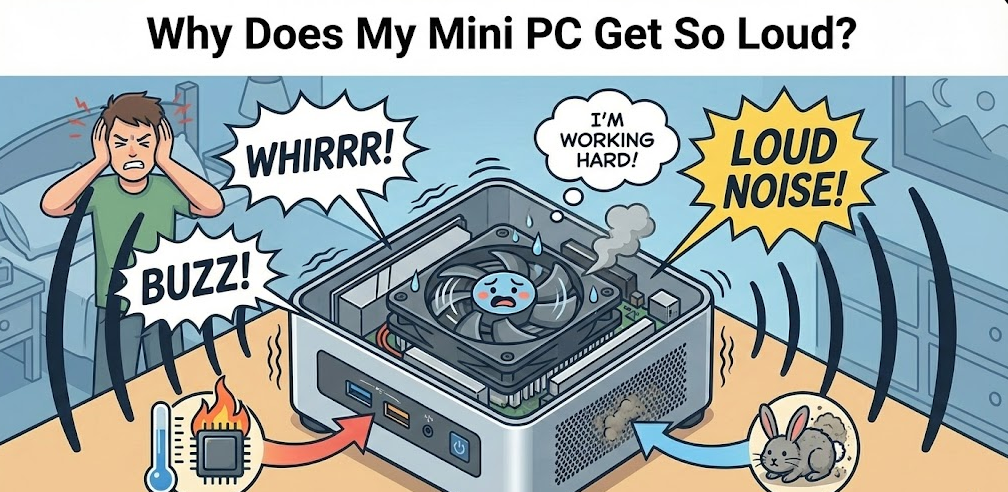
The noise from your mini PC is almost always tied to its cooling system working overtime. When internal temperatures rise, the fans spin faster to compensate, and in a small chassis, even a single fan running at high RPM can produce significant noise.
Small Fans Spinning at High Speeds
Mini PCs typically use small diameter fans, usually between 40mm and 60mm. Smaller fans need to spin faster to move the same volume of air as larger fans, and higher RPMs mean more noise. During demanding tasks like gaming, video rendering, or running multiple applications, expect fan noise to increase noticeably.
Thermal Throttling Cycles
When a mini PC approaches its thermal limit, it may throttle performance to cool down, then ramp back up once temperatures drop. This cycle can cause the fan to constantly speed up and slow down, creating an inconsistent and often annoying noise pattern.
Fanless Models: A Quiet Alternative
If noise is a major concern, consider a fanless (passive) mini PC. These models use large aluminum heatsinks and chassis designs that dissipate heat without any moving parts. They are completely silent but are typically limited to lower-power processors and are not suitable for demanding workloads or gaming.
Mini PC vs Desktop Computer: Heat Management Comparison
Understanding how mini PCs stack up against traditional desktops for thermal management can help you set realistic expectations.
| Factor | Mini PC | Desktop Computer |
|---|---|---|
| Internal Space | Very limited; components tightly packed | Spacious; room for large heatsinks and multiple fans |
| Airflow | Restricted; relies on small vents and compact fans | Excellent; supports front, rear, top, and side fans |
| Cooling Options | Small heatsinks, single fans, or passive cooling | Tower coolers, AIO liquid coolers, custom loops |
| Fan Size | 40mm–60mm; louder at high RPM | 120mm–140mm; quieter at equivalent airflow |
| Thermal Headroom | Limited; throttling common under sustained load | High; can sustain boost clocks longer |
| Dust Management | Harder to clean; clogs quickly | Dust filters available; easier maintenance |
| Ambient Temperature Sensitivity | High; struggles in warm environments | Moderate; better equipped to handle heat |
Desktop computers have a clear advantage in heat management due to sheer size and cooling flexibility. A mid-tower desktop can accommodate a 240mm AIO liquid cooler or a massive tower air cooler, while a mini PC is limited to whatever fits in its palm-sized chassis.
Weak Points of Mini PC Thermal Design
Ventilation Design
Many mini PCs have vents only on the bottom or sides, which can be easily blocked by placing the device on a soft surface or against a wall. Poor placement leads to restricted airflow and accelerated overheating.
Single Point of Failure
Most mini PCs rely on a single fan or a single heatsink for cooling. If that fan fails or becomes clogged, temperatures can spike rapidly with no backup cooling mechanism.
Thermal Paste Quality
Budget and mid-range mini PCs often ship with mediocre thermal paste that degrades over time, reducing heat transfer efficiency.
Limited Upgrade Paths
Unlike desktops where you can swap in a better CPU cooler, mini PCs rarely offer cooling upgrades. You are stuck with the stock cooling solution in most cases.
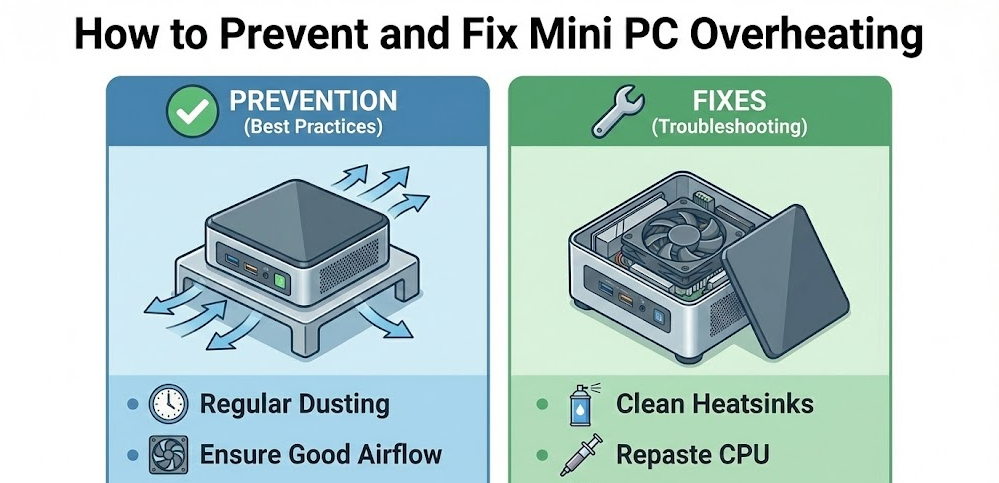
How to Prevent and Fix Mini PC Overheating
Optimize Placement and Environment
- Place your mini PC on a hard, flat surface to ensure vents are not blocked.
- Avoid enclosed cabinets or tight spaces with poor airflow.
- Keep the ambient room temperature cool, ideally below 25°C (77°F).
- Consider a vertical stand or VESA mount to improve airflow around the device.
Regular Cleaning and Maintenance
- Use compressed air to blow out dust from vents every 2–3 months.
- If comfortable opening the device, clean internal fans and heatsinks with isopropyl alcohol and a soft brush.
- Replace thermal paste every 2–3 years with a high-quality compound like Thermal Grizzly Kryonaut or Noctua NT-H1.
External Cooling Solutions
- Use a laptop cooling pad or external USB fan positioned to blow air toward the mini PC’s intake vents.
- Some users place small 80mm or 120mm USB fans near their mini PC for additional airflow.
Software and BIOS Optimization
- Update your BIOS and drivers regularly for improved thermal management.
- Use thermal management software (often included with your mini PC) to customize fan curves and temperature thresholds.
- Adjust power settings in Windows to “Balanced” rather than “High Performance” to reduce heat generation during idle or light tasks.
Advanced Techniques: Undervolting
Undervolting involves reducing the voltage supplied to the CPU and GPU, which lowers heat output without significantly impacting performance. Tools like Intel XTU (for Intel processors) or AMD Ryzen Controller can help you achieve a stable undervolt. This technique requires some technical knowledge but can reduce temperatures by 5–15°C.
Pro Tip: “If your mini PC runs hot under load, do not ignore it. Sustained high temperatures accelerate component degradation and can cut your device’s lifespan in half. A few simple maintenance steps and smart placement can make all the difference.”
Final Thoughts on Mini PC Heat Management
Mini PCs will always face inherent thermal challenges compared to full-sized desktops, but that does not mean overheating is unavoidable. By understanding the causes, maintaining your device regularly, optimizing software settings, and considering external cooling solutions, you can keep your mini PC running cool and quiet for years to come. If you frequently push your system with demanding workloads, investing in a model with robust cooling design or even a fanless passive solution for lighter tasks may be worth the extra cost.