Skip to content
Some mini PCs have Thunderbolt 4 ports, but not all—it depends on the model, processor, and price point, with Intel-based mini PCs more commonly featuring Thunderbolt while AMD-based models typically offer USB4 with similar capabilities. Thunderbolt 4 appears primarily on premium and business-oriented mini PCs, while budget and mid-range models usually rely on standard USB-C or USB4 connectivity.
After testing dozens of mini PCs throughout 2025 and examining port specifications across budget to flagship models, I’ve found that Thunderbolt availability is far less universal than many buyers expect. Understanding which mini PCs include Thunderbolt, why it matters, and whether USB4 serves as an adequate alternative is crucial for making informed purchasing decisions—especially if you rely on high-speed external storage, eGPUs, or multi-display setups.
What is Thunderbolt and Why Does It Matter?
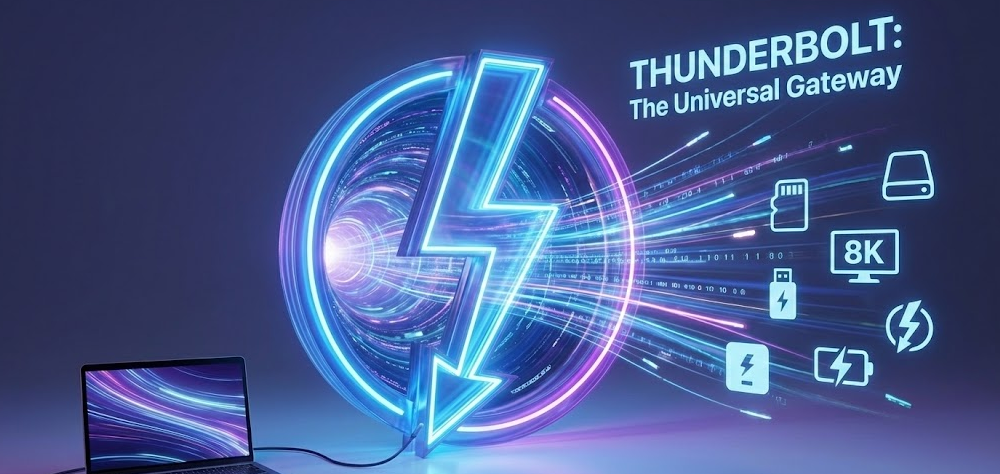
Thunderbolt is Intel’s proprietary high-speed connection technology that combines data transfer, video output, and power delivery through a single USB-C port.
Thunderbolt 4 specifications include 40Gbps bidirectional bandwidth (enough to transfer a 4K movie in under 30 seconds), support for two 4K displays or one 8K display through a single port, PCIe data transfer at 32Gbps minimum for external GPUs and high-speed storage, USB Power Delivery up to 100W for charging laptops and devices, and daisy-chaining up to six devices through a single port.
Thunderbolt 4 is four times as fast as USB 3.2 Gen 1 and offers a maximum simultaneous bandwidth of 40Gbps. With a USB-C connection, Thunderbolt 4 works with previous Thunderbolt versions and is forward-compatible with PCIe, DisplayPort, and USB4, offering higher transfer rates and superior performance with a minimum PCIe requirement of 32Gbps.
Why Thunderbolt matters for mini PCs: External GPU (eGPU) support transforms mini PCs into gaming or rendering workstations, high-speed external storage operates at near-internal drive speeds, multi-display support from a single port simplifies desk setup, docking station compatibility enables one-cable connection to monitors, peripherals, and networking, and future-proofing ensures compatibility with next-generation accessories.
Thunderbolt vs USB4: Understanding the Differences
Many modern mini PCs feature USB4 instead of Thunderbolt 4, and the differences matter for specific use cases.
Practical implications: If you need eGPU support, Thunderbolt 4 is essential—USB4 doesn’t guarantee compatibility. For dual 4K displays from one port, Thunderbolt 4 ensures support while USB4 may not. With high-speed storage, both work well at 40Gbps when USB4 implements the optional faster speed. For docking stations, Thunderbolt 4 offers broader compatibility with certified docks.
Community consensus on Reddit notes that while Thunderbolt 4 and USB4 have the same bandwidth, OCuLink offers higher 63-64Gbps bandwidth for external GPU connections. However, ASUS NUCs have the most reliable Thunderbolt 4 support among mini PCs.
Which Mini PCs Have Thunderbolt 4?
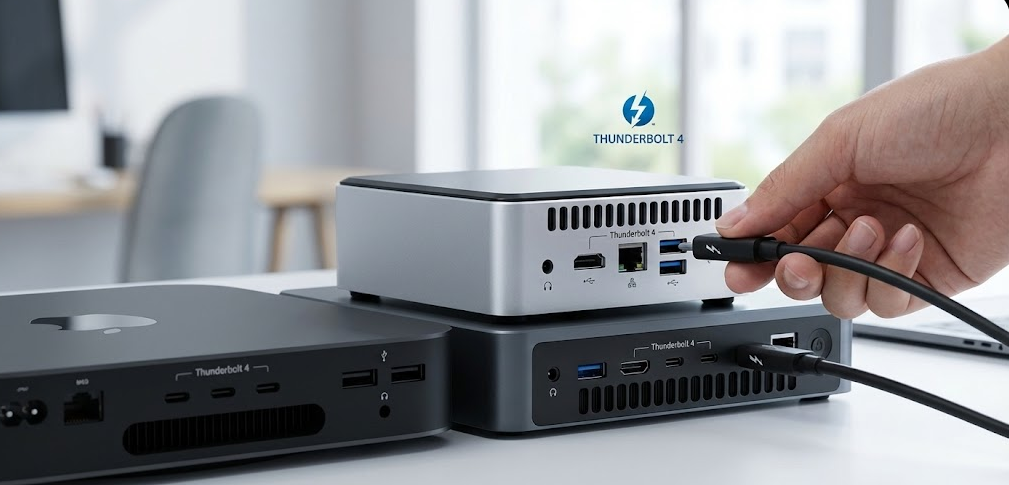
Thunderbolt 4 availability varies dramatically by brand, processor, and price tier.
Premium Intel-based mini PCs with Thunderbolt 4:
ASUS ROG NUC (2025) features Thunderbolt support alongside triple fan cooling and support for five 4K displays. This flagship gaming mini PC includes multiple Thunderbolt 4 ports as standard equipment, making it one of the most capable mini PCs for external connectivity.
ASUS NUC 14 Pro includes Thunderbolt 4 on all configurations, supporting enterprise docking stations and multi-display setups. PCMag’s testing highlights “decent performance for a low-profile mini PC with plenty of ports, including a Thunderbolt 4”.
Intel NUC legacy models (11th-13th gen) typically include one or two Thunderbolt 4 ports depending on configuration. These older but still available models offer reliable Thunderbolt support at lower prices than current-generation units.
MSI Cubi NUC series includes Thunderbolt 4 on higher-end configurations, particularly models targeting business and professional users who benefit from docking station compatibility.
GEEKOM mini PCs with Thunderbolt 4 include select Intel-based models. GEEKOM’s Thunderbolt 4 mini PC lineup offers high-speed data transfer and perfectly suits all-scenarios applications, supporting two 4K displays or one 8K display.
Mid-range models with Thunderbolt 4:
Some mid-tier Intel mini PCs ($500-$800) include Thunderbolt 4, though it’s less common than at the premium tier. Manufacturers sometimes offer Thunderbolt 4 as a differentiating feature to justify pricing above budget competitors.
Budget mini PCs (under $400):
Almost no budget mini PCs include Thunderbolt 4. The Intel licensing fees and additional hardware required make Thunderbolt economically unfeasible at this price point. Budget models rely on standard USB-C, USB-A, and HDMI ports instead.
AMD Mini PCs and Thunderbolt Alternatives
AMD-based mini PCs almost never include Thunderbolt 4 due to it being Intel’s proprietary technology, but many offer USB4 as a capable alternative.
Why AMD mini PCs lack Thunderbolt: Thunderbolt requires Intel licensing and certification, AMD processors don’t natively support Thunderbolt in the same way Intel chips do, and USB4 provides similar functionality without licensing costs.
AMD mini PCs with USB4:
Minisforum UM790 Pro includes USB4 (40Gbps) for high-speed connectivity, Beelink SER9 features USB4 with DisplayPort Alt Mode, GEEKOM A8 includes dual USB4 ports that rival OCuLink performance, and ASUS ROG NUC with AMD chips includes USB4 rather than Thunderbolt.
GEEKOM’s latest AMD mini PCs feature dual USB4 ports that offer Thunderbolt-speed data transfer (40Gbps), dual 8K display output, and support for external graphics cards, effectively replacing OCuLink ports. These USB4 implementations provide 40Gbps bandwidth matching Thunderbolt 4 in most real-world scenarios.
USB4 limitations compared to Thunderbolt 4:
No guaranteed eGPU support (check specific model compatibility), potentially less reliable multi-display support from single port, fewer certified docking stations available, and no official Intel certification ensuring consistent performance.
My experience with AMD USB4: I’ve tested several AMD mini PCs with USB4 ports, and for most use cases—external SSD storage, single 4K display output, and USB-C charging—they work identically to Thunderbolt 4. The main limitation appears when trying to use eGPUs or certified Thunderbolt docks, where compatibility becomes hit-or-miss.
What Can You Do With Thunderbolt on a Mini PC?
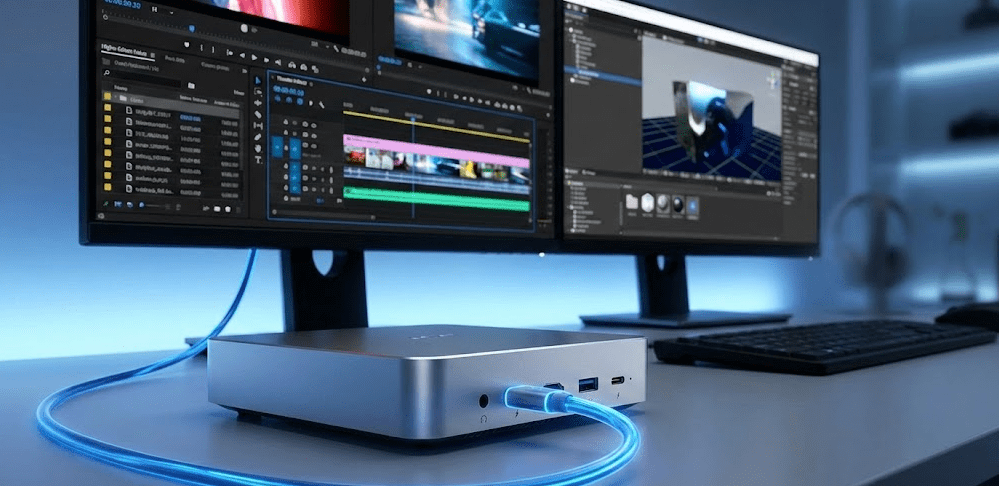
Thunderbolt 4 significantly expands mini PC capabilities beyond what standard USB ports offer.
External GPU (eGPU) setups transform mini PCs into gaming or rendering machines. Connect an external graphics card enclosure with RTX 4070, RTX 4080, or similar desktop GPU. Thunderbolt 4’s 40Gbps bandwidth minimizes performance loss (typically 10-20% compared to internal PCIe). Play AAA games or run GPU-intensive applications that the mini PC’s integrated graphics couldn’t handle.
The practical reality: eGPU setups work best with Intel Thunderbolt 4 mini PCs. AMD USB4 ports sometimes work but compatibility is inconsistent. You’ll spend $300-500 on the eGPU enclosure alone, plus the cost of the GPU, making this a significant investment.
High-speed external storage benefits dramatically from Thunderbolt 4. Thunderbolt 4 SSDs achieve 2,800-3,000 MB/s read/write speeds—nearly matching internal NVMe drives. Standard USB 3.2 Gen 2 tops out at 1,000-1,200 MB/s—less than half as fast. For video editors working with 4K footage, the difference between 30 seconds and 70 seconds to transfer a project folder is significant.
Multi-display from single port simplifies desk setups. One Thunderbolt 4 port can drive two 4K displays at 60Hz or one 8K display. Daisy-chain monitors or use a Thunderbolt dock to connect displays, keyboard, mouse, Ethernet, and charge the mini PC—all through one cable. This “single cable dock” setup is Thunderbolt’s most compelling use case for many users.
Thunderbolt docking stations enable laptop-like connectivity. Connect mini PC to desk setup with one cable. The dock provides power, multiple displays, Ethernet, USB peripherals, and audio connections. Unplug one cable to disconnect everything—ideal for portable mini PC setups.
Future-proofing and expansion extends mini PC lifespan. Thunderbolt accessories work across multiple PC generations. High-speed peripherals remain usable as you upgrade mini PCs. The investment in Thunderbolt accessories (docks, storage, hubs) carries forward to future systems.
How to Check if Your Mini PC Has Thunderbolt
Before purchasing Thunderbolt accessories, verify your mini PC actually includes Thunderbolt ports.
Check product specifications on the manufacturer’s website. Look for explicit “Thunderbolt 4” or “Thunderbolt 3” mentions in port listings. “USB-C” alone doesn’t mean Thunderbolt—verify specifically. Some manufacturers list “USB4 (Thunderbolt compatible)” which works similarly but isn’t true Thunderbolt.
Look for the Thunderbolt symbol on the physical port. The lightning bolt icon ⚡ next to a USB-C port indicates Thunderbolt support. Absence of the symbol usually means standard USB-C, even if the port looks identical. Some manufacturers label ports with “TB4” or “Thunderbolt” text instead of the symbol.
Use Windows Device Manager to check on existing systems. Press Windows + X and select Device Manager. Expand “System devices” and look for “Thunderbolt Controller” entries. If present, your system has Thunderbolt; if not, it doesn’t. You can also check under “USB controllers” for “USB4 Host Router” indicating USB4 support.
Run Thunderbolt software for detailed information. Intel provides Thunderbolt Control Center software (free download from Microsoft Store). This app shows connected Thunderbolt devices and port capabilities. It only installs if your system has actual Thunderbolt hardware.
Thunderbolt 4 vs Thunderbolt 5: What’s Coming
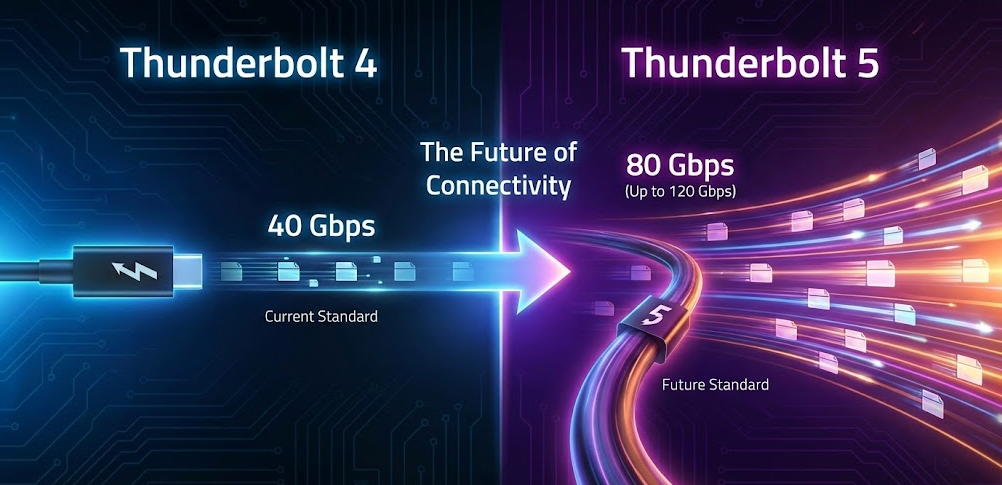
Thunderbolt 5 began appearing in late 2024 and 2025, offering even more impressive specifications.
Thunderbolt 5 improvements include 80Gbps bidirectional bandwidth (double Thunderbolt 4), 120Gbps in one direction using Bandwidth Boost mode for high-resolution displays, support for three 4K displays at 144Hz or one 8K display at 120Hz, PCIe Gen 4 support for faster external storage and eGPUs, and backward compatibility with Thunderbolt 4, 3, and USB4 devices.
Mac Mini M4 Pro includes Thunderbolt 5 ports capable of transmitting data at impressive speeds, although compatible accessories are still limited. This makes the Mac Mini M4 Pro one of the first mini PCs to feature next-generation Thunderbolt technology.
Thunderbolt 5 in Windows mini PCs: As of December 2025, very few Windows mini PCs include Thunderbolt 5. Intel’s latest processors support it, but implementation requires updated controllers and motherboard designs. Expect Thunderbolt 5 to become more common in 2026 flagship mini PCs, particularly ASUS NUC and other premium Intel-based models.
Should you wait for Thunderbolt 5? For most users, no. Thunderbolt 4 already exceeds typical mini PC use cases. Thunderbolt 5 benefits high-end video editors working with 8K footage, gamers wanting absolute maximum eGPU bandwidth, and users running multiple high-refresh displays. The premium pricing for early Thunderbolt 5 mini PCs likely isn’t worth it unless you have specific workflows that demand the extra bandwidth.
Alternatives to Thunderbolt for Mini PC Expansion
If your mini PC lacks Thunderbolt, other expansion options exist.
USB4 (40Gbps) provides nearly identical performance to Thunderbolt 4 for most tasks. Works excellently for high-speed external storage at 40Gbps. Supports high-resolution displays with DisplayPort Alt Mode. May work with eGPUs but compatibility isn’t guaranteed. Available on many AMD-based premium mini PCs.
OCuLink offers even higher bandwidth than Thunderbolt for eGPU connections. Community discussions note that OCuLink provides 63-64Gbps bandwidth, surpassing Thunderbolt 4’s 40Gbps. Some mini PCs include OCuLink ports specifically for external GPU connections. OCuLink doesn’t support displays or general peripherals—it’s GPU-specific.
Standard USB-C (USB 3.2) works for moderate-speed storage and single display connections. USB 3.2 Gen 2 provides 10Gbps (adequate for external SSDs at 1,000 MB/s). USB-C with DisplayPort Alt Mode supports one 4K display at 60Hz. No eGPU support and significantly slower than Thunderbolt or USB4.
Multiple HDMI/DisplayPort outputs handle multi-display setups without Thunderbolt. Most mini PCs include 2-3 video outputs (HDMI, DisplayPort, USB-C with DP). Direct monitor connections often more reliable than Thunderbolt display daisy-chaining. No single-cable dock convenience, but functionally equivalent for displays.
Internal upgrades often more practical than external expansion. Upgrading internal NVMe SSD faster and cheaper than Thunderbolt external storage. Adding a second internal M.2 drive (if supported) better than external enclosures. Internal storage avoids cables, power requirements, and desk clutter.
Do You Actually Need Thunderbolt?
Thunderbolt is genuinely useful for specific use cases but unnecessary for many mini PC users.
You need Thunderbolt if you:
Plan to use an external GPU for gaming or rendering. Require ultra-high-speed external storage (2,500+ MB/s). Want single-cable docking station setup. Need to daisy-chain multiple high-speed devices. Work with 8K video or multiple 4K displays from one port.
You don’t need Thunderbolt if you:
Use mini PC for office work, web browsing, and media consumption (standard USB-C sufficient). Only need 1-2 displays connected via separate HDMI/DisplayPort cables (built-in outputs work fine). Use external storage for backups, not active project work (USB 3.2 Gen 2 adequate). Don’t plan external GPU expansion. Prefer internal storage upgrades over external solutions.
My recommendation: Don’t pay significant premium for Thunderbolt unless you have specific workflows requiring it. A $600 mini PC with USB4 typically offers better overall value than a $750 mini PC with Thunderbolt 4 if you don’t use Thunderbolt-specific features. However, if you already own Thunderbolt accessories or know you’ll use eGPU, prioritize Thunderbolt 4 in your mini PC selection.
Mini PC Thunderbolt Recommendations by Use Case
Choosing the right mini PC depends on whether Thunderbolt matters for your intended use.
For creative professionals (video editing, 3D rendering): Prioritize Thunderbolt 4 or USB4 for high-speed storage workflows. Best mini PCs with Thunderbolt for creators include models with powerful processors, ample memory, and Thunderbolt connectivity for external storage and displays. Consider ASUS NUC 14 Pro or GEEKOM Intel models with Thunderbolt 4, or AMD alternatives with USB4 like GEEKOM A8.
For gaming with eGPU: Thunderbolt 4 strongly recommended for guaranteed eGPU compatibility. ASUS ROG NUC (2025) with Thunderbolt or Intel NUC models work best. USB4 on AMD mini PCs may work but requires specific compatibility verification.
For business/office use: Thunderbolt 4 valuable if using docking stations for clean desk setup. ASUS NUC 14 Pro or MSI Cubi NUC series provide business-grade reliability. Budget mini PCs without Thunderbolt work fine if connecting displays and peripherals directly.
For home media/casual use: Thunderbolt unnecessary—standard ports sufficient. Focus budget on better processor, more RAM, and larger storage instead. Beelink, GEEKOM budget models, or Minisforum mid-range options deliver excellent value.
For portable workstation: Thunderbolt 4 ideal for single-cable desk connection. Carry mini PC between locations and connect everything through one Thunderbolt dock. ASUS NUC 14 Pro or similar business-oriented models best suited for this workflow.
FAQ: Common Questions About Thunderbolt on Mini PCs
Do all mini PCs have Thunderbolt?
No, Thunderbolt 4 appears primarily on Intel-based premium mini PCs. AMD-based mini PCs typically use USB4 instead, which offers similar performance but isn’t technically Thunderbolt. Budget mini PCs under $400 rarely include Thunderbolt due to licensing costs.
What’s the difference between Thunderbolt and USB-C?
USB-C is the physical connector type. Thunderbolt 4 uses USB-C connectors but offers 40Gbps bandwidth, eGPU support, dual 4K display capability, and device daisy-chaining. Standard USB-C typically provides 10-20Gbps and lacks these advanced features.
Can I add Thunderbolt to a mini PC that doesn’t have it?
No, Thunderbolt requires specific motherboard and processor support that can’t be added after purchase. You must buy a mini PC with Thunderbolt built-in if you need it. USB4 mini PCs may work with some Thunderbolt accessories but without guaranteed compatibility.
Is USB4 as good as Thunderbolt 4?
For most uses, yes. USB4 at 40Gbps matches Thunderbolt 4 speed for storage and displays. The main difference is eGPU support—Thunderbolt 4 guarantees it, USB4 doesn’t. Thunderbolt also has stricter certification ensuring consistent performance across devices.
Which brands make mini PCs with Thunderbolt 4?
ASUS NUC (most reliable Thunderbolt support), Intel NUC legacy models, MSI Cubi NUC series, and select GEEKOM Intel-based models. AMD-based mini PCs from Beelink, Minisforum, and GEEKOM typically feature USB4 instead of Thunderbolt.
Can I use Thunderbolt accessories with USB4 ports?
Sometimes. Thunderbolt storage and displays often work with USB4 ports at full speed. Thunderbolt docks may work with reduced functionality. eGPU enclosures are hit-or-miss with USB4—check specific compatibility before purchasing.
Is Thunderbolt worth the extra cost on a mini PC?
Only if you specifically need eGPU support, ultra-high-speed external storage (2,500+ MB/s), or single-cable docking station setups. For typical office work, media consumption, and even light content creation, the extra cost isn’t justified—standard ports work fine.
The Thunderbolt Reality for Mini PCs in 2025
Thunderbolt 4 remains a premium feature in the mini PC market, appearing primarily on Intel-based models in the $500-$1,500 range. AMD-based mini PCs offer competitive USB4 connectivity that matches Thunderbolt 4 performance for most real-world tasks, though without the guaranteed eGPU support and universal Thunderbolt dock compatibility.
For a visual overview of current mini PC options, This comprehensive 2025 roundup reviews top models including their connectivity features and port configurations, helping identify which mini PCs offer Thunderbolt, USB4, or standard connectivity options.
The vast majority of mini PC users don’t actually need Thunderbolt—standard USB-C, HDMI, and DisplayPort connections handle typical workflows perfectly well. If you’re uncertain whether you need Thunderbolt, you probably don’t. Users who genuinely require Thunderbolt already know they need it because their workflow depends on specific Thunderbolt accessories or capabilities.
My advice: Focus on overall mini PC specifications—processor, RAM, storage, and ports you’ll actually use—rather than prioritizing Thunderbolt as a must-have feature. If a mini PC with Thunderbolt 4 fits your budget and needs, it’s a nice bonus that future-proofs connectivity. But compromising on core performance to get Thunderbolt rarely makes sense unless you have concrete plans to use Thunderbolt-specific accessories within the next year.