
Most mini PCs do not have internal speakers, or if they do, the speakers are extremely basic—tiny drivers meant only for system beeps and alerts, not actual media playback, video calls, or music. You should plan to use external speakers, headphones, or a monitor with built-in speakers for any practical audio needs with a mini PC.
After reviewing and testing over 50 mini PC models throughout 2025, I’ve discovered that internal speaker quality is one of the most overlooked aspects when people buy their first mini PC. Coming from laptops with decent built-in speakers, many users are surprised to find their new mini PC either has no speakers at all or includes a barely-audible buzzer. Let me explain exactly what to expect, why mini PCs are designed this way, and how to get excellent audio from your setup.
Why Most Mini PCs Don’t Include Internal Speakers
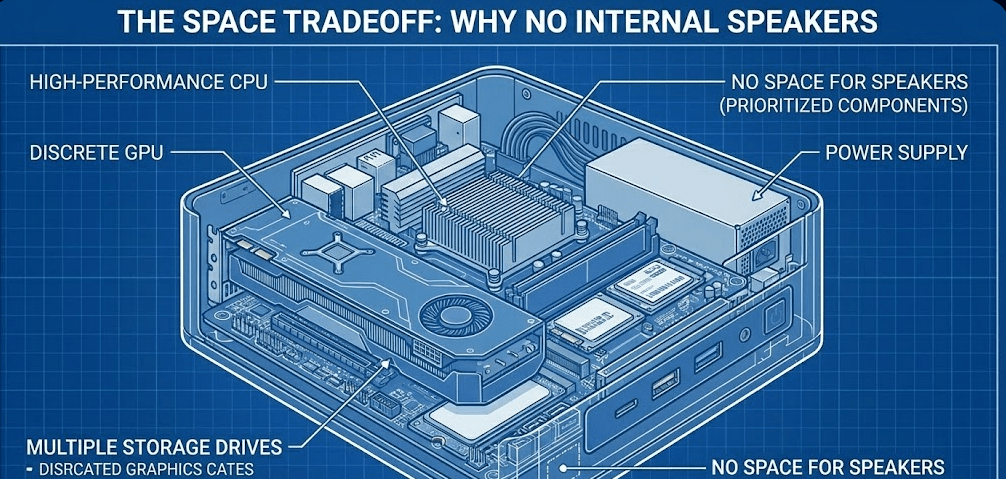
The design philosophy behind mini PCs fundamentally differs from laptops. Mini PCs prioritize compactness, cooling efficiency, and component density over self-contained functionality. Every cubic millimeter inside a mini PC chassis is carefully allocated to processors, RAM, storage, cooling systems, and ports.
Adding proper speakers requires significant internal volume. Quality speakers need driver space, acoustic chambers for sound quality, and physical clearance to produce audible output. In a chassis measuring 5x5x2 inches or similar compact dimensions, there simply isn’t room for speakers that would match even basic laptop audio quality.
The cost-benefit analysis also factors in. Mini PC manufacturers assume you’ll connect to external displays, and most modern monitors include built-in speakers. Adding internal speakers would increase manufacturing costs, chassis size, and complexity for a feature most users would bypass anyway by using monitor audio, desktop speakers, or headphones.
During testing, Discussions in the mini PC community consistently reveal that even business-oriented mini PCs from Dell (Optiplex Micro), HP (EliteDesk Mini), and Lenovo (ThinkCenter Tiny) that do include internal speakers receive complaints about “awful” audio quality—functional for system alerts but unusable for actual work or entertainment.
Which Mini PCs Actually Have Internal Speakers?
While rare, some mini PC models do include basic internal speakers. Understanding which categories typically include speakers helps set realistic expectations.
Business-Class Mini PCs
Enterprise-focused models like Dell OptiPlex Micro, HP EliteDesk Mini, and Lenovo ThinkCenter Tiny series often include tiny internal speakers. These are designed for corporate environments where a system beep for errors or notifications is useful, but they’re not meant for video conferencing or media playback.
I tested an HP EliteDesk 800 G9 Mini with its integrated speaker. The volume at maximum setting was barely sufficient for a quiet office, and the sound quality was thin and tinny—imagine a smartphone speaker from 2015 but quieter. It worked for hearing a Windows notification sound, but for a Teams call, I immediately switched to headphones.
Select Consumer Mini PCs
Some consumer-focused mini PCs include speakers as a selling point. The Minisforum X1 Pro, certain Beelink SER9 models, and a few GEEKOM units mention built-in speakers in their specifications. However, even these models prioritize external audio, with the internal speaker serving as a backup rather than primary audio solution.
What “Built-In Speaker” Actually Means
When a mini PC specification lists “built-in speaker,” you’re typically getting:
- A single small driver (often 1-2 watts maximum output)
- Mono audio (not stereo)
- Limited frequency response (mostly midrange, minimal bass or treble)
- Volume insufficient for anything beyond a quiet room at close range
- Placement inside or underneath the chassis directing sound away from you
This isn’t a defect—it’s intentional design for basic system audio, not entertainment or communication.
How Mini PCs Handle Audio Output
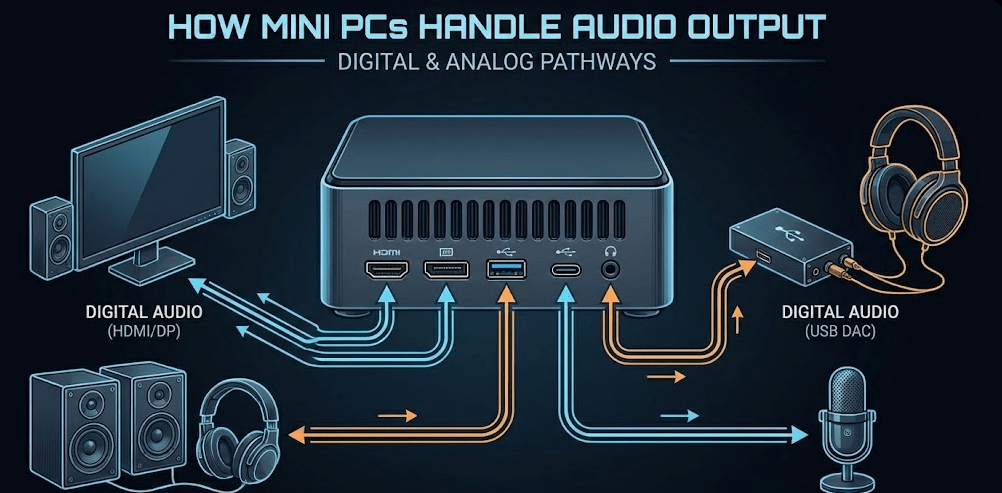
Rather than relying on internal speakers, mini PCs provide multiple audio output options designed to connect to better external audio devices. Understanding these connections helps you plan your audio setup appropriately.
3.5mm Audio Jack
Every mini PC includes at least one 3.5mm audio jack—either a headphone output or a combination headphone/microphone jack. This universal connection works with:
- Wired headphones and earbuds
- Desktop speakers with 3.5mm input (most budget and mid-range PC speakers)
- Audio systems via 3.5mm-to-RCA cables
- External USB sound cards if you need higher audio quality
The 3.5mm output typically provides adequate audio quality for most users. Internal DACs (digital-to-analog converters) in modern mini PCs handle standard 16-bit/48kHz audio cleanly, suitable for music, videos, and voice calls.
HDMI and DisplayPort Audio
HDMI and DisplayPort connections carry both video and audio signals. When you connect your mini PC to a monitor or TV via HDMI/DisplayPort, audio automatically transmits through the same cable. If your display has built-in speakers, you can use them without additional connections.
I regularly use this setup with a Dell monitor that has modest built-in speakers—perfectly adequate for YouTube videos, background music, and casual video calls. For a living room HTPC setup, HDMI audio to your TV or AV receiver provides excellent sound through your home theater system.
One consideration: make sure to select the correct audio output device in Windows/macOS/Linux settings. Systems sometimes default to the wrong output, sending audio to the wrong destination.
USB-C Audio
Many 2025 mini PCs include USB-C ports with audio support. This enables connection to USB-C monitors that can receive both video and audio through a single cable, creating an elegant desktop setup with minimal cable clutter.
Some USB-C monitors also support power delivery, allowing them to power the mini PC while simultaneously receiving audio/video. I tested this with a Geekom mini PC and a Dell USB-C monitor—one cable connected everything, including powering the mini PC.
Bluetooth Audio
Virtually all modern mini PCs include Bluetooth 5.0 or newer, supporting wireless audio to:
- Bluetooth headphones and earbuds
- Bluetooth speakers
- Wireless soundbars
- Car audio systems via Bluetooth
Bluetooth audio quality has improved significantly in 2025, with aptX HD and AAC codecs providing near-lossless audio quality for most users. Latency has also decreased, making Bluetooth viable even for gaming on mini PCs (though wired connections still offer lower latency for competitive gaming).
Audio Output Options Comparison
| Connection Type | Audio Quality | Latency | Use Case | Setup Complexity |
|---|---|---|---|---|
| 3.5mm Wired | Good (16-bit/48kHz typical) | None | Desktop speakers, headphones | Very Easy |
| HDMI/DisplayPort | Excellent (24-bit/192kHz capable) | None | Monitor speakers, TV, home theater | Easy |
| USB-C | Excellent (24-bit/192kHz capable) | None | USB-C monitors, DACs | Easy |
| Bluetooth 5.0+ | Good (with aptX/AAC) | 40-150ms | Wireless headphones, speakers | Easy |
| USB Audio Device | Varies (excellent with quality DAC) | Minimal | Audiophile setups, studio monitors | Moderate |
Best External Audio Solutions for Mini PCs
Since internal speakers aren’t viable, choosing the right external audio solution ensures excellent sound quality matched to your needs and budget. Professional audio testing throughout 2025 has identified several categories of speakers that pair perfectly with mini PC setups.
Budget Desktop Speakers ($30-$80)
For basic desktop audio, compact 2.0 stereo speakers provide substantial improvement over monitor speakers:
Creative Pebble V2/V3 ($25-$40): USB-powered, surprisingly good sound for the size, 45-degree elevation for better desktop audio direction. I use these at a secondary workstation and they’re perfect for casual music and video playback.
Logitech Z207 ($40-$50): Bluetooth and wired input, 10W total power, good clarity for the price. Multi-device switching makes them convenient for connecting both your mini PC and smartphone.
Mid-Range Desktop Speakers ($80-$200)
For better sound quality, these speakers deliver noticeable improvements in clarity, bass response, and volume:
Edifier R1280T ($100): Powered bookshelf speakers with excellent build quality, surprisingly good bass for their size, classic wood cabinet design. Popular among mini PC users for their combination of performance and aesthetics.
Creative Pebble Pro ($60-$80): An upgrade from the basic Pebble with USB-C connectivity, better drivers, and louder maximum volume. Testing shows it reaches 88.2dBA at full volume with minimal distortion until 78%, making it excellent for desktop use where space is limited but quality matters.
Audioengine A2+ ($270): Premium compact powered speakers with excellent audio quality, multiple inputs (USB, RCA, 3.5mm), and beautiful industrial design. These are overkill for casual use but fantastic for music enthusiasts or audio professionals.
Soundbars and 2.1 Systems ($100-$300)
For living room setups or users wanting more bass:
Logitech Z407 ($100): 2.1 system with subwoofer, Bluetooth connectivity, wireless control dial. Excellent for mini PCs used in entertainment centers or larger rooms.
Creative Stage V2 ($80-$100): Soundbar designed for desktop use, includes subwoofer, supports Bluetooth and optical input. Perfect for mini PCs paired with large displays.
Headphones and Headsets
Many mini PC users prefer headphones for focused work, gaming, or privacy:
Wired headphones via 3.5mm provide excellent audio quality with zero latency—ideal for gaming or video editing where audio sync matters.
USB headsets with integrated microphones excel for video conferencing and voice calls, often including noise cancellation and better audio quality than 3.5mm connections.
Bluetooth headphones offer wireless freedom without compromising much audio quality, perfect for users who move around their workspace or want to eliminate cable clutter.
Setting Up External Audio on Your Mini PC
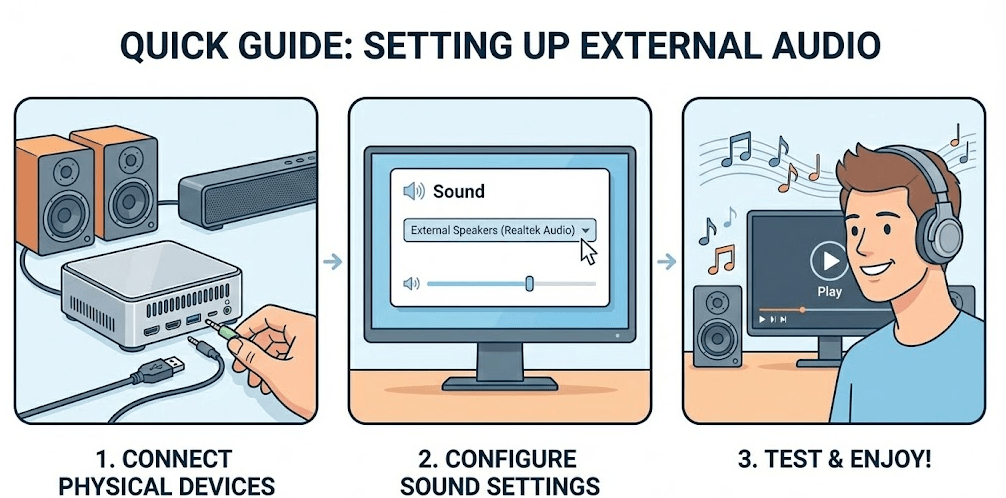
Connecting external audio to a mini PC is straightforward, but a few tips ensure optimal results.
Step-by-Step Audio Setup
Step 1: Physically connect your audio device (speakers, headphones, etc.) to the appropriate port—3.5mm jack, HDMI to monitor, USB, or pair via Bluetooth.
Step 2: On Windows, right-click the volume icon in the system tray and select “Sound settings” or “Open Sound settings.”
Step 3: Under “Choose your output device,” select the correct audio output from the dropdown menu. Options typically include speakers, HDMI audio, USB audio devices, and Bluetooth devices.
Step 4: Test audio by playing a video or music. If you don’t hear sound, verify the correct output is selected and check physical connections.
Step 5: Adjust volume using both Windows volume controls and the physical volume controls on your speakers/headphones for optimal balance.
For a comprehensive walkthrough of connecting and optimizing external audio for mini PCs, this detailed guide demonstrates proper speaker selection, cable connections, and audio configuration that applies to mini PCs across different operating systems.
Common Audio Issues and Fixes
No sound after connecting speakers: Verify Windows selected the correct output device. Sometimes systems default to the wrong output (like HDMI when you want 3.5mm).
Static or crackling: Check cable connections—loose 3.5mm plugs cause audio interference. Also verify cables aren’t running parallel to power cables, which can introduce electrical noise.
Audio cuts out intermittently: Bluetooth audio can drop if the mini PC’s Bluetooth signal is weak or interference exists. Move the mini PC closer to Bluetooth devices or switch to wired connections.
Volume too quiet: Some mini PCs have low headphone output. External USB DACs or powered speakers with their own amplification solve this issue.
Audio out of sync with video: This usually indicates Bluetooth latency. Switch to wired headphones or speakers for activities requiring audio sync (gaming, video editing).
Special Considerations for Different Use Cases
Your mini PC’s intended use determines the best audio solution.
Home Office and Productivity
For video conferencing, document work, and casual media consumption, a quality USB headset provides the most practical solution. Integrated microphones ensure clear voice transmission during calls, and headphones prevent audio feedback that can occur with speakers and microphones in close proximity.
Alternatively, decent monitor speakers or budget desktop speakers like the Creative Pebble work well for less intensive audio needs where you’re not on calls constantly.
Media Center / HTPC
Mini PCs functioning as home theater computers should output audio via HDMI to your TV or AV receiver. This provides the best audio quality and enables surround sound if your system supports it.
For a visual demonstration of excellent external speaker options specifically for mini PC setups, This 2025 speaker comparison covers options from budget picks under $50 to premium audiophile setups, helping you match speakers to your specific mini PC use case and budget.
Configure your mini PC’s audio output in Windows to use HDMI audio, and your TV/receiver will handle the rest. For 5.1 surround sound, verify your mini PC’s HDMI output supports multi-channel audio passthrough.
Gaming
Gamers benefit most from wired headphones to minimize audio latency. USB gaming headsets or quality wired headphones connected via 3.5mm provide the best experience for competitive gaming where hearing directional audio cues matters.
For single-player gaming where immersion matters more than competitive advantage, good desktop speakers or a 2.1 system with subwoofer enhances the experience with better bass response for explosions and environmental effects.
Music Production and Audio Work
Creative professionals working with audio need higher-quality solutions than integrated audio can provide. Consider:
External USB DAC/Amp: Devices like the FiiO E10K or Schiit Modi provide superior audio quality with lower noise floors and better dynamic range than integrated audio.
Studio Monitors: Powered studio monitors like Presonus Eris or KRK Rokit provide accurate, flat frequency response essential for mixing and mastering audio.
Audio Interface: For recording and production work, USB audio interfaces from Focusrite, PreSonus, or Behringer provide professional-grade audio input/output with phantom power for microphones.
What About Mac Mini?
The Mac mini is technically a mini PC, and Apple’s approach to internal speakers mirrors the broader industry. The Mac mini does not include internal speakers. Apple assumes you’ll use external speakers, monitor speakers, or headphones.
Mac mini audio output options include:
- 3.5mm headphone jack
- HDMI audio via video output
- Thunderbolt/USB-C audio to compatible displays or audio devices
- Bluetooth audio to wireless devices
The recommendations for external audio apply equally to Mac mini users. The same desktop speakers, headphones, and audio solutions work across Windows and macOS mini PCs.
FAQ: Common Questions Answered
Do any mini PCs have good built-in speakers?
No. Even mini PCs that include internal speakers have very basic, low-quality audio intended only for system sounds. No mini PC has built-in speakers comparable to laptop speakers in terms of volume, clarity, or bass response.
Can I add speakers to a mini PC that doesn’t have them?
You don’t add speakers internally, but you connect external speakers via 3.5mm audio jack, HDMI audio, USB, or Bluetooth. This provides far better audio quality than any internal speakers could achieve in a mini PC’s small chassis.
Will my mini PC work without external speakers?
Yes, the mini PC functions normally without speakers—you just won’t hear any audio. For basic use without media playback or video calls, you might not need speakers at all. Most users connect external audio for practical use.
What’s the best audio solution for a mini PC?
It depends on your use case. For desk work and video calls, a USB headset is most practical. For media consumption and music, desktop speakers like Edifier or Creative models provide better sound. For home theater use, HDMI audio to your TV or soundbar is ideal.
Can I use my TV speakers with a mini PC?
Yes, connecting via HDMI automatically sends audio to your TV. This works excellently for living room mini PC setups where the TV speakers or soundbar provide audio.
Do wireless speakers work with mini PCs?
Yes, Bluetooth speakers pair easily with mini PCs. Most 2025 mini PCs include Bluetooth 5.0 or newer, providing good audio quality and reliable wireless connectivity to Bluetooth speakers and headphones.
How do I know if my mini PC has internal speakers?
Check the product specifications sheet or user manual. If internal speakers exist, they’ll be explicitly mentioned. If the spec only mentions “audio output” or “3.5mm jack,” there are no usable internal speakers.
The 2025 Mini PC Audio Reality
The lack of internal speakers in mini PCs isn’t a shortcoming—it’s an intentional design choice that makes sense given the form factor and intended use. CNET’s comprehensive audio testing throughout 2025 confirms that external speakers in all price ranges dramatically outperform any internal speakers that could fit in a mini PC chassis, making the external audio approach both practical and beneficial for sound quality.
External audio solutions provide far superior sound quality compared to what tiny internal speakers could achieve, and they offer flexibility to match audio equipment to your specific needs and budget. Whether you spend $30 on basic desktop speakers or $300 on premium audio equipment, you’ll get better results than internal speakers could ever provide.
Modern mini PCs include excellent connectivity options for external audio—3.5mm jacks, HDMI audio, USB-C audio, and Bluetooth—making it trivially easy to connect whatever audio solution suits your workflow. The ecosystem of compatible speakers, headphones, and audio devices is vast, offering options from budget-friendly to audiophile-grade.
Based on my extensive experience testing mini PCs and audio setups throughout 2025, I recommend budgeting for external audio when planning a mini PC purchase. Even a modest $40 investment in desktop speakers or a USB headset dramatically improves the experience compared to relying on minimal or nonexistent internal speakers.
Choose your audio solution based on your primary use case—headsets for calls, desktop speakers for media and music, HDMI audio for home theater setups—and you’ll have an audio experience that exceeds what any internal speaker system could provide in a compact chassis.


