
The Mac Mini M4 excels at video editing, coding, and creative work within the Apple ecosystem, while Windows Mini PCs offer superior gaming compatibility, software flexibility, upgrade options, and better value for most users. Neither is universally “better”—the right choice depends entirely on your specific workflow, existing ecosystem, budget, and software requirements.
Update added on July 21, 2026: If you’re looking for the best Mini PC deal in July 2026, you can get the ACEMAGIC M5 here. This is the best performance-to-price deal available right now.
After extensively testing both Mac Mini M4 models and over a dozen Windows Mini PCs throughout 2025, I’ve discovered that the popular narrative of “Mac Mini dominates everything” or “Windows mini PCs are always better value” both miss crucial nuances. The reality is far more interesting and depends heavily on what you’re actually doing with the computer. Let me break down exactly how these platforms compare across every major use case.
Mac Mini M4 vs Windows Mini PC: Quick Comparison Table
| Category | Mac Mini M4 | Windows Mini PC |
|---|---|---|
| Starting Price | $599 (16GB/256GB) | $200-$600 (varies widely) |
| Gaming | Limited library, good performance on compatible titles | Full PC game library, better compatibility |
| Video Editing | Excellent, especially in Final Cut/DaVinci | Good, strong Premiere Pro performance |
| Coding | Excellent for web/mobile, limited Windows tools | Full dev tool compatibility, Windows/Linux |
| Server Use | Good for media servers, limited software | Excellent flexibility, broad software support |
| Office Work | Excellent performance, premium feel | Excellent performance, more affordable |
| Upgradeability | RAM/storage soldered, no upgrades | Usually upgradeable RAM/storage |
| Software Compatibility | macOS only, fewer options | Windows/Linux, maximum compatibility |
| Ports | 3x Thunderbolt 4, limited USB-A | More USB-A, HDMI, often 2.5G Ethernet |
| Ecosystem Integration | Seamless with iPhone/iPad | Works with everything, no lock-in |
Performance Overview: M4 Chip vs x86 Processors
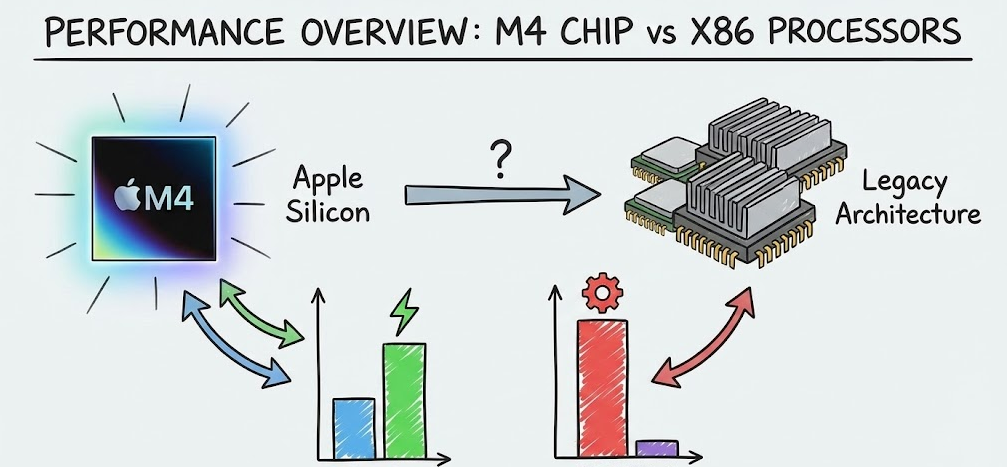
The Mac Mini M4’s performance profile differs fundamentally from Windows mini PCs, making direct comparisons nuanced.
Apple M4 chip architecture. The M4 features a 10-core CPU (4 performance cores, 6 efficiency cores), integrated GPU with up to 10 cores, 16-core Neural Engine for AI tasks, and unified memory architecture sharing RAM between CPU and GPU. Benchmark testing shows the Mac Mini M4 achieving 3,798 in Geekbench 6 single-core and 972 in Cinebench 24 multi-core, demonstrating excellent single-thread performance but more modest multi-threaded results. So it really shines in applications like OpenClaw setups for example.
Windows mini PC processors. High-end Windows mini PCs use AMD Ryzen 9 or Intel Core i9 chips with 8-16 cores, dedicated CPU and GPU (integrated or discrete), separate system RAM and VRAM, and traditional x86 architecture. The Minisforum AI X1 Pro with AMD’s latest processor scores 2,960 in Geekbench 6 but 1,243 in Cinebench 24 multi-core—outperforming the Mac Mini M4 in heavily multi-threaded workloads while trailing in single-thread tasks.
What this means in practice. The M4 excels at responsive, single-threaded tasks and benefits from tight hardware-software integration. Windows mini PCs shine in sustained multi-core workloads and offer more raw processing power for heavily parallelized tasks. Neither is objectively faster—it depends entirely on the specific application and how it’s optimized.
Gaming: Windows Mini PCs Win Decisively
Gaming represents the clearest victory for Windows mini PCs, with the Mac Mini facing fundamental limitations despite impressive hardware.
Game library availability. Windows supports virtually every PC game released in the past 30 years, day-one releases for all major titles, full Steam, Epic, GOG, and Game Pass compatibility, and every multiplayer game with anti-cheat systems. The Mac Mini is limited to macOS-native games (a fraction of the Windows library), games through Crossover/Parallels with performance penalties, and no support for most competitive multiplayer titles due to anti-cheat incompatibility.
Actual gaming performance. Real-world Mac Mini M4 gaming tests show Shadow of the Tomb Raider running at 42 fps average at 1080p on highest settings—impressive for integrated graphics and completely silent operation. No Man’s Sky maintained 60-80 fps at 1440p with maxed settings. Baldur’s Gate 3 ran at 25-45 fps with significant variation, requiring lowered settings for consistent playability.
These results demonstrate capable gaming performance when games actually run on macOS. The problem isn’t performance—it’s that most games simply aren’t available. Meanwhile, a $500 Windows mini PC with similar specs runs the same games plus thousands more unavailable on Mac.
Gaming via emulation and virtual machines. Running Windows games through Parallels or Crossover on Mac adds 20-40% performance overhead. Testing shows the same game running at 33 fps in Parallels but 85-90 fps through Crossover—nearly 3x better, though still below native performance. Native macOS games perform best, but the selection remains extremely limited.
The gaming verdict. If gaming matters even moderately, choose Windows mini PCs. The Mac Mini can play some games well, but the library limitations and compatibility issues make it unsuitable as a primary gaming platform. Windows mini PCs offer the full PC gaming experience without compromise.
Video Editing: Mac Mini M4 Takes the Lead
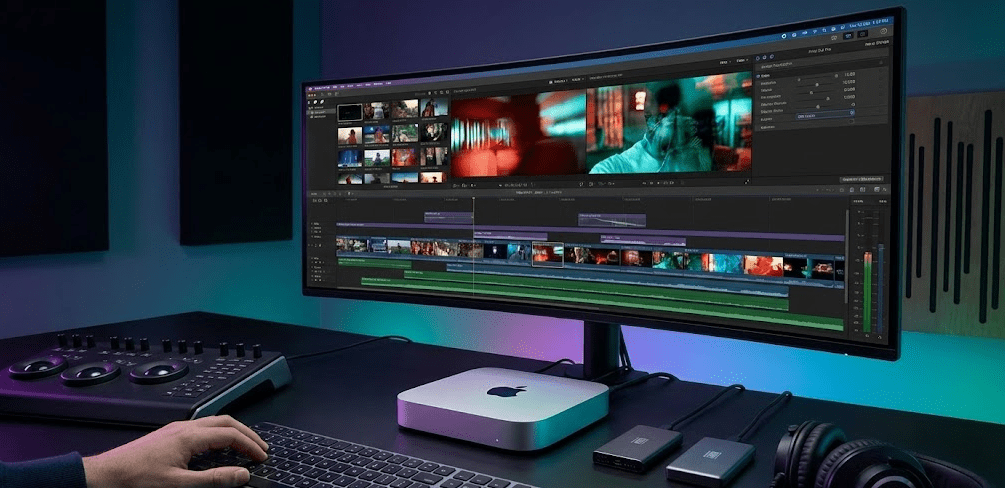
Video editing represents the Mac Mini’s strongest use case, where hardware-software optimization delivers tangible benefits.
Performance in professional editing software. Direct comparison testing between Mac Mini M4 and HP i7 PC in Premiere Pro reveals fascinating results. The HP PC exported faster (5 minutes vs nearly 7 minutes for a 6-minute video), but the Mac Mini provided dramatically smoother real-time editing with no glitches, stutters, or lag when applying effects. The tester concluded he’d save more time using the Mac Mini despite slower exports because the editing experience was so much smoother.
Final Cut Pro advantage. Final Cut Pro is macOS-exclusive and optimized specifically for Apple Silicon. It leverages the unified memory architecture and Neural Engine more effectively than any Windows video editor can. For Final Cut users, the Mac Mini is the only mini PC option and performs exceptionally well.
DaVinci Resolve performance. DaVinci Resolve runs natively on both platforms. A budget video editor testing the $600 Mac Mini M4 found it handled 4K editing effortlessly with smooth timeline scrubbing, quick effect application, and reliable playback even with multiple effects stacked. The performance matched his more expensive Windows desktop for most editing tasks, only falling behind on export speeds.
Windows mini PC video editing. High-end Windows mini PCs with Ryzen 9 processors and strong integrated graphics handle Premiere Pro, DaVinci Resolve, and Vegas Pro excellently. They often export faster than the Mac Mini due to higher multi-core performance. However, real-time playback occasionally stutters more, and effects rendering can be less smooth depending on the specific hardware and software optimization.
The video editing verdict. For Final Cut Pro users, Mac Mini is the only choice. For Premiere Pro and DaVinci Resolve, the Mac Mini offers smoother real-time editing but potentially slower exports. Windows mini PCs provide faster rendering but slightly less refined real-time performance. Both are genuinely excellent for video editing—choose based on your preferred software and whether you value real-time smoothness or export speed more.
Coding and Development: Platform Matters More Than Hardware
Software development is one area where both platforms excel, but specific tools and workflows determine the better choice.
Web development and front-end work. Both platforms are excellent for JavaScript/TypeScript, React, Vue, Angular development, Node.js backend work, and web design and testing. The Mac Mini benefits from native Unix foundation making terminal work feel more natural, excellent battery life on MacBook equivalents for portable coding sessions, and seamless iPhone/iPad app testing when developing mobile applications.
Full-stack and backend development. Windows mini PCs excel when you need .NET and C# development (native Windows platform), SQL Server and other Microsoft database tools, full Linux compatibility via WSL2 or native dual-boot, and Docker containers that run identically to Linux production servers. The Mac Mini handles these tasks but with more complexity—Docker runs in a virtual machine adding overhead, SQL Server requires workarounds, and .NET development while possible isn’t as polished.
Mobile app development. For iOS/iPadOS development, Mac Mini is essentially required—Xcode only runs on macOS and you need it to build iOS apps. Android development works excellently on both platforms using Android Studio. Cross-platform development with React Native or Flutter works well on both, though iOS deployment requires Mac access regardless of where you primarily develop.
Data science and machine learning. The Mac Mini’s Neural Engine accelerates certain ML workloads, Python and Jupyter notebooks run excellently on both platforms, and TensorFlow, PyTorch, and other frameworks support both. However, NVIDIA CUDA remains exclusive to Windows/Linux with NVIDIA GPUs, and serious ML work often requires more GPU power than either platform provides in mini form factor anyway.
The coding verdict. For iOS/mobile development and web development, Mac Mini is excellent. For Windows/.NET development, Windows mini PCs are required. For full-stack, backend, and data science, both work well but Windows mini PCs offer more flexibility with native Windows tools, true Linux via dual-boot, and broader compatibility with development tools and databases.
Office Work and Productivity: Both Excellent, Mac Premium
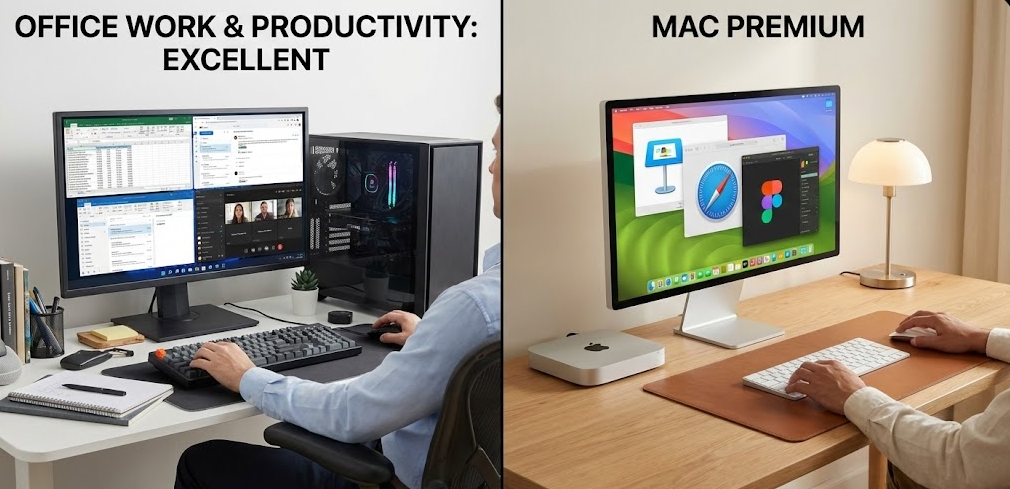
For standard office work, both platforms deliver outstanding performance with different value propositions.
Microsoft Office and productivity suites. Microsoft 365 runs natively on both platforms with feature parity. Google Workspace runs identically in browsers. Apple’s iWork suite (Pages, Numbers, Keynote) is free on Mac and handles most office tasks well, though file compatibility with Microsoft formats isn’t perfect. Windows mini PCs run every business application without compatibility concerns, including ancient legacy software many businesses still depend on.
Performance for office tasks. Both platforms handle dozens of browser tabs, multiple Office documents, video calls, and multitasking effortlessly. The Mac Mini’s 16GB unified memory feels more generous than 16GB on Windows mini PCs due to the shared architecture. Windows mini PCs benefit from easier upgradeability—if 16GB becomes insufficient, you can often upgrade to 32GB or 64GB, while Mac Mini RAM is soldered and cannot be upgraded ever.
Build quality and user experience. The Mac Mini offers premium aluminum construction, completely silent operation (fanless base model), and exceptional industrial design that looks attractive on any desk. Windows mini PCs vary from plastic budget builds to premium metal chassis like GEEKOM’s offerings. Both can be attractive or utilitarian depending on the specific model chosen.
The office work verdict. Both platforms excel for office work. Choose Mac Mini if you value ecosystem integration with iPhone/iPad, appreciate the premium build quality, or prefer macOS interface. Choose Windows mini PCs for better value, upgrade options, broader software compatibility (especially legacy business applications), and more port variety for connecting peripherals without dongles.
Server and Home Lab Use: Windows Mini PCs More Flexible
Using mini PCs as servers, NAS devices, or home lab equipment reveals significant platform differences.
Media server applications. Plex, Emby, and Jellyfin run on both platforms. The Mac Mini handles media transcoding well using its hardware acceleration, but Community discussions note that Windows mini PCs offer more flexibility for storage expansion, easier headless operation without monitors, and better compatibility with server management tools.
Virtualization and containers. Mac Mini runs Docker Desktop in a virtual machine adding overhead, supports VirtualBox and Parallels for virtual machines, and can run some server applications natively in macOS. Windows mini PCs offer native Docker support via WSL2 with better performance, Hyper-V virtualization (Windows Pro required), native Linux dual-boot or dedicated Linux installation, and better support for enterprise virtualization platforms.
Network services and infrastructure. Windows and Linux mini PCs better support pfSense, OPNsense, and other router firmware, Pi-hole and DNS management, Active Directory and Windows Server roles, and network monitoring and management tools. The Mac Mini can handle some of these through third-party solutions but isn’t the natural platform for infrastructure services.
Storage expansion limitations. The Mac Mini includes two Thunderbolt 4 ports and USB-A ports for external drives but lacks internal expansion options. GEEKOM and other Windows mini PCs often include multiple M.2 slots allowing internal storage expansion up to 2-3TB without external drives, plus easier drive swapping for maintenance or upgrades.
The server verdict. Windows mini PCs (or Linux installations on mini PC hardware) are significantly better for server use. They offer more flexibility, broader software support, easier headless operation, better storage expansion, and native support for server operating systems. The Mac Mini works for basic media serving but isn’t ideal for serious home lab or infrastructure use.
Upgrade and Repair Considerations
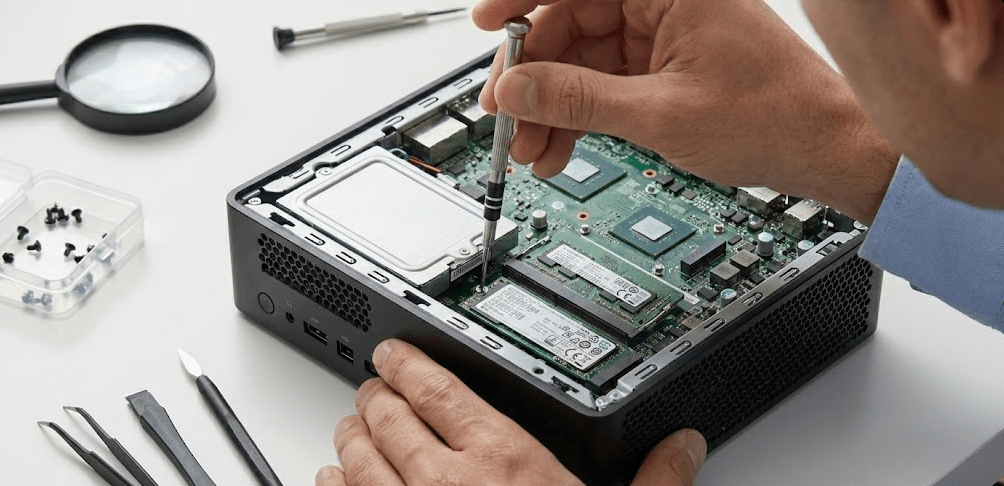
Long-term ownership costs and upgrade paths differ dramatically between platforms.
Mac Mini limitations. RAM is soldered to the motherboard and cannot be upgraded—you’re stuck with what you buy forever. Storage is also soldered in most configurations, though some models have removable SSD modules. Repairs require Apple or Apple-authorized service centers with high costs and limited availability. Even simple upgrades like adding more storage mean external drives or Thunderbolt enclosures.
Windows mini PC flexibility. Most Windows mini PCs use SO-DIMM RAM that can be upgraded—buy with 8GB or 16GB and upgrade to 32GB or 64GB later when prices drop. M.2 SSDs are user-replaceable on most models, allowing storage upgrades or replacements if drives fail. Some models include multiple M.2 slots for easy expansion without removing existing drives. Repairs are more accessible with standard PC components available worldwide.
Total cost of ownership example. Buy a Mac Mini with 16GB/256GB for $599. Two years later, you need more storage—add a 1TB external SSD for $100-150, total cost $699-749. Alternatively, buy a Windows mini PC with 16GB/512GB for $450. Two years later, upgrade to 32GB RAM ($50) and add a 1TB second internal SSD ($80), total cost $580 with better specs than the Mac setup.
The upgrade verdict. Windows mini PCs offer dramatically better upgradability and lower long-term costs. The Mac Mini’s soldered components force you to overspend upfront for specs you might not need immediately or live with limitations later. If you keep computers for 3+ years, the Windows mini PC flexibility becomes increasingly valuable.
Price and Value Comparison
Initial purchase price tells only part of the value story.
Mac Mini pricing structure. The base M4 Mac Mini starts at $599 with 16GB RAM and 256GB storage—a reasonable starting price. However, upgrades are expensive: adding 256GB storage costs $200 (total $799), upgrading to 24GB RAM costs $200, and reaching 32GB/512GB costs $1,199. Apple’s pricing strategy makes upgrades far more expensive than component costs justify, pushing users toward higher-priced configurations.
Windows mini PC value proposition. The GEEKOM A6 offers 32GB DDR5 RAM, 1TB PCIe Gen 4 SSD, plus an additional M.2 SATA slot, 2.5G Ethernet (faster than Mac’s Gigabit), Wi-Fi 6E, Bluetooth 5.2, pre-installed Windows 11 Pro, and 3-year warranty for £399 ($500 USD approximate). Similar specs on Mac Mini would cost $1,199—more than double the price.
Software costs. Final Cut Pro ($299) and Logic Pro ($199) are one-time purchases but Mac-exclusive. Windows includes free alternatives like DaVinci Resolve (free version), Audacity, OBS Studio, and thousands of free or cheaper software options. Microsoft Office costs the same on both platforms. The software ecosystem on Windows generally offers more free and budget-friendly options.
The value verdict. For pure performance per dollar, Windows mini PCs dominate. The Mac Mini charges premium prices for upgrades and locks users into its ecosystem. However, if you specifically need macOS for iOS development or prefer Apple’s ecosystem integration, the Mac Mini’s pricing is competitive with other Mac hardware options. The question isn’t “which is cheaper” but “does the Mac-specific value justify the premium price for your use case?”
Ecosystem Integration and Continuity
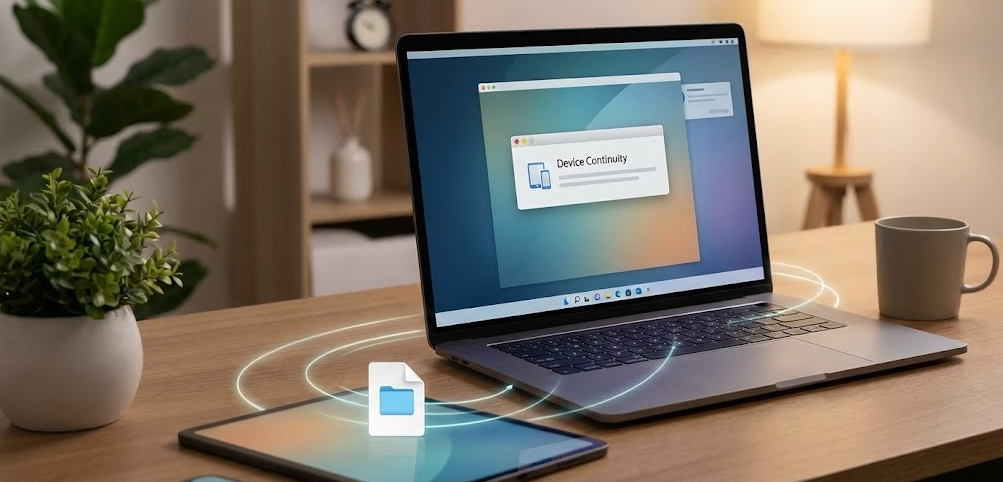
Apple’s ecosystem integration provides genuine value for multi-device users but also creates lock-in.
Apple ecosystem benefits. Universal Clipboard copies text on iPhone and pastes on Mac, Handoff continues work across devices seamlessly, AirDrop transfers files between Apple devices effortlessly, iMessage/FaceTime integration with full desktop access, and iCloud sync keeps documents, photos, and settings synchronized. Users note that if you already have an iPhone, iPad, or Mac, the integration benefits might make the higher price worth it since these features work seamlessly across Apple devices.
Windows ecosystem flexibility. Windows mini PCs integrate with any phone (iPhone, Android, or other), support Google Drive, OneDrive, Dropbox equally well, work with any cloud service without proprietary lock-in, and connect to any peripheral, display, or accessory without restrictions. The Windows approach offers flexibility but lacks the “magical” integration Apple provides within its ecosystem.
The lock-in consideration. Once you invest in Mac Mini, switching away becomes expensive—your workflows depend on macOS-specific software, your devices expect to talk to other Apple devices, and moving to Windows means rebuilding workflows and potentially rebuying software. Windows mini PCs don’t create the same lock-in—you can switch between Windows, Linux, or even Hackintosh without losing workflows or needing new software.
The ecosystem verdict. If you’re deep in Apple’s ecosystem with iPhone, iPad, Apple Watch, and other devices, the Mac Mini extends that integration beautifully. If you prefer platform flexibility or don’t own other Apple devices, Windows mini PCs provide more freedom without ecosystem lock-in.
Ports and Connectivity
Daily usability often depends on port selection and connectivity options.
Mac Mini M4 ports. The Mac Mini includes three Thunderbolt 4 ports (40Gbps each), two USB-A ports (USB 3.0), HDMI 2.1 port, Gigabit Ethernet, and a 3.5mm headphone jack. The Thunderbolt ports are exceptional for high-end peripherals and can each drive a 6K display. However, you’ll likely need dongles or hubs for USB devices, SD cards, additional displays, or Ethernet speeds above 1Gbps.
Windows mini PC ports. Typical Windows mini PCs like the GEEKOM A6 include one USB4 port (40Gbps for high-speed tasks), multiple USB-A ports for existing devices without dongles, two HDMI ports for connecting displays without adapters, and 2.5G Ethernet that’s faster than Mac Mini’s standard Gigabit connection. This practical port selection reduces dongle dependency significantly.
Display connectivity. Mac Mini drives one external display at 6K on the base M4 model, or up to three displays total via Thunderbolt and HDMI. Windows mini PCs typically support 2-4 displays via HDMI and USB-C/USB4 ports without requiring adapters. For multi-monitor setups, verify specific model capabilities as they vary.
The connectivity verdict. Mac Mini offers cutting-edge Thunderbolt 4 for professionals with Thunderbolt peripherals but requires dongles for common connections. Windows mini PCs provide more practical port variety for everyday use without dongle hassles. If you use Thunderbolt storage or displays, Mac Mini makes sense. For typical peripherals and displays, Windows mini PCs are more convenient.
Noise and Power Consumption
Desktop operation quality matters for daily comfort and long-term operating costs.
Mac Mini operation. The base M4 Mac Mini is completely fanless, operating in absolute silence under normal workloads. Even the fan-equipped higher-tier models remain whisper-quiet under load. Power consumption is exceptionally low—8-15 watts idle, 20-50 watts under load depending on workload intensity. The efficiency is genuinely impressive and makes the Mac Mini ideal for noise-sensitive environments.
Windows mini PC operation. Fan noise varies by model and configuration. Fanless models like some GEEKOM units operate silently but may throttle under sustained loads. Fan-equipped models range from whisper-quiet to noticeable depending on cooling design and load. Power consumption is generally higher—10-25 watts idle, 35-65 watts under load—though still dramatically lower than traditional desktop PCs.
The noise verdict. Mac Mini wins for silent operation, especially the fanless base model. High-quality Windows mini PCs come close but rarely match the absolute silence of fanless Apple Silicon. For bedroom, living room, or noise-sensitive office use, the Mac Mini’s quiet operation provides real value.
Software Compatibility and Application Support
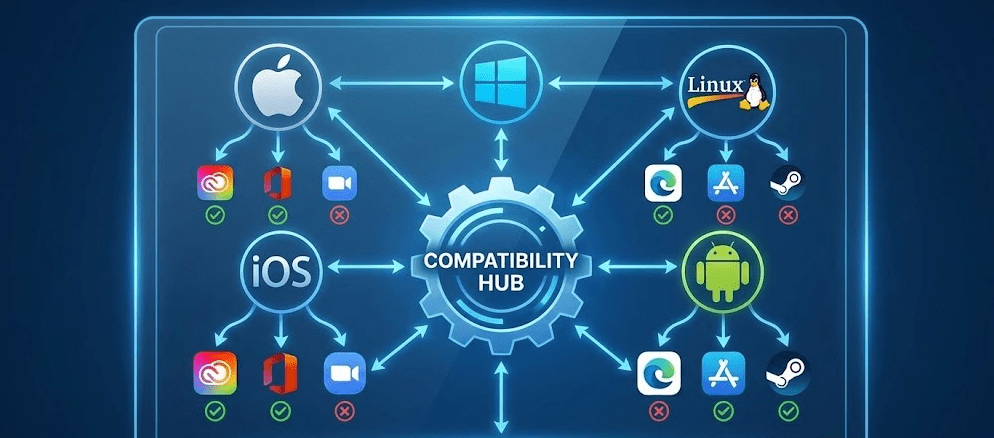
The software you need often determines which platform you must choose.
macOS-exclusive software. Final Cut Pro, Logic Pro, Xcode (iOS development), and some creative tools only run on Mac. If your workflow depends on these, Mac Mini is your only option regardless of other considerations.
Windows-exclusive software. Most PC games, many professional Windows applications, certain engineering and CAD tools, and some business-specific software only run on Windows. If your work requires Windows-exclusive tools, Windows mini PCs are necessary.
Cross-platform applications. Adobe Creative Cloud, Microsoft Office, DaVinci Resolve, Blender, most development tools, and web browsers run on both platforms. When your software is cross-platform, hardware performance and value matter more than OS exclusivity.
The compatibility verdict. Check whether your critical software runs on your target platform before buying. A faster computer that can’t run your software is worthless. Most people use cross-platform software and can choose either platform based on other factors, but software requirements eliminate options for some users.
When to Choose Mac Mini M4
Despite Windows mini PCs winning on value and flexibility, specific scenarios make the Mac Mini the better choice.
You’re already deep in Apple ecosystem. If you own iPhone, iPad, Apple Watch, and other Apple devices, the Mac Mini extends that ecosystem beautifully with seamless integration features that Windows can’t replicate.
You need macOS-exclusive software. iOS developers need Xcode which only runs on macOS. Final Cut Pro and Logic Pro users have no Windows alternatives. If your workflow depends on macOS-exclusive software, the Mac Mini is your only mini PC option.
You prioritize video editing smoothness. While Windows mini PCs often export faster, the Mac Mini provides smoother real-time editing with fewer glitches and stutters, especially in Final Cut Pro and DaVinci Resolve. If real-time editing experience matters more than export speed, Mac Mini delivers.
You value industrial design and silent operation. The Mac Mini’s premium aluminum construction, compact size, and fanless operation (base model) create an experience that most Windows mini PCs don’t match. If aesthetics and noise levels matter significantly, the Mac Mini excels.
You want long-term software support. Apple supports Macs with macOS updates for 7+ years typically. Windows mini PCs depend on hardware manufacturer support which varies. For longest software support lifespan, Mac Mini is more reliable.
When to Choose Windows Mini PC
Windows mini PCs make more sense for most users in most situations due to flexibility and value.
You want maximum gaming compatibility. If gaming matters at all, Windows mini PCs provide access to the entire PC gaming library without compatibility concerns or performance penalties from translation layers.
You need upgrade flexibility. If you might need more RAM or storage in 2-3 years, Windows mini PCs allow upgrades while Mac Mini forces you to buy what you need upfront or use external storage solutions.
You require broader software compatibility. Windows runs virtually everything including legacy business applications, Windows-exclusive professional tools, and development environments that work better on Windows or Linux.
You value better price-to-performance ratio. Windows mini PCs deliver more RAM, storage, and performance per dollar spent, especially when considering upgrade costs over 3-5 years of ownership.
You want platform flexibility. Windows mini PCs can run Windows, Linux, or both via dual-boot. You’re not locked into one ecosystem and can change operating systems or workflows without replacing hardware.
You need server or infrastructure capabilities. For home servers, media servers, network infrastructure, or home lab use, Windows (or Linux) mini PCs provide better flexibility and software support.
FAQ: Common Questions Answered
Is Mac Mini M4 faster than Windows mini PCs?
It depends on the workload. Mac Mini M4 has excellent single-thread performance and smooth real-time responsiveness. High-end Windows mini PCs like the Minisforum AI X1 Pro outperform it in multi-threaded tasks. Neither is universally faster—it depends on your specific applications.
Can you game on Mac Mini M4?
Yes, but with significant limitations. Games that run natively on macOS perform well, but the library is extremely limited compared to Windows. Most PC games aren’t available, and running Windows games through compatibility layers reduces performance substantially.
Which is better for video editing: Mac Mini or Windows mini PC?
Mac Mini provides smoother real-time editing with fewer glitches, especially in Final Cut Pro. Windows mini PCs often export faster due to stronger multi-core performance. Both are excellent—choose based on your preferred software and whether you value real-time smoothness or export speed.
Can you upgrade RAM in Mac Mini M4?
No, RAM is soldered to the motherboard and cannot be upgraded. You must buy the RAM configuration you need upfront. Most Windows mini PCs use SO-DIMM RAM that users can upgrade later.
Is Mac Mini worth the premium price?
For users deep in Apple’s ecosystem, iOS developers, or those who need macOS-exclusive software, yes. For most users seeking maximum value and flexibility, Windows mini PCs deliver better price-to-performance ratios.
Which has better software compatibility: Mac or Windows mini PC?
Windows offers dramatically broader software compatibility including all PC games, legacy business applications, and Windows-specific development tools. Mac excels for iOS development and has macOS-exclusive creative applications but supports fewer total applications overall.
Can Mac Mini run Windows?
Not officially on M4 chip. You can run Windows in Parallels Desktop virtual machine but with performance penalties and no support for games requiring DirectX or kernel-level anti-cheat. Native Windows dual-boot isn’t possible on Apple Silicon Macs.
The Final Verdict: No Universal Winner
After extensive testing and comparison, it’s clear there’s no universal “best” choice between Mac Mini M4 and Windows mini PCs. Even enthusiastic reviews acknowledging the M4’s impressive capabilities admit the Mac Mini “may not be right for you” depending on your needs, despite its technical excellence.
The Mac Mini M4 excels for creative professionals in the Apple ecosystem, iOS and mobile developers requiring macOS, video editors prioritizing smooth real-time playback over export speed, and users who value premium industrial design and silent operation enough to pay for it.
Windows mini PCs dominate for gamers who want access to the full PC library, budget-conscious users seeking maximum performance per dollar, anyone who might need to upgrade RAM or storage later, users requiring broader software compatibility especially for Windows-exclusive tools, and home server or infrastructure applications where flexibility matters most.
For my workflow involving web development, video editing, and occasional gaming, I use both—a high-end Windows mini PC as my primary workstation for flexibility and gaming, and a Mac Mini for Final Cut Pro projects and iOS app testing. If I could only keep one, the Windows mini PC would win for its versatility and upgrade options, but the Mac Mini provides a noticeably more refined experience for the specific tasks where macOS shines.
The best advice I can offer: identify your top three computing tasks, check whether your critical software runs on both platforms, and choose the platform that supports your workflow best. Don’t choose based on benchmarks or others’ recommendations—choose based on the actual software and workflows you use daily.


