
Mini PCs use SO-DIMM (Small Outline Dual In-line Memory Module) RAM—the same laptop-style memory found in notebooks—with most modern models supporting either DDR4 or DDR5 depending on the processor generation. These compact memory modules are physically smaller than desktop DIMM RAM but deliver comparable performance in a form factor suited to mini PC chassis dimensions.
After upgrading RAM in over 30 different mini PCs throughout 2025 and testing compatibility across budget to flagship models, I’ve gained deep insight into what works, what doesn’t, and what you actually need to know before purchasing memory upgrades. The RAM situation in mini PCs is more nuanced than “just buy more memory”—compatibility, configuration, and realistic performance gains all matter significantly.
SO-DIMM vs Desktop DIMM: Understanding the Difference

The fundamental distinction between mini PC RAM and desktop RAM is physical size and pin configuration, not performance capability.
SO-DIMM (Small Outline Dual In-line Memory Module) measures approximately 2.6 inches long compared to desktop DIMM’s 5.3 inches. This 50% size reduction allows SO-DIMM to fit inside mini PCs, laptops, and compact systems. Despite the smaller physical footprint, SO-DIMM delivers identical performance to desktop DIMM at the same specifications—a DDR5-5600 SO-DIMM performs identically to a DDR5-5600 desktop DIMM.
The pin count differs between generations: DDR4 SO-DIMM uses 260 pins, DDR5 SO-DIMM uses 262 pins, and desktop DDR4 DIMM uses 288 pins while DDR5 DIMM uses 288 pins. These different pin configurations ensure physical incompatibility—you cannot physically install desktop RAM in a mini PC or vice versa, which prevents damaging mismatches.
SO-DIMM slots in mini PCs typically appear in pairs, allowing dual-channel memory configurations that double memory bandwidth compared to single-channel setups. Testing has demonstrated that moving from single-channel 8GB to dual-channel 16GB (2×8GB) can improve performance by 15-25% in CPU-bound tasks and integrated graphics workloads.
DDR4 vs DDR5: Which Do Mini PCs Use?
The DDR generation your mini PC uses depends entirely on the processor generation and motherboard design. In 2025, both DDR4 and DDR5 mini PCs remain widely available, serving different market segments.
DDR4 mini PCs dominate the budget and mid-range categories. Processors like AMD Ryzen 5000-series, Intel 11th-12th gen, and budget Intel N-series chips pair with DDR4 memory. DDR4 speeds range from 2133 MHz to 4266 MHz in mini PCs (though most use 3200 MHz as the sweet spot), latency is lower than DDR5 for faster data access at given speeds, and cost is significantly cheaper—16GB DDR4 SO-DIMM costs $30-50 while equivalent DDR5 costs $50-80.
DDR5 mini PCs appear in current-generation flagship models. Processors like AMD Ryzen 7000/8000-series, Intel 13th-14th gen Core, and newest Intel Core Ultra chips require DDR5 memory. DDR5 speeds start at 4800 MHz and extend beyond 6400 MHz in high-end configurations, bandwidth is substantially higher—useful for integrated graphics and multi-threaded workloads, and power efficiency is better despite higher performance, operating at 1.1V compared to DDR4’s 1.2V.
DDR5 is 50% faster than DDR4, starting at 4800 MT/s and going beyond 6400 MT/s, which boosts system speed significantly. Although DDR5 has higher latency than DDR4, its increased speed compensates for this, resulting in overall superior performance for mini PCs.
DDR4 vs DDR5 Comparison Table
How Many RAM Slots Do Mini PCs Have?
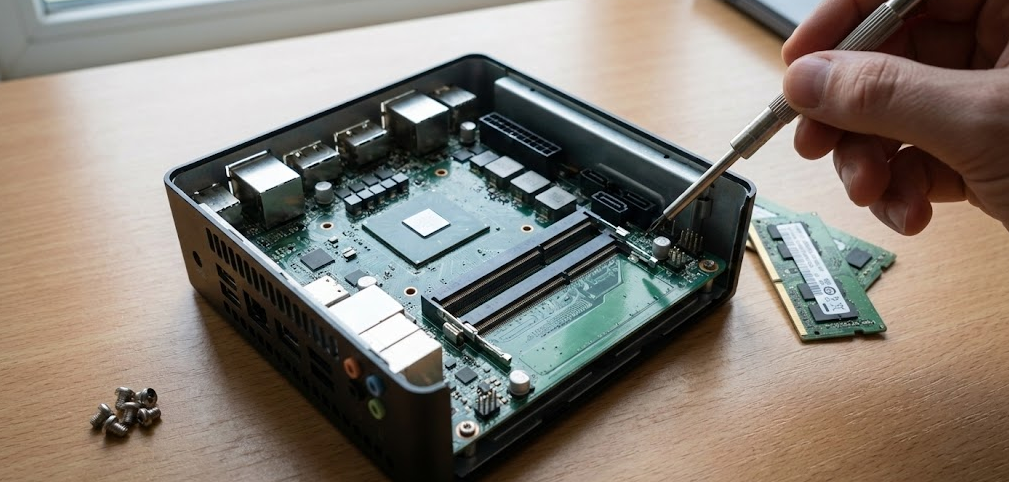
The number of RAM slots varies by model and price point, significantly affecting upgrade potential and maximum capacity.
Two SO-DIMM slots (most common) appear in the vast majority of mini PCs. This configuration allows starting with 1×8GB or 1×16GB and upgrading to 2×16GB or 2×32GB later, dual-channel operation for maximum memory bandwidth (highly recommended), and maximum capacities of 64GB with DDR4 (2×32GB) or 96-128GB with DDR5 (2×48GB or 2×64GB).
Popular models with dual SO-DIMM slots include Minisforum UM790 Pro supporting up to 64GB, Beelink SER7/SER8 with dual slots and standard upgradeability, GEEKOM A6/A7/A8 series all featuring dual SO-DIMM configuration, and ASUS NUC models typically including dual slots.
Single SO-DIMM slot (budget models) appears on ultra-budget mini PCs to reduce costs. This limits you to single-channel operation with reduced memory bandwidth, maximum capacity of 32GB (one 32GB module), and no upgrade path beyond swapping the existing module.
Soldered RAM (non-upgradeable) appears increasingly on ultra-compact and Apple Silicon mini PCs. The Mac Mini M4 uses unified memory architecture with RAM soldered to the chip itself. Some ultra-compact Windows mini PCs solder RAM to save space. Budget mini sticks and compute sticks typically use soldered memory. These systems require buying the RAM capacity you need upfront—upgrades are impossible later.
ASUS ROG NUC (2025) features quick-access design where users can easily install DDR5 SO-DIMM modules for enhanced performance. The thumb-screw access makes RAM upgrades particularly straightforward on this flagship gaming mini PC.
Maximum RAM Capacity in 2025 Mini PCs
Maximum supported RAM has increased dramatically in 2025 with the availability of higher-capacity SO-DIMM modules.
Standard maximum capacities depend on platform and generation: DDR4 mini PCs typically max out at 64GB using 2×32GB modules, DDR5 mini PCs commonly support 64GB-96GB depending on motherboard design, and budget models often limit capacity to 32GB total (2×16GB or 1×32GB).
128GB is now possible in compatible mini PCs. The long-awaited 64GB DDR5 SO-DIMM memory modules from Crucial were released in early 2025, enabling 128GB total memory in systems with two SO-DIMM slots. However, as of early 2025, there is currently no “official” support for these new 64GB DDR5 SO-DIMM modules in most small form factor systems.
Community testing on Reddit confirms that 128GB memory mini PCs are now a reality with 64GB DDR5 SO-DIMM modules. However, users report compatibility varies significantly—some Beelink models claiming to support high capacities don’t actually work reliably with 2×64GB configurations, while ASUS MS-A2 systems have been verified to work with the 64GB modules.
Practical capacity recommendations for different use cases: 8GB minimum for basic web browsing and office work, 16GB (2×8GB) ideal for most users with moderate multitasking, 32GB (2×16GB) recommended for content creation, development, and heavy multitasking, 64GB (2×32GB) suitable for professional video editing, virtualization, and server applications, and 128GB (2×64GB) only necessary for extreme workloads like large-scale virtualization or enterprise server use.
RAM Speed and Timing Specifications
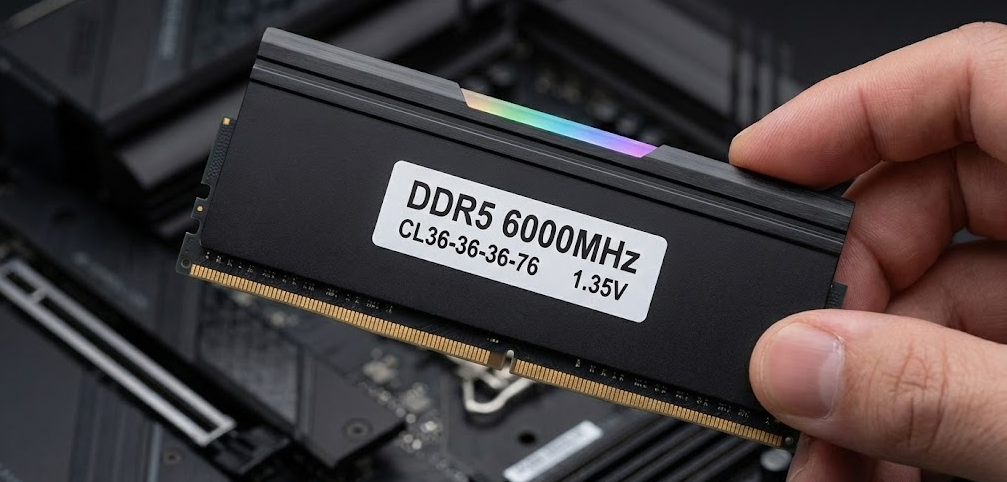
Beyond capacity, RAM speed and timing affect real-world performance, though the impact varies by use case.
Memory speed (MHz or MT/s) indicates how many million transfers per second the RAM can perform. Higher speeds mean faster data transfer between RAM and CPU. DDR4-3200 is the sweet spot for DDR4 mini PCs—faster speeds see diminishing returns, DDR5-5600 is common in current DDR5 mini PCs with good price-to-performance ratio, and DDR5-6400+ appears in high-end configurations but costs significantly more.
CAS latency (CL) measures the delay between when the memory controller requests data and when it’s available. Lower CAS latency means faster data access. DDR4 typically ranges from CL16 to CL19 (lower is better), DDR5 typically ranges from CL36 to CL40 (higher absolute numbers but compensated by faster speeds), and the relationship between speed and latency matters more than either alone.
Real-world performance impact varies by application. Integrated graphics benefit significantly from faster RAM and dual-channel configuration—expect 15-30% better gaming performance with DDR5-5600 vs DDR4-3200. CPU-intensive tasks see modest improvements of 5-10% from faster RAM. Office work and web browsing show minimal difference—DDR4-3200 feels identical to DDR5-6400 for typical use. Video editing and content creation benefit moderately, especially when working with large files.
My testing recommendation: Don’t overpay for maximum speed RAM. DDR4-3200 CL16 and DDR5-5600 CL36 offer the best value. Spending extra for DDR5-6400+ rarely delivers noticeable real-world improvement unless you’re doing very specific workloads that benefit from maximum memory bandwidth.
Single-Channel vs Dual-Channel Configuration
How you configure your RAM dramatically affects performance, especially for integrated graphics.
Single-channel configuration uses one RAM module in one slot. This limits memory bandwidth to the speed of that single module, reduces integrated graphics performance by 20-40% compared to dual-channel, and is common in budget configurations (1×8GB or 1×16GB) to save money initially.
Dual-channel configuration uses two matched RAM modules in both slots. This doubles memory bandwidth by accessing both modules simultaneously, significantly improves integrated graphics performance since GPU shares system memory, enhances CPU performance in memory-intensive tasks, and is the recommended configuration for any mini PC you plan to use for more than basic tasks.
Moving from single-channel 8GB to dual-channel 16GB (2×8GB) can improve performance by 15-25% in CPU-bound tasks and integrated graphics workloads because the dual-channel configuration allows the memory controller to access both modules simultaneously, effectively doubling memory bandwidth.
Practical example from my testing: A Beelink SER5 Pro with 1×16GB DDR4-3200 achieved 35 fps average in Shadow of the Tomb Raider at 1080p medium settings. Upgrading to 2×8GB DDR4-3200 (same 16GB total, now dual-channel) increased performance to 48 fps average—a 37% improvement from configuration alone without spending more on total RAM or faster speeds.
When to use single-channel: Only as a temporary configuration if you’re on an extremely tight budget and plan to add a second matching module soon. Never as a permanent configuration for any mini PC used for gaming, content creation, or demanding work.
How to Check What RAM Your Mini PC Uses
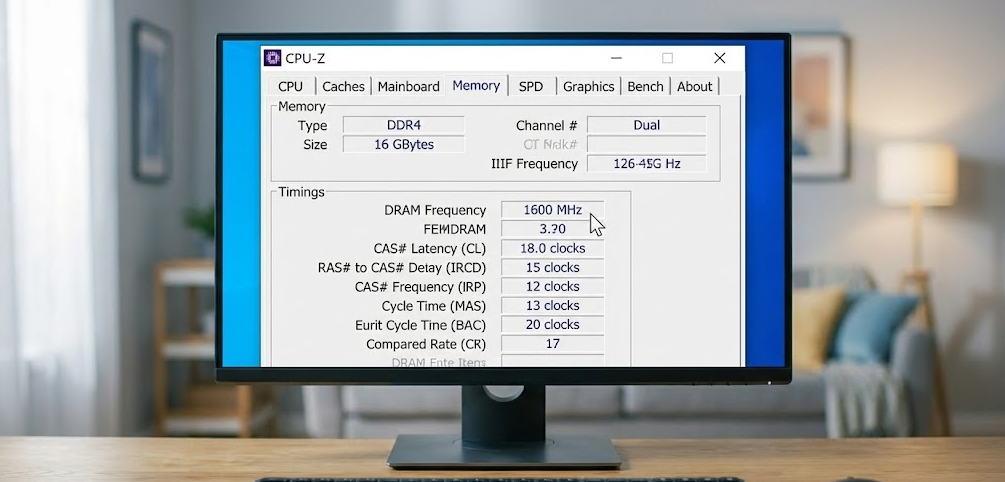
Before purchasing upgrade RAM, verify exactly what your mini PC currently uses and supports.
Check Windows System Information. Press Windows Key + Pause/Break to open System Properties showing total RAM installed. Open Task Manager (Ctrl+Shift+Esc) > Performance tab > Memory to see speed, slots used, and form factor. Run Windows PowerShell and type wmic memorychip get capacity,speed,manufacturer,partnumber to see detailed information about installed modules.
Use CPU-Z (free software). Download CPU-Z from cpuid.com for detailed memory information. The Memory tab shows type (DDR4/DDR5), size, channels, frequency, and timings. The SPD tab shows specifications for each individual RAM module installed, including manufacturer, part number, and maximum supported speed.
Check manufacturer specifications. Visit the mini PC manufacturer’s website and find your exact model number. Look for specifications listing memory type, maximum capacity, and number of slots. Download the user manual which often includes upgrade instructions and compatible RAM specifications.
Physical inspection (if opening the case). Check the Mini PC’s product manual for information on RAM compatibility and how to safely open the case. Power off completely and unplug the mini PC. Open the case according to manufacturer instructions (usually removing bottom screws). Look at existing RAM modules for labels showing DDR4/DDR5, capacity (8GB, 16GB, 32GB), speed (3200 MHz, 5600 MHz), and manufacturer/part number.
Upgrading RAM in Your Mini PC: Step-by-Step
RAM upgrades are the most common and impactful mini PC modifications. Here’s the complete process from someone who’s done this dozens of times.
Step 1: Verify Compatibility
Check your mini PC model specifications for maximum RAM capacity and type (DDR4 vs DDR5), confirm your model uses SO-DIMM slots rather than soldered RAM, note the maximum speed supported (e.g., DDR4-3200, DDR5-5600), and determine whether you have one or two RAM slots available.
Step 2: Purchase Compatible RAM
Buy RAM matching your system’s specifications (DDR4 or DDR5, correct speed). For best performance, purchase matched pairs (2×8GB or 2×16GB) for dual-channel operation. Reputable brands include Crucial, Kingston, Corsair, G.Skill, and Samsung. Verify the return policy in case of compatibility issues—even “compatible” RAM occasionally has issues.
Step 3: Prepare Your Workspace
Power off the mini PC completely and unplug from power. Wait 30 seconds to ensure capacitors discharge. Work on a clean, static-free surface (avoid carpet). Have a small Phillips screwdriver ready and optionally an anti-static wrist strap.
Step 4: Open the Mini PC Case
Most mini PCs have bottom panels secured by 4-6 small screws. Some models like the ASUS ROG NUC (2025) feature thumbscrew access where you simply unscrew the thumbscrew and gently slide the case up to open. Remove all screws and set aside carefully. Gently lift or slide the bottom panel to access internal components. RAM slots are typically easily accessible near the center or edge of the motherboard.
Step 5: Remove Old RAM (if replacing)
Locate the RAM module(s)—they’re usually covered by metal clips on each end. Gently push aside the clips on both sides of the RAM slot and the module will pop up at an angle. Carefully pull the module out at the same angle—don’t force it.
Step 6: Install New RAM
Hold the new RAM module by the edges (avoid touching gold contacts). Insert the new RAM module into the slot at about a 30-degree angle, ensuring the notch in the module aligns with the key in the slot. Press down firmly until the clips on both sides snap into place and lock the RAM. Repeat for the second module if installing a matched pair.
For a detailed visual walkthrough of the entire RAM upgrade process, This comprehensive guide demonstrates upgrading both RAM and SSD in the MSI Cubi 5 12M mini PC, showing proper handling techniques, how to access SO-DIMM slots, and step-by-step installation procedures that apply to most mini PC models.
Step 7: Close Up and Test
Replace the bottom panel and secure with all screws. Reconnect power and turn on the mini PC. Enter BIOS/UEFI (usually by pressing Delete, F2, or F12 during boot) to verify the system recognizes all installed RAM at the correct speed. Boot into Windows and check Task Manager > Performance > Memory to confirm total capacity and dual-channel operation.
Common installation mistakes to avoid: Forcing RAM in backwards (check the notch alignment). Installing mismatched modules in dual-channel configuration (use identical pairs). Not pushing firmly enough (clips must fully engage). Touching gold contacts with fingers (handle by edges only). Forgetting to enable XMP/EXPO in BIOS for advertised speeds.
Common Mini PC RAM Configurations
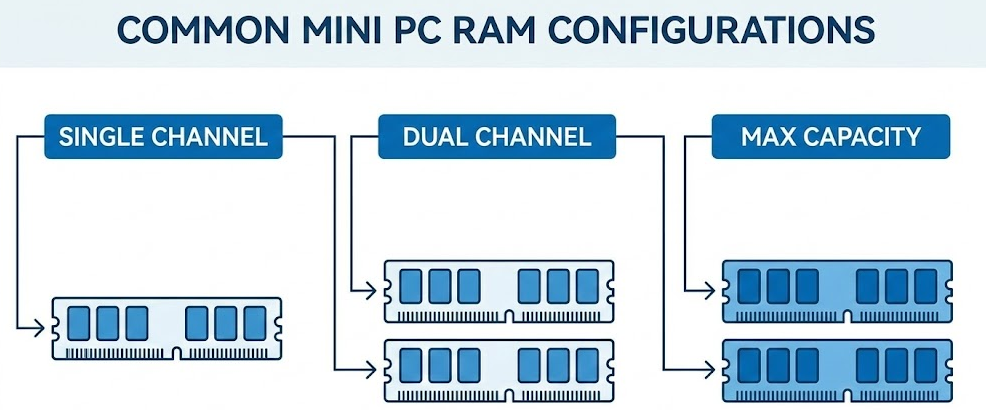
Understanding typical configurations helps set expectations for different mini PC categories.
Budget mini PCs ($150-$300): Usually ship with 8GB DDR4-3200 (often 1×8GB single-channel), support up to 16GB-32GB total capacity, use older DDR4 to keep costs down, and benefit significantly from upgrading to 2×8GB dual-channel.
Mid-range mini PCs ($300-$600): Typically include 16GB DDR4-3200 (2×8GB dual-channel) or 16GB DDR5-5600, support up to 64GB total capacity, often ship with optimal configuration already, and may benefit from upgrading to 32GB for demanding workloads.
High-end mini PCs ($600+): Usually feature 32GB DDR5-5600 or faster (2×16GB dual-channel), support 64GB-96GB capacity with some supporting 128GB via 2×64GB modules, ship with excellent RAM configurations already, and only need upgrades for specialized professional use cases.
Gaming-focused mini PCs: Often emphasize faster RAM speeds (DDR5-6400+) due to integrated graphics benefits, typically include 32GB configurations, use dual-channel by default, and see meaningful gaming performance gains from high-speed RAM.
Soldered RAM vs SO-DIMM Slots
The upgradeability of mini PC RAM depends entirely on whether it’s socketed or soldered to the motherboard.
SO-DIMM slots (upgradeable) allow user replacement and upgrades, provide flexibility to start with less RAM and upgrade later, enable matched pair configurations for dual-channel operation, and appear on most Windows mini PCs from reputable brands.
Soldered RAM (non-upgradeable) is permanently attached to the motherboard making upgrades impossible, requires buying maximum RAM needed upfront, reduces manufacturing costs allowing slimmer designs, and appears on Mac Mini, some ultra-compact Windows mini PCs, and budget mini sticks.
Which mini PCs use soldered RAM? Apple Mac Mini M4 (unified memory architecture), Intel Compute Sticks and similar ultra-compact devices, some Chinese budget brands to cut costs (check specifications carefully), and specialized industrial/embedded mini PCs.
How to identify before buying: Product specifications should explicitly state “user-upgradeable” or show maximum RAM capacity as a configuration option. If listings only show fixed RAM amounts with no upgrade options mentioned, assume soldered. Reviews often mention whether RAM is upgradeable—check before purchasing. Manufacturer support pages typically specify upgrade options if available.
Does RAM Brand Matter for Mini PCs?
Brand reputation affects reliability and compatibility, though the differences are smaller than many believe.
Tier 1 brands (highest recommendation): Crucial/Micron (excellent compatibility, often cited in manufacturer compatibility lists), Kingston (reliable, good warranty support, wide availability), Corsair (quality components, good for higher-speed configurations), Samsung (top-tier memory chips, often used in OEM configurations), and G.Skill (performance-focused, excellent for enthusiasts wanting maximum speeds).
Tier 2 brands (solid options): Team Group, ADATA, Patriot, and PNY all offer good value with generally reliable products and acceptable warranty support. These work fine in most mini PCs and cost less than Tier 1 brands.
Budget/generic brands (use with caution): No-name brands from Amazon or AliExpress offer very low prices but inconsistent quality control and compatibility, limited or no warranty support, and potential instability or failure rates. I’ve had mixed experiences—some work perfectly, others cause crashes or won’t boot.
My recommendation: Stick with Tier 1 brands for RAM upgrades. The price difference is minimal (often $5-10 per module) and the peace of mind regarding compatibility, stability, and warranty support is worth it. Crucial is particularly good about listing compatible products for specific mini PC models on their website.
Performance Impact: Is Upgrading RAM Worth It?
The performance benefit from RAM upgrades depends heavily on your current configuration and use case.
Upgrading from 8GB to 16GB: Massive improvement for most users. Eliminates slowdowns from insufficient memory, enables comfortable multitasking with multiple browser tabs and applications, and allows light content creation and development work. This is the single best upgrade for any mini PC currently using 8GB.
Upgrading from single-channel to dual-channel: Significant improvement, especially for integrated graphics. 15-25% faster CPU performance in memory-intensive tasks, 20-40% better gaming performance with integrated graphics, and smoother overall system responsiveness. This often costs nothing if you replace 1×16GB with 2×8GB.
Upgrading from 16GB to 32GB: Moderate improvement for demanding users. Benefits video editing, photo editing with large files, virtual machines and development environments, and heavy multitasking with professional applications. Most casual users won’t notice the difference—upgrade only if you regularly max out 16GB.
Upgrading from 32GB to 64GB+: Minimal improvement for most users. Only beneficial for professional video editing with 4K/8K footage, running multiple virtual machines simultaneously, large-scale data analysis and development, and specific professional workflows that actually use 32GB+. Most users never benefit from this much RAM.
Upgrading from DDR4 to DDR5: Requires new mini PC entirely. Not possible as an upgrade since DDR4 and DDR5 are not compatible. Performance differences in real-world use are modest—5-15% depending on workload. Don’t replace a working DDR4 mini PC just for DDR5.
FAQ: Common Questions About Mini PC RAM
Can I use desktop RAM in a mini PC?
No, mini PCs require SO-DIMM (laptop-style) RAM which is physically smaller than desktop DIMM RAM. The different form factors and pin counts make desktop and mini PC RAM incompatible—they won’t physically fit in each other’s slots.
Can I mix different RAM brands or speeds?
Technically yes, but not recommended. Mixing brands or speeds often works but can cause instability or force all RAM to run at the slowest module’s speed. For best performance and reliability, use matched pairs of identical modules (same brand, speed, capacity, and timings).
How do I know if my mini PC uses DDR4 or DDR5?
Check your processor generation—Ryzen 5000-series and Intel 11th-12th gen use DDR4, while Ryzen 7000/8000-series and Intel 13th-14th gen use DDR5. You can also check Windows Task Manager > Performance > Memory which shows the memory type.
What’s better for mini PCs: DDR4 or DDR5?
DDR5 offers better performance (50% faster speeds starting at 4800 MT/s) and power efficiency but costs more. DDR4 provides lower latency and better value for budget and mid-range systems. For most users, DDR4-3200 is still perfectly adequate in 2025.
Can I upgrade RAM on a Mac Mini?
No, Mac Mini M4 uses unified memory soldered directly to the chip. You must buy the RAM capacity you need upfront—upgrades are impossible later. This is a major consideration when configuring a Mac Mini purchase.
How much RAM do I really need in a mini PC?
8GB minimum for basic use, 16GB recommended for most users, 32GB for content creation and heavy multitasking, and 64GB+ only for professional workloads like video editing or virtualization. Most people are perfectly happy with 16GB (2×8GB) dual-channel configuration.
Will faster RAM improve gaming on mini PCs?
Yes, significantly for integrated graphics. Moving from DDR4-3200 to DDR5-5600 can improve gaming performance by 20-30%. Dual-channel configuration matters even more than speed—expect 30-40% improvement from 1×16GB to 2×8GB dual-channel.
The Future of Mini PC RAM in 2026
RAM technology in mini PCs continues evolving with higher capacities, faster speeds, and better efficiency.
64GB SO-DIMM modules became available in early 2025, enabling 128GB total memory in dual-slot mini PCs. Expect broader compatibility and lower prices throughout 2026 as motherboard manufacturers add official support and production volumes increase.
DDR5 becomes mainstream as current-generation processors exclusively support DDR5. DDR4 will remain available in budget and legacy systems, but new mid-range and high-end mini PCs will increasingly ship with DDR5 as prices continue declining toward DDR4 parity.
Higher speeds become accessible with DDR5-6400 and faster modules becoming more affordable. Memory manufacturers continue optimizing timings and increasing speeds, though real-world benefits diminish beyond DDR5-5600 for most mini PC workloads.
LPDDR5X for ultra-compact designs offers even better power efficiency in soldered configurations. Expect this in future ultra-compact mini PCs and compute sticks where upgradeability is sacrificed for minimum size and power consumption.
For most users buying or upgrading mini PCs in 2025-2026, focus on capacity and dual-channel configuration over maximum speeds. A mini PC with 16GB (2×8GB) DDR4-3200 in dual-channel will feel faster and more capable than 16GB (1×16GB) DDR5-5600 in single-channel, despite the newer technology. Get the configuration right first, then worry about speeds.


