
Most mini PCs are not inherently noisy—modern quality models operate at 15-25 dB during light use (quieter than a whisper) and 30-40 dB under load (similar to a library). However, your mini PC fan might be loud due to aggressive default fan curves, dust accumulation, poor thermal paste application, or running intensive workloads in inadequate ventilation. To measure fan noise accurately, use a calibrated sound level meter positioned 1 meter from your mini PC at ear height, measuring in dBA (A-weighted decibels). When selecting a mini PC, look for models with noise specifications under 25 dB at idle and 35 dB under load, or consider fanless designs that operate at absolute 0 dB for silent environments.
Understanding Mini PC Fan Noise: What’s Normal vs. What’s Not
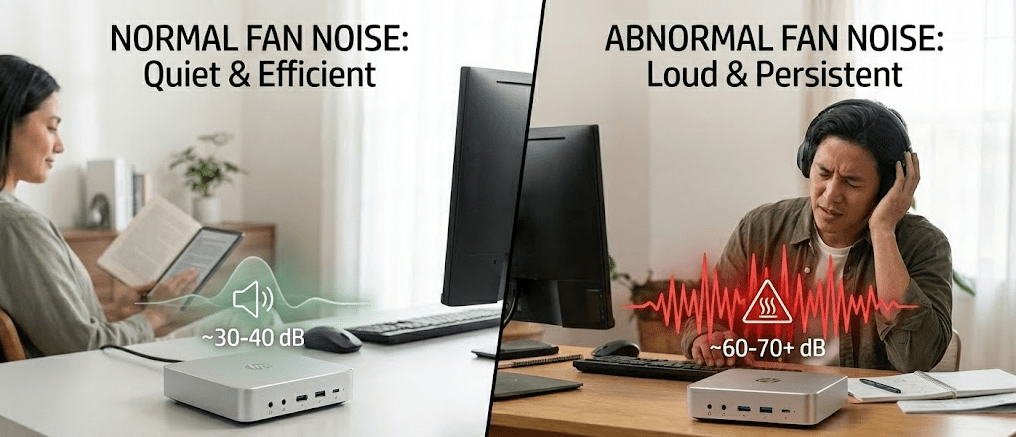
When I first started reviewing mini PCs in 2024, one of the most common complaints I encountered was excessive fan noise. Users would purchase what seemed like a perfect compact system, only to discover it sounded like a jet engine during basic web browsing. But here’s what I learned: in most cases, the hardware isn’t the problem—it’s configuration, placement, or unrealistic expectations.
The truth is that modern mini PCs from reputable manufacturers like Beelink, Minisforum, and GMKtec have dramatically improved their thermal management in recent years. The Beelink EQ14 released in early 2025, for example, was praised as “the quietest Mini PC I’ve reviewed to date” by Elevated Systems, remaining whisper-quiet even under full load. Similarly, the Beelink SER9 operates “nearly silently at idle and remains quieter under load” compared to competitors.
However, not all mini PCs are created equal. Budget models with aggressive cooling profiles or poor quality fans can produce 40-46 dB of noise under load, which is audible and potentially distracting in quiet environments. Understanding what causes loud fan noise and how to measure it objectively helps you make informed purchasing decisions and troubleshoot existing systems.
The Decibel Scale: Understanding Noise Measurements
Before diagnosing your mini PC’s fan noise, you need to understand how sound is measured. Fan noise is measured in decibels (dB), specifically using the A-weighted scale (dBA) which corresponds to human hearing sensitivity.
Critical insight: The decibel scale is logarithmic, not linear. A 10 dB increase represents a 10-fold increase in sound intensity. This means 40 dB is not “twice as loud” as 20 dB—it’s 100 times more intense.
Here are reference points for context:
- 0 dB: Absolute silence (threshold of human hearing)
- 20 dB: Rustling leaves, extremely quiet room
- 30 dB: Whisper at 1 meter distance
- 40 dB: Quiet library, refrigerator hum
- 50 dB: Moderate rainfall, quiet office
- 60 dB: Normal conversation at 1 meter
- 70 dB: Vacuum cleaner, busy street traffic
- 80 dB: Alarm clock at 1 meter, heavy city traffic
- 90 dB: Lawnmower, shop tools
For mini PCs specifically:
- 0 dB: Fanless mini PCs (absolute silence)
- 15-20 dB: Exceptional—barely audible even in quiet rooms
- 20-30 dB: Excellent—whisper-quiet during normal use
- 30-35 dB: Good—audible but not distracting
- 35-40 dB: Acceptable under load, but noticeable
- 40-50 dB: Poor—loud enough to be annoying in quiet environments
- 50+ dB: Unacceptable—intrusive and distracting
Mini PC Noise Level Comparison Table (2025-2026 Models)
| Model | Architecture | Idle Noise | Load Noise | Noise Quality | Use Case |
|---|---|---|---|---|---|
| Beelink EQ14 | Intel Twin Lake N150 | ~18-20 dB | ~25-28 dB | Exceptional (whisper-quiet) | Home office, bedroom |
| Beelink SER9 | AMD Ryzen AI 9 HX 370 | ~20-25 dB | ~30-35 dB | Excellent (nearly silent) | Office, media center |
| Beelink GTR9 Pro | AMD Ryzen AI Max+ 395 | 32-37 dB | 37-42 dB | Good (audible but reasonable) | Workstation, gaming |
| GMKtec NucBox K8 Plus | AMD Ryzen 7 8845HS | ~25-30 dB | ~35-38 dB | Good (quiet with proper tuning) | Home server, office |
| GMKtec K12 | AMD Ryzen 7 H 255 | 33 dB | 40-46 dB | Fair to Poor (noticeably loud) | Performance over silence |
| Beelink Mini S12 Pro | Intel N100 | <38 dB | ~40-42 dB | Acceptable (budget option) | Budget NAS, server |
| GMKtec G9 | Intel N100 | 31-34 dB | 37-40 dB | Acceptable (entry-level) | Budget office PC |
| Fanless Models (various) | Intel N-series, low TDP | 0 dB | 0 dB | Perfect (absolute silence) | Studio, medical, library |
Data compiled from independent testing.
Common Causes of Loud Mini PC Fans
Aggressive default fan curves
Many mini PCs ship with conservative fan profiles that prioritize cooling over acoustics. Windows often defaults to running fans at 40% speed even when CPU temperatures are below 40°C, producing unnecessary noise. Handheld gaming PCs like the GPD Win Mini 2025 were criticized for “excessive fan noise in idle” that made them “honestly approaching unusability” until users adjusted fan curves manually.
For desktop mini PCs, similar issues occur—models like the Minisforum UM790 with high-TDP processors often run fans aggressively at idle until fan curves are tuned.
Dust accumulation and clogged vents
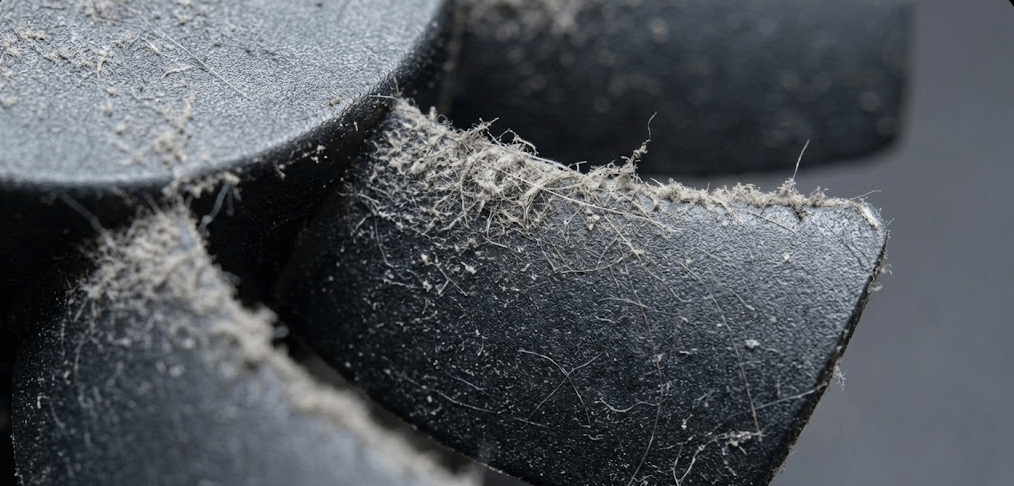
Over time, dust accumulates on fan blades and heat sink fins, reducing cooling efficiency. When airflow decreases, the system compensates by spinning fans faster, increasing noise levels. PC Mag notes that dust is one of the most common causes of noisy computer fans, recommending regular cleaning to prevent this issue.
Poor thermal paste application or degradation (The “Pump-Out” Effect)
Factory thermal paste application quality varies significantly between manufacturers. Even worse, mini PCs use direct-die cooling (no metal heat spreader), which causes traditional thermal pastes to suffer from the “pump-out effect”—literally squeezing out from the die center during heating/cooling cycles. This degradation can happen within weeks, causing temperatures to spike and fans to ramp up.
Inadequate ventilation and placement
Mini PCs placed in enclosed spaces (cabinets, tight shelves, stacked with other equipment) experience restricted airflow. Ambient temperature increases, forcing fans to work harder. This is especially problematic for mini PCs drawing 45-65W continuously.
High-performance workloads and power settings
If your power plan is set to “High Performance,” Windows may run your CPU at maximum speeds even during idle periods, generating unnecessary heat and fan noise. Similarly, running intensive applications like video encoding, gaming, or virtual machines naturally increases heat output and fan speeds.
Poor quality or worn fan bearings
Cheap fans with sleeve bearings wear out faster than quality fans with ball bearings or fluid dynamic bearings. A dying fan produces rattling, grinding, or clicking noises beyond normal airflow sound. This typically occurs after 2-4 years of continuous operation.
Small fan size
Physics dictates that smaller fans must spin faster to move the same amount of air as larger fans. A 40mm fan needs to operate at much higher RPM than a 60mm or 80mm fan to provide equivalent cooling, resulting in higher-pitched, more noticeable noise.
Pro Tip: “If your mini PC runs hot under load, do not ignore it. Sustained high temperatures accelerate component degradation and can cut your device’s lifespan in half. A few simple maintenance steps and smart placement can make all the difference—and keep your mini PC whisper-quiet for years.”
How to Measure Your Mini PC Fan Noise Accurately
If you want objective measurements rather than subjective impressions, you need proper measuring tools and methodology.
Equipment needed
To measure fan noise accurately, you’ll need:
- Sound level meter: A calibrated device measuring 40-130 dB range with ±2 dB accuracy
- Tripod or stand: For consistent meter placement
- Measuring tape: To ensure proper distance
- Smartphone app alternative: While less accurate, apps like “Sound Meter” or “Decibel X” provide ballpark measurements
Measurement methodology
- Prepare the environment: Measure ambient room noise first with the mini PC powered off. Record this baseline—it’s your “noise floor”. Typical quiet rooms measure 25-35 dB ambient noise.
- Position the sound level meter: Place the meter on a tripod at approximately 1 meter height (ear level when seated) and 1 meter distance from the mini PC. Position it directly facing the primary exhaust vent.
Note on measurement distance: Standard noise testing uses 1 meter per ISO standards. However, if your mini PC sits on your desk right next to your monitor (typically 30-50cm away), measuring at 50cm will give you a more realistic idea of what you’ll actually hear during daily use. Just note which distance you used when comparing to manufacturer specifications.
- Power on and allow stabilization: Turn on your mini PC and allow it to reach typical operating temperature (5-10 minutes of idle). This ensures fans settle into normal operating speeds.
- Record idle measurements: Take at least three readings over 2-3 minutes and average them. This represents your mini PC’s baseline noise during typical light use.
- Generate load and measure: Run a CPU stress test (Prime95, AIDA64, or Cinebench) for 10 minutes to reach maximum sustained temperatures. Record noise levels during this peak state.
- Account for ambient noise: Subtract your ambient noise floor from measurements to isolate the mini PC’s contribution. However, decibel subtraction isn’t simple arithmetic—use an online dBA calculator or note that differences under 3 dB are negligible.
- Document conditions: Record fan speeds (using HWiNFO64), CPU temperatures, room temperature, and any other variables affecting results.
Interpreting your measurements
- Idle measurement 15-25 dB: Exceptional—your mini PC is extremely quiet
- Idle measurement 25-35 dB: Good—acceptable for most environments
- Idle measurement 35-40 dB: Concerning—investigate fan curves and placement
- Idle measurement 40+ dB: Problem—requires immediate attention
- Load measurement 30-35 dB: Excellent—well-tuned cooling
- Load measurement 35-42 dB: Good—acceptable for productivity work
- Load measurement 42-50 dB: Noisy—consider optimization or replacement
- Load measurement 50+ dB: Unacceptable—significant problem
Step-by-Step: Reducing Mini PC Fan Noise
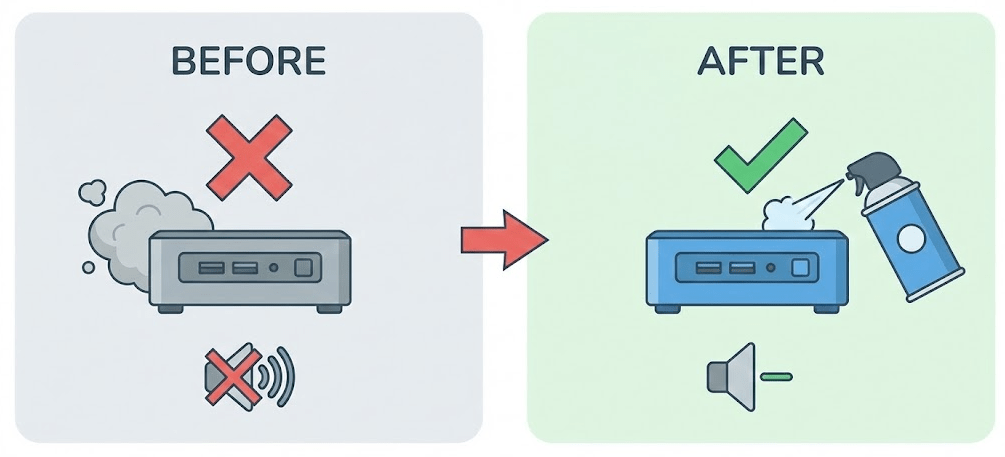
Step 1: Clean dust from vents and internal components
Power off your mini PC and unplug it completely. Open the case (usually involves removing 4-6 screws from the bottom panel). Use compressed air to blow dust from:
- Fan blades and hub
- Heat sink fins
- Intake and exhaust vents
- Internal surface areas
Hold the fan blades still while blowing air to prevent overspin damage. Perform this cleaning every 3-6 months for systems in dusty environments, 6-12 months otherwise.
Step 2: Adjust fan curves in BIOS
Restart your mini PC and enter BIOS (usually Delete, F2, or F12 during startup). Navigate to “Hardware Monitor,” “Fan Control,” or similar menu.
Modern BIOS systems allow custom fan curves with 4-6 temperature/speed points. Create an “ascending dominant” curve:
Point 1 (30-40°C): Set fan to minimum stable speed (usually 30-40%). This is your idle state—prioritize silence over cooling since temperatures are low.
Point 2 (50-55°C): Set slightly below a straight line between points 1 and 3. This prevents fans from ramping up too aggressively during moderate loads.
Point 3 (65-75°C): Set to a speed where airflow is strong but noise remains bearable (typically 60-75%). This handles sustained loads.
Point 4 (85-90°C): Set to 100% as a safety measure for worst-case scenarios.
Save settings and test with normal workloads. Fine-tune as needed based on noise levels and temperatures.
Step 3: Use manufacturer fan control software
Many mini PC manufacturers provide utilities for fan management:
- GMKtec systems: Check manufacturer website for driver packages and control utilities
- Handheld Companion: Third-party tool supporting automatic TDP and fan profiles per application (useful for handheld gaming PCs)
These tools often provide more granular control than BIOS settings and can automatically adjust based on workload.
Step 4: Optimize Windows power settings
Open Windows Power Options and select “Balanced” or “Power Saver” mode instead of “High Performance”. High Performance mode runs your CPU at maximum speeds continuously, generating unnecessary heat and fan noise during idle periods.
For advanced users: Use ThrottleStop or Ryzen Master to undervolt your CPU slightly (reduce voltage by 50-100mV). This decreases heat output by 5-15°C without meaningfully impacting performance.
Step 5: Improve placement and airflow
Ensure your mini PC has:
- 3-4 inches of clearance on all sides
- Elevated position (using small stands or rubber feet) to improve bottom intake airflow
- Cool ambient temperature (avoid placing near heat sources)
- Open environment (not enclosed in cabinets or tight spaces)
Step 6: Replace thermal paste with PTM7950 (The “Pump-Out” Solution)
If your mini PC is 1+ years old and runs hot despite cleaning, thermal interface material replacement is critical. This is where 2026 technology makes a huge difference.
The Problem with Traditional Thermal Paste: Mini PCs use direct-die cooling (no metal heat spreader on the CPU). Traditional pastes like Thermal Grizzly Kryonaut or Arctic MX-6 suffer from the “pump-out effect”—they literally squeeze out from the center of the die during heating/cooling cycles. This degradation can be observed within one week, with temperatures climbing steadily over time.
The 2026 Gold Standard: Honeywell PTM7950
PTM7950 is a Phase Change Material (PCM) that comes as a solid pad. It melts at 45°C to fill gaps perfectly and, crucially, does not pump out, lasting for years without degradation.
Reddit users report dramatic improvements: “After 25 days, the paste hasn’t pumped out… this really is a step up!”. Another user with a heavy 2.2kg GPU heatsink found that traditional pastes degraded within weeks, but PTM7950 “managed to maintain IDENTICAL temperatures after 1 week without degradation”.
For mini PCs specifically, enthusiasts report 5-8°C temperature drops and significantly quieter fans simply by switching to PTM7950.
Installation steps:
- Disassemble the cooler assembly
- Clean old thermal paste with isopropyl alcohol
- Cut PTM7950 pad to die size (it comes as a sheet with protective film on both sides)
- Remove protective films and place pad directly on CPU die
- Reassemble with proper mounting pressure
PTM7950 costs $10-15 for a sheet that covers multiple applications, making it cost-competitive with premium pastes while delivering far superior long-term performance.
Step 7: Consider fan replacement (last resort)
If your fan produces grinding, clicking, or rattling noises (not just airflow sound), the bearings are failing. Replacement fans for common mini PC models cost $10-25 and installation takes 15-30 minutes. Search your mini PC model number + “replacement fan” to find compatible options.
Fanless Mini PCs: The Ultimate Silent Solution
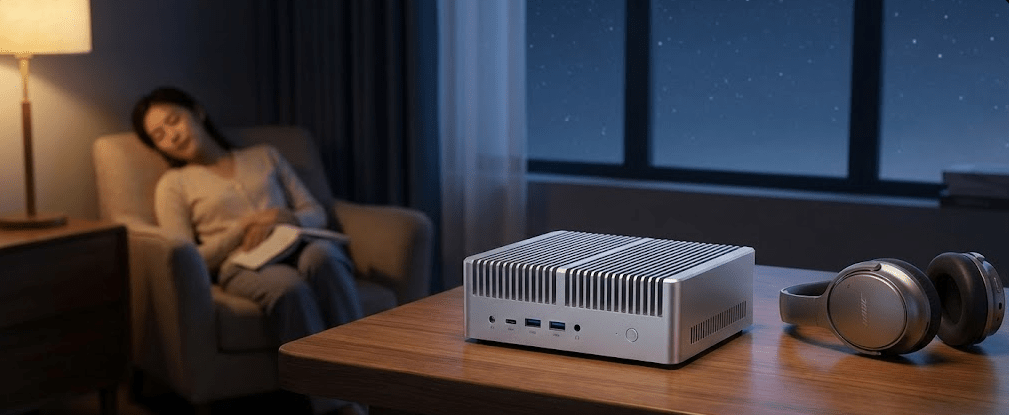
For users prioritizing absolute silence over maximum performance, fanless mini PCs eliminate the noise problem entirely.
How fanless cooling works
Fanless mini PCs use passive cooling through aluminum heatsinks and heat pipes. The entire chassis functions as a heat sink, dissipating heat through surface area and natural convection. Some designs incorporate vapor chambers or phase-change materials for improved thermal transfer.
Performance limitations
Fanless designs are limited to lower-power processors—typically 15-35W TDP Intel N-series, Core i3, or Ryzen 5 chips. These handle office productivity, web browsing, 4K media playback, and light multitasking perfectly, but struggle with gaming, video editing, or sustained high-performance workloads.
Fanless mini PCs are excellent for everyday computing tasks, offering silent operation, lower maintenance, and reliable performance for office work, browsing, and media consumption.
Ideal use cases for fanless mini PCs
- Recording studios, broadcast facilities (absolute silence required)
- Medical offices, libraries, classrooms (noise-sensitive environments)
- Bedrooms, living rooms (home theater PCs)
- Industrial applications, kiosks (no moving parts = higher reliability)
- 24/7 servers with light workloads (no fan failure risk)
Fanless vs. actively cooled comparison
| Factor | Fanless (Passive) | Actively Cooled (Fan) |
|---|---|---|
| Noise | 0 dB (absolute silence) | 15-45 dB (varies by quality and load) |
| Performance | Limited (15-35W CPUs) | Higher (up to 65W+ CPUs) |
| Maintenance | Virtually none (no moving parts) | Periodic fan cleaning required |
| Longevity | Excellent (no parts to wear out) | Good (fans eventually fail after 3-7 years) |
| Size | Often larger (requires more surface area) | More compact designs possible |
| Price | Premium ($300-600+) | Budget to premium ($150-800+) |
How to Select a Quiet Mini PC: Buyer’s Guide
Check noise specifications before purchasing
Reputable manufacturers publish noise measurements. Look for:
- Idle noise under 25 dB: Excellent for quiet environments
- Load noise under 35 dB: Acceptable for most home/office use
- Load noise under 40 dB: Tolerable but may be distracting in quiet rooms
Be cautious with specifications—manufacturers measure under ideal conditions (controlled ambient temperature, fresh thermal paste, optimal placement). Real-world noise may be 5-10 dB higher. The Beelink EQ14, for example, officially specs at 32 dB but real-world testing shows 18-28 dB.
Watch video reviews with noise testing
YouTube reviewers like Robtech, Elevated Systems, and Alex Ziskind conduct noise tests with calibrated meters. Elevated Systems’ review of the Beelink EQ14 includes real-world noise measurements, calling it “the quietest Mini PC I’ve reviewed to date”.
These reviews provide comparative context—you can hear actual fan noise and see dB measurements under various workloads.
Prioritize quality brands with good thermal design
Brands consistently praised for quiet operation in 2025-2026:
- Beelink: Multiple models (EQ14, SER9, GTR9 Pro) noted for quiet cooling
- Minisforum: Generally good thermal design with reasonable noise levels (after BIOS tuning)
- GMKtec: Variable—K8 Plus praised after tuning, K12 criticized for excessive noise
- Mac Mini M4: “Quietest of all mini-PCs” according to community consensus
Consider fan size and design
Larger fans (60mm+) run quieter than smaller fans (40mm) at equivalent cooling capacity. If specifications mention fan size, prioritize larger options.
Some premium mini PCs use dual-fan designs that distribute cooling load, allowing each fan to run at lower speeds for quieter operation.
Match TDP to your workload
If you only need office productivity and media playback, a 15-25W processor (Intel N-series like N100 or N150, Core i3) generates less heat and requires less aggressive cooling than a 45-65W chip (Ryzen 9, Core i9). Lower heat = quieter fans or fanless operation.
Don’t overbuy performance you won’t use—it just creates unnecessary noise.
Read user reviews for long-term noise reports
Amazon, Reddit (r/MiniPCs), and manufacturer-specific forums contain real-world experiences. Search for “[model name] fan noise” or “[model name] quiet” to find discussions about acoustic performance over time.
FAQ: Mini PC Fan Noise
Why does my mini PC get louder over time?
Dust accumulation and thermal paste pump-out are the most common causes. As dust clogs heat sink fins and fan blades, cooling efficiency decreases. Simultaneously, traditional thermal paste degrades (often within weeks) due to the pump-out effect in direct-die cooling. Clean your mini PC every 6-12 months and consider replacing thermal paste with PTM7950 for long-term stability.
Is 40 dB too loud for a mini PC?
Context matters. 40 dB is roughly equivalent to a quiet library or refrigerator hum. For bedrooms or recording studios, this is too loud. For typical offices with ambient noise, 40 dB is barely noticeable. Most users find 30-35 dB acceptable and 40+ dB distracting.
Can I replace a mini PC fan with a quieter aftermarket model?
Potentially, but compatibility is challenging. Mini PCs use custom fan sizes and connector types that don’t match standard PC fans. Replacement fans must match the exact dimensions, mounting points, and electrical specifications. Stick with OEM replacements or manufacturer-approved alternatives to avoid fit issues.
Do fanless mini PCs overheat?
No, when used appropriately. Fanless mini PCs are designed with thermal limits that prevent overheating through passive cooling alone. They use lower-power processors (15-35W TDP) that generate manageable heat. However, if you push a fanless system with sustained high-performance workloads in a hot environment, thermal throttling will occur.
Should I run my mini PC fan at 100% all the time for better cooling?
No. Running fans at maximum speed continuously generates excessive noise, accelerates bearing wear, and provides diminishing cooling returns. A well-designed fan curve running at 50-70% under load provides adequate cooling while extending fan lifespan and reducing noise.
Why is my mini PC fan loud even though temperatures are low?
Your fan curve is likely too aggressive. Windows defaults or manufacturer presets sometimes run fans at 40% minimum regardless of temperature. Access BIOS or manufacturer software to create a custom fan curve that allows lower speeds (20-30%) when CPU temperatures are below 40-45°C.
Are mini PCs noisier than laptops?
Generally no. Mini PCs have more physical space for larger heat sinks and fans compared to ultra-thin laptops. A quality mini PC with a 60mm fan operates more quietly than a laptop with a 40mm fan under equivalent loads. However, gaming laptops and mini PCs with high-TDP processors can both be quite loud (40-50 dB).
Can I use my mini PC in a bedroom without noise issues?
Yes, if you choose wisely. Select models with idle noise under 25 dB (like the Beelink EQ14 or SER9) or fanless designs. Avoid high-performance models with 45W+ processors unless you need the performance—these generate more heat and consequently more fan noise.
The Bottom Line: Choosing Silence vs. Performance
Are mini PCs noisy? Not inherently—quality models operate quietly enough for any environment when properly configured and maintained. The noise level you experience depends on three factors: hardware quality, workload demands, and your maintenance habits.
For absolute silence, fanless mini PCs deliver 0 dB operation at the cost of limiting you to lower-power processors (Intel N-series, Core i3, entry-level Ryzen). These are excellent for everyday computing but not for gaming or heavy content creation.
For balanced performance and quiet operation, actively cooled mini PCs from quality brands (Beelink, Minisforum, GMKtec) deliver 15-35 dB noise levels during typical use. This whisper-quiet performance is achievable with proper fan curve tuning and regular maintenance—especially when using PTM7950 thermal pads instead of traditional paste.
For maximum performance, high-TDP processors (Ryzen 9, Core i9) generate more heat and consequently require more aggressive cooling. Expect 35-45 dB noise levels under sustained loads. This is the trade-off for desktop-class performance in mini PC form factors.
Before purchasing, research specific models using YouTube reviews with noise testing, check manufacturer specifications, and read user reports on Reddit and forums. If you already own a loud mini PC, start with simple solutions—cleaning dust, adjusting fan curves, replacing thermal paste with PTM7950, and improving placement—before considering replacements. Most noise issues are fixable with proper configuration.


