
Yes, a mini PC can run Android apps — but not natively out of the box, and the method you use depends on your technical comfort level and what you actually want to run. The Android experience on a Windows mini PC in 2026 requires either an emulator, an alternative Android-based OS, or a workaround solution. This guide covers every viable method honestly, including what Microsoft quietly killed off and what your best options are today.
The Important Context: What Changed in 2025
Before diving into methods, there is one critical development every mini PC user needs to know about.
Microsoft discontinued the Windows Subsystem for Android (WSA)
When Windows 11 launched in 2021, Microsoft introduced the Windows Subsystem for Android (WSA) — a built-in compatibility layer that allowed Android apps to run natively on Windows 11 through the Amazon Appstore. It was a promising feature that many mini PC users relied on.
In March 2024, Microsoft announced it was ending support for WSA entirely. The Amazon Appstore on Windows 11 and all WSA-dependent apps were fully discontinued as of March 5, 2025. As HP’s 2026 guide to Android alternatives on Windows confirms, Microsoft’s official native Android app support is now gone — and Windows mini PC users need third-party solutions to run Android apps in 2026.
The good news: those third-party solutions are mature, well-supported, and work very well on mini PC hardware.
Method 1: Android Emulators (Best for Most Users)
An Android emulator runs a virtualized Android environment inside Windows, giving you access to the Google Play Store and virtually every Android app. This is the most accessible and widely used method for running Android apps on a mini PC in 2026.
BlueStacks 5 — Best overall emulator
BlueStacks is the most popular and well-tested Android emulator available, with over 500 million users globally. It runs on Windows 10 and 11, supports the Google Play Store, and works reliably on mini PC hardware. For most users running productivity apps, social media, or casual games, BlueStacks is the right starting point.
- Minimum specs: 4GB RAM (8GB recommended), any Intel or AMD CPU, Windows 10 or 11
- Performance: Excellent on mid-range and high-end mini PCs (Ryzen 7/Intel Core Ultra 7 and above)
- Android version: Nougat (7) through Android 13 depending on the BlueStacks version
- Google Play Store: Included
- Best for: Gaming, social media apps, productivity tools
BlueStacks offers both a free version and a premium tier. On a capable mini PC with 16GB+ RAM and a modern CPU, the experience is smooth and nearly indistinguishable from a mid-range Android tablet. As PCMag’s guide to running Android apps on PC notes, BlueStacks remains the most reliable and compatible option for the majority of Android apps and games on Windows hardware.
LDPlayer 9 — Best for gaming performance
LDPlayer is a gaming-focused Android emulator that competes closely with BlueStacks on performance. It is particularly popular for mobile games that benefit from keyboard and mouse mapping, and runs efficiently on lower-spec hardware. On a budget mini PC with 8GB RAM, LDPlayer often outperforms BlueStacks in gaming workloads.
MuMu Player — Best for multi-instance gaming
MuMu Player supports running multiple Android instances simultaneously — useful for users who run multiple accounts in mobile games. It performs well on mid-range mini PCs and has a clean, lightweight interface.
GameLoop — Best for specific Tencent titles
GameLoop is Tencent’s official Android emulator, optimized specifically for games like PUBG Mobile, Call of Duty Mobile, and other Tencent titles. If those specific games are your goal, GameLoop delivers noticeably better performance and stability than general-purpose emulators.
For a hands-on visual comparison of all four emulators with optimized settings for mini PC hardware, this YouTube guide to the best Android emulators for PC in 2026 covers BlueStacks, LDPlayer, MuMu Player, and GameLoop with benchmarks side by side.
Method 2: WSABuilds — Community-Maintained WSA (Advanced Users)
Although Microsoft officially discontinued WSA, the open-source community has kept it alive through unofficial builds. WSABuilds on GitHub maintains prebuilt versions of the Windows Subsystem for Android with Google Play Store integration, compatible with both Windows 10 and Windows 11.
How it works:
WSABuilds packages the original WSA framework with Google Play support (via MindTheGapps) and optionally Magisk for root access. It runs Android apps in their own windows on the Windows desktop — the closest experience to Microsoft’s original vision.
Requirements:
- Windows 11 Build 22000.526+ (or Windows 10 22H2 with virtualization support)
- 8GB RAM minimum (16GB recommended)
- Virtualization enabled in BIOS (Virtual Machine Platform must be on)
- NTFS partition only — ExFAT is not supported
- x86_64 CPU architecture
Honest caveats:
WSABuilds is a community project, not an officially supported Microsoft product. Updates are community-driven, some apps may not work correctly, and Google Play Services errors are a known issue requiring manual fixes. It is not recommended for users who want a plug-and-play experience — but for technically confident mini PC users who want the closest thing to native Android app integration on Windows, it is genuinely impressive.
Method 3: Android-Based Operating Systems (Most Immersive, Full Replacement)
If you want the full Android experience on a mini PC — not just running a few apps inside Windows — you can install an Android-based OS directly on your hardware. These systems run natively on x86 mini PC hardware and give you a complete Android desktop environment.
Bliss OS 16 — Best Android OS for mini PCs
Bliss OS is an open-source Android-x86 based OS built specifically for PC hardware. The current Bliss OS 16 is based on Android 13 and includes a desktop mode with multi-window support, a taskbar, and full keyboard and mouse compatibility. It installs to an NVMe SSD or can run from a USB drive for testing.
In a January 2026 full review, Bliss OS 16 was tested on real mini PC hardware with positive results for daily use, gaming, and desktop-mode productivity — making it one of the most mature Android-for-PC projects available. The main limitations are app compatibility (some ARM-only apps won’t run on x86 hardware) and the absence of certified Google Play Services on most builds, requiring manual Google Apps installation.
FydeOS — ChromeOS-style with Android app support
FydeOS is a ChromeOS-inspired Linux distribution that includes Android app support via a built-in compatibility layer. It runs well on mini PC hardware, includes a polished desktop interface, and handles the x86/ARM translation challenge more elegantly than bare Android-x86 projects. It is particularly suitable for users who want a clean, Chromebook-style computing experience on their mini PC.
Phoenix OS — Android desktop experience
Phoenix OS is another Android-x86 based OS designed for PC hardware, with a Windows-inspired taskbar and desktop layout. It is less actively developed than Bliss OS in 2026 but remains a functional option for basic Android app use on older mini PCs.
Method 4: Phone Link (Mirror Android Apps From Your Phone)
If you own an Android phone and a Windows mini PC, Microsoft’s Phone Link app (built into Windows 11) allows you to mirror and interact with Android apps running on your phone directly on your PC’s desktop. You control them with your keyboard and mouse, and they appear in their own windows on the taskbar.
Pros:
- No emulator or installation required — fully built into Windows 11
- Works with any Android app installed on your phone, including Google Play apps
- Low latency on the same Wi-Fi network
- No ARM/x86 compatibility issues — apps run on your phone’s native hardware
Cons:
- Requires a compatible Android phone (Samsung Galaxy devices have the best integration)
- Apps run on your phone’s hardware, not your mini PC’s — so mini PC performance is irrelevant
- Requires both devices to be on the same network
- Not ideal for gaming or heavy app use due to wireless latency
For users who just need occasional access to a specific Android app and don’t want to install an emulator, Phone Link is the simplest zero-setup solution available.
The ARM vs x86 Compatibility Issue: What You Need to Know
This is the single most important technical concept for running Android on a mini PC, and it’s worth understanding clearly.
Most mini PCs use x86_64 CPUs (Intel or AMD). Android was built primarily for ARM processors (the architecture used in virtually all smartphones and tablets). These are fundamentally different instruction sets.
The practical result:
- Productivity apps, social media, and most Google Play apps include both ARM and x86 binaries and run fine on x86 mini PCs via emulators.
- Many mobile games are compiled for ARM only — their developers didn’t bother creating an x86 version. These games either won’t run at all or require the emulator to perform ARM-to-x86 translation (which works for many titles but fails on others).
- ARM-native apps on x86 hardware without translation simply won’t launch.
BlueStacks and LDPlayer handle ARM-to-x86 translation for most popular games. Bliss OS 16 on x86 hardware has similar compatibility ranges. If your goal is a specific app or game, checking whether it has x86 support before committing to a method will save you time.
Which Method Is Right for You?
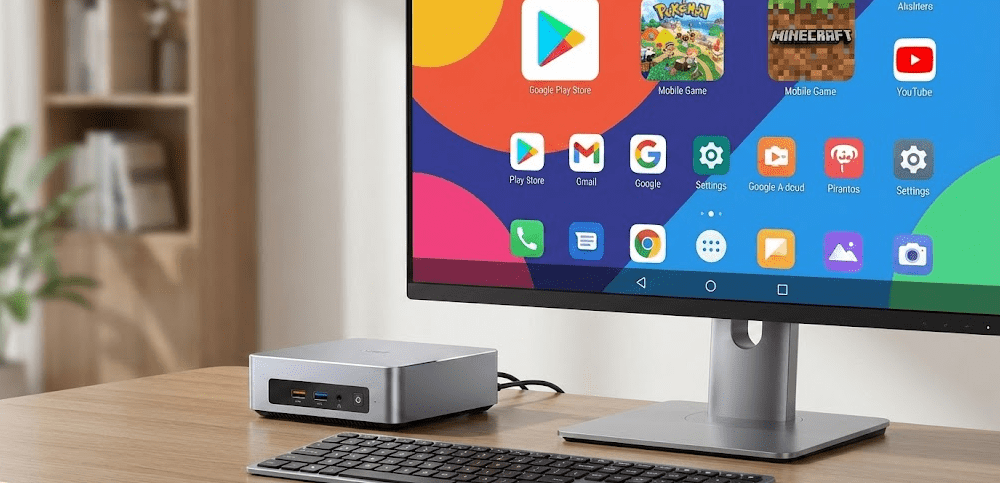
Quick decision guide:
| Goal | Best Method |
|---|---|
| Run casual Android apps and games | BlueStacks 5 |
| Optimize for mobile gaming on a powerful mini PC | LDPlayer 9 or MuMu Player |
| Specific Tencent games (PUBG Mobile, COD Mobile) | GameLoop |
| Native Windows-integrated Android experience (technical) | WSABuilds (community WSA) |
| Replace Windows entirely with Android OS | Bliss OS 16 or FydeOS |
| Access specific Android apps occasionally without installing anything | Phone Link (Android phone required) |
| Chromebook-style experience with Android apps | FydeOS |
Step-by-Step: Installing BlueStacks on a Mini PC
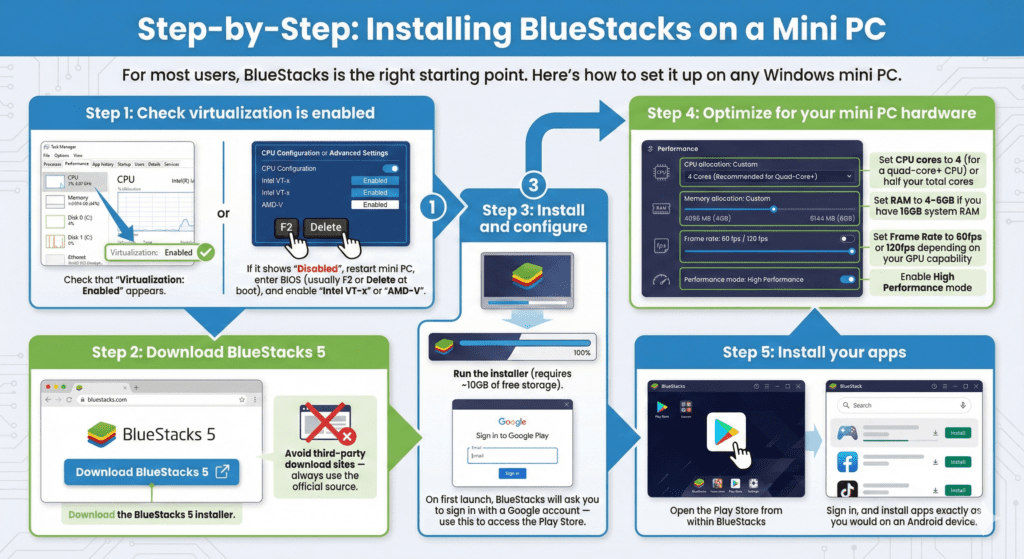
For most users, BlueStacks is the right starting point. Here’s how to set it up on any Windows mini PC.
Step 1: Check virtualization is enabled
Go to Task Manager > Performance tab > CPU. Check that “Virtualization: Enabled” appears. If it shows “Disabled,” restart your mini PC, enter BIOS (usually F2 or Delete at boot), and enable “Intel VT-x” or “AMD-V” under the CPU or Advanced settings.
Step 2: Download BlueStacks 5
Go to bluestacks.com and download the BlueStacks 5 installer. Avoid third-party download sites — always use the official source.
Step 3: Install and configure
Run the installer (requires ~10GB of free storage). On first launch, BlueStacks will ask you to sign in with a Google account — use this to access the Play Store.
Step 4: Optimize for your mini PC hardware
In BlueStacks Settings > Performance:
- Set CPU cores to 4 (for a quad-core+ CPU) or half your total cores
- Set RAM to 4–6GB if you have 16GB system RAM
- Set Frame Rate to 60fps or 120fps depending on your GPU capability
- Enable High Performance mode
Step 5: Install your apps
Open the Play Store from within BlueStacks, sign in, and install apps exactly as you would on an Android device.
Mini PC Requirements for a Smooth Android Emulation Experience
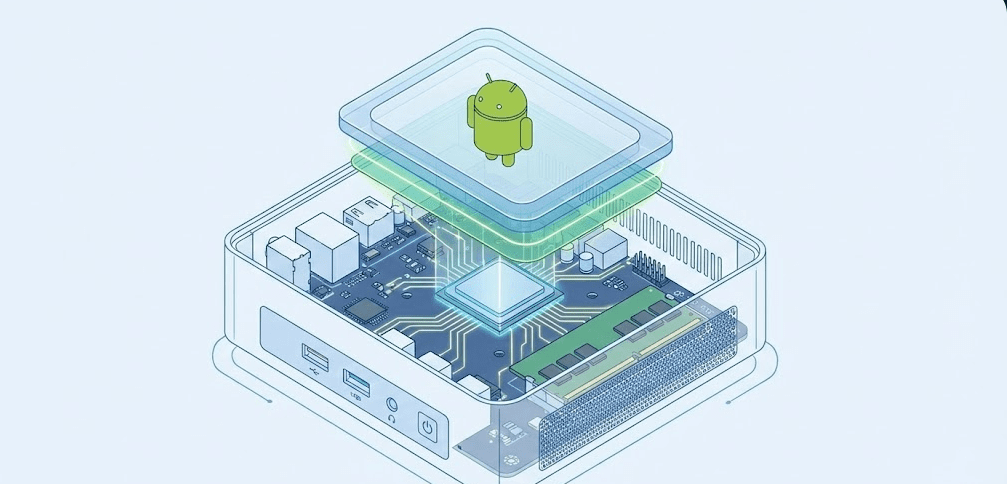
Not all mini PCs handle Android emulation equally. Here is what to look for:
Good experience (smooth for most apps and casual games):
- Intel Core i5 / AMD Ryzen 5 or better
- 8GB RAM minimum (16GB strongly preferred)
- Any dedicated or integrated GPU from the last 4 years
- 20GB+ free SSD storage
Excellent experience (smooth for demanding games and multi-instance):
- Intel Core Ultra 7 / Ryzen AI 7 9000-series
- 16–32GB RAM
- Dedicated GPU (for gaming emulation)
- NVMe SSD
Avoid for emulation:
- Intel N-series budget chips (N100, N95, N150) with 4GB RAM — these will struggle with most emulators beyond basic app use
FAQ: Mini PC and Android Apps
Can a mini PC run Android apps natively?
Not natively in 2026 — Microsoft discontinued its built-in Windows Subsystem for Android in March 2025. Android apps on a Windows mini PC now require a third-party emulator like BlueStacks, a community WSA build, or an alternative Android-based OS like Bliss OS.
What is the best Android emulator for a mini PC in 2026?
BlueStacks 5 is the most reliable and widely compatible option for most users. LDPlayer 9 is the better choice for gaming-focused use cases. Both run well on mini PCs with 8GB+ RAM and a modern Intel or AMD CPU.
Can I install the Google Play Store on a mini PC?
Yes — BlueStacks, LDPlayer, and MuMu Player all include Google Play Store access out of the box. Community WSA builds also support Google Play with manual installation.
Why won’t some Android games run on my mini PC?
Many mobile games are compiled exclusively for ARM processors and won’t run on x86 mini PC hardware without translation support. Emulators like BlueStacks handle this translation for most popular titles, but some ARM-only games simply cannot run on x86 hardware regardless of the method used.
Can I replace Windows with Android on a mini PC?
Yes — Bliss OS 16 and FydeOS can be installed directly on mini PC hardware as a primary operating system. Bliss OS 16 (Android 13-based) includes a desktop mode with multi-window support and works well on modern x86 mini PCs.
Is BlueStacks safe to use on a mini PC?
Yes — BlueStacks is a legitimate, well-established company with hundreds of millions of users. Always download from the official bluestacks.com website and avoid third-party download mirrors.
Does mini PC RAM affect Android emulator performance?
Significantly yes. With 8GB RAM, you can run a single BlueStacks instance smoothly for most apps. With 16GB RAM, you can run multiple instances, demanding games, and background apps without performance degradation. 4GB RAM produces a noticeably sluggish emulation experience.
Can I use Phone Link without an Android phone?
No — Microsoft’s Phone Link requires a connected Android device. It mirrors apps running on your phone to your PC screen. Without a phone, you’ll need an emulator or Android OS instead.
Final Thoughts
Running Android apps on a mini PC is absolutely possible in 2026 — Microsoft’s removal of WSA is an inconvenience, not a roadblock. For the majority of users, BlueStacks 5 is the fastest path to a functional Android app experience on Windows, covering everything from productivity tools to mobile gaming with minimal setup. For enthusiasts who want a deeper Android-native experience, Bliss OS 16 is one of the most impressive open-source projects in the space right now.
The key is matching the right method to your actual use case — casual app access, gaming, or a full Android desktop environment all have different optimal solutions. Once you know what you need, getting there on a modern mini PC is straightforward.


