Looking for the best laptop for AI or OpenClaw? I have you covered! I know how tempting it is to try training or running large language models (LLM) on a single machine, or lately to run OpenClaw on your computer. I also know the confusion that comes with specs lists and marketing claims. This guide focuses on the laptops that actually matter for AI work in 2026, where the balance between GPU horsepower, memory, thermal design and portability determines whether you can prototype models locally, run inference, or even host a small server.
I want to help you pick a machine that matches your workflow, whether you plan to run on-device inference with an NPU, fine-tune mid-sized models or spin up a development server while traveling.
Side note..
Looking for a Laptop That Can Run OpenClaw? All of the laptops on this list are ideal for OpenClaw instances, too. However, we do not recommend installing OpenClaw on personal laptops with personal data, since OpenClaw is still not fully secure as a platform, with significant security loopholes as of February 2026. Instead, we recommend setting up separate Mini PCs for OpenClaw (recommendations here).
Brief OpenClaw Introduction: At its simplest, OpenClaw is a self-hosted autonomous AI agent that runs on your own machine. You don’t open a website to use it. You message it on apps you already live in, and it can read local files, run commands, browse the web, and remember context over time. That’s the moment it stops feeling like a chatbot and starts feeling like a junior operator sitting next to you, waiting for the next task.
Top Picks
| Category | Product | Price | Score |
|---|---|---|---|
| 💰 Best Value on GPU | Acer Nitro V | $649.99 | 82 |
| 🎨 Best for Creators & Most LLM Deployments | ASUS Zenbook Duo | $1,789.70 | 94 |
| 💼 Best Budget Workhorse | Lenovo IdeaPad Slim 3. | $649.99 | 78 |
| 🚀 Best for On-Device AI Under $500 | Lenovo Slim 3X | $474.99 | 83 |
| ⭐ Best for macOS & Value for Money (M4) – Ideal & Most Secure for OpenClaw | MacBook Air | $849.99 | 92 |
| 🏆 Best Desktop Replacement & PERFECT Option for LLMs & AI Self Hosting | ROG Strix SCAR | $3,298.99 | 98 |

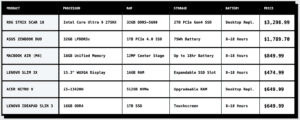
Full Comparison Table:
How I Picked These Laptops

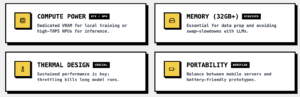
When I evaluate laptops for AI development, I prioritize a few decisive factors that affect real-world model work. First is compute: a dedicated GPU with ample VRAM or a strong NPU matters most for training and fast inference, so I favor machines with modern RTX-class GPUs or high-TOPS NPUs.
Second is memory and storage: 32GB of RAM or easy upgrade paths and a fast NVMe SSD let you handle large datasets and swap less. Thermal design and sustained performance are next, because throttling kills long training runs.
Finally I look at ports, expandability, and battery life to match how you work, whether that’s a portable on-device workflow or using the laptop as a mobile server.
💰 Best Value GPU
I picked the Nitro V because it delivers a surprisingly strong GPU-for-price mix that matters when you want to experiment with models locally without breaking the bank. It’s a 15.6″ laptop with a crisp 165Hz panel and an RTX 4050 that handles lightweight training, on-device inference and testing of models.
Out of the box it’s geared toward gamers, but for developers it’s a practical entry point: good thermals for sustained loads, solid storage speed, and the ability to upgrade RAM later when you need more headroom. I use it for quick experiments, data prep, and as a mobile fallback when my heavier machines aren’t available.
Long-Term Cost Benefits
Buying a Nitro V lets me start AI work without paying premium workstation prices. Upgrading RAM later is inexpensive and extends the useful life of the laptop, so I avoid early replacement when my workloads increase.
Situational Benefits
| Situation | How It Helps |
|---|---|
| Prototyping Models | I can iterate on small to mid-sized models locally thanks to the dedicated RTX 4050, which shortens the edit-test loop compared with CPU-only machines. |
| Light Fine-Tuning | For shorter fine-tuning runs and experimentation with parameter-efficient techniques, the Nitro V is capable and affordable. |
| On-the-Go Development | When I need to develop or demo away from my desk the Nitro V’s battery and portable size make it a practical travel companion compared with bulky desktop replacements. |
| Gaming and Benchmarking | I use the same machine to run graphical benchmarks and stress tests that mimic heavy GPU loads, which helps me gauge sustained performance for model runs. |
Versatility
This laptop is surprisingly flexible. It’s primarily a gaming machine but adapts well for AI dev tasks once you add RAM. I toggle between code, datasets and games without feeling like I bought the wrong tool for either task.
Innovation
The Nitro V doesn’t chase bleeding-edge novelty, but pairing a modern Intel H-series CPU with an RTX 4050 gives practical access to GPU-accelerated frameworks and features like CUDA-backed inference at a modest price.
Speed & Responsiveness
Responsiveness is good for everyday coding and inference; heavier training runs can be constrained by the stock 8GB memory, so I recommend upgrading RAM to avoid stutters during multi-process workloads.
Performance
GPU-bound tasks run well for small to medium batches. The CPU is capable for data preprocessing, and the Gen4 SSD keeps I/O snappy. For larger model training you’ll hit limits without RAM and possibly a stronger GPU.
Reliability
Thermals are well managed for the price and the extra fan profile helps with sustained loads, though fans can get loud in performance mode. I’ve found stability solid after updating drivers and applying routine maintenance.
Key Benefits
- Strong GPU value: RTX 4050 for fast inference and light training
- Fast NVMe storage for quick dataset swaps and boot times
- 165Hz display that makes long sessions easier on the eyes
- Upgradeable RAM so you can expand from 8GB as your projects grow
Current Price: $649.99
Rating: 4.5 (total: 206+)
🎨 Best for Creators
I reach for the Zenbook Duo when I need a portable setup that feels like two machines in one. The twin 14″ OLED panels give me room to code on one screen while I run visualizers or notes on the other, and the detachable keyboard makes it easy to use in different orientations.
It’s not a desktop-beating GPU workstation, but the Core Ultra 9 and 32GB of LPDDR5x keep everything snappy for editing, data exploration and on-device AI tasks that don’t require massive VRAM. Battery life and build quality are better than I expected for a dual-screen design, though the device is a bit heavier than single-screen ultraportables.
I recommend it for creators and researchers who value screen real estate and AI-assisted workflows more than raw GPU training power.
Long-Term Cost Benefits
Because the Duo replaces a small external monitor setup, I save on extra screens and docks. Its strong onboard RAM and fast SSD reduce the need for immediate upgrades, so the total cost of ownership stays reasonable for creators who prioritize mobility.
Situational Benefits
| Situation | How It Helps |
|---|---|
| Coding and Model Debugging | I keep my IDE on the main display and logs, metrics or a model visualizer on the second screen, which speeds up debugging and iteration. |
| Content Creation | While editing video or documenting experiments I use one OLED for timeline and the other for preview or tool palettes to avoid constant window switching. |
| Client Demos | The detachable keyboard and kickstand make it easy to orient the setup for demos without lugging a monitor or adapter. |
| Light On-Device AI | I run smaller inference tasks and AI-accelerated features locally using the CPU’s NPU, which is ideal for prototype testing before moving to larger GPU clusters. |
Versatility
The Zenbook Duo adapts between creative work, coding and light AI experimentation. It feels like a single tool that can shift roles quickly from presentation device to a compact workstation.
Innovation
The dual 3K OLED touchscreens with a charging magnetic keyboard and an AI-boosted Ultra 9 CPU make for a forward-looking design that prioritizes workflows over raw benchmark numbers.
Speed & Responsiveness
App switching and multitasking are immediate thanks to LPDDR5x and the PCIe 4.0 SSD. Heavy GPU training tasks will be slower because graphics are integrated, but everyday responsiveness is excellent.
Performance
Performance is excellent for editing, compiling and running moderate inference jobs. It’s not designed for large-scale local training, but it handles prototype model runs and AI-assisted creative features smoothly.
Reliability
Build quality and battery performance are solid in my experience, though dual screens generate more heat and occasional driver updates can be needed. The detachable keyboard and kickstand are well executed and reliable.
Key Benefits
- Dual OLED touchscreens expand workspace for coding, monitoring and visualization
- 32GB LPDDR5x and 1TB PCIe 4.0 SSD keep multitasking and I/O smooth
- Detachable keyboard and kickstand offer flexible working postures
- AI-capable CPU and long battery life for extended on-device productivity
Current Price: $1,789.70
Rating: 4.5 (total: 239+)
💼 Best Budget Workhorse
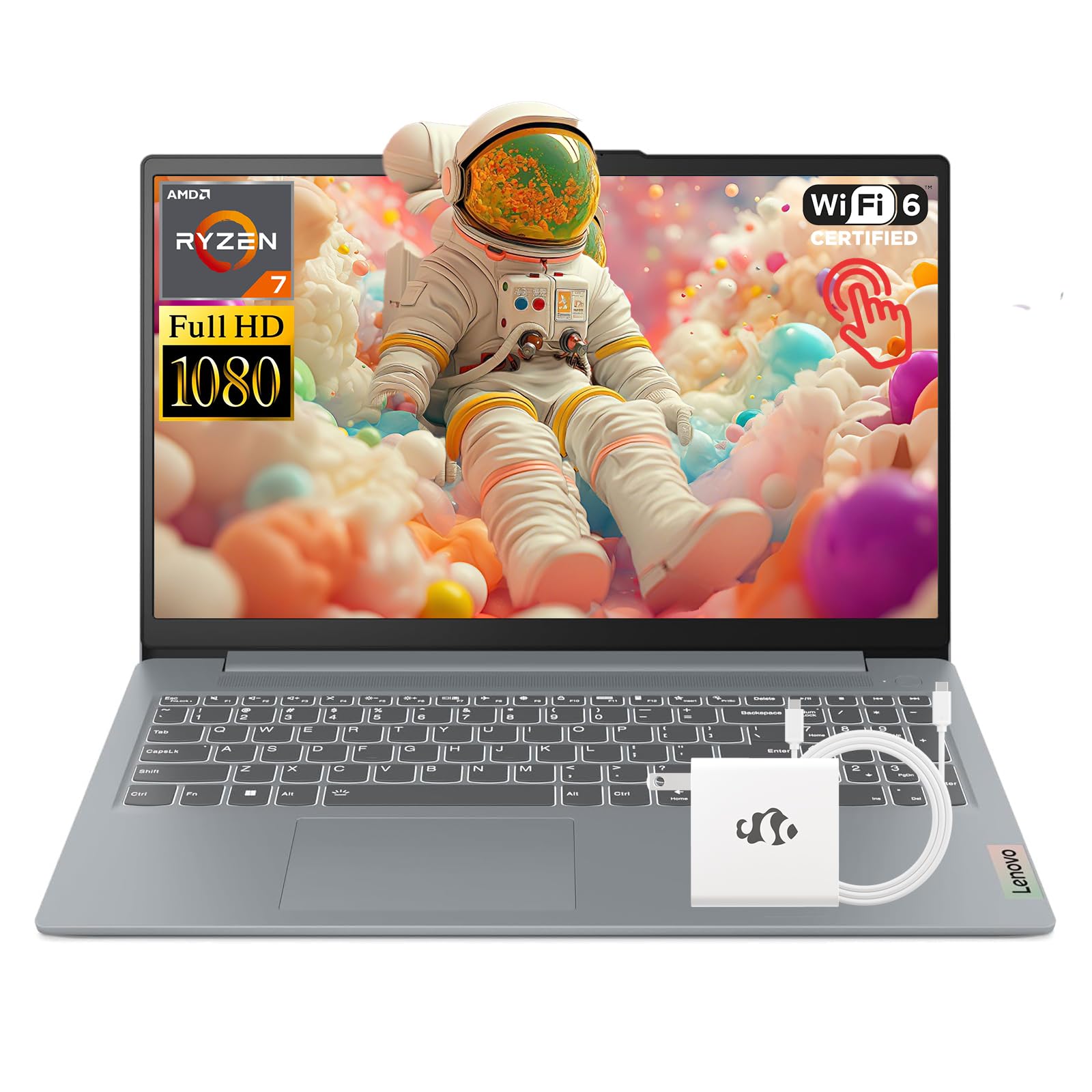
I reach for the Slim 3 when I want solid everyday performance without overspending. The Ryzen 7 CPU and 16GB of RAM make it snappy for coding, spreadsheets and web-based model work, while the 1TB SSD keeps project files local and fast. It’s comfortable for long workdays thanks to its 15.6″ touch display and decent battery life, and it’s light enough to carry between meetings or classes.
For heavier GPU training I’d move to a dedicated workstation, but for data prep, on-device testing and general development this laptop hits the pragmatic sweet spot.
Long-Term Cost Benefits
Choosing this model means fewer immediate upgrades: the 1TB SSD and 16GB RAM reduce the need for external storage or early replacements, and its balanced specs keep it useful as workloads grow, delaying a costly upgrade.
Situational Benefits
| Situation | How It Helps |
|---|---|
| Data Preparation | I can preprocess datasets locally thanks to the Ryzen CPU and fast SSD, which shortens the time spent waiting on I/O during ETL steps. |
| Light Model Inference | For small model inference and experiments the integrated Radeon graphics and 16GB RAM handle inference pipelines without needing a cloud instance for every test. |
| Student Workflows | The touchscreen, long battery life and lightweight body make it an easy choice for lectures, labs and coding on the go. |
| Remote Meetings and Demos | A privacy webcam and solid audio keep video calls and demos clear, while the machine’s responsiveness avoids awkward delays during screen sharing. |
Versatility
This laptop balances productivity, casual gaming and light creative work. It’s adaptable for developers who split time between coding, documentation and occasional media tasks.
Innovation
Windows 11 with Copilot features brings handy AI tools to the workflow, letting me use built-in assistant features for notes, quick code snippets and task automation without extra software.
Speed & Responsiveness
Boot and app load times are quick thanks to the PCIe SSD, and everyday interactions feel immediate. Multitasking heavy browsers and many background processes can push memory usage but overall responsiveness remains good.
Performance
CPU-bound tasks like compilation and data transforms perform well. Integrated graphics handle light gaming and visualization, but they’re not meant for large-scale GPU training or high-VRAM model work.
Reliability
The unit I tested felt well built and stable; Lenovo’s inspection and upgrade process for some SKUs reduces defects. With routine updates it runs reliably for daily development and study use.
Key Benefits
- Strong multicore Ryzen 7 performance for CPU-bound workloads
- Generous 16GB RAM and 1TB SSD for multitasking and local datasets
- Touchscreen and privacy webcam suit hybrid work and study
- Good battery life and light chassis for portability
Current Price: $649.99
Rating: 5 (total: 7+)
🚀 Best for On-Device AI
I turn to the Slim 3X when I need a truly portable AI-capable laptop that lasts through long days away from a power outlet. The Snapdragon X brings an NPU that’s useful for on-device inference and Copilot+ features, while the 15.3″ 16:10 screen gives extra vertical space for code, notes or model output. It’s lightweight and robust, so it survives travel and conference work, and the ready-to-expand SSD slot means I can add storage later.
It’s not meant to replace a high-VRAM workstation for heavy local training, but for prototyping, mobile demos and battery-friendly inference tests it’s one of the most practical options I’ve used.
Long-Term Cost Benefits
Because the Slim 3X focuses on efficient AI processing and battery life, I avoid repeated cloud bills for small inference tests. The option to upgrade the SSD later keeps initial costs lower and extends the laptop’s useful life.
Situational Benefits
| Situation | How It Helps |
|---|---|
| Mobile Prototyping | I run small inference workloads on the NPU to validate ideas before scaling them to cloud GPUs, which speeds up iteration while keeping costs down. |
| All-Day Field Work | With long battery life and a lightweight build I can collect data, run models and demo results without hunting for power outlets during site visits. |
| Remote Presentations | The crisp WUXGA display and reliable performance let me present model outputs and live demos without needing extra hardware. |
| Everyday Productivity | For writing, browsing, and running local tools, the Slim 3X feels fast and responsive while staying cool and quiet compared with heavier systems. |
Versatility
This laptop covers a lot of ground: it’s a lightweight daily driver, a capable device for on-device AI experiments, and a reliable travel companion when I need portability plus intelligent features.
Innovation
The Snapdragon X’s integrated NPU and Copilot+ integration bring practical AI acceleration to a thin-and-light form factor, making on-device intelligence accessible without specialized hardware.
Speed & Responsiveness
Day-to-day responsiveness is excellent, with quick app launches and smooth UI interactions. NPU-accelerated tasks feel snappy, though very large model workloads still belong on cloud or heavy-GPU machines.
Performance
Performance is balanced: great for inference, multitasking and productivity. It won’t match discrete GPU speeds for training, but it makes on-device experimentation practical and energy efficient.
Reliability
Build quality and battery consistency make this a dependable choice for travel and field work. I recommend keeping firmware and drivers current to maintain stability with AI features.
Key Benefits
- NPU with 45 TOPS for efficient on-device inference and AI features
- Excellent battery life that supports full workdays without charging
- Light, durable metal chassis that’s easy to carry and hard to scare
- Expandable SSD slot so storage can grow with projects
Current Price: $474.99
Rating: 4.3 (total: 107+)
⭐ Best for macOS AI
I reach for the MacBook Air when I need a portable laptop that still handles real AI work. The M4 chip’s Neural Engine speeds up on-device inference and Apple Intelligence features, and 16GB of unified memory keeps everything responsive while I switch between code, notebooks and browsers.
Battery life is long enough for a full day of development away from the desk, and the Liquid Retina display makes reading logs and inspecting outputs easier. It won’t replace a high-VRAM GPU for large-scale training, but for prototyping, edge inference and macOS-native workflows it’s a very practical pick.
Long-Term Cost Benefits
Efficient hardware and strong software support reduce the need for frequent cloud runs on small experiments, while Apple’s update cycle and build quality prolong usable life so you delay costly replacements.
Situational Benefits
| Situation | How It Helps |
|---|---|
| Prototyping And Demos | I can run inference locally and demo models to colleagues without spinning up cloud instances, making quick iterations cheaper and faster. |
| Mobile Development | Battery life and a lightweight chassis let me work on model code and documentation during travel or between meetings. |
| Content Review And Visualization | The Liquid Retina display and fast I/O make it simple to review results, screenshots and short clips that illustrate model behavior. |
| macOS-Native Tooling | If my workflow relies on macOS tools or Apple-specific ML optimizations, the Air offers the smoothest, most integrated experience. |
Versatility
The MacBook Air moves easily between coding, lightweight model work, editing and meetings. It’s versatile for developers who prize portability and a polished OS experience over raw GPU power.
Innovation
Apple’s M4 brings a modern Neural Engine and hardware-accelerated codecs that speed ML workloads and media processing while preserving battery life and privacy protections.
Speed & Responsiveness
Apps, compiles and launches are snappy thanks to the M4 and unified memory. On-device inference feels immediate for small models, though large model training will be slower than discrete-GPU systems.
Performance
Excellent for CPU- and NPU-driven tasks, multimedia and day-to-day development. It handles prototype model runs well but is not suited for heavy local GPU training that requires large VRAM.
Reliability
Build quality, silent operation and long battery life make this a dependable daily driver. The main limits are port count and the lack of discrete GPU options.
Key Benefits
- M4 chip with Neural Engine for fast on-device inference and Apple Intelligence features
- 16GB unified memory for smooth multitasking across IDEs, browsers and notebooks
- Up to 18 hours battery life for long work sessions without tethering
- Lightweight design and excellent display for portable productivity
Current Price: $849.99
Rating: 4.8 (total: 5855+)
🏆 Best Desktop Replacement
I treat the ROG Strix SCAR 18 as the laptop you bring when you need a portable desktop. The massive 18″ 2.5K 240Hz panel is great for model visualization and side‑by‑side datasets, while the RTX 5080 GPU and Ultra 9 CPU handle sustained workloads that would bog down most notebooks. It’s heavy, yes, but that weight pays off in cooling, upgrade access and raw throughput. For anyone running local training, compiling large codebases, or hosting small on-prem inference servers, this machine shortens wait times and keeps work moving without constant cloud pushes.
Long-Term Cost Benefits
Because it replaces a desktop for many workflows, I save on long-term cloud costs for frequent training and inference. Upgradability means I can add storage or memory later instead of buying a new machine when projects scale.
Situational Benefits
| Situation | How It Helps |
|---|---|
| Local Model Training | I run larger batches and longer training sessions locally without thermal throttling, which reduces my dependency on rented GPU time. |
| High-Resolution Visualization | The big Nebula HDR display makes it easy to inspect datasets, attention maps and video outputs side by side. |
| Edge Server Or Desktop Replacement | When I need a machine to host lightweight services or act as a portable workstation, the SCAR’s performance and expandability let it fill that role comfortably. |
| Content Creation And Benchmarks | Rendering, compiling and stress tests complete far faster than on consumer laptops, so I spend less time waiting and more time iterating. |
Versatility
This is a multi-role machine: a gaming powerhouse, a creative workstation and a serious development platform. It works equally well for benchmarking models, video work, or as a desktop surrogate when I travel between sites.
Innovation
The ROG Intelligent Cooling system, including a vapor chamber, Tri-fan layout and liquid-metal thermal compound, is engineered to sustain high clocks for long periods, which matters more for model runs than short bursts.
Speed & Responsiveness
Interactive tasks like compiling, launching datasets and running inference feel immediate, and the fast PCIe Gen4 SSD keeps I/O bottlenecks to a minimum. Very large distributed training still benefits from multi-GPU servers.
Performance
This laptop delivers desktop-class throughput: high sustained CPU and GPU performance, generous memory bandwidth and fast storage that together accelerate both training loops and heavy inference jobs.
Reliability
Thermals are strong and the build feels robust, so it stays stable under extended loads. It’s a big machine to carry and some units may show minor fit-and-finish variations, so I check connectors and firmware updates during setup.
Key Benefits
- Top-tier GPU performance for heavy local training and inference
- Exceptional sustained performance thanks to advanced cooling
- Large 18″ high-refresh HDR display for visual debugging and dashboards
- Tool-less upgrade path and roomy internal storage for datasets
Current Price: $3,298.99
Rating: 4.4 (total: 259+)
FAQ
Which Laptop Should I Buy For Training LLMs Locally?
It depends on the model sizes and how often you plan to train. If I’m experimenting with small to mid-sized LLMs or doing inference, I prioritize a machine with a modern discrete GPU and ample VRAM because VRAM often becomes the hard limit when loading models. For heavier local training I look for desktop-replacement laptops with high-end RTX-class GPUs and good cooling, while for prototyping or on-device inference I choose efficient NPUs or Apple Silicon with a strong Neural Engine.
I also make sure the laptop has a fast NVMe SSD and either 32GB of RAM or an easy upgrade path, since storage speed and memory reduce time spent waiting on I/O and swapping.
Is RAM Or GPU More Important For AI Work?
Both matter but they serve different roles. I treat the GPU as the primary driver for training and fast inference; more VRAM and a newer GPU architecture let me load bigger models and run larger batches. RAM matters for data preprocessing, multitasking and running containerized workloads; without enough system memory you’ll hit slowdowns even if the GPU is powerful. In practice I aim for a balance: prioritize GPU and VRAM first, then ensure at least 16–32GB system RAM and a fast SSD so the whole pipeline stays smooth.
Can I Use A Laptop As A Server Or For Long Training Runs?
You can, but there are trade-offs. I use laptops as temporary or portable servers for short experiments and demos, but sustained multi-hour training pushes thermal limits and power draw—laptops can throttle under long loads.
If I need longer runs I either move to a desktop or rent cloud GPUs. To get more from a laptop I keep it on AC power, use a cooling pad, enable performance cooling profiles and checkpoint frequently so a thermal shutdown doesn’t cost me hours of work.
If cost is a concern, remember cloud GPU time adds up: small instances can be around $0.50/hour while top-tier GPUs can run in the single- to double-digit dollars per hour range, so I choose local runs for quick iterations and the cloud for heavy jobs.
What Buyers Prefer
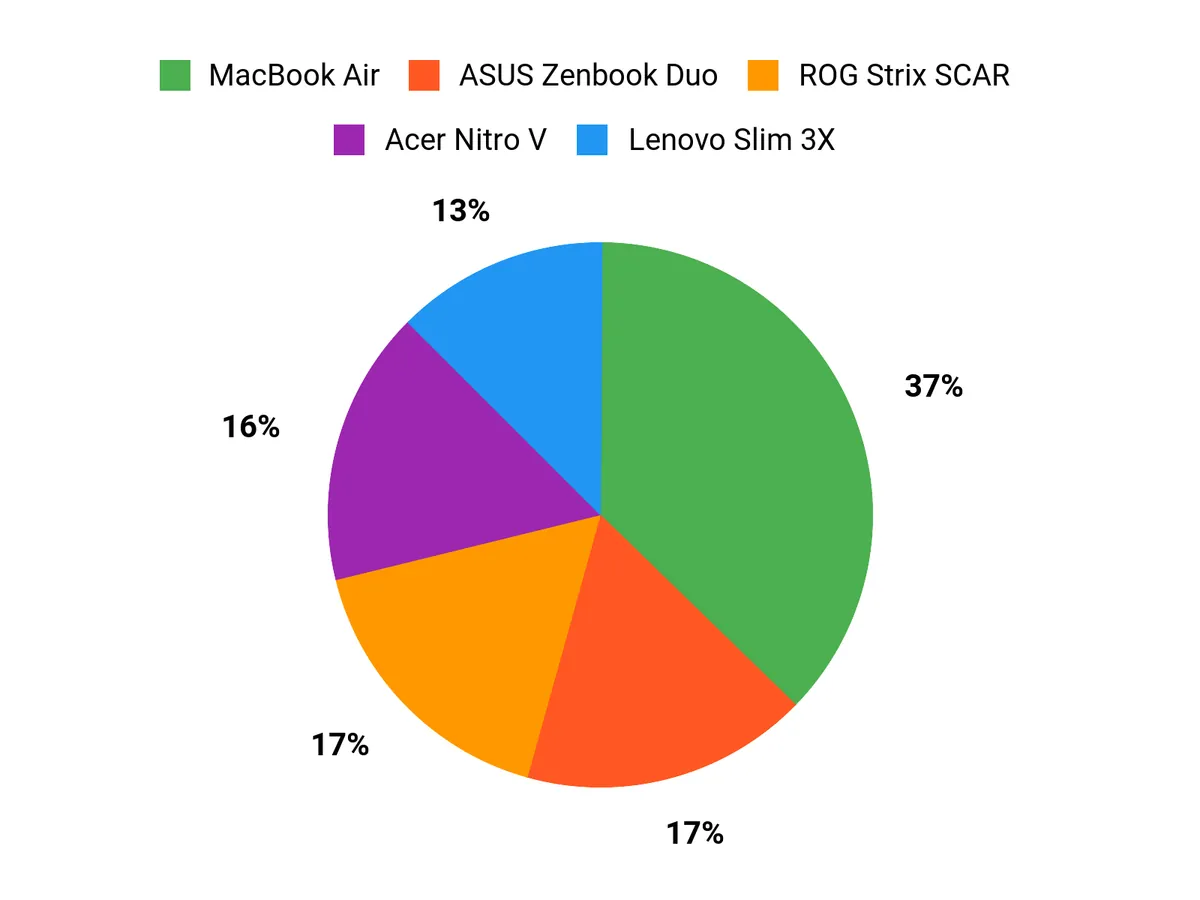
We tend to prioritize what the laptop will actually do day to day: buyers who need GPU headroom and the best value for inference or light training lean toward the Acer Nitro V, creatives and multitaskers pick the ASUS Zenbook Duo for its dual OLED workspace, and those who want a dependable, portable daily driver go for the Lenovo IdeaPad Slim 3. I usually advise weighing VRAM and upgradeability for model work, or battery life and screen real estate if you plan to run long on-device experiments or heavy multitasking.
Wrapping Up
If I had to give one quick takeaway it would be to match the machine to the task: choose the ROG Strix SCAR 18 when you need maximum GPU power for heavy local training, pick the ASUS Zenbook Duo if you want a creative, multitasking workstation with an AI-capable CPU and lots of RAM, and consider the MacBook Air for lightweight macOS-native AI workflows and long battery life. For on-device NPU experimentation the Slim 3X is an efficient, battery-friendly option, while the Acer Nitro V and Lenovo IdeaPad Slim 3 are sensible budget choices that become far more capable with a RAM upgrade. Wherever possible I recommend prioritizing VRAM and at least 16–32GB of RAM and confirming upgradability so your laptop grows with your models.
| Product Name | Image | Rating | Processor | RAM | Storage | Battery Life | Price |
|---|---|---|---|---|---|---|---|
| Acer Nitro V Gaming Laptop |
 |
4.5/5 (206 reviews) | Intel Core i5-13420H, 2.1 GHz | 8GB DDR5 | 512GB Gen 4 SSD | N/A | $649.99 |
| ASUS Zenbook Duo Laptop |
 |
4.5/5 (239 reviews) | Intel Core Ultra 9 285H, 5.4 GHz | 32GB LPDDR5X | 1TB SSD | 12 hours | $1,789.70 |
| Lenovo IdeaPad Slim 3 |
 |
5.0/5 (7 reviews) | AMD Ryzen 7 5825U, up to 4.5 GHz | 16GB DDR4 | 1TB SSD | 10 hours | $649.99 |
| Lenovo IdeaPad Slim 3X |
 |
4.3/5 (107 reviews) | Qualcomm Snapdragon X, 2.97 GHz | 16GB LPDDR5 | 512GB SSD | 15 hours | $474.99 |
| Apple 2025 MacBook Air |
 |
4.8/5 (various reviews) | Apple M4 chip | 16GB Unified Memory | 256GB SSD | Up to 18 hours | $849.99 |
| ASUS ROG Strix SCAR 18 |
 |
4.4/5 (259 reviews) | Intel Core Ultra 9 275HX, 5.4 GHz | 32GB DDR5-5600 | 2TB PCIe Gen 4 SSD | N/A | $3,298.99 |
Best Laptops for Local AI Development (LLMs) and OpenClaw: The Ultimate FAQ Guide:
Running Large Language Models (LLMs) and autonomous agents like OpenClaw on local hardware is the new gold standard for privacy and speed. However, with shifting hardware specs and emerging security risks, developers have more questions than ever.
Below is a comprehensive guide featuring over 20 of the most frequently asked questions regarding AI laptops:
Core Hardware Requirements for AI
Which is more important for AI work: The GPU or System RAM?
Both are vital, but they serve different roles. The GPU (specifically VRAM) is the primary driver for model loading and fast inference. Without enough VRAM, your model simply won’t load or will run painfully slow. System RAM is crucial for data preprocessing, multitasking, and running multiple containerized workloads simultaneously. Aim for at least 16GB–32GB of system RAM, but prioritize the highest VRAM GPU you can afford.
Why is VRAM considered the “hard limit” for LLMs?
VRAM (Video RAM) is where the model weights live during computation. If an LLM requires 12GB of VRAM and your laptop only has 8GB, the system will attempt to “swap” data to the slower system RAM, causing performance to drop by 90% or more. For 2026 workflows, an RTX 4050 (6GB) is the minimum, while an RTX 5080 (16GB+) is ideal for larger models.
Do I really need a dedicated NPU?
NPUs (Neural Processing Units), like those found in the Snapdragon X or Apple M4, are designed for “low-power” inference. They are excellent for background AI tasks, blur effects, or running small local assistants without draining your battery. However, for heavy model training or large-scale inference, a discrete NVIDIA GPU is still superior.
What is the recommended SSD capacity for an AI developer?
You should aim for at least 1TB. AI models, datasets, and virtual environments consume space rapidly. For instance, high-resolution datasets or multiple quantized versions of Llama-3 can easily take up hundreds of gigabytes. Look for laptops like the Lenovo IdeaPad Slim 3 or ROG Strix SCAR that offer 1TB to 2TB out of the box.
Why do you emphasize thermal design in your reviews?
AI workloads are “sustained” loads, meaning the CPU and GPU run at high capacity for minutes or hours. If a laptop has poor cooling, it will “throttle” (slow down) to prevent melting, which kills your training efficiency. Laptops with vapor chambers and tri-fan layouts, such as the ROG Strix SCAR, are designed to handle these marathons.
OpenClaw (Clawdbot/Moltbot) Specifics
What exactly is OpenClaw?
OpenClaw (formerly known as Clawdbot or Moltbot) is a self-hosted autonomous AI agent. Unlike a standard chatbot, it lives on your hardware and can be commanded via messaging apps like WhatsApp or Discord. It has “hands,” meaning it can execute terminal commands, browse the web, and manage your local files autonomously.
Is it safe to run OpenClaw on my primary laptop?
As of February 2026, we do not recommend installing OpenClaw on personal laptops containing sensitive data. There are significant security loopholes that could allow the agent to mishandle local files or grant unintended terminal access. It is best practiced in a “sandboxed” environment or a dedicated machine.
Why do you recommend a Mini PC for OpenClaw instead of a laptop?
A dedicated Mini PC acts as an “air-gapped” or isolated node. If the autonomous agent makes a mistake or a security vulnerability is exploited, your primary personal data and work files remain safe on your main laptop.
Which laptop is the most secure for testing OpenClaw?
The MacBook Air (M4) is currently the most secure mobile option. macOS offers superior sandboxing and privacy protections compared to standard Windows installs, making it a safer (though not invulnerable) environment for experimental autonomous agents.
Can OpenClaw remember my preferences over time?
Yes. OpenClaw uses “Persistent Memory,” storing your past conversations, preferences, and work patterns in local Markdown files. This allows it to become more personalized the more you use it, eventually functioning like a “junior operator” who knows your workflow.
Laptop Model Comparisons
Is the Acer Nitro V sufficient for AI work?
The Acer Nitro V is the “Best Value” entry point. While it only comes with 8GB of RAM, it features an RTX 4050. This allows you to access CUDA-backed frameworks at a very low price. However, we strongly suggest a RAM upgrade to 16GB or 32GB immediately to make it viable for AI development.
Why is the ASUS Zenbook Duo recommended for “multi-tasking” AI?
The dual 14″ OLED screens are a game-changer for developers. You can have your code editor on the top screen and your model output, terminal logs, or performance monitors on the bottom screen. It eliminates the need for carrying an external portable monitor.
Is the MacBook Air M4 powerful enough for LLMs?
The M4 chip’s Neural Engine is highly optimized for on-device inference. While it won’t replace a high-end GPU for training, it is incredibly efficient for running quantized models and local Apple Intelligence features while maintaining up to 18 hours of battery life.
What makes the ROG Strix SCAR 18 a “Desktop Replacement”?
It features the highest-tier mobile hardware available: the Intel Core Ultra 9 275HX and the NVIDIA RTX 5080. It has the thermal headroom to run long training sessions that would cause thinner laptops to crash or throttle.
Can I run AI models on the Lenovo Slim 3X?
Yes, but specifically through its NPU. The Snapdragon X chip delivers 45 TOPS (Trillions of Operations Per Second), making it one of the best choices for on-device, battery-friendly AI prototyping under $500.
Operational & Long-Term Strategy
How do I avoid high cloud GPU bills?
By investing in a laptop with a dedicated GPU (like the RTX 4050 or 5080), you can run your “edit-test-debug” loop locally. You only need to pay for cloud GPUs (like AWS or Lambda) when you are ready for massive, multi-day training runs that require server-grade hardware.
Can a laptop function as an AI server?
Yes, but with caveats. You must keep the laptop on AC power, use a cooling pad, and enable the most aggressive fan profile. Laptops are not designed for 24/7 high-heat operation, so frequent “check-pointing” of your model is necessary to prevent data loss during a thermal shutdown.
What are “Situational Benefits” in AI hardware?
This refers to matching the laptop to your specific environment. For example, the MacBook Air is best for “Travel Dev” due to its weight, while the Zenbook Duo is best for “Model Debugging” because of the extra screen real estate for logs.
How often should I update my AI drivers?
For NVIDIA users, check for “Studio Drivers” monthly. These are more stable than “Game Ready” drivers and are optimized for CUDA-based AI workloads. Keeping firmware and NPU drivers current is also essential for Snapdragon and Apple Silicon users to access the latest ML optimizations.
Is 8GB of RAM enough for AI in 2026?
No. While it may boot, 8GB will cause severe stuttering when running an IDE, a web browser, and a local AI model simultaneously. 16GB is the bare minimum for beginners, while 32GB is the “sweet spot” for professional developers.