The quickest way to check if your GPU fan is working is to monitor it using a free tool like MSI Afterburner or GPU-Z while running a GPU-intensive game or benchmark. But before you panic, there are a few things worth understanding first, because a GPU fan not spinning is not always a problem.
If you have ever booted your PC, glanced over at your graphics card, and noticed the fans completely still, your first instinct is probably to worry. I have been there. The good news is that in most cases, this is completely normal behavior by design. However, there are real situations where a fan failure can silently cook your GPU, and knowing how to tell the difference is genuinely important.
This guide walks you through everything: how to check your GPU fan status, what normal behavior looks like, how to diagnose a real problem, and how to fix it step by step, including updated information for NVIDIA Blackwell (RTX 50-series) and AMD RDNA 4 (RX 9000-series) owners in 2026.
What Is Normal GPU Fan Behavior in 2026?
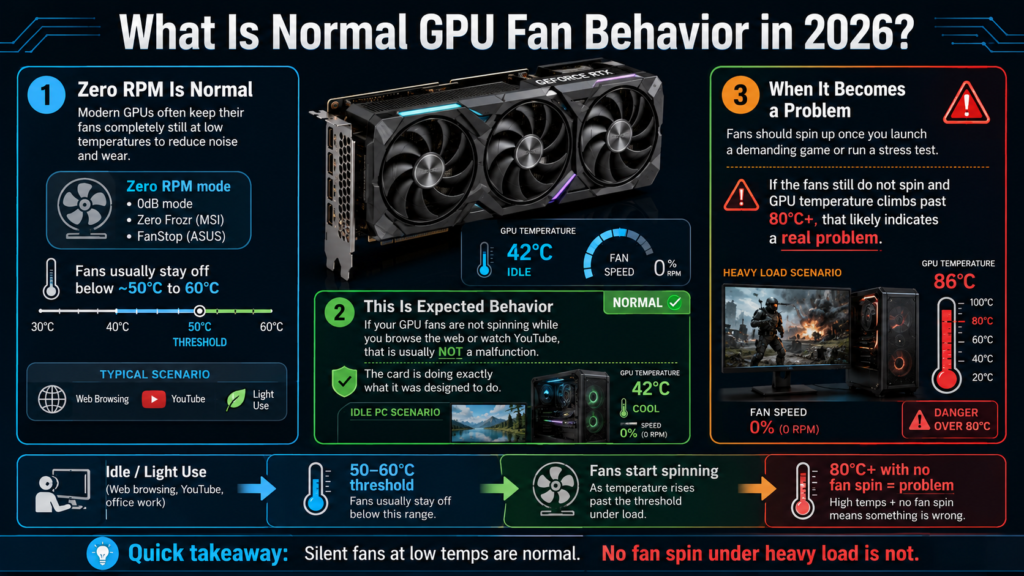
Modern GPUs are built with a feature called Zero RPM mode (also marketed as “0dB mode,” “Zero Frozr” by MSI, or “FanStop” by ASUS). This means the fans are intentionally programmed to stay completely still at low temperatures. They only spin up once the GPU hits a certain heat threshold, usually somewhere between 50°C and 60°C.
So if you boot your PC and the GPU fans are not spinning while you browse the web or watch YouTube, that is not a malfunction. That is the card doing exactly what it was designed to do.
The fans will kick in once you launch a demanding game or run a stress test. At that point, if they still do not spin and your GPU temperature is climbing past 80°C or higher, then you likely have an actual problem that needs attention.
As Digital Trends points out in their GPU fan troubleshooting guide, as long as your GPU is running at or below 85°C and performance is stable, a still fan at idle is almost never a cause for concern.
How to Check If Your GPU Fan Is Working
Method 1: Visual Check
The most straightforward method is the simplest one. Remove the side panel of your PC case, launch a graphically demanding game or a benchmarking tool like FurMark, and physically watch whether the fans start spinning after a few minutes of load. This takes about five minutes and gives you a direct visual confirmation.
While you are at it, look for any cables, zip ties, or debris physically obstructing the fan blades from rotating. It happens more often than you might think, especially after a cable management session or a GPU upgrade.
Method 2: Use MSI Afterburner
MSI Afterburner is the most popular and widely trusted GPU monitoring tool available, and it is completely free. Make sure you are running MSI Afterburner v4.6.6 or higher (the latest v5.x builds are recommended for 2026). Earlier versions had known compatibility issues with voltage controller detection on AMD RDNA 4 (RX 9000-series) cards, so updating before you start is important.
After installing it, open the main dashboard and look at the fan speed readout, displayed as either a percentage or RPM value. To force the fans to spin for a quick test, click the fan icon in Afterburner and switch from “Auto” to manual control, then drag the fan speed slider up to 50% or higher. If the fans respond and spin up, they are physically working. If the RPM stays at zero even on manual override, you have a hardware issue.
Method 3: Use GPU-Z
GPU-Z is another lightweight, free tool that shows you real-time GPU data including fan speed in RPM, GPU core temperature, memory temperature, and load percentage. Open it up, run a game or benchmark in the background, and watch whether fan RPM increases alongside the rising temperature. If the temperature climbs steadily while fan RPM stays frozen at 0, that is a red flag.
Method 4: Use the NVIDIA App (Replaces GeForce Experience)
If you are on an NVIDIA GPU, note that as of late 2024, NVIDIA fully replaced both GeForce Experience and the legacy NVIDIA Control Panel with the unified NVIDIA App. If you still have GeForce Experience installed, NVIDIA has been prompting users to migrate, and by mid-2026 the transition is essentially complete.
To test your fans, press Alt + Z to open the NVIDIA App overlay (the shortcut remains the same), then navigate to the Performance tab. From there you can monitor fan speed in real time and switch between automatic and manual fan control. Crucially, the new NVIDIA App no longer requires you to be logged into a NVIDIA account for basic fan control and performance monitoring, which was a friction point many users had with the old GeForce Experience setup.
AMD users can access the same functionality through the AMD Adrenalin software under the Performance and Tuning tabs.
GPU Fan Speed and Temperature Reference Table
Use this table to understand what fan behavior to expect at different temperature ranges. For owners of NVIDIA Blackwell cards (RTX 5080, RTX 5090) and AMD RDNA 4 cards (RX 9000-series), the notes column includes architecture-specific guidance.
Important note for RTX 50-series (Blackwell) owners: The RTX 5090, 5080, and 5070 Ti use GDDR7 memory, which is designed to operate at significantly higher temperatures than previous generations. GDDR5X had a throttle threshold around 95°C, GDDR6 around 105°C, and GDDR7 sits at approximately 110°C before throttling occurs. So if your monitoring software shows VRAM temperatures between 95°C and 105°C during heavy 4K gaming or AI inference workloads, that is normal behavior for these cards and is not a cause for alarm. The GPU core temperature, however, is a separate metric and follows the traditional warning zone guidelines.
According to PCMag’s comprehensive GPU testing and analysis, keeping your GPU core temperature under 85°C during sustained gaming is still the recommended sweet spot for long-term component reliability across both NVIDIA and AMD lineups.
Why Is My GPU Fan Not Spinning? Common Causes
1. Zero RPM Mode Is Active
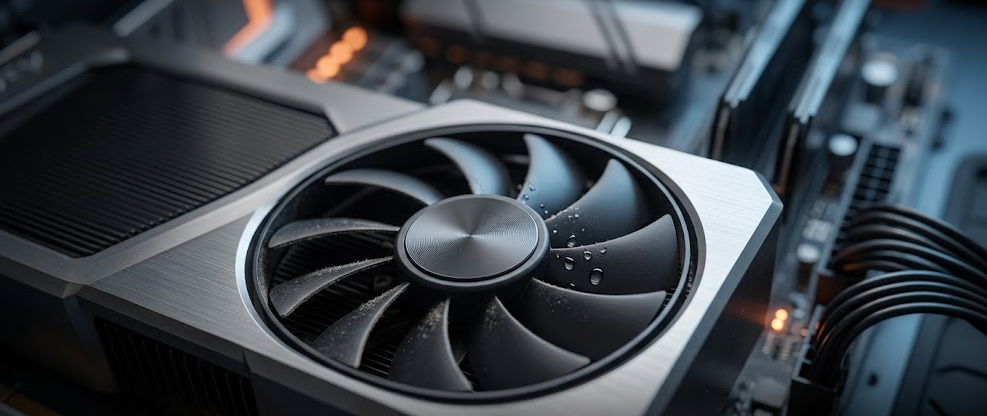
As covered above, this is the most common reason. Most mid-range and high-end GPUs sold today include this feature by default. MSI calls it Zero Frozr, ASUS calls it FanStop. It is intentional and perfectly safe.
2. Dust and Physical Obstruction
Dust buildup on the fan blades, heat sink fins, or fan motor can slow or completely stop a fan from spinning. If your PC has not been cleaned in over a year, a heavy dust coating is a very likely culprit. A can of compressed air aimed through the fan blades and heat sink fins usually solves this quickly.
3. Loose or Disconnected Fan Cable
The fans on your GPU connect directly to small headers on the graphics card’s PCB. If a fan cable has come loose, wiggled free during a case move, or was not seated properly during installation, the fan will not receive power and will not spin. This requires opening the case and physically reseating the connector.
4. Outdated or Corrupted GPU Drivers
In some cases, outdated NVIDIA or AMD drivers can introduce bugs that interfere with fan speed control. A driver update, or better yet a clean install using Display Driver Uninstaller (DDU) followed by the latest driver from the manufacturer’s website, often resolves this.
5. Custom Fan Profile or Software Conflict
If you or someone else previously set a custom fan curve or profile in MSI Afterburner, AMD Adrenalin, or the NVIDIA App, and that profile is still active, it could be restricting the fans incorrectly. Resetting fan settings back to default in whichever software you use is a good early troubleshooting step.
6. Worn Fan Bearings or Hardware Failure
If you can hear a grinding or rattling noise coming from the GPU, or if the fan wobbles when spun manually by hand, the bearing is worn out. This is a hardware failure and the fan will need to be replaced. Fans for most popular GPU models are available as replacement parts through the card manufacturer or third-party suppliers.
7. eGPU Enclosure Power or Firmware Issue
If you are using an external GPU (eGPU) connected via Thunderbolt or USB4, the fan behavior you see in software may not tell the full story. In eGPU setups, the GPU’s cooling fans are often controlled jointly by the GPU driver and the enclosure’s own firmware and power supply. If the enclosure’s PSU is underpowered or its firmware has a bug, the fans may not receive adequate voltage regardless of what the driver requests. Before troubleshooting the GPU itself in an eGPU setup, verify that your enclosure’s power supply is rated for your specific GPU’s TDP, and check the enclosure manufacturer’s site for firmware updates.
8. Failed Fan Power Circuitry on the PCB
In rarer cases, the voltage regulation components on the GPU’s circuit board that supply power to the fan headers can fail. If you are comfortable with a multimeter, checking for voltage at the fan header while the PC is running can confirm or rule this out. Zero voltage at the header points to a blown component on the board itself.
Step-by-Step: How to Diagnose and Fix a GPU Fan Problem
Step 1: Run a stress test first
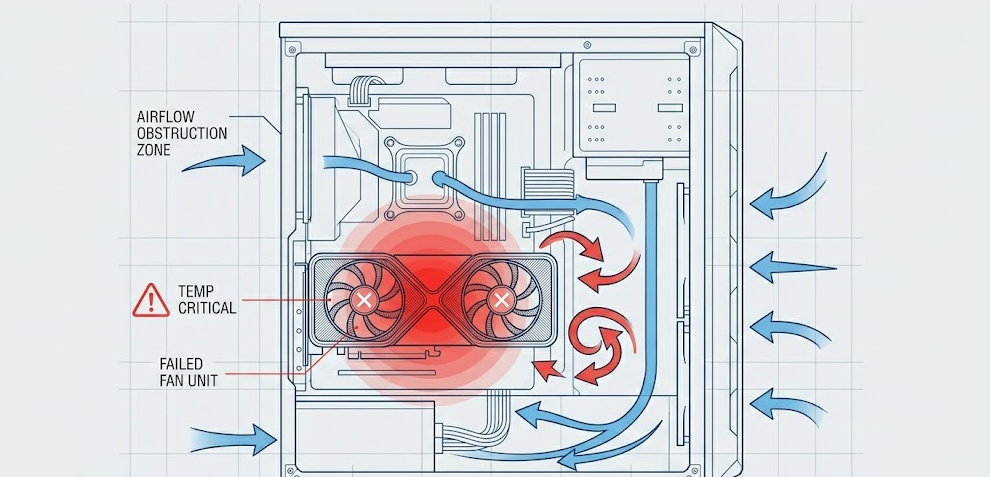
Before doing anything else, open FurMark or run a demanding game for 10 to 15 minutes. Watch the GPU fans physically and note whether they spin up as temperature rises. If they do, the fans are working and Zero RPM mode was just doing its job.
Step 2: Check temperatures with MSI Afterburner or GPU-Z
Install and open either tool. Monitor GPU temperature and fan RPM simultaneously during the stress test. If temperature exceeds 70°C while fan RPM stays at zero, proceed to the next steps.
Step 3: Try manual fan override
In MSI Afterburner, switch to manual fan control and set speed to 60%. If the fans spin up, your hardware is fine and the issue is software-based. Reset your fan curve to defaults and check for driver issues.
Step 4: Inspect for physical obstructions
Power down completely and unplug from the wall. Remove the side panel. Visually inspect the GPU fans for cables, debris, or dust blocking the blades. Gently try spinning each fan blade with your finger. It should rotate smoothly and silently. Any grinding or stiffness points to bearing wear.
Step 5: Clean the GPU with compressed air
With the PC off and unplugged, use a can of compressed air to blow out dust from the fan blades, heat sink fins, and surrounding area. Always hold the fan blades still with your finger while blowing. This is not just about preventing overspinning from the air pressure. When a fan is spun by external force, it acts like a small generator and produces back-EMF (back electromotive force), which can send a small voltage spike back through the fan header into the GPU’s control circuit. Those traces on the PCB are extremely delicate, and repeated back-EMF events can degrade or outright destroy the fan controller over time. It takes two seconds to hold the blade still and it is absolutely worth doing.
Step 6: Reseat the fan cable
Locate the small fan power connector on the GPU PCB. Unplug it carefully and plug it back in firmly until it clicks. A loose connection here is a surprisingly frequent cause of non-spinning fans.
Step 7: Reinstall GPU drivers cleanly
Download Display Driver Uninstaller (DDU), run it in Safe Mode to completely remove existing drivers, then install the latest driver directly from NVIDIA’s or AMD’s official website.
Step 8: Update GPU BIOS
Check your GPU manufacturer’s support page for a BIOS update specific to your card model. A newer BIOS version sometimes includes improved fan curve programming and bug fixes. Follow the manufacturer’s flashing instructions precisely, as flashing incorrectly can permanently damage the card.
Step 9: Consider RMA or fan replacement
If all software fixes fail and the fans physically do not respond to manual override in Afterburner, your fans are likely dead. If the card is under warranty, contact the manufacturer for an RMA. If out of warranty, replacement fans for most popular models are available and are generally a cost-effective repair.
For a practical visual walkthrough of testing and fixing GPU fan issues, This comprehensive GPU fan troubleshooting video by Paul’s Hardware on YouTube is one of the most helpful resources available.
Pro Tip: When testing your GPU fans with MSI Afterburner’s manual control, do not just bump the fan to 100% for a dramatic check. Set it to 50% first and listen carefully. A working fan at 50% makes a distinct, consistent hum. A failing fan at 50% often makes an irregular clicking, grinding, or pulsing sound that immediately tells you the bearing is on its way out. Your ears are a surprisingly reliable diagnostic tool here.
How to Set a Custom GPU Fan Curve (Optional but Recommended)
If your GPU temperatures are running hotter than you would like, or you just want more control over noise versus cooling performance, setting a custom fan curve in MSI Afterburner is one of the best things you can do for your card’s long-term health.
A good starting point for most builds is to keep fans at 0% below 40°C (letting Zero RPM do its job), ramp gradually to 50% at 60°C, 70% at 75°C, and 100% at 85°C. This balances quiet operation during light tasks with aggressive cooling when the GPU is truly working hard.
To set it up: open Afterburner, click the Settings gear, go to the Fan tab, check “Enable user defined software automatic fan control,” and use the graph editor to plot your preferred curve. Apply and save to a profile so it loads automatically on startup.
2026 GPU Cooling Trends to Know
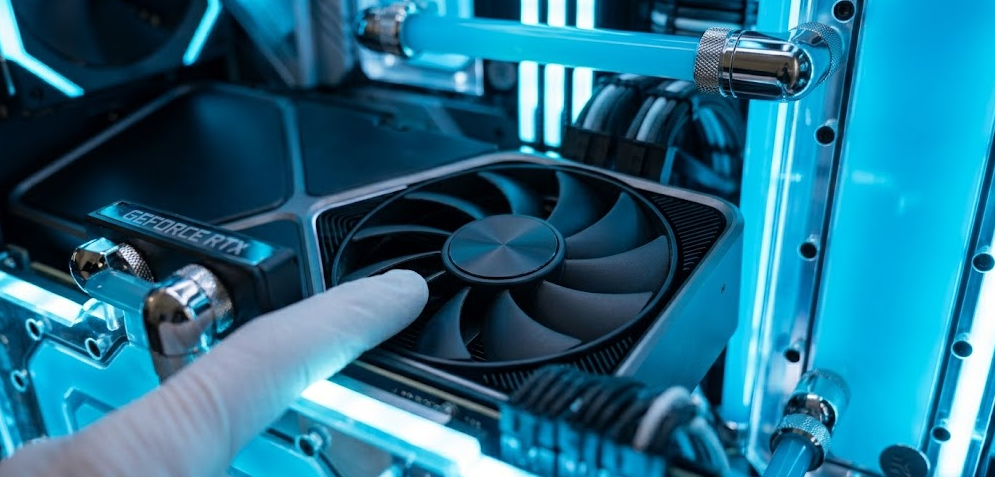
GPU cooling has evolved meaningfully heading into 2026. Both NVIDIA Blackwell (RTX 50-series) and AMD RDNA 4 (RX 9000-series, codenamed Gorgon Point) bring more sophisticated thermal management compared to their predecessors.
One of the most significant developments is Predictive Cooling, found on high-end cards from ASUS ROG Strix, Gigabyte AORUS, and similar premium AIB partners. Rather than waiting for heat to physically soak into the heat spreader before ramping the fans, these systems monitor TDP (Thermal Design Power) spikes in real time. When the driver detects a surge in power draw, it starts spinning the fans a few seconds before the temperature threshold is actually reached. The result is a flatter heat curve, lower peak temperatures, and less dramatic fan noise ramp-up during sudden load spikes.
Triple-fan cooler designs are now standard even on mid-range cards, and vapor chamber cooling has trickled down from flagship cards to the $400 to $500 price bracket. For creators and enthusiasts running long rendering sessions or AI inference workloads, liquid cooled GPU options from brands like ARCTIC have also become increasingly popular as aftermarket cooling upgrades.
GPU Cooling Tools at a Glance
Frequently Asked Questions
Why are my GPU fans not spinning at all?
If your GPU is below 50°C to 60°C, fans not spinning is completely normal due to Zero RPM mode. If the temperature is above 70°C and fans still are not spinning under full load, you likely have a software conflict, a loose fan cable, or a hardware failure.
Is 0 RPM on a GPU bad?
No. Zero RPM is a feature, not a fault. It extends fan bearing life by reducing unnecessary spinning during light workloads. The fans will activate automatically when the GPU needs cooling.
What temperature should GPU fans turn on?
Most modern GPUs start spinning their fans between 50°C and 60°C. The exact threshold depends on the manufacturer and can be customized using MSI Afterburner or the card’s native software.
Can I run my GPU without fans?
Technically a GPU can function briefly at idle temperatures without active cooling, but under any real load temperatures will spike rapidly. Running sustained workloads without functioning fans risks permanent damage once temperatures exceed around 100°C to 105°C on the GPU core.
How do I know if my GPU fan is dying?
Signs of a failing GPU fan include grinding or clicking noises during spin-up or spin-down, a fan that wobbles or spins unevenly, RPM readings that fluctuate erratically, and fans that stop spinning unexpectedly under load.
Does cleaning my GPU fans help with performance?
Yes, significantly. Dust-clogged fans move less air and have to spin faster to achieve the same cooling effect, resulting in higher noise and higher temperatures. Cleaning every six to twelve months is a good maintenance habit.
What is the best free tool to monitor GPU fan speed?
MSI Afterburner is the most feature-rich option and works with virtually all GPU brands. Make sure you are running v4.6.6 or higher for RDNA 4 support, or the latest v5.x build for full 2026 compatibility. GPU-Z is excellent for read-only monitoring if you just want to view stats without tweaking anything.
Should I disable Zero RPM mode?
Only if your GPU runs consistently hot at idle (above 50°C), which might happen in a poorly ventilated case. For most users, leaving Zero RPM mode enabled is the right call since it reduces noise and extends fan lifespan.
My GPU fans are not spinning and I am using an eGPU. What should I check?
In eGPU setups, the fan control is shared between the GPU driver and the enclosure firmware. First check that your enclosure’s power supply is rated for your card’s TDP. Then check the enclosure manufacturer’s website for a firmware update. If the enclosure PSU is undersized or its firmware has a bug, the GPU fans may not receive adequate voltage regardless of driver settings.
Can I replace just the fans on my GPU if the motor fails?
Yes, and this is getting easier in 2026. Modular fan designs are becoming more common across mid-range and high-end cards from major brands. Some newer cards allow you to pop fan blades out for cleaning or replace the entire fan module with a clip-in system, without dismantling the full shroud or voiding your warranty. Replacement fan units are available for most popular GPU models through the original manufacturer’s support store or reputable third-party suppliers.
My RTX 5090 VRAM temperature shows 98°C. Should I worry?
No, not on a Blackwell card. GDDR7 memory used in the RTX 50-series is designed to operate safely up to approximately 110°C before throttling. Temperatures between 95°C and 105°C on the VRAM during heavy 4K gaming or AI workloads are within normal operating range for these cards. Keep an eye on the GPU core temperature instead, and make sure that stays below 85°C to 90°C for comfortable long-term operation.
Bottom Line
A GPU fan not spinning is normal at idle thanks to Zero RPM technology built into most modern graphics cards. The real test is what happens under load. Use MSI Afterburner (v4.6.6 or higher) to monitor fan RPM and temperature simultaneously, try manual fan control to verify the fans respond, and follow the step-by-step diagnostics above if something seems off. If you are on a newer Blackwell or RDNA 4 card, remember that VRAM temperatures in the 95°C to 105°C range are by design, not a danger sign. Catching a real fan problem early is far cheaper than replacing a GPU that has been thermally damaged over time.