Skip to content
Short Answer
Yes, you can stream on Twitch with a mini PC, but performance varies dramatically based on your chosen model and streaming complexity. Budget Intel N150/N100 mini PCs ($130-180) handle 720p 30fps streaming of non-gaming content (talk shows, creative work, camera feeds) using hardware encoding, while mid-range AMD Ryzen 5 7535U systems ($300-400) comfortably stream 1080p 60fps gaming with moderate settings. For serious gaming streams, AMD Ryzen 7 8845HS ($450-650) or the new Ryzen AI Max 390 ($800-1,200) with massive integrated graphics deliver performance matching dedicated streaming PCs. The key limitation is simultaneous gaming and encoding load—playing demanding AAA titles while encoding at high bitrates stresses mini PC CPUs, but Twitch’s Enhanced Broadcasting feature (available in 2026) allows capable hardware to generate multiple quality streams simultaneously, guaranteeing transcoding options for all viewers. Lighter games stream excellently even on budget hardware using Intel Quick Sync or AMD VCE encoders.
Understanding Twitch Streaming Requirements in 2026
Twitch’s official recommendations and Enhanced Broadcasting
Twitch recommends specific bitrate and resolution combinations for optimal viewer experience:
- 720p 30fps: 3000 kbps minimum, 4500 kbps recommended
- 720p 60fps: 4500 kbps recommended
- 1080p 30fps: 4500-5000 kbps recommended
- 1080p 60fps: 6000 kbps recommended (maximum for non-partners)
- Partners: Up to 8500 kbps hard limit (includes video + all audio tracks)
Enhanced Broadcasting (2026 standard): Twitch now supports Enhanced Broadcasting (client-side transcoding) for users with capable hardware. Instead of sending one stream that Twitch may or may not transcode based on server availability, your mini PC generates multiple quality streams (1080p, 720p, 480p, and mobile-optimized variants) simultaneously using your GPU. This guarantees quality options for all viewers regardless of their internet speed, but increases encoding load on your system by approximately 30-50%. Hardware requirements: RTX 40-series GPUs, AMD RDNA 3/3.5 GPUs (Radeon 780M or better), or Intel Arc graphics.
Codec support in 2026: Twitch now supports AV1 and HEVC (H.265) via Enhanced Broadcasting beta for:
- NVIDIA GeForce RTX 40-series and newer
- AMD RDNA 3.5 GPUs (Radeon 890M in Ryzen AI Max chips)
- Intel Arc A-series graphics
AV1 provides 30-40% better quality at the same bitrate versus H.264, but encoding is more demanding. Most streamers still use H.264 for maximum compatibility.
Upload bandwidth requirements: Add 20-30% overhead to your target bitrate for network stability. A 6000 kbps stream requires 7500-8000 kbps (7.5-8 Mbps) upload speed minimum. Enhanced Broadcasting with multiple quality tiers requires 10-12 Mbps upload.
What happens during a Twitch stream
When you stream, your computer performs multiple simultaneous tasks:
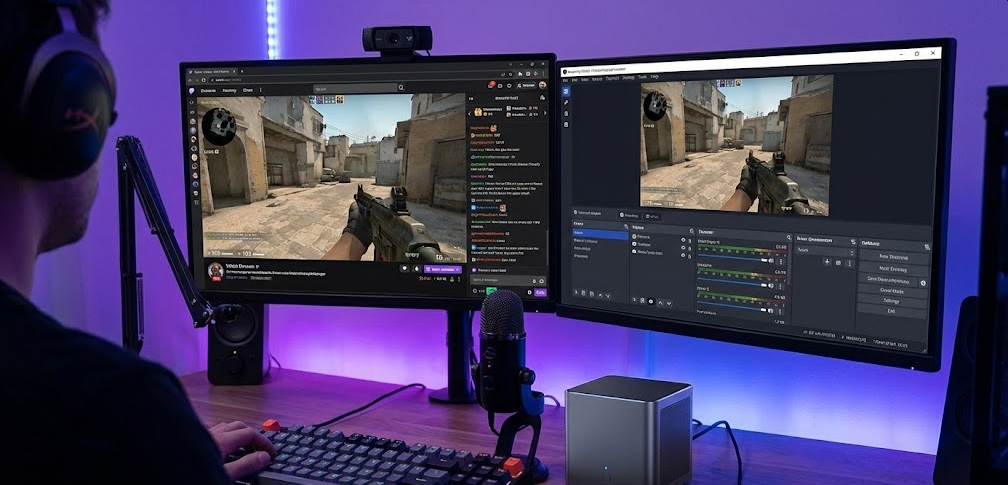
Game rendering: Your CPU and GPU render the game at your chosen resolution and framerate. A demanding game at 1080p 60fps might consume 60-80% of available GPU resources and 30-50% of CPU resources.
Video encoding: OBS Studio or Streamlabs Desktop captures your screen, encodes it into H.264, H.265/HEVC, or AV1 format, and transmits to Twitch servers. With Enhanced Broadcasting enabled, your system generates multiple resolutions simultaneously. Encoding consumes 10-40% CPU (software encoding) or 15-25% GPU resources (hardware encoding with Enhanced Broadcasting).
Audio processing: Microphone input, game audio, music, and alerts mix together. Minimal CPU impact (2-5%).
Overlays and alerts: StreamElements, Streamlabs alerts, chatbots, and browser sources add 5-15% CPU load depending on complexity.
Total load: Gaming + encoding + streaming infrastructure can easily consume 80-100% of available system resources. Insufficient headroom causes dropped frames, stuttering, or stream quality degradation.
Hardware encoding vs software encoding
Hardware encoding: Dedicated silicon on CPUs or GPUs handles video encoding with minimal performance impact. Modern options include:
- Intel Quick Sync: Available on all Intel processors with integrated graphics (including N100, N150, N305, Core Ultra Series 2)
- AMD VCE/AMF: Available on Ryzen processors with integrated graphics (Radeon 660M, 780M, 890M)
- NVIDIA NVENC: Available on GeForce RTX 20/30/40 series GPUs (rare in mini PCs except high-end models)
Hardware encoders offload video compression from the CPU to dedicated GPU silicon, consuming only 5-15% GPU/CPU overhead for managing the encoder while resulting in smooth gaming performance even while streaming. Enhanced Broadcasting increases this to 15-25% but still leaves gaming performance mostly intact.
Software encoding (x264/x265): The CPU performs all encoding work using optimized algorithms. Produces superior quality at lower bitrates than hardware encoding but consumes 30-60% of CPU resources, often causing gaming performance degradation.
For single-PC streaming setups (which all mini PCs represent), hardware encoding is essential. The quality gap versus software encoding has narrowed significantly—modern Quick Sync and VCE produce excellent results at Twitch’s 6000 kbps limit.
Pro Tip: “Before committing to a mini PC for streaming, test your internet upload speed at fast.com or speedtest.net during peak hours (evenings 6-10 PM). Upload speeds fluctuate based on ISP congestion and time of day. If your evening upload consistently exceeds 10 Mbps, you’re safe for 1080p 60fps streaming with Enhanced Broadcasting. If it hovers around 6-8 Mbps, target standard single-quality streaming at 720p 60fps or 1080p 30fps. Unstable upload speeds cause more viewer frustration than slightly lower resolution.”
Mini PC Performance Tiers for Twitch Streaming
Budget tier: Intel N150 / N100 ($130-180 configured)
Specifications:
- N150 (Twin Lake): 4 cores @ 3.6GHz boost, Intel UHD Graphics with Quick Sync
- N100 (Alder Lake-N): 4 cores @ 3.4GHz boost, Intel UHD Graphics with Quick Sync
- 8-16GB DDR4/DDR5 RAM
- Hardware encoder: H.264 (AVC), HEVC (H.265)
Update: The newer N150 (Twin Lake, launched late 2024) offers 15% higher boost clocks (3.6GHz vs 3.4GHz) for similar or lower prices, making it the preferred choice in 2026. Both chips share identical Quick Sync encoders.
Streaming capability:
- Non-gaming streams (camera, talk shows, art): 1080p 60fps excellent
- Lightweight games (2D indies, browser games): 720p 60fps comfortable
- Moderate games (Minecraft, Stardew Valley, older titles): 720p 30fps acceptable
- Enhanced Broadcasting: Not recommended—insufficient GPU resources for multi-quality encoding
- AAA gaming: Not viable, severe performance issues
Real-world performance: An N150 mini PC streams 720p 60fps using Quick Sync while playing Terraria, Slay the Spire, or Hades with minimal frame drops. CPU usage stays around 55-65% combined. Attempting to stream Cyberpunk 2077 or Fortnite causes stuttering and dropped frames—the integrated GPU can’t handle rendering the game at playable settings while Quick Sync operates.
Best use case: Just Chatting streams, creative content (digital art, music production), retro gaming, or dedicated streaming PC in dual-PC setups (captures gameplay from a separate gaming PC).
Mid-range tier: AMD Ryzen 5 7535U ($280-380 configured)
Specifications:
- 6 cores/12 threads @ 4.5GHz boost
- Radeon 660M integrated graphics with VCE encoder
- 16-32GB DDR5 RAM
- Hardware encoder: H.264, HEVC
Streaming capability:
- Esports titles (Valorant, League of Legends, CS2): 1080p 60fps excellent
- Moderate AAA games (medium settings): 1080p 60fps good
- Demanding AAA games (high settings): 720p 60fps or 1080p 30fps
- Enhanced Broadcasting: Possible at 720p with performance impact
- Creative streams: 1080p 60fps excellent with headroom for overlays
Real-world performance: A Ryzen 5 7535U maintains stable 1080p 60fps streaming at 6000 kbps while playing Valorant at 120+ fps locally. GPU usage sits at 60-70%. The Radeon 660M’s VCE encoder produces quality comparable to NVIDIA’s older NVENC implementations. Streaming Cyberpunk 2077 requires dropping to 720p 60fps or 1080p 30fps to maintain smooth gameplay.
Best use case: Variety streamers playing mixed genres, esports competitors streaming ranked games, content creators needing reliable 1080p streaming without dedicated streaming PCs.
High-end tier: AMD Ryzen 7 8845HS ($450-650 configured)
Specifications:
- 8 cores/16 threads @ 5.1GHz boost
- Radeon 780M integrated graphics with VCE encoder
- 32-64GB DDR5 RAM
- Hardware encoder: H.264, HEVC, AV1 (Enhanced Broadcasting compatible)
Streaming capability:
- All esports titles: 1080p 144fps+ locally while streaming 1080p 60fps
- AAA games (high settings): 1080p 60fps streaming with good quality
- Demanding titles: 1080p 60fps streaming at medium-high settings
- Enhanced Broadcasting: Supported at 1080p with minor performance impact
- Multi-source streams: 1080p 60fps with multiple cameras, alerts, overlays
Real-world performance: A Ryzen 7 8845HS handles 1080p 60fps streaming at 6000 kbps while maintaining 90+ fps in Elden Ring at 1080p medium settings. The 8-core configuration leaves headroom for Discord, browser sources, and chatbots without impacting performance. The Radeon 780M’s VCE encoder quality rivals current NVIDIA NVENC in most scenarios.
Best use case: Full-time streamers, competitive gamers broadcasting tournaments, multi-game streamers handling AAA and esports titles, content creators running complex OBS scenes with multiple sources.
Elite tier: AMD Ryzen AI Max 390 ‘Strix Halo’ ($800-1,200 configured)
Specifications:
- 12 cores/24 threads @ 5.1GHz boost (Zen 5 architecture)
- Radeon 8060S integrated graphics with 40 Compute Units (RDNA 3.5)
- 32-128GB soldered LPDDR5x RAM (256GB/s bandwidth)
- Hardware encoder: H.264, HEVC, AV1 (full Enhanced Broadcasting support)
- GPU performance: Rivals desktop RTX 4060 / RTX 3070
What it is: The 2026 game-changer for mini PC streaming. The Ryzen AI Max 390 features a massive integrated GPU (40 Compute Units) that delivers discrete graphics card-level gaming performance in a compact mini PC without external GPUs, heat, noise, or eGPU enclosures.
Streaming capability:
- Everything: 1080p 60fps max quality while playing any game at high-ultra settings
- Enhanced Broadcasting: Full support with minimal performance impact—generates 1080p, 720p, 480p streams simultaneously
- AV1 encoding: Native support for future-proof streaming with superior quality/bitrate ratios
- Dual-stream: Simultaneous Twitch and YouTube streaming
- 4K streaming: Capable of 4K 30fps streaming for YouTube (Twitch max is 1080p)
Real-world performance: The Radeon 8060S (40 CU) handles AAA games at 1080p high/ultra settings at 60-100+ fps while streaming at maximum quality. Enhanced Broadcasting running with three simultaneous quality tiers causes only 5-10 fps drops versus non-streaming gameplay. The massive 256GB/s memory bandwidth feeds both the GPU and encoder without bottlenecks.
Benefit over eGPU setups: You get discrete-level gaming performance in a 2-4L mini PC without a hot, noisy external graphics card, $400 eGPU enclosure, or Thunderbolt bandwidth limitations (which reduce GPU performance by 15-25%). Total system consumes 100-150W versus 300-400W for eGPU setups.
Limitations: Premium pricing ($800-1,200 configured). Soldered RAM means choosing capacity (32GB, 64GB, or 128GB) at purchase with no upgrades. First-generation Strix Halo products (Framework Desktop, select Minisforum/Beelink models) have limited availability in early 2026.
Who it’s for: Serious streamers wanting desktop-class performance in mini PC form, content creators needing maximum flexibility for AAA gaming and streaming, professionals running demanding workloads alongside streaming (video editing, 3D rendering), early adopters willing to pay premium for cutting-edge integrated graphics.
Streaming Performance Comparison
| Mini PC Tier | Non-Gaming (1080p 60fps) | Esports (1080p 60fps) | AAA Games (1080p 60fps) | Enhanced Broadcasting | Recommended Bitrate |
|---|---|---|---|---|---|
| Intel N150/N100 | Excellent | Poor (720p better) | Not viable | No | 3000-4500 kbps |
| Intel N305 | Excellent | Good | Moderate (med settings) | No | 4500-6000 kbps |
| Ryzen 5 7535U | Excellent | Excellent | Good (med settings) | Limited (720p) | 6000 kbps |
| Ryzen 7 8845HS | Excellent | Excellent | Excellent (high settings) | Yes (1080p) | 6000 kbps |
| Ryzen AI Max 390 | Excellent | Excellent | Excellent (ultra settings) | Yes (full support) | 6000-8500 kbps |
Performance assumes hardware encoding (Quick Sync/VCE/NVENC) enabled in OBS Studio with proper configuration.
Setting Up OBS Studio for Mini PC Streaming
Step 1: Download and install OBS Studio
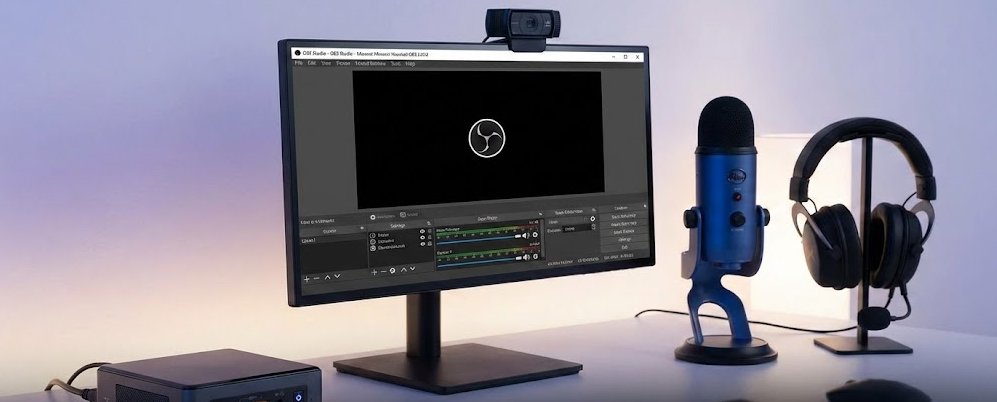
Visit obsproject.com and download OBS Studio (free, open-source). Streamlabs Desktop is an alternative with built-in alerts but consumes more system resources—stick to OBS Studio for mini PCs to maximize performance.
Step 2: Connect to Twitch
In OBS Studio:
- Go to Settings → Stream
- Select Service: Twitch
- Click “Connect Account” to authorize OBS
- Your stream key populates automatically
Step 3: Configure output settings for hardware encoding
Go to Settings → Output:
OBS Studio supports multiple hardware encoders depending on your mini PC’s graphics:
For Intel N150/N100/N305 (Quick Sync):
- Output Mode: Advanced
- Encoder: Hardware (QSV, H.264)
- Rate Control: CBR
- Bitrate: 4500 kbps (720p 60fps) or 6000 kbps (1080p 60fps)
- Keyframe Interval: 2
- Preset: Quality (or Speed if performance issues occur)
For AMD Ryzen (VCE/AMF):
- Encoder: Hardware (AMD, H.264)
- Rate Control: CBR
- Bitrate: 6000 kbps (1080p 60fps)
- Preset: Quality
- Profile: High
For Enhanced Broadcasting (Ryzen 7 8845HS, Ryzen AI Max 390):
- Enable “Twitch Enhanced Broadcasting” in OBS settings
- Primary stream: 1080p 60fps @ 6000 kbps
- Secondary streams: Auto-generated 720p, 480p, 360p
- Monitor GPU usage—should stay below 80%
For NVIDIA GPUs (NVENC):
- Encoder: NVIDIA NVENC H.264
- Rate Control: CBR
- Bitrate: 6000 kbps
- Preset: Quality or Max Quality
- Tuning: High Quality
- Multipass Mode: Two-pass (Quarter Resolution)
Step 4: Configure video settings
Go to Settings → Video:
Base (Canvas) Resolution: Your monitor’s native resolution (1920×1080 typical)
Output (Scaled) Resolution: 1920×1080 (1080p) or 1280×720 (720p)
Downscale Filter: Lanczos (best quality, higher CPU) or Bicubic (good quality, lower CPU)
Common FPS Values: 60 (for action games) or 30 (for slower content)
Step 5: Configure audio
Settings → Audio:
- Sample Rate: 48kHz
- Desktop Audio: Your system audio output
- Mic/Auxiliary Audio: Your microphone
- Audio Bitrate: 160 kbps (Twitch maximum)
Step 6: Test and optimize
Start a test stream (Twitch allows unlisted streams for testing):
- Monitor CPU/GPU usage in Task Manager (Windows) or Activity Monitor (Mac)
- Check OBS’s stats bar (bottom right) for dropped frames
- Watch the stream on a separate device for quality assessment
- Adjust bitrate, resolution, or preset if performance issues appear
Aim for CPU usage below 80% and GPU usage below 85% during gameplay. Higher usage causes thermal throttling on mini PCs, reducing performance over extended streams.
Optimizing Mini PC Performance for Streaming
Close unnecessary background applications
Discord, web browsers (especially Chrome), RGB control software, and game launchers consume 10-25% CPU in aggregate. Close everything except the game, OBS, and essential tools during streams. Use Discord in browser mode rather than the desktop app to reduce overhead.
Use Game Mode (Windows 11)
Windows 11’s Game Mode prioritizes gaming and streaming applications over background processes. Enable it via Settings → Gaming → Game Mode. This provides 5-15% performance improvement on constrained systems like mini PCs.
Optimize game settings
Reduce in-game graphics to medium or high rather than ultra. The difference is barely noticeable on streams (Twitch compression reduces visual fidelity anyway), but the GPU and CPU savings are significant. Target 80-100 fps locally to ensure smooth 60 fps stream output even during intensive scenes.
Lower output resolution before lowering FPS
720p 60fps looks better than 1080p 30fps for gaming content. Motion clarity matters more than static resolution for viewer experience. Only drop to 30fps for non-gaming content (talk shows, creative streams) where motion is minimal.
Monitor temperatures
Mini PCs thermal throttle when CPUs exceed 85-95°C (varies by model). Use HWiNFO or Core Temp to monitor temperatures during streams. If temps consistently exceed 90°C:
- Ensure adequate ventilation (don’t enclose mini PC in cabinets)
- Consider a laptop cooling pad underneath for improved airflow
- Reduce OBS encoder preset from Quality to Balanced or Speed
- Lower in-game graphics settings to reduce CPU/GPU load
Use StreamFX or advanced OBS plugins cautiously
Fancy transition effects, filters, and overlays consume CPU resources. Budget mini PCs (N150/N305) struggle with animated transitions or complex browser sources. Keep overlays static and minimal on lower-end hardware.
Enable hardware-accelerated browser sources
If using browser sources for alerts or overlays, enable hardware acceleration in OBS Settings → Advanced → Browser Source Hardware Acceleration. This offloads rendering to GPU rather than CPU.
Common Issues and Solutions
Problem: Stream stutters or drops frames despite good internet
Cause: CPU/GPU overload or thermal throttling.
Solution: Lower OBS encoder preset from Quality to Balanced or Speed. Reduce output resolution from 1080p to 720p. Disable Enhanced Broadcasting if enabled (saves 20-30% resources). Close background applications. Monitor temperatures—if above 90°C, improve cooling or reduce game graphics settings.
Problem: Stream looks pixelated or blocky
Cause: Bitrate too low for chosen resolution, or fast motion overwhelming encoder.
Solution: Increase bitrate from 4500 to 6000 kbps (Twitch limit). If already at 6000 kbps, reduce output resolution from 1080p to 720p—720p at 6000 kbps looks better than 1080p at 4500 kbps. Switch encoder to hardware mode if using software encoding.
Problem: Game performance drops dramatically when streaming starts
Cause: Software encoding (x264) selected instead of hardware encoding, consuming 40-60% CPU.
Solution: Change encoder to hardware option (Quick Sync for Intel, AMD for Ryzen, NVENC for NVIDIA). Verify in Task Manager that OBS isn’t consuming 30%+ CPU during streams.
Problem: Enhanced Broadcasting causes severe performance degradation
Cause: Insufficient GPU resources for multi-quality encoding.
Solution: Enhanced Broadcasting requires Radeon 780M or better (Ryzen 7 8845HS minimum). Disable it on budget/mid-range systems. Twitch will provide transcoding when available based on viewership.
Problem: Audio out of sync with video
Cause: Insufficient CPU resources causing encoding delays.
Solution: Apply audio delay in OBS (Settings → Advanced → Audio Monitoring). Test by clapping on camera and adjusting offset until sync matches. Typical delays range from 100-500ms depending on encoder preset and system load.
Problem: Viewers report constant buffering
Cause: Upload bandwidth insufficient or ISP throttling.
Solution: Test upload speed at fast.com during streaming hours. If below 8 Mbps, reduce bitrate to 4500 kbps and resolution to 720p. Disable Enhanced Broadcasting (requires 10+ Mbps upload). Contact ISP if speeds don’t match advertised rates. Consider Ethernet connection rather than Wi-Fi—Wi-Fi adds instability.
Problem: OBS won’t recognize hardware encoder
Cause: Outdated graphics drivers or OBS version.
Solution: Update GPU drivers (Intel Graphics Command Center, AMD Adrenalin, NVIDIA GeForce Experience). Update OBS Studio to latest version (28.0+ for Enhanced Broadcasting support). Restart computer after updates. If problem persists, verify integrated graphics is enabled in BIOS (some mini PCs disable iGPU when external monitors connect).
Dual PC Streaming with Mini PCs
Using a mini PC as dedicated streaming PC
Many streamers use a mini PC as a dedicated streaming machine while gaming on a separate powerful PC:
Setup: Connect gaming PC’s HDMI output to a capture card (Elgato HD60 S+, AVerMedia Live Gamer Ultra) connected to the mini PC via USB. The mini PC runs OBS, captures the gaming PC’s output, encodes, and streams to Twitch.
Benefits: The gaming PC runs games at maximum performance with zero streaming overhead. The mini PC handles encoding, overlays, alerts, and chat management. Total CPU resources double compared to single-PC setups.
Recommended mini PC for streaming duty: Intel N150 ($130-180) suffices perfectly for capturing 1080p 60fps from another PC and streaming it. The gaming PC does the heavy lifting; the mini PC just encodes pre-rendered video.
Cost: Gaming PC ($800+) + Mini PC ($150-200) + Capture Card ($150-200) = $1,100-1,200 total. More expensive than single high-end PC but provides superior performance and flexibility.
FAQ: Streaming on Twitch with Mini PCs
Can Intel N150 mini PCs stream 1080p 60fps?
For non-gaming content (camera, talk shows, desktop), yes absolutely. For gaming, only lightweight titles at 1080p 60fps—most games require 720p 60fps or 1080p 30fps. The N150’s Quick Sync encoder is excellent, but the integrated GPU struggles rendering demanding games at 1080p while streaming.
What is Twitch Enhanced Broadcasting and do I need it?
Enhanced Broadcasting allows your PC to generate multiple quality streams (1080p, 720p, 480p) simultaneously, guaranteeing transcoding options for all viewers regardless of Twitch server availability. You need Radeon 780M graphics or better (Ryzen 7 8845HS minimum) for reliable performance. Budget/mid-range mini PCs should skip it—Twitch provides transcoding based on viewership when needed.
Do I need a dedicated GPU for Twitch streaming?
No. Modern integrated graphics (Radeon 660M/780M/890M, Intel UHD) include hardware encoders that handle streaming excellently. The Ryzen AI Max 390’s integrated GPU (40 CU) rivals discrete RTX 4060 performance, eliminating external GPU needs entirely. Dedicated GPUs help with gaming performance, not streaming capability specifically.
Will streaming damage or overheat my mini PC?
Not if properly configured. Extended streaming (4-8 hours daily) increases component wear slightly but remains within design parameters. Ensure adequate ventilation and monitor temperatures. Quality mini PCs (Beelink, GEEKOM, Minisforum) handle sustained loads fine. Cheap no-name brands may have inadequate cooling.
Can I stream to Twitch and YouTube simultaneously?
Yes, using OBS plugins like “Multiple RTMP Outputs” or services like Restream.io. However, dual-streaming doubles encoding load. A Ryzen 7 8845HS or Ryzen AI Max 390 handles this comfortably; an N150 struggles. Alternatively, use Twitch as primary and rely on Twitch’s built-in YouTube export for VODs.
Should I stream at 30fps or 60fps?
60fps for gaming content—motion clarity matters enormously for viewer experience. 30fps for non-gaming content (talk shows, creative streams, ASMR). If CPU-constrained, 720p 60fps beats 1080p 30fps for gaming streams.
How much internet upload speed do I need?
Minimum 8 Mbps for consistent 6000 kbps streaming (including 30% overhead). Recommended 10-15 Mbps for stability and Enhanced Broadcasting support. Test during peak hours (evenings) when ISP congestion is highest.
Can I use Streamlabs Desktop instead of OBS Studio?
Yes, but Streamlabs consumes 15-25% more system resources than OBS Studio due to integrated alerts, themes, and browser-based UI. On high-end mini PCs (Ryzen 7 8845HS, Ryzen AI Max), the difference is negligible. On budget models (N150/N305), stick to OBS Studio and add StreamElements or Streamlabs alerts via browser sources.
The Bottom Line: Match Your Mini PC to Your Content
Mini PCs can absolutely handle Twitch streaming in 2026, with performance ranging from adequate to exceptional depending on hardware tier. Budget Intel N150 systems ($130-180) excel at non-gaming streams and lightweight games at 720p, perfect for Just Chatting or creative content. Mid-range Ryzen 5 7535U mini PCs ($300-400) strike the sweet spot for variety streamers mixing esports and moderate games at 1080p 60fps.
The game-changer for 2026 is AMD’s Ryzen AI Max 390 ($800-1,200), which delivers discrete GPU-level performance in a compact mini PC without external graphics cards or eGPU enclosures. Its 40 CU integrated GPU rivals an RTX 4060, handling AAA games at high-ultra settings while streaming at maximum quality with Enhanced Broadcasting enabled. This eliminates the traditional “get a desktop or use eGPU” advice that previously dominated streaming recommendations.
Twitch’s Enhanced Broadcasting feature benefits capable hardware significantly. Systems with Radeon 780M or better automatically generate multiple quality streams, guaranteeing viewer transcoding options regardless of Twitch server availability. This transforms viewer experience but requires Ryzen 7 8845HS minimum—budget systems should skip it.
Test your internet upload bandwidth before buying streaming hardware. Even a $1,200 Ryzen AI Max mini PC can’t overcome a 4 Mbps upload connection. Prioritize internet upgrades over hardware if your upload speed consistently falls below 8 Mbps during evening hours. Enhanced Broadcasting demands 10+ Mbps upload for reliable multi-quality streaming.