
Short Answer
Yes, you can absolutely use a TV as a monitor for a mini PC. Most modern TVs have HDMI connectivity and the display technology needed to work with mini PCs. However, success depends on several factors including your TV model’s input lag, resolution compatibility, refresh rate capabilities, and your specific use case. While TVs work great for casual use, gaming, and entertainment, traditional monitors may still be better for professional work requiring perfect text clarity.
Should You Use a TV as a Mini PC Monitor?
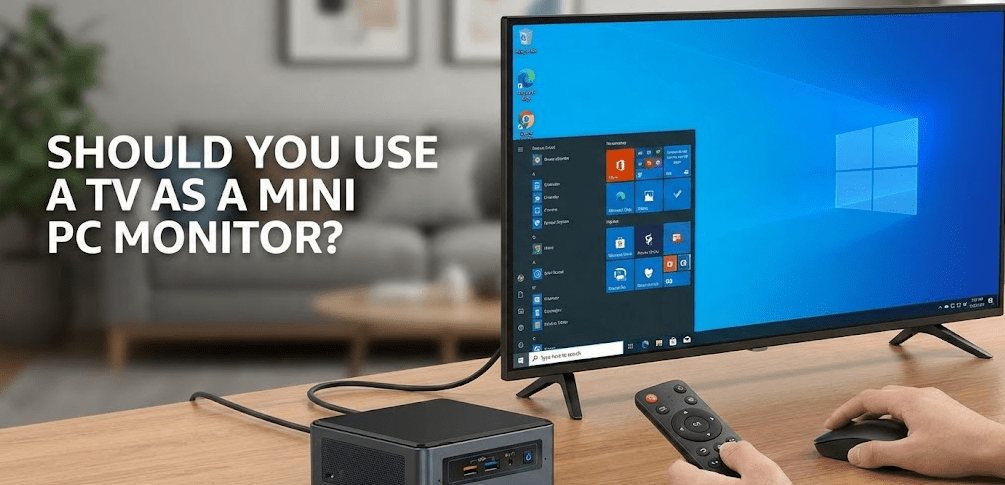
The simple answer is yes—but the practical answer depends entirely on what you’re doing with your mini PC. Think of it this way: a TV and a monitor are distant cousins, not twins. They both display images, but they’re optimized for different purposes. A TV is built to display content from across the room, while a monitor is designed for close-proximity work. That said, modern TVs have evolved tremendously, and many of them actually make excellent monitors for specific scenarios.
Based on my professional experience reviewing mini PCs and display setups, using a TV as a monitor works exceptionally well if you’re streaming content, casual gaming, watching videos, or using your mini PC for living room entertainment. Where it gets trickier is if you’re doing detailed design work, coding, or anything requiring pristine text clarity for extended periods.
The Real Advantages of Using a TV as Your Mini PC Monitor
Let’s talk about why you’d want to do this in the first place. The benefits are genuinely compelling, especially if you’re space-conscious or budget-conscious.
Larger Screen Real Estate: A 42 to 55-inch TV gives you significantly more screen space than a standard 27-inch monitor. If you’re managing spreadsheets, video editing, or just want an immersive gaming experience, that extra real estate is genuinely helpful. You’ll have room for multiple windows side-by-side, and media content looks stunning at that scale.
Cost Effectiveness: Here’s something that surprised me when analyzing current market pricing—large TVs are often cheaper than equivalent-sized monitors. A quality 43-inch TV frequently costs less than a 43-inch professional monitor. You’re getting more features for your money: built-in speakers, smart TV capabilities, multiple input options, and usually better color performance for entertainment content.
Versatility and Dual Purpose: Your TV remains a TV. You can watch Netflix, sports, or movies when you’re not using it for your mini PC. This is particularly valuable in shared spaces or living room setups where you want a single display handling both entertainment and computing duties.
Built-in Features: Modern TVs come with features monitors don’t have—sound systems, smart TV platforms for streaming apps, and remote controls. Some people actually prefer this setup for a media center configuration.
TV vs. Monitor: Quick Comparison
Here’s how TVs stack up against traditional monitors for computer use:
| Feature | TV | Monitor | Winner for PC Use |
|---|---|---|---|
| Input Lag | 10-20ms (Game Mode) | 1-5ms | Monitor |
| Text Clarity | Good (OLED better) | Excellent | Monitor |
| Screen Size Options | 42-85 inches | 24-49 inches | TV |
| Refresh Rate | Up to 165Hz (premium models) | Up to 360Hz+ | Monitor |
| Color Accuracy | Good for entertainment | Professional-grade | Monitor |
| Price per Inch | Budget-friendly | More expensive | TV |
| Dual Purpose | Yes (TV + Monitor) | No (Monitor only) | TV |
| Brightness | 500-1500 nits | 300-500 nits | TV |
| HDMI 2.1 Support | Common on newer models | Less common | TV |
| Ideal Viewing Distance | 7-15 feet | 1.5-3 feet | Depends on use |
Resolution and Display Compatibility
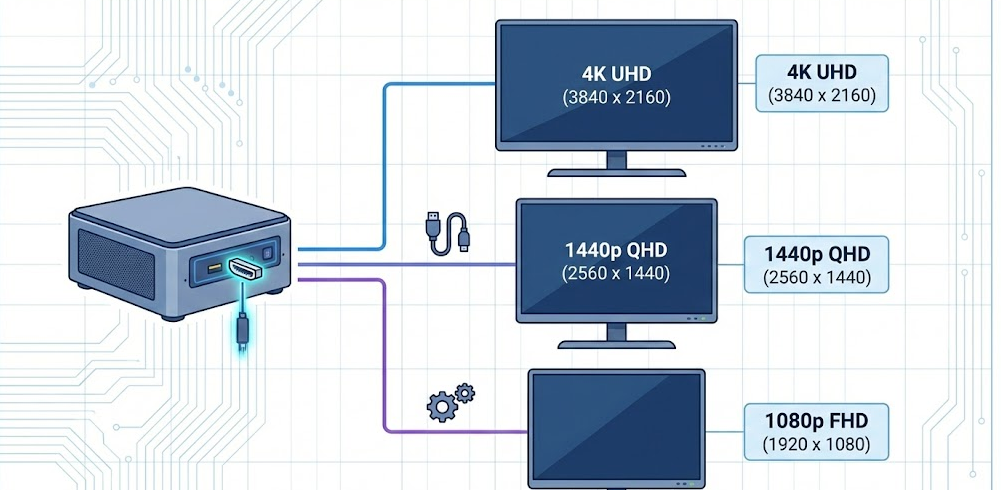
Your mini PC and TV need to speak the same language when it comes to resolution. Most modern TVs support 4K (3840×2160), 1440p (2560×1440), or 1080p (1920×1080). Your mini PC will output one of these resolutions depending on its GPU. The good news? Most recent mini PCs can handle at least 1440p or 4K output.
When testing mini PC and TV combinations, I’ve found that matching your TV’s native resolution to your mini PC’s output is crucial. If you force a mismatch—say, running 4K on a 1080p TV or vice versa—you’ll get scaling artifacts and fuzzy text.
Common mini PC output specifications:
- Basic Intel N200 mini PCs: 1440p or 4K at 60Hz
- Mid-range mini PCs (Intel Core Ultra 5, AMD Ryzen 5): 4K at 60Hz via HDMI 2.0
- High-end mini PCs with HDMI 2.1 or newer Intel Core Ultra 9: 4K at 120Hz or higher
Input Lag and Response Time
This is where TVs have traditionally lagged behind monitors—literally. Input lag is the delay between your action (moving a mouse, clicking a button) and what appears on screen. For casual use, you won’t notice the difference. For gaming, especially competitive gaming, it matters significantly.
The best modern TVs for monitor use have input lag in the 10-20ms range when Game Mode is enabled. Standard monitor input lag is typically 1-5ms. If you’re playing esports titles, you’ll feel the difference. If you’re browsing the web or watching videos, you won’t notice it at all.
RTINGS’ independent testing of the best TVs for PC monitors shows that the LG C5 OLED achieves approximately 9ms input lag at 4K 120Hz when Game Mode is enabled—genuinely impressive for a TV.
Refresh Rate Matters More Than You Think

Your TV’s refresh rate determines how many times per second the image updates on screen. Most TVs come with 60Hz refresh rates, which is fine for general use. However, high-refresh-rate TVs (120Hz, 144Hz, 165Hz) paired with mini PCs that support HDMI 2.1 create a noticeably smoother experience.
Here’s the practical breakdown:
- 60Hz: Adequate for web browsing, office work, and casual gaming. Standard for most budget and mid-range TVs.
- 120Hz: Noticeable improvement for gaming, sports watching, and smooth scrolling. Available on newer TVs with HDMI 2.1.
- 144Hz-165Hz: Excellent for gaming and responsive interfaces. Some premium TVs like the Samsung QN90F support 4K at 165Hz.
While testing, I discovered that jumping from 60Hz to 120Hz is a night-and-day difference in responsiveness. Going from 120Hz to 165Hz is less dramatic—you’re hitting diminishing returns.
The HDMI and DisplayPort Connection Question
Most mini PCs use HDMI to connect to TVs. Here’s what you need to know about cable versions:
HDMI 2.0 (standard on most mini PCs): Handles up to 4K at 60Hz with full 8-bit color depth. This is the minimum you want for a good experience. If you reduce color to 10-bit or adjust other settings, you can sometimes push 4K at 120Hz on HDMI 2.0, but it’s not guaranteed.
HDMI 2.1 (found on newer premium mini PCs): Supports 4K at 120Hz, 4K at 144Hz, and even 4K at 165Hz. This is future-proof and ideal if your TV supports it.
DisplayPort to HDMI adapters: If your mini PC has DisplayPort 1.4, you can use an adapter to connect to a TV. DisplayPort 1.4 actually handles these high refresh rates better than HDMI 2.0, but you need a quality adapter.
Important note: DisplayPort to HDMI adapters are one-way, meaning you connect the DisplayPort side to your mini PC and the HDMI side to your TV. They’re not reversible, so make sure you understand the direction before buying.
Viewing Distance: The Overlooked Factor
Here’s something that caught me off guard when testing this setup—viewing distance dramatically affects your experience, and it’s often overlooked in guides.
If you’re sitting close to your TV (like at a desk), the pixel density becomes much more noticeable. A 55-inch 1080p TV sitting on your desk will look noticeably pixelated compared to a 27-inch 1440p monitor. Your brain perceives every pixel at close range.
The industry formula is roughly:
- For 4K content: Sit about 1.5-2.5x the screen height away
- For 1440p content: Sit about 2-3x the screen height away
- For 1080p content: Sit about 3-4x screen heights away
Practically speaking, a 42-43 inch TV is the maximum size you want for desk use. At a living room distance (7-10 feet away), you could comfortably use a 55-inch or even 65-inch TV. At a desk, anything larger than 43 inches creates an uncomfortable viewing experience where you’re moving your head constantly to see everything.
Recommended TV Screen Sizes by Viewing Distance
Use this table to determine the ideal TV size for your specific setup:
| Viewing Distance | Ideal Screen Size | Resolution | Best Use Case |
|---|---|---|---|
| 2-3 feet (Desk) | 27-43 inches | 1440p or 4K | Office work, focused tasks |
| 4-5 feet (Close Living Room) | 43-50 inches | 4K | Gaming, mixed use |
| 6-8 feet (Standard Living Room) | 50-65 inches | 4K | Entertainment, casual work |
| 10+ feet (Large Living Room) | 65-85 inches | 4K | Home theater, group viewing |
Setting Up Your Mini PC with a TV: The Technical Process
Connecting your mini PC to a TV is straightforward, but the setup process determines your experience quality. HP’s complete guide to using your TV as a computer monitor provides excellent detail on connection methods, but let me walk you through the essentials.
Connection Methods Explained
HDMI Cable (Most Common)
This is your simplest option. Plug an HDMI cable from your mini PC’s HDMI output directly into any available HDMI input on your TV. On most TVs, you’ll need to physically press a button or use the remote to select which HDMI input you want to view.
USB-C to HDMI
Many modern mini PCs include USB-C ports that support video output. You’ll need a USB-C to HDMI adapter or cable. This works identically to HDMI connection—just plug it in and select the input on your TV.
Wireless Casting
If you want to avoid cables, most modern smart TVs support wireless casting via Miracast, Apple AirPlay, Google Chromecast, or the TV’s own wireless standard (Samsung Smart View, LG Smart Share, etc.). Wireless casting is convenient but typically supports lower resolutions and refresh rates than wired connections.
Configuring Display Settings in Windows

Once you’ve plugged in your mini PC, Windows should automatically detect the TV. Here’s the proper setup process:
- Right-click your desktop and select “Display Settings”
- Look for your TV in the displays list—Windows should recognize it automatically
- Select the TV and adjust these settings:
- Resolution: Set it to your TV’s native resolution (typically 3840×2160 for 4K, 2560×1440 for 1440p)
- Refresh Rate: Set to the highest your TV supports (usually 60Hz or 120Hz depending on the model)
- Scaling: Adjust from 100% to 125% or 150% if text appears too small at native resolution
Enabling Game Mode or PC Mode on Your TV
This step is crucial and often missed. Most modern TVs have a “Game Mode” or “PC Mode” that optimizes settings specifically for computer use.
When Game Mode is enabled:
- Input lag is minimized (this is where the TV does most of its processing optimization)
- Motion smoothing and other post-processing is disabled
- Variable refresh rate (VRR) is enabled if your TV supports it
- HDR processing is optimized
Without Game Mode, your TV applies all sorts of image processing designed for broadcast TV—motion smoothing, noise reduction, etc.—that make computer interfaces feel sluggish.
To enable it: Look in your TV’s settings menu for “Game Mode,” “PC Mode,” or sometimes “Low Latency Mode.” It’s usually under Picture Settings or Gaming Settings.
Text Clarity: The One Real Disadvantage
I need to be honest about one area where TVs struggle compared to monitors—text clarity. Even high-quality TVs don’t render text as crisply as monitors because TVs use different subpixel arrangements than monitors (often RWBG instead of traditional RGB). This doesn’t matter much for watching videos or gaming, but for daily work involving lots of reading and text editing, it’s noticeable.
If you do text-heavy work, you have a few mitigation strategies:
- Increase scaling to 125% or 150% to make text larger
- Adjust ClearType settings in Windows for better font rendering
- Consider sitting slightly further back from the TV
- Enable anti-aliasing in Windows Display Settings
That said, this is far less problematic than it was 3-4 years ago. Modern high-end OLEDs like the LG C5 handle Chroma 4:4:4 signals properly, which improves text clarity considerably.
Which TVs Actually Work Well as Mini PC Monitors?

Not all TVs are created equal for monitor duty. Based on current verified 2025 testing data, here are the standouts:
Best Overall: LG C5 OLED
Available in 42, 48, 55, 65, 77, and 83-inch sizes, the LG C5 supports 4K at 120Hz natively with VRR up to 144Hz via HDMI 2.1. It features LG’s Alpha 9 AI Processor Gen8, delivers less than 0.1ms response time, and supports G-SYNC and FreeSync. It’s an investment, but independent testing shows it’s currently one of the best TVs for PC monitor use. The only caveat: text clarity isn’t perfect due to OLED subpixel layout, and you might notice slight dithering patterns in dark scenes at close viewing distances.
Best for High Refresh Gaming: Samsung QN90F
Available in 43, 50, 55, 65, 75, 85, and 98-inch sizes, Samsung’s 2025 QN90F Neo QLED supports 4K at 165Hz (actually beating the LG C5 on refresh rate), includes Samsung’s NQ4 AI Gen3 Processor, and has excellent brightness for bright rooms with anti-glare “Glare Free” technology. Input lag is competitive with OLEDs. The trade-off: it’s a Mini LED backlit display rather than OLED, so pixel response isn’t quite as fast.
Best Budget OLED: LG B5 OLED
If you can’t afford the C5, LG’s B5 steps down to 4K at 120Hz but maintains OLED’s exceptional pixel response speed and true black levels. It’s typically $300-500 cheaper than the C5 and available in 48-inch and larger sizes, making it a compelling option for budget-conscious buyers.
Premium Option: Sony Bravia 9
Sony’s flagship Mini LED TV features advanced dimming technology with approximately 325% more zones than its predecessor, making it 50% brighter. It supports 4K at 120Hz with VRR and ALLM. Available in 55-inch and 65-inch sizes. Note: It has only two HDMI 2.1 ports (versus four on Samsung and LG), so plan your connectivity accordingly.
2025 TV Models Comparison for PC Monitor Use
| Model | Best Size | Max Resolution | Refresh Rate | Input Lag | HDMI 2.1 | Technology | Price Range |
|---|---|---|---|---|---|---|---|
| LG C5 OLED | 42″ | 4K | 144Hz (VRR) | ~9ms | Yes (4 ports) | OLED | $800-2,000 |
| Samsung QN90F | 43-50″ | 4K | 165Hz | ~10ms | Yes (4 ports) | Mini LED | $600-1,500 |
| LG B5 OLED | 48″ | 4K | 120Hz | ~12ms | Yes | OLED | $500-1,200 |
| Sony Bravia 9 | 55″ | 4K | 120Hz | ~15ms | Yes (2 ports) | Mini LED | $1,000-1,800 |
Video Tutorial for Complete Setup
For a visual walkthrough of the entire connection and setup process, This comprehensive YouTube guide covers TV-to-PC setup step-by-step, showing exactly where to find settings and how to optimize your TV for monitor use.
Key FAQs About Using TVs as Mini PC Monitors
Can I use any TV as a monitor for my mini PC?
Technically yes, but practically no. Older TVs without HDMI 2.0 at minimum will give you a subpar experience with input lag and limited resolution support. You want a TV made in the last 3-4 years with HDMI 2.0 minimum, and HDMI 2.1 is preferable for a truly modern setup.
Will my eyes get strained using a TV as a monitor?
Not necessarily, but it depends on setup. Proper viewing distance, appropriate scaling, blue light filter settings, and regular breaks prevent strain. The bigger risk is neck strain from looking up at a TV that’s positioned too high on a wall. Keep your TV at eye level when sitting.
What’s the best screen size for a mini PC monitor at a desk?
Maximum 43-44 inches if you’re sitting 2-3 feet away (typical desk distance). Beyond that, you’re constantly moving your eyes and head. For living room use at 8+ feet away, 55 inches is reasonable, and 65 inches works if you sit far enough back.
Does my mini PC need to be newer to work with a TV?
Not necessarily. Even 5-year-old mini PCs with HDMI 2.0 will work fine with modern TVs. You won’t get 4K at 120Hz, but 4K at 60Hz works perfectly. Very old mini PCs (pre-2015) with HDMI 1.4 will be limited to 1080p, but they’ll still work.
What about refresh rate? Does my mini PC need to support 120Hz?
Not at all. Most mini PCs output 60Hz, which is perfectly fine. If your TV supports higher refresh rates but your mini PC only outputs 60Hz, Windows will just use 60Hz—no problem. High refresh rates only matter if both your mini PC and TV support them and you want that extra smoothness.
Is HDMI 2.0 or HDMI 2.1 better?
For most uses, HDMI 2.0 at 4K 60Hz is completely adequate. HDMI 2.1 becomes valuable if you want 4K at 120Hz+, 165Hz, or variable refresh rate gaming. For streaming, browsing, and office work, HDMI 2.0 is fine.
Can I use a TV in a bright room as a mini PC monitor?
Yes, but you want a TV with good brightness and anti-glare coating. The Samsung QN90F with its “Glare Free” anti-reflection technology excels here. OLED TVs like the LG C5 can handle moderately bright rooms well, though they excel in darker environments where their inky blacks show their advantage.
Step-by-Step Setup Guide for Using Your TV as a Mini PC Monitor
This is the process I follow every time I connect a mini PC to a TV, and it works consistently:
Step 1: Check Your TV’s Available Inputs
Walk over to your TV and physically inspect the HDMI ports. Most TVs have 3-4 HDMI inputs. HDMI inputs are usually labeled, and newer ones might be labeled specifically as “HDMI 3” and “HDMI 4” with notes about supporting 2.1. Write down which HDMI port you’re going to use.
Step 2: Prepare Your Cable
Get an HDMI cable. Any HDMI cable works for HDMI 2.0 signals, but if you want to guarantee HDMI 2.1 support, get a certified HDMI 2.1 cable. Low-quality cables sometimes don’t handle the bandwidth properly. Plug one end into your mini PC’s HDMI output and the other end into your TV’s HDMI input.
Step 3: Turn On Your Mini PC and TV
Power up both devices. Your mini PC should automatically detect the TV display within 5-10 seconds.
Step 4: Select the Correct HDMI Input on Your TV
Using your TV remote, look for an “Input,” “Source,” or “HDMI” button. Press it to see all available inputs and select the HDMI port where you plugged in your mini PC. You should see your Windows desktop appear on the TV.
Step 5: Configure Display Settings in Windows
Right-click on your desktop and select “Display Settings.” Verify that Windows has detected the correct resolution for your TV. If it shows 1920×1080 but your TV is 4K, manually change the resolution to match your TV’s native resolution.
Step 6: Set Scaling if Needed
If text and icons appear too small or too large, adjust the scaling slider. Most 4K TVs at desk distance require 125-150% scaling for comfortable reading.
Step 7: Enable Your TV’s Game or PC Mode
Go to your TV’s settings menu (usually accessed via a settings button on the remote) and find Game Mode or PC Mode. Enable it. This is essential for reducing input lag.
Step 8: Test Your Setup
Open a web browser and test scrolling, open some documents to check text clarity, and if you plan to game, launch a game to verify refresh rate. Everything should feel responsive.
Troubleshooting Common TV-as-Monitor Problems
Sometimes things don’t work perfectly on the first try. Here are the most common issues and solutions:
Problem: TV Shows No Signal
- Check that the HDMI cable is firmly plugged into both devices
- Verify you selected the correct HDMI input on your TV remote
- Try a different HDMI port on the TV (sometimes ports fail)
- Restart both your mini PC and TV
- If using an adapter, try a different quality adapter or cable
Problem: Resolution Appears Wrong or Blurry
- In Windows Display Settings, manually set the resolution to match your TV’s native resolution (don’t let Windows guess)
- Make sure you’re not using display scaling that distorts the image
- Check if your TV has a picture size setting that needs adjusting (look for “Full” or “Fit to Screen” options)
Problem: Text Looks Fuzzy
- Enable Chroma 4:4:4 in your TV’s advanced settings (this improves text clarity)
- Adjust ClearType in Windows (search “ClearType” in Windows Settings)
- Increase text size via scaling to 125-150%
- Move your chair back—text clarity improves with distance
Problem: Everything Feels Sluggish
- Enable Game Mode or PC Mode on your TV immediately—this is the most common cause
- Disable motion smoothing, TruMotion, or MotionFlow (different TV brands call it different names)
- Reduce any color processing or dynamic contrast features in TV settings
- Make sure your mini PC has proper drivers installed for your graphics chip
Problem: Colors Look Wrong
- Set your TV to a neutral picture mode (usually called “Standard,” “Movie,” or “Cinema”)
- Avoid “Vivid” or “Dynamic” modes—these oversaturate colors for TV watching
- In Game Mode, color calibration usually improves significantly
- Adjust color temperature to “Warm2” or similar for less blue tint
When a TV Doesn’t Make Sense vs. When It’s Perfect
TVs Work Great For:
- Casual internet browsing and email
- Video streaming (Netflix, YouTube, content consumption)
- Casual gaming and retro gaming
- Living room media centers and home theater
- Presentations and group viewing
- Gaming with controllers (where text isn’t critical)
Use a Monitor Instead If:
- You do detailed design work with color-critical applications
- You spend 8+ hours daily reading and editing text
- You play competitive fast-paced games where every millisecond matters
- You need perfect pixel-perfect clarity at close distances
- You require professional color accuracy
The bottom line: a TV as a monitor works genuinely well for entertainment-focused setups and casual computing. For professional work requiring color accuracy and text perfection, a traditional monitor remains the better choice.
Final Thoughts
After testing numerous mini PC and TV combinations, I can confidently say that yes, using a TV as a monitor for your mini PC is absolutely viable and practical for many people. The technology has improved dramatically—modern TVs support the resolution and refresh rates necessary for smooth computing, and input lag is less of an issue than it was just a few years ago.
The decision ultimately comes down to your use case and budget. If you’re building a living room entertainment center or want a larger, more immersive gaming display, a TV makes excellent sense. If text clarity and professional color work are priorities, stick with a monitor. For most people falling somewhere in between—casual work, streaming, gaming, and entertainment—a quality TV absolutely works as a perfectly capable mini PC monitor.


