 Skip to content
Yes, nearly all modern mini PCs in 2025 come with built-in Wi-Fi, and most include Bluetooth as well. The vast majority of mini PCs now ship with Wi-Fi 6 (802.11ax) or Wi-Fi 6E as standard, with premium models featuring the latest Wi-Fi 7 technology for speeds up to 5.8 Gbps and dramatically reduced latency.
After testing over 60 mini PC models throughout 2025, I can confidently say that finding a mini PC without Wi-Fi is increasingly rare—it’s become a standard feature rather than an optional add-on. However, the quality, speed, and capabilities of Wi-Fi implementations vary significantly across price points and manufacturers. Let me walk you through exactly what to expect, which Wi-Fi standards matter, and how to choose a mini PC with the wireless connectivity you need.
Wi-Fi as a Standard Feature in 2025

Built-in wireless connectivity has become universal in the mini PC market, with manufacturers recognizing that most users expect Wi-Fi functionality out of the box. This represents a significant shift from earlier generations when Wi-Fi cards were often sold separately or required as optional upgrades.
Current mini PCs from major manufacturers like GEEKOM, Minisforum, Beelink, ASUS, Intel NUC, and others include integrated Wi-Fi and Bluetooth in nearly all models. GEEKOM’s 2025 mini PC lineup exemplifies this standard, featuring Wi-Fi 6, Wi-Fi 6E, or Wi-Fi 7 across their entire range, from budget N-series models at $199 to premium Ryzen and Intel Core systems.
Budget mini PCs ($150-$300) typically include Wi-Fi 5 (802.11ac) or Wi-Fi 6, mid-range models ($300-$600) standardize on Wi-Fi 6 or Wi-Fi 6E, and premium models ($600+) increasingly adopt Wi-Fi 7 for cutting-edge wireless performance.
The integration approach has also improved. Modern mini PCs use M.2 Wi-Fi cards installed internally, providing reliable connectivity while allowing potential upgrades if you need better wireless performance in the future.
Understanding Wi-Fi Standards in Mini PCs
Different Wi-Fi generations offer varying speeds, range, and capabilities. Knowing which standard your mini PC includes helps set realistic expectations for wireless performance.
Wi-Fi 5 (802.11ac)
Speed: Up to 1.3 Gbps (theoretical maximum)
Frequency: 5 GHz only
Real-world performance: 300-600 Mbps typical
Wi-Fi 5 appears in budget mini PCs and older models. It’s perfectly adequate for web browsing, video streaming (including 4K), video calls, and general productivity. For most home and office users, Wi-Fi 5 provides sufficient bandwidth.
I tested several Wi-Fi 5 equipped mini PCs in 2025, and they handled everyday tasks without issues. The limitation becomes apparent only with very high-bandwidth activities like large file transfers or 8K video streaming.
Wi-Fi 6 (802.11ax)
Speed: Up to 9.6 Gbps (theoretical maximum)
Frequency: 2.4 GHz and 5 GHz
Real-world performance: 600-1200 Mbps typical
Wi-Fi 6 is the current mainstream standard in 2025 mini PCs. It offers substantially better performance than Wi-Fi 5, particularly in environments with multiple connected devices. Key improvements include:
- OFDMA technology for efficient multi-device bandwidth allocation
- Target Wake Time (TWT) for improved power efficiency (though mini PCs don’t run on battery)
- Better performance in crowded wireless environments
- Reduced latency for responsive connections
How mini PCs simplify connectivity through Wi-Fi 6 integration demonstrates the technology’s impact—faster data rates, more stable connections during video calls, and the ability to maintain consistent performance even when multiple devices share the network simultaneously.
Wi-Fi 6E (802.11ax Extended)
Speed: Up to 9.6 Gbps (same as Wi-Fi 6)
Frequency: 2.4 GHz, 5 GHz, and 6 GHz
Real-world performance: 800-1500 Mbps typical
Wi-Fi 6E extends Wi-Fi 6 into the newly available 6 GHz frequency band, providing:
- Less congested spectrum with more channels
- Reduced interference from neighboring networks
- Lower latency for real-time applications
- Better performance in dense wireless environments
Mid-range and premium mini PCs in 2025 commonly include Wi-Fi 6E. GEEKOM’s Wi-Fi 6E equipped models deliver ultra-fast navigation, low latency, and optimal network stability for remote work, streaming, and gaming in a compact, high-performance format.
I noticed substantial improvements in crowded apartment buildings where 2.4 GHz and 5 GHz bands are saturated with neighboring networks. Wi-Fi 6E’s 6 GHz band provided clean, interference-free connectivity.
Wi-Fi 7 (802.11be)
Speed: Up to 46 Gbps (theoretical maximum)
Frequency: 2.4 GHz, 5 GHz, and 6 GHz
Real-world performance: 2000-5000 Mbps typical
Wi-Fi 7 represents the cutting edge in 2025, appearing in premium mini PCs. The ASUS ROG NUC features Intel Killer Wi-Fi 7 technology, delivering speeds up to 5.8 Gbps while reducing latency during streaming or gameplay and efficiently managing multiple devices simultaneously.
Wi-Fi 7 improvements include:
- 320 MHz channels (double Wi-Fi 6’s 160 MHz)
- 4K-QAM modulation for higher data rates
- Multi-Link Operation (MLO) using multiple bands simultaneously
- Extremely low latency (<5ms in optimal conditions)
For most users, Wi-Fi 7 is overkill in 2025—you’ll bottleneck on your internet connection or router before reaching Wi-Fi 7’s limits. However, for local network activities like large file transfers, media streaming from a NAS, or competitive gaming, Wi-Fi 7’s lower latency provides measurable benefits.
Bluetooth Connectivity
Nearly all mini PCs that include Wi-Fi also include Bluetooth, typically using combination Wi-Fi/Bluetooth modules that integrate both wireless technologies.
Bluetooth Versions in 2025
Bluetooth 5.0: Common in budget mini PCs. Supports 2x speed and 4x range compared to Bluetooth 4.2. Adequate for keyboards, mice, and audio devices.
Bluetooth 5.2: Standard in mid-range mini PCs. Adds LE Audio support, improved power efficiency, and better audio quality for wireless headphones.
Bluetooth 5.3: Increasingly common in 2025. Enhanced connection stability, faster pairing, and improved interference resistance in crowded environments.
Bluetooth 5.4: Found in premium mini PCs. Further improved energy efficiency and connection quality, particularly for audio streaming and peripheral connections.
Modern mini PCs feature Bluetooth 5.2 and 5.4 for seamless pairing with peripherals like keyboards, mice, and headphones, offering faster pairing, greater range, and improved stability—making wireless peripherals a reliable choice without dongles or cables.
I regularly use Bluetooth keyboards, mice, and headphones with mini PCs, and the experience in 2025 is excellent. Pairing is instant, connections remain stable, and audio quality through Bluetooth 5.2+ matches wired connections for most users.
How to Verify Wi-Fi Capabilities Before Purchasing
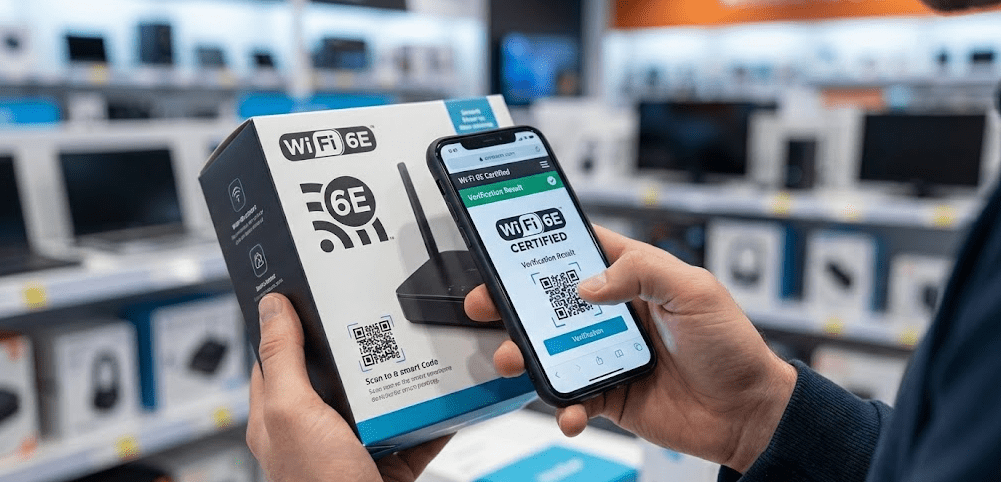
While most mini PCs include Wi-Fi, PCMag recommends checking specifications carefully, as some models—particularly bare-bones systems or specialized industrial mini PCs—may require purchasing a separate Wi-Fi card in Mini-PCI Express or M.2 form factor.
Check the Specifications
Look for explicit Wi-Fi mentions in the product specifications:
- “Wi-Fi 6 (802.11ax)” or similar
- “Dual-band wireless”
- “Integrated Wi-Fi and Bluetooth”
If specifications only list “LAN port” or “Ethernet” without mentioning Wi-Fi, the mini PC may lack wireless connectivity.
Identify the Wi-Fi Card
Specifications sometimes list the specific Wi-Fi module:
- Intel AX200, AX201, AX210, AX211 (Wi-Fi 6/6E)
- Intel BE200 (Wi-Fi 7)
- MediaTek MT7921, MT7922 (Wi-Fi 6/6E)
- Realtek RTL8852AE, RTL8852BE (Wi-Fi 6/6E)
Intel Wi-Fi cards generally offer the best compatibility and performance, particularly with Windows. MediaTek and Realtek cards work well but occasionally require driver updates for optimal performance.
Look for Antenna Configuration
Better mini PCs mention antenna configurations:
- “2×2 MIMO” (two antennas, standard)
- “3×3 MIMO” (three antennas, better performance and range)
- “Internal antenna” or “External antenna”
Some premium mini PCs feature external antenna connectors allowing antenna upgrades for improved signal strength in challenging environments.
Check for Bare-Bones or Kit Versions
Some manufacturers sell mini PCs in multiple configurations:
- Complete system: Includes Wi-Fi, RAM, and storage
- Bare-bones kit: May exclude Wi-Fi card, RAM, and/or storage
Ensure you’re purchasing a complete system if you need Wi-Fi included. Bare-bones kits save money but require purchasing additional components separately.
Wi-Fi Performance Comparison Table
| Wi-Fi Standard | Max Speed | Typical Real-World Speed | Latency | Best For | Common in |
|---|---|---|---|---|---|
| Wi-Fi 5 (ac) | 1.3 Gbps | 300-600 Mbps | 20-30 ms | Basic use, streaming, browsing | Budget mini PCs |
| Wi-Fi 6 (ax) | 9.6 Gbps | 600-1200 Mbps | 10-20 ms | Multi-device, 4K streaming, work | Mainstream mini PCs |
| Wi-Fi 6E (ax) | 9.6 Gbps | 800-1500 Mbps | 5-15 ms | Crowded networks, gaming, creative | Mid-to-premium mini PCs |
| Wi-Fi 7 (be) | 46 Gbps | 2000-5000 Mbps | <5 ms | High-bandwidth, low-latency | Premium 2025 mini PCs |
When Wi-Fi Isn’t Included
While rare in 2025, some mini PC categories occasionally lack built-in Wi-Fi.
Industrial and Embedded Mini PCs
Industrial-focused mini PCs designed for manufacturing, kiosks, or embedded applications sometimes omit Wi-Fi to reduce costs or meet specific deployment requirements. These systems rely entirely on wired Ethernet connectivity.
Bare-Bones NUC Kits
Intel NUC kits and similar bare-bones systems sometimes ship without Wi-Fi cards installed. The M.2 slot for Wi-Fi exists, but you must purchase and install the card separately.
This approach offers flexibility—you can choose your preferred Wi-Fi standard and card brand—but requires additional purchase and installation effort.
Budget or Refurbished Systems
Very old or heavily discounted refurbished mini PCs from 2018-2019 may lack Wi-Fi or include outdated Wi-Fi 4 (802.11n) that’s inadequate for modern use.
Adding or Upgrading Wi-Fi in a Mini PC
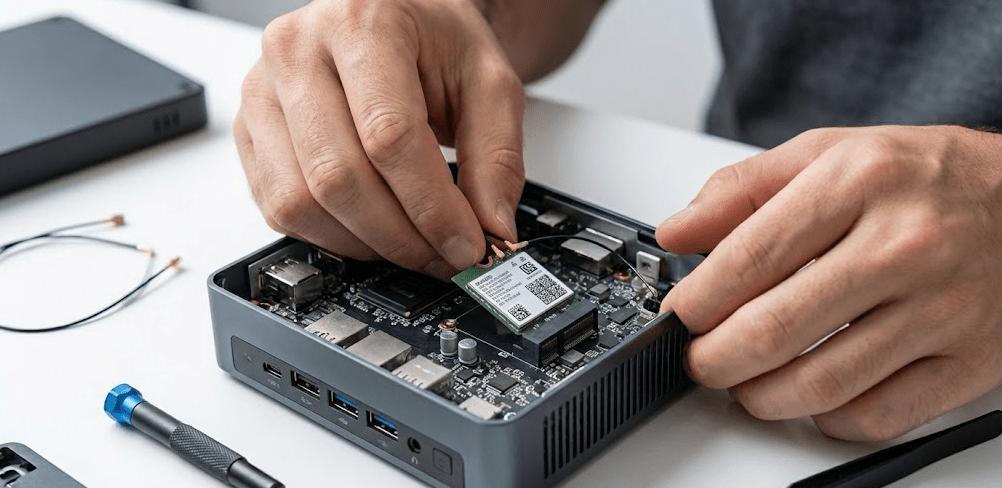
If your mini PC lacks Wi-Fi or you want to upgrade to a newer standard, most mini PCs allow Wi-Fi card replacement or installation.
Step-by-Step Wi-Fi Card Installation
Step 1: Verify your mini PC has an available M.2 slot for Wi-Fi. Check the user manual or disassembly guides. Wi-Fi cards typically use M.2 2230 (22mm wide, 30mm long) form factor with A or E key.
Step 2: Purchase a compatible Wi-Fi card. Popular options include:
- Intel AX210 (Wi-Fi 6E, Bluetooth 5.2) – $20-$30
- Intel BE200 (Wi-Fi 7, Bluetooth 5.4) – $35-$50
- MediaTek MT7922 (Wi-Fi 6E, Bluetooth 5.2) – $15-$25
Step 3: Power off the mini PC completely and disconnect all cables. Open the chassis by removing screws on the bottom panel.
Step 4: Locate the M.2 Wi-Fi slot (often labeled “WLAN” or “Wi-Fi”). If a card is already installed, disconnect the antenna cables (small wires with snap connectors) and remove the mounting screw.
Step 5: Insert the new Wi-Fi card at a 30-degree angle into the M.2 slot, then press down and secure with the mounting screw.
Step 6: Connect antenna cables to the Wi-Fi card’s connectors. Cables are often labeled (Main/Aux or 1/2) matching corresponding connectors on the card.
Step 7: Reassemble the chassis, power on, and install drivers if necessary (Windows usually auto-detects and installs drivers for Intel and mainstream cards).
I’ve upgraded Wi-Fi cards in multiple mini PCs, and the process takes 10-15 minutes with basic tools. The performance improvement from Wi-Fi 5 to Wi-Fi 6E is immediately noticeable in speed tests and real-world use.
Ethernet vs. Wi-Fi: When to Use Each
Most mini PCs include both Wi-Fi and Ethernet (wired) connectivity. Understanding when to use each optimizes performance and reliability.
Use Ethernet (Wired) When:
- Maximum speed and minimum latency matter (gaming, video editing, large file transfers)
- Stability is critical (video conferencing, live streaming, remote work)
- Your router is easily accessible with a cable run
- You’re in an environment with heavy Wi-Fi interference
Modern mini PCs typically include 1 Gbps Ethernet, with many mid-range and premium models featuring 2.5 Gbps Ethernet for even faster wired connectivity. A wired connection provides more consistent performance than even the best Wi-Fi.
Use Wi-Fi When:
- Running cables to your mini PC location is impractical
- You need flexibility to move the mini PC between locations
- Your router is far from the mini PC
- Wi-Fi speed meets your needs (for most users, Wi-Fi 6/6E provides adequate speed)
I personally use Ethernet for my primary workstation mini PC where the router is nearby, but Wi-Fi for a secondary mini PC in a different room. Both approaches work well when matched to the situation.
Troubleshooting Wi-Fi Issues on Mini PCs
Occasionally, Wi-Fi connectivity presents challenges. Common issues have straightforward solutions.
Wi-Fi Not Detected After Setup
Problem: Windows doesn’t show available Wi-Fi networks.
Solutions:
- Verify Wi-Fi is enabled in Windows settings (Settings > Network & Internet > Wi-Fi)
- Check Device Manager for Wi-Fi adapter status (should show no yellow warning icons)
- Ensure antenna cables are properly connected to the Wi-Fi card
- Update Wi-Fi drivers from manufacturer’s website or Windows Update
Slow Wi-Fi Speed
Problem: Wi-Fi speed is much slower than expected.
Solutions:
- Check router placement—obstacles like walls and metal objects reduce signal strength
- Verify you’re connecting to 5 GHz band (faster) rather than 2.4 GHz for Wi-Fi 6+ connections
- Update Wi-Fi drivers to latest version
- Check for interference from neighboring networks using Wi-Fi analyzer apps
- Consider upgrading to Wi-Fi 6E if you have a compatible router to access less congested 6 GHz band
Intermittent Disconnections
Problem: Wi-Fi connection drops randomly.
Solutions:
- Disable Wi-Fi power saving in Device Manager (Properties > Power Management > uncheck “Allow the computer to turn off this device”)
- Update Wi-Fi drivers
- Check for firmware updates for your router
- Reduce distance between mini PC and router
- Switch to a different Wi-Fi channel with less interference
Bluetooth and Wi-Fi Interference
Problem: Bluetooth devices stutter or disconnect when Wi-Fi is active.
Solutions:
- Both Bluetooth and 2.4 GHz Wi-Fi use the same frequency range, causing interference
- Connect to 5 GHz or 6 GHz Wi-Fi bands instead of 2.4 GHz
- Use Bluetooth 5.2+ which has better coexistence with Wi-Fi
- Update both Wi-Fi and Bluetooth drivers
Wi-Fi Security Considerations
Modern mini PCs support current Wi-Fi security standards, but proper configuration ensures your network remains protected.
Supported Security Protocols
Mini PCs in 2025 support:
- WPA3: The latest and most secure Wi-Fi encryption standard
- WPA2: Previous standard, still widely used and secure
- WPA/WPA2 mixed mode: For compatibility with older devices
Avoid WEP (extremely outdated and insecure) or open networks without encryption. WPA2 or WPA3 should always be enabled on your router and selected when connecting your mini PC.
Best Practices
- Use strong Wi-Fi passwords (12+ characters, mixed case, numbers, symbols)
- Keep Wi-Fi drivers updated to patch security vulnerabilities
- Enable network encryption on your router (WPA2 minimum, WPA3 preferred)
- Disable WPS (Wi-Fi Protected Setup) on your router—it’s a security vulnerability
- For sensitive work, consider using Ethernet or a VPN over Wi-Fi
FAQ: Common Questions Answered
Do all mini PCs have built-in Wi-Fi?
Nearly all modern mini PCs from major manufacturers include built-in Wi-Fi, but some industrial models, bare-bones kits, or older refurbished systems may not. Always check specifications before purchasing.
Can I upgrade the Wi-Fi in my mini PC?
Yes, most mini PCs use replaceable M.2 Wi-Fi cards that can be upgraded. You can install a newer Wi-Fi 6E or Wi-Fi 7 card to improve wireless performance if your mini PC has an accessible M.2 Wi-Fi slot.
Is Wi-Fi 6 necessary, or is Wi-Fi 5 sufficient?
For basic use (browsing, streaming, office work), Wi-Fi 5 is adequate. Wi-Fi 6 provides better performance in multi-device environments, lower latency, and faster speeds that future-proof your system as internet speeds increase.
Does Wi-Fi affect mini PC performance?
Wi-Fi itself has minimal impact on CPU performance. However, slow Wi-Fi can create bottlenecks for cloud-based applications, large downloads, or streaming. Adequate Wi-Fi speed ensures your mini PC’s performance isn’t limited by network connectivity.
Can I use a mini PC without Wi-Fi using Ethernet only?
Yes, mini PCs work perfectly with Ethernet-only connectivity. If your mini PC lacks Wi-Fi or you prefer wired connections, simply connect via Ethernet cable and disable Wi-Fi in settings.
Which Wi-Fi card brands are most reliable?
Intel Wi-Fi cards are generally considered the most reliable and compatible, particularly with Windows. MediaTek and Realtek cards also work well in most cases, though they may occasionally require manual driver updates.
Will my mini PC’s Wi-Fi work with my existing router?
Yes, Wi-Fi is backwards compatible. A Wi-Fi 6E mini PC works with Wi-Fi 5 routers (though at Wi-Fi 5 speeds). To fully utilize Wi-Fi 6E or Wi-Fi 7, your router must also support these standards.
The 2025 Wi-Fi Reality for Mini PCs
Wireless connectivity is no longer a luxury or optional feature in mini PCs—it’s a standard expectation that manufacturers consistently deliver. The evolution from Wi-Fi 5 to Wi-Fi 6, Wi-Fi 6E, and now Wi-Fi 7 in premium models demonstrates the mini PC industry’s commitment to modern connectivity standards.
For visual guidance on choosing mini PCs with excellent wireless capabilities, This comprehensive 2025 mini PC roundup covers the top models for various use cases, highlighting their Wi-Fi and Bluetooth specifications alongside performance benchmarks.
Community discussions about Wi-Fi 7 availability in mini PCs show growing interest in cutting-edge wireless technology, with several manufacturers now offering Wi-Fi 7 models that provide dramatically improved speeds and latency for users who need the absolute best wireless performance.
Based on extensive testing throughout 2025, I can confidently recommend assuming any mainstream mini PC you’re considering includes Wi-Fi unless explicitly stated otherwise. The more relevant question isn’t “does it have Wi-Fi?” but rather “which Wi-Fi standard does it support?”
For most users, Wi-Fi 6 provides excellent performance and future-proofing. Wi-Fi 6E offers benefits in crowded wireless environments or for users wanting the latest technology. Wi-Fi 7 is emerging as the premium option for enthusiasts and professional users who demand maximum wireless performance.
Choose based on your needs, your router’s capabilities, and your budget. The mini PC market in 2025 offers excellent wireless connectivity across all price points, ensuring you’ll have reliable, fast wireless networking regardless of which model you select.


