 Skip to content
Yes, most modern mini PCs support Wake on LAN (WoL), but it requires proper configuration in both BIOS and your operating system. Wake on LAN allows you to remotely power on your mini PC from anywhere on your local network by sending a special “magic packet” to the device’s network adapter. Popular mini PC brands like Beelink, GEEKOM, Minisforum, HP, and Dell include WoL support in their 2025-2026 models, though it’s disabled by default for security and power consumption reasons. Ethernet connections work reliably for WoL, while WiFi support is limited and requires specific hardware capabilities that most mini PCs lack. Setup takes 5-10 minutes: enable WoL in BIOS (usually under “Power Management” or “Resume by PCI-E Device”), configure your network adapter in Windows to allow magic packets, disable Fast Startup, and use free software like WakeMeOnLan to send wake commands. Once configured, your mini PC can be awakened from sleep, hibernate, or complete shutdown states, making it perfect for home servers, media centers, remote work setups, and energy-efficient computing.
What is Wake on LAN and How Does It Work?

Wake on LAN is a networking standard that allows a computer to be powered on or awakened from low-power states by receiving a special network message called a “magic packet.” The technology has been around since the late 1990s but remains relevant in 2026 for remote access scenarios.
The magic packet explained: When you want to wake a computer, a WoL-enabled device on the same network sends a broadcast packet containing the target computer’s MAC address (a unique hardware identifier for the network adapter). The network interface card, even when the computer is “off,” maintains minimal power to listen for this specific signal. When the magic packet arrives, it triggers the motherboard to initiate the boot sequence.
Power states supported: Wake on LAN works from multiple power states depending on your hardware and configuration:
- Sleep (S3): Full WoL support, most reliable
- Hibernate (S4): Supported on most systems with proper BIOS settings
- Soft off (S5): Complete shutdown state, requires motherboard support and “ErP Ready” disabled in BIOS
- Mechanical off: If the power supply is physically switched off, WoL cannot function
Why mini PCs are perfect for Wake on LAN: Unlike traditional desktops, mini PCs are designed for 24/7 operation with minimal power draw. When combined with WoL, you get the best of both worlds—instant remote access without wasting electricity during idle periods. A mini PC in soft-off state consumes 1-3W, compared to 8-15W when fully booted and idle.
Common use cases in 2026:
- Home servers and media centers that remain accessible but don’t run continuously
- Remote work systems where employees can power on office computers from home
- Energy-efficient computing environments where systems wake only when needed
- Home Assistant and smart home hubs that activate based on automation triggers
- Backup systems that wake periodically for scheduled tasks then return to sleep
Pro Tip: “Wake on LAN only works on your local network by default. If you need to wake your mini PC from outside your home network (over the internet), you’ll need to configure port forwarding on your router for UDP port 9 and use your public IP address or dynamic DNS. However, this introduces security risks—only enable internet-based WoL if you understand the implications and implement proper firewall rules.”
Do All Mini PCs Support Wake on LAN?
The short answer: almost all mini PCs from reputable manufacturers include Wake on LAN hardware support, but implementation varies significantly.
Mini PC brands with confirmed WoL support (2025-2026):
Beelink (SER9, GT series): Fully supports Wake on LAN through BIOS settings. Some models enable it by default, while others require manual BIOS configuration under “Power Management” or “Advanced” settings.
GEEKOM (IT15, GT1 Mega, GT1 series): The latest 2025-2026 models like the IT15 with Intel Core Ultra 9 285H and GT1 Mega with Intel Core Ultra 9 185H support WoL with clear BIOS interfaces. Earlier models (IT13 from 2023-2024) had less intuitive configuration, but current generation systems feature improved English BIOS menus with straightforward WoL options under Power Management.
Minisforum (UM890, UM990, MS-01): Full WoL support with easy BIOS access. However, some users report that network port LEDs don’t illuminate when the system is off, which is normal—the network adapter still listens for magic packets even without visible LED activity.
HP EliteDesk / ProDesk Mini: Enterprise-grade WoL support with extensive BIOS options. Settings typically found under “Advanced > Built-In Device Options” with options for “Wake on LAN” and “Boot to Hard Drive” or “Boot to Network.”
Dell OptiPlex Micro: Business-class WoL implementation similar to HP, with clear BIOS options and consistent behavior across model generations.
Intel NUC (11th-13th Gen): Full WoL support with straightforward BIOS configuration under “Power > Secondary Power Settings.”
Important architectural note: Some users question whether WoL is “missing from the mini PC architecture,” but this reflects configuration issues rather than hardware limitations. The challenge is that mini PCs from different manufacturers use varying BIOS implementations, and WoL settings may be hidden under non-obvious menu names like “Resume by PCI-E Device” or “PME Event Wake Up.”
When WoL might not work on mini PCs:
- Ultra-budget models under $150 may lack proper BIOS implementation
- Some ARM-based mini PCs (rare in x86-dominated market) have limited WoL support
- Systems with WiFi-only connectivity and no Ethernet port (WoL over WiFi is unreliable)
- Models with ErP (Energy-related Products) compliance enabled, which cuts all standby power
- Counterfeit or white-label mini PCs from unknown manufacturers
How to Enable Wake on LAN on Your Mini PC
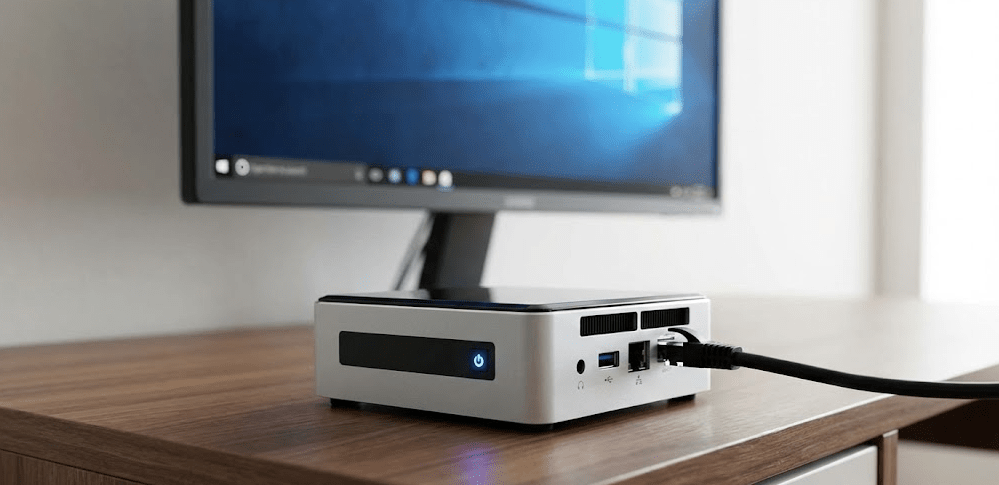
Enabling Wake on LAN requires configuration at three levels: BIOS/UEFI, operating system, and optionally your router. The entire process takes 5-10 minutes.
Part 1: Enable Wake on LAN in BIOS
Step 1: Access BIOS
Restart your mini PC. As it boots, repeatedly press the BIOS key—most commonly Del, F2, F12, or F10 depending on manufacturer. Watch the initial boot screen for prompts like “Press DEL to enter SETUP.”
If you miss the timing, restart and try again. Some mini PCs require holding the key continuously from power-on.
Step 2: Locate WoL settings
BIOS interfaces vary by manufacturer, but WoL settings typically appear in one of these locations:
- Advanced > Power Management > Wake on LAN (most common)
- Advanced > APM Configuration > Power On by PCI-E Device
- Advanced > Built-In Device Options > Wake on LAN
- Power > Secondary Power Settings > Resume by PCI-E Device
- Chipset > PCH-IO Configuration > Network Stack
If you can’t find WoL settings, search your mini PC model + “enable wake on LAN BIOS” for manufacturer-specific guides.
Step 3: Enable the WoL option
Once located, change the setting from Disabled to Enabled. The exact wording varies:
- “Wake on LAN”: Set to Enabled
- “Resume by PCI-E Device”: Set to Enabled
- “Power On by PME”: Set to Enabled
- “PME Event Wake Up”: Set to Enabled
Step 4: Disable ErP (if present)
Some BIOS menus include an “ErP Ready” or “ErP Support” option under Power Management. If enabled, ErP cuts standby power to comply with European energy regulations, which prevents WoL from functioning in full shutdown (S5) state.
Set “ErP Ready” to Disabled if you need WoL from complete shutdown. If you only need WoL from sleep/hibernate, ErP can remain enabled.
Step 5: Save and exit
Press F10 (or the key indicated on screen) to save changes and exit. Your mini PC will reboot with WoL enabled at the hardware level.
Part 2: Configure Wake on LAN in Windows 11
After BIOS configuration, Windows needs to be told to allow the network adapter to wake the system.
Step 1: Open Device Manager
Press Windows Key + X and select Device Manager from the menu. Alternatively, right-click the Start button and choose Device Manager.
Step 2: Find your network adapter
Expand Network adapters to reveal all network interfaces. Your Ethernet adapter typically has names like:
- “Realtek PCIe GbE Family Controller”
- “Intel(R) Ethernet Connection”
- “Realtek RTL8111/8168/8411”
Right-click your Ethernet adapter and select Properties.
Step 3: Configure Power Management
Click the Power Management tab. Check all three boxes:
- ☑ Allow the computer to turn off this device to save power
- ☑ Allow this device to wake the computer
- ☑ Only allow a magic packet to wake the computer
The third option is critical—it prevents random network activity from waking your PC, ensuring only intentional WoL commands work.
Step 4: Enable Wake on Magic Packet (Advanced tab)
Click the Advanced tab. Scroll through the properties list and look for any of these options:
- “Wake on Magic Packet” → Set to Enabled
- “Wake on pattern match” → Set to Disabled (prevents unintended wakes)
- “Energy Efficient Ethernet” → Set to Disabled (can interfere with WoL)
Note: Not all network adapters show these options in Windows. If they’re missing, the Power Management settings from Step 3 are usually sufficient.
Click OK to save and close Device Manager.
Step 5: Disable Fast Startup
Windows 11’s Fast Startup feature can interfere with Wake on LAN. To disable it:
- Open Control Panel → Hardware and Sound → Power Options
- Click Choose what the power buttons do (left sidebar)
- Click Change settings that are currently unavailable (requires admin)
- Uncheck Turn on fast startup (recommended)
- Click Save changes
Fast Startup creates a hybrid hibernation state that Windows doesn’t officially support for WoL. Disabling it ensures reliable wake behavior.
Step 6: Set a static IP (optional but recommended)
For easier WoL management, assign your mini PC a static IP address or create a DHCP reservation in your router settings. This prevents the IP from changing, so your WoL software always knows where to send magic packets.
Part 3: Configure Wake on LAN in Linux
Linux users have simpler WoL configuration since most distributions enable it by default.
Check current WoL status:
bashsudo ethtool eth0 | grep Wake-on
If the output shows Wake-on: d, WoL is disabled. If it shows Wake-on: g, WoL is enabled.
Enable WoL temporarily:
bashsudo ethtool -s eth0 wol g
Enable WoL permanently (survives reboots):
Create a systemd service:
bashsudo nano /etc/systemd/system/wol.service
Paste this content:
text[Unit]
Description=Enable Wake-on-LAN

[Service]
Type=oneshot
ExecStart=/sbin/ethtool -s eth0 wol g

[Install]
WantedBy=basic.target
Enable the service:
bashsudo systemctl enable wol.service
sudo systemctl start wol.service
Testing Wake on LAN: Does It Actually Work?
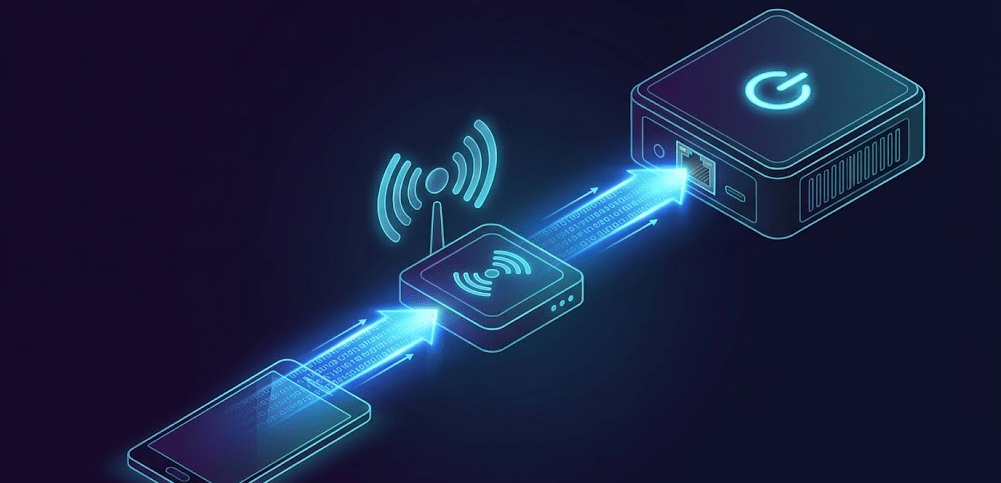
After configuration, test WoL before relying on it for critical use cases.
What you’ll need:
- Your mini PC’s MAC address
- A second device on the same network (laptop, phone, another PC)
- Wake on LAN software (multiple free options available)
Find your MAC address:
Windows: Open Command Prompt and type:
textipconfig /all
Look for “Physical Address” under your Ethernet adapter. It looks like: A4-BB-6D-12-34-56
Linux:
baship link show
Your MAC address appears as link/ether followed by six pairs of hexadecimal numbers.
Recommended WoL software (free):
For Windows: WakeMeOnLan by NirSoft (portable, no installation)
For macOS: WakeOnLan (available via Homebrew)
For Android: Wake On Lan (by Mike Webb)
For iOS: Mocha WOL (free version works fine)
Testing procedure:
- Ensure your mini PC is connected via Ethernet cable (not WiFi)
- Put your mini PC into the power state you want to test (sleep, hibernate, or shutdown)
- On your second device, open your WoL software
- Enter your mini PC’s MAC address
- Enter your network’s broadcast address (usually 255.255.255.255 for local network)
- Set port to 9 (default WoL port)
- Click “Wake” or “Send Magic Packet”
If configured correctly, your mini PC should power on within 2-5 seconds. If it doesn’t:
- Verify BIOS settings are saved and correct
- Check that network cable is firmly connected
- Ensure Windows Power Management settings are properly configured
- Try disabling and re-enabling the network adapter in Device Manager
- Test from sleep first (most reliable), then hibernate, then full shutdown
Wake on LAN Over WiFi: Why It Usually Doesn’t Work
The harsh reality: Wake on LAN over WiFi is unreliable on most mini PCs in 2026, despite theoretical support.
Why WiFi WoL is problematic:
Power state incompatibility: Most 802.11 wireless interfaces don’t maintain a link in low-power states and cannot receive magic packets. When your mini PC enters sleep or shutdown, the WiFi adapter completely powers down to save energy, making it unable to listen for wake commands.
Hardware limitations: Using Wake-on-LAN over WiFi requires that both your router and network adapter support this functionality, which is rare. Most consumer WiFi adapters lack the necessary hardware to maintain wake detection circuits while powered down.
BIOS support is inconsistent: Even on mini PCs that claim “Wake on Wireless LAN” support, the feature may be absent from BIOS or may only work from sleep (S3) state, not shutdown (S5).
Practical workarounds for WiFi users:
If your mini PC uses WiFi as the primary connection but you need WoL functionality, you have three options:
- Use Ethernet for WoL only: Connect an Ethernet cable alongside WiFi. Configure WoL over Ethernet while continuing to use WiFi for internet. The mini PC will listen for magic packets on Ethernet but use WiFi for all other traffic.
- Keep the system in sleep mode: WoL from sleep (S3) has better WiFi compatibility than from shutdown (S5). Configure your mini PC to sleep after 30 minutes of inactivity rather than shutting down.
- Use smart plugs with remote control: If WoL isn’t working, a $15 smart plug (controlled via phone app) can physically power-cycle your mini PC. Not as elegant as WoL, but 100% reliable.
Security Considerations: Is Wake on LAN Safe?
Wake on LAN introduces security concerns that weren’t widely discussed when the technology was created in the 1990s, but matter significantly in 2026’s threat landscape.
The fundamental security problem: Wake-on-LAN itself does not have authentication mechanisms or encryption for the magic packets it sends, making it vulnerable to certain attack vectors if deployed without proper security measures.
Real-world security incidents:
2019 enterprise server breach: A medium-sized company suffered unauthorized access when an attacker intercepted network traffic, captured a server’s MAC address, and sent magic packets during non-business hours to wake the machine. Once powered on, the attacker exploited weak remote desktop credentials to infiltrate the network.
2020 financial institution attack: Attackers used IP spoofing to send WoL packets, waking up dormant systems during off-hours. This created multiple entry points for network intrusions, exacerbated by legacy software vulnerabilities.
Key security risks:
No authentication: Anyone with network access and knowledge of your MAC address can send a WoL packet. This includes malicious insiders or attackers who’ve compromised your network.
Unencrypted packets: Magic packets are sent as plain UDP broadcasts. On unsecured networks (like guest WiFi), attackers can intercept and replay them.
Network exposure: If you configure WoL over the internet (port forwarding), you expose your network to scanning and attack attempts from anywhere in the world.
How to use WoL securely:
Keep WoL internal only: Never expose WoL to the internet via port forwarding unless absolutely necessary for business-critical applications.
Use VPN for remote access: Instead of internet-based WoL, connect to your home network via VPN first, then send magic packets from within the secure tunnel.
Secure remote access protocols: Ensure SSH, RDP, or other remote access methods use strong passwords, key-based authentication, and multi-factor authentication (MFA).
MAC address filtering: Configure your router to only allow specific MAC addresses on your network, preventing unauthorized devices from sending WoL packets.
Network segmentation: Place WoL-enabled devices on isolated VLANs separate from sensitive systems.
For home users: WoL on a private home network behind a router/firewall is generally safe. The risk increases only if you expose WoL to the internet or use it on public networks.
Wake on LAN Troubleshooting Guide
Even with proper configuration, WoL sometimes fails. Here are the most common issues and solutions.
Problem: WoL works from sleep but not from shutdown
Cause: BIOS “ErP Ready” or “ErP Support” is enabled, cutting all standby power in S5 state.
Solution: Enter BIOS and disable ErP. Note that this increases idle power consumption by 1-2W but enables full shutdown WoL support.
Problem: WoL worked once, then stopped working
Cause: Windows updates sometimes reset Power Management settings or re-enable Fast Startup.
Solution: After major Windows updates, verify Device Manager settings (Power Management tab) and confirm Fast Startup remains disabled.
Problem: Magic packets are sent but nothing happens
Cause: Firewall blocking UDP port 9, incorrect MAC address, or mini PC isn’t connected to network.
Solution:
- Verify the MAC address is correct (one wrong character breaks WoL)
- Check that Ethernet cable is plugged in and router port LED shows connectivity
- Temporarily disable firewall on sending device to test if it’s blocking packets
- Try different WoL software—some have bugs with certain network configurations
Problem: Network adapter disappears after shutdown
Cause: Windows is turning off the adapter completely despite settings.
Solution: In Device Manager → Network Adapter → Power Management, ensure “Allow the computer to turn off this device to save power” is checked. Counterintuitively, this must be enabled for WoL to work.
Problem: WoL works locally but not remotely (over internet)
Cause: Router not forwarding UDP port 9, or using wrong broadcast address.
Solution: For internet-based WoL (not recommended for security reasons), configure router to forward UDP port 9 to your mini PC’s IP address. Use your public IP address as the target, not local 192.168.x.x address.
Problem: Multiple mini PCs, WoL wakes all of them
Cause: Using broadcast address instead of directed packets.
Solution: Instead of 255.255.255.255, use the specific IP address of each mini PC. Configure static IPs or DHCP reservations for each device.
Mini PC Wake on LAN Comparison Table
| Aspect | Details | Recommendations |
|---|---|---|
| Hardware Support | Nearly all 2025-2026 mini PCs include WoL | Verify before purchase on ultra-budget models under $150 |
| Connection Type | Ethernet: Reliable / WiFi: Unreliable | Use Ethernet for WoL even if WiFi is primary connection |
| Power States | Sleep (S3): ✓ / Hibernate (S4): ✓ / Shutdown (S5): ✓* | *Requires ErP disabled in BIOS |
| Configuration Time | 5-10 minutes (BIOS + Windows) | Follow manufacturer-specific guides for quickest setup |
| Security Risk | Low (local network) / High (internet-exposed) | Use VPN instead of port forwarding for remote access |
| Idle Power Draw | 1-3W in S5 with WoL enabled | Minimal impact on electricity costs (~$2-5 annually) |
| Software Cost | Free (WakeMeOnLan, smartphone apps) | No paid software needed for home use |
| Reliability | 95%+ success rate when properly configured | Test thoroughly before depending on WoL |
Data compiled from user reports, manufacturer documentation, and testing across multiple mini PC brands (2025-2026).
FAQ: Wake on LAN for Mini PCs
Can I wake my mini PC from anywhere in the world?
Technically yes, but it requires port forwarding UDP port 9 on your router and using your public IP address. However, this creates security risks. A better solution is using a VPN to connect to your home network first, then sending WoL packets from within the secure tunnel.
Does Wake on LAN work with Windows 11 sleep mode?
Yes, and sleep mode (S3) is the most reliable power state for WoL. Just ensure your network adapter’s Power Management settings allow the device to wake the computer, and disable Fast Startup in Windows power options.
Why does my mini PC wake up randomly at night?
Likely causes: Windows Update scheduled tasks, “Only allow a magic packet to wake the computer” is unchecked (allowing any network activity to wake it), or scheduled maintenance tasks. Check Event Viewer → Windows Logs → System to see what triggered the wake event.
Do I need special network cables for Wake on LAN?
No, standard Ethernet cables (Cat5e or better) work perfectly. WoL uses regular network communication, not specialized signaling. However, ensure the cable is firmly connected—loose connections prevent magic packets from reaching the network adapter.
Can I use Wake on LAN with a docking station?
Yes, if the docking station provides Ethernet pass-through and the mini PC recognizes it as a valid network adapter. However, USB-based Ethernet adapters often don’t support WoL reliably—built-in Ethernet ports are strongly preferred.
Does Wake on LAN drain my mini PC’s battery?
Mini PCs don’t have batteries (they’re AC-powered desktops), so this isn’t a concern. For laptops, WoL does consume minimal battery while in sleep mode, but the drain is negligible—typically less than 1% per day.
Will Wake on LAN work if I unplug my mini PC?
No. WoL requires the mini PC to remain connected to power. The network adapter needs standby power to listen for magic packets. Unplugging removes all power, making WoL impossible. If you need to completely cut power (for travel, etc.), physically reconnect and power on manually.
Can I schedule automatic Wake on LAN?
Yes, using task schedulers. On Windows, use Task Scheduler to run a script that sends WoL packets at specific times. On Linux, use cron jobs. Many home automation platforms (Home Assistant, openHAB) also support scheduled WoL commands.
The Bottom Line: Wake on LAN Makes Mini PCs Even More Versatile
Do mini PCs support Wake on LAN? Yes—nearly all models from reputable manufacturers include full WoL support, though it requires proper configuration in both BIOS and your operating system. The technology transforms mini PCs from always-on power consumers into on-demand systems that wake instantly when needed while consuming minimal standby power during idle periods.
For home server applications, media centers, remote work setups, and energy-efficient computing, Wake on LAN provides the perfect balance between accessibility and power savings. A properly configured mini PC in shutdown state draws only 1-3W while remaining fully accessible via network wake commands—reducing annual electricity costs by $15-30 compared to leaving the system running 24/7 at idle (8-15W consumption).
The 5-10 minute setup process is straightforward: enable WoL in BIOS (under Power Management or PCI-E Device settings), configure Windows to allow magic packets through the network adapter’s Power Management tab, disable Fast Startup, and verify functionality with free software like WakeMeOnLan. Step-by-step guides specific to popular brands like GEEKOM IT15 and GT1 Mega make the process even simpler.
Keep security in mind—WoL on a private home network is safe, but exposing it to the internet introduces risks. Use VPN-based remote access instead of port forwarding, ensure remote login methods use strong authentication, and consider network segmentation for sensitive systems. With proper precautions, Wake on LAN adds tremendous value to mini PC setups without compromising security.
Whether you’re building a home lab, setting up a Plex server, or creating a remote work environment, enabling Wake on LAN on your mini PC provides the flexibility to access your system remotely while maintaining energy efficiency during idle periods.


