 Skip to content
You can unlock a TTLock smart lock from a laptop by logging into the TTLock web platform at lock.ttlock.com using your existing TTLock account credentials. From the dashboard, select your lock and click the remote unlock button. However, this only works if you have a TTLock WiFi gateway installed and connected to the internet near the lock. Without a gateway, remote unlocking from a laptop or any computer is not possible, and you will need to use the mobile app via Bluetooth while physically near the lock. Keep reading for the full setup, step-by-step instructions, and troubleshooting tips.
What Is TTLock and How Does It Work?
TTLock is a smart lock ecosystem developed by Sciener, a Chinese smart hardware company. It powers a wide range of smart locks from dozens of different brands worldwide, all of which use the TTLock app and backend infrastructure for access management. You may have purchased a lock branded under a different name like Ultraloq, DESSMANN, or Anviz, and still be running the TTLock system under the hood.
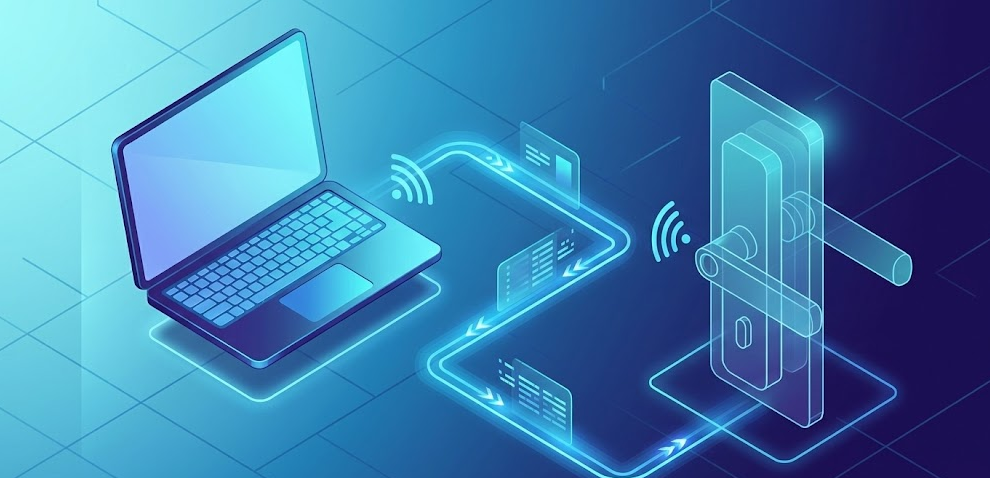
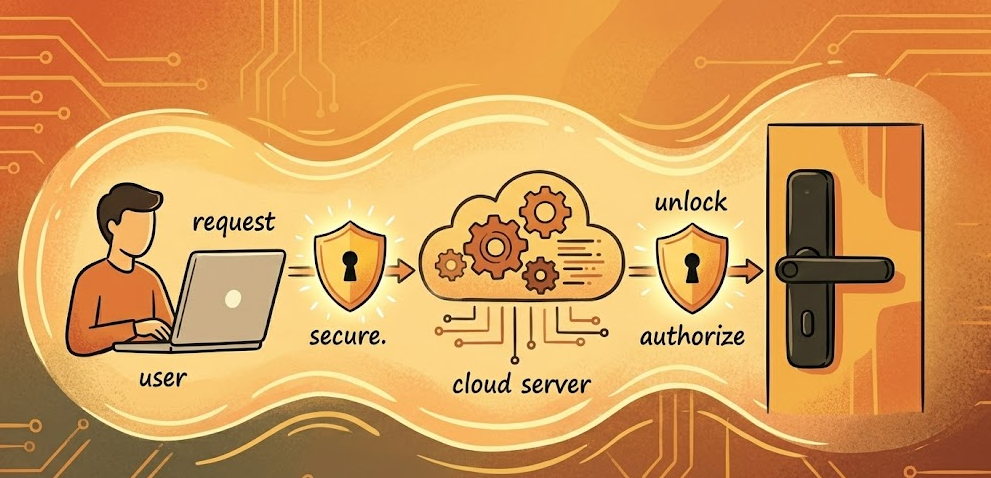
TTLock locks primarily communicate via Bluetooth Low Energy (BLE) at close range, typically within 5 to 10 meters. For remote access from anywhere in the world, including from a laptop, the system uses a gateway as a bridge. The gateway connects to your network and relays commands from the TTLock cloud servers to the lock, enabling you to control the lock remotely from any internet-connected device, including a laptop browser.
Understanding this architecture upfront saves a lot of frustration. The laptop does not talk to the lock directly. The flow is: your laptop sends a command to the TTLock cloud via the web platform, the cloud pushes that command to the gateway over the internet, and the gateway delivers it to the lock over Bluetooth. Every link in that chain must be functioning for a remote unlock to work.
What You Need Before You Start
Before attempting to unlock your TTLock from a laptop, make sure you have all of the following in place:
- A TTLock account (registered via the TTLock mobile app or the web platform)
- Administrator or unlock permissions for the specific lock
- A TTLock gateway (G2, G3, G4, or G5 depending on your setup) installed near the lock and connected to your network
- The gateway must be online and showing as connected in the TTLock app or web dashboard
- A laptop or desktop with any modern web browser (Chrome, Firefox, Edge, and Safari all work)
- A stable internet connection on both the laptop and the gateway
If you do not have a gateway, skip ahead to the section below covering your available options without one.
Method 1: Unlock TTLock from a Laptop via the Web Platform
This is the primary and most reliable method for unlocking a TTLock from a laptop. It works from anywhere in the world as long as you have internet access and your gateway is online.
Step 1: Open your browser and go to lock.ttlock.com
Open any web browser on your laptop and navigate to lock.ttlock.com. This is the official TTLock web management portal. It is compatible with all modern browsers and does not require any software download or installation.
Step 2: Log in with your TTLock credentials
Enter the same email address and password you use for the TTLock mobile app. The web platform and the mobile app share the same account, so your locks, eKeys, passcodes, and access logs are all synchronized between both platforms automatically.
If you have forgotten your password, click the Forgot Password link on the login page and follow the email verification steps to reset it.
Step 3: Navigate to your lock dashboard
Once logged in, you will see your main dashboard showing all locks associated with your account. Locks are organized into groups if you have multiple properties or access points. You can see basic information at a glance including the lock name, battery level, and gateway connection status.
Step 4: Select the lock you want to unlock
Click on the specific lock you want to open. This will bring up the lock’s configuration and control panel, where you can view active eKeys, passcodes, the event log, and the lock’s current status.
Step 5: Click the remote unlock button
Within the lock’s control panel, look for the Unlock, Open Door, or Remote Unlock button. Click it to send the unlock command. The platform will push the command through the TTLock cloud to your gateway, which then instructs the lock to open. The process typically completes within 2 to 5 seconds on a stable connection.
Step 6: Confirm the unlock was successful
The lock status on the dashboard should update to reflect the open state. You can also check the event log within the lock’s configuration panel to confirm the remote unlock was recorded with a timestamp.
Pro Tip: Always log out of lock.ttlock.com when you are finished, especially on a shared or public computer. TTLock web sessions can remain active, and an unlocked session on an unattended laptop gives anyone nearby full remote access to your locks.
Method 2: What to Do If You Do Not Have a Gateway
If you do not have a TTLock gateway, you cannot unlock your lock remotely from a laptop or any internet-connected device. This is a hardware limitation of the system, not a software restriction.
Your options in this situation are:
- Purchase a TTLock gateway appropriate for your setup (see the gateway comparison section below) and install it near the lock. Once set up, full remote access via laptop becomes available immediately.
- Use the TTLock mobile app on a smartphone or tablet while physically within Bluetooth range of the lock (typically 5 to 10 meters). This does not require a gateway but also does not work from a laptop.
- If you manage the lock for other users, you can send them an eKey or passcode via the web platform at lock.ttlock.com, which they can use to unlock without needing gateway-based remote access.
For anyone managing multiple locks across a property, an office, or a rental business, the gateway is essentially a required component. Based on my experience reviewing smart lock systems, the gateway is the single most overlooked purchase that causes the most frustration for TTLock users, simply because the lock packaging does not always make clear that remote access requires separate hardware.
TTLock Web Platform Overview: What You Can Do from a Laptop
Unlocking is only one of many things you can manage through lock.ttlock.com. Here is a full breakdown of what the web platform allows you to do:
| Feature | Available on Web Platform | Notes |
|---|---|---|
| Remote unlock | Yes | Requires gateway |
| View lock status | Yes | Battery, online or offline, lock or unlock state |
| View access event log | Yes | Timestamps, unlock method, user identity |
| Send eKeys to users | Yes | Via email to existing TTLock accounts |
| Generate and send passcodes | Yes | Via SMS or email to any recipient |
| Set passcode validity periods | Yes | One-time, timed, recurring schedules |
| Manage user permissions | Yes | Add or remove access for individual users |
| Group locks by location | Yes | Useful for multi-property management |
| Add a new lock | No | Must be done via mobile app over Bluetooth |
| Register fingerprints or cards | No | Must be done via mobile app over Bluetooth |
| Firmware updates | No | Must be done via mobile app |
As Corporate Locksmiths’ TTLock web interface guide notes, the web platform at lock.ttlock.com shares the same account as the mobile app, so all locks, eKeys, and access logs appear automatically without any additional configuration after logging in.
Setting Up a TTLock Gateway: Step-by-Step
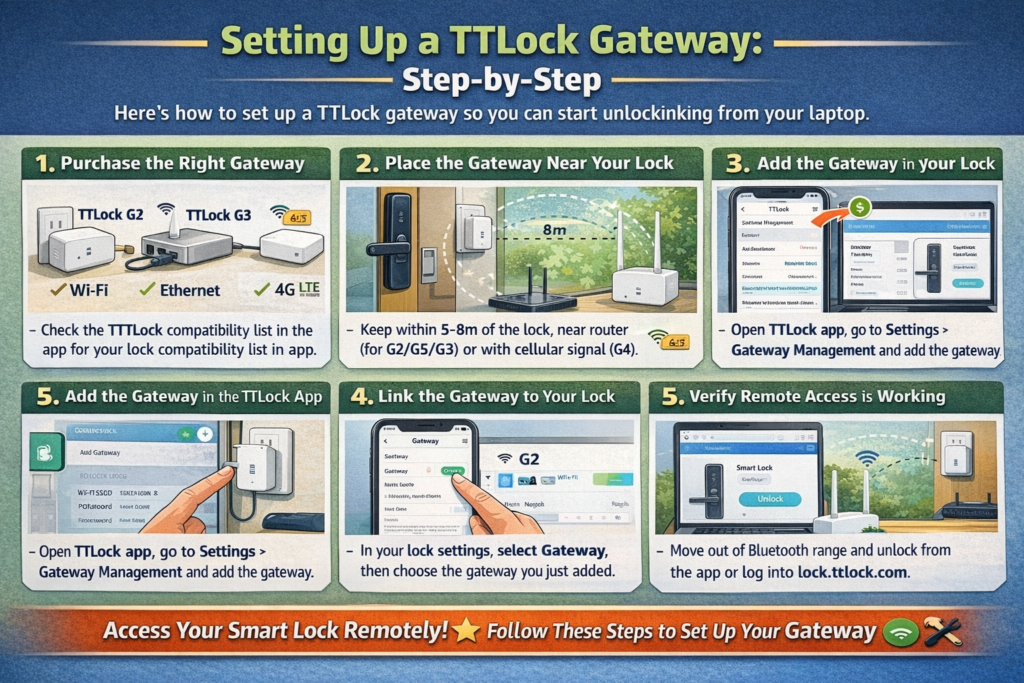
If you do not yet have a gateway configured, here is how to set one up so you can start unlocking from your laptop.
Step 1: Purchase the right gateway
The TTLock G2 is the standard WiFi gateway for home use. If you need a hardwired connection, the G3 uses an Ethernet cable. For remote properties without internet, the G4 uses a 4G cellular SIM card. For modern offices that want to utilize 5GHz WiFi networks, the G5 is the recommended dual-band choice. Make sure the gateway model is compatible with your lock by checking the TTLock compatibility list in the app.
Step 2: Place the gateway near your lock
The gateway communicates with the lock via Bluetooth, so it needs to be within range of the lock, ideally within 5 to 8 meters with no major obstructions. WiFi and Ethernet models also need to be near your router or network connection point respectively. The G4 cellular model simply needs power and a cellular signal.
Step 3: Add the gateway in the TTLock app
Open the TTLock mobile app, go to Settings, and select Gateway Management. Tap the plus icon to add a new gateway. The app will guide you through connecting the gateway to your network, entering your WiFi credentials for the G2 and G5, connecting an Ethernet cable for the G3, or inserting an active SIM card for the G4.
Step 4: Link the gateway to your lock
Once the gateway is connected and showing as online in the app, go to your lock’s settings in the app and select Gateway. Choose the gateway you just added to link it with that specific lock.
Step 5: Verify remote access is working
Move out of Bluetooth range of the lock (go to a different room or outside) and try unlocking through the TTLock app. If it works remotely, your gateway is configured correctly. You can then log into lock.ttlock.com on your laptop and use the same remote unlock function from there.
TTLock Gateway Models Compared
| Model | Connectivity | Best For |
|---|---|---|
| TTLock G2 | WiFi (2.4GHz) | Home use, standard single-band routers |
| TTLock G3 | Ethernet (RJ45) | Offices requiring stable wired connections |
| TTLock G4 | 4G LTE (SIM Card) | Remote rental properties without internet |
| TTLock G5 | WiFi (2.4GHz and 5GHz) | Modern networks with 5GHz routers |
Standard WiFi models like the G2 require a 2.4GHz network connection, while the G5 supports both 2.4GHz and 5GHz bands. The G3 requires a hardwired Ethernet cable, and the G4 requires an active cellular data plan. Regardless of the gateway model you choose, the communication between the gateway and the lock itself always runs over Bluetooth.
Troubleshooting: Why Remote Unlock Is Not Working from Your Laptop
If you are logged in to lock.ttlock.com and the remote unlock is not responding, here are the most common causes and fixes.
Gateway is offline. Check the lock dashboard to see if the gateway shows as connected. If it shows offline, check that the gateway is powered on and that your network connection is active. Power cycling the gateway (unplug, wait 10 seconds, replug) resolves most offline issues. For the G4 cellular model, check that the SIM card has an active data plan.
Remote unlock is disabled in lock settings. Some TTLock firmware versions require you to explicitly enable remote unlock in the lock settings. Open the TTLock mobile app, go to your lock settings, and look for a Remote Unlock toggle. Make sure it is switched on.
Wrong account or insufficient permissions. If you are logged in as a guest user rather than the administrator, you may not have remote unlock permissions. Log in with the administrator account that originally set up the lock.
Low battery in the lock. A battery level below 20% can cause the lock to become unresponsive to gateway commands. Check the battery indicator in the dashboard and replace batteries if needed.
Lock firmware is outdated. Older firmware versions on some TTLock models have known remote access bugs. Open the TTLock mobile app while near the lock and check for firmware updates under the lock settings.
Gateway is too far from the lock. If the gateway is more than 8 to 10 meters from the lock with walls or obstructions in between, the Bluetooth connection between the gateway and lock may be weak or unreliable. Try moving the gateway closer.
Session timeout or browser cache issue. If your browser session has timed out, log out, clear your browser cache, and log back in to lock.ttlock.com. Some users on older browsers have reported stale session issues that prevent the unlock button from registering.
As iLockey’s comprehensive TTLock troubleshooting guide explains, the majority of remote unlock failures trace back to one of three root causes: a gateway connectivity issue, a firmware or settings mismatch, or an account permissions problem. Working through those three categories systematically resolves most issues before needing to contact support.
For a comprehensive visual walkthrough of setting up TTLock remote access from scratch including the gateway configuration and web platform unlock, This full TTLock operation guide on YouTube covers the entire process in detail.
Security Best Practices for Managing TTLock from a Laptop
Managing smart locks from a web platform introduces specific security considerations that are worth taking seriously.
Use a strong, unique password. Your TTLock account controls physical access to your home or office. Use a password you do not use anywhere else, and consider storing it in a password manager.
Enable two-factor authentication if available. TTLock has been rolling out additional account security features. Check your account settings for any available 2FA options and enable them.
Always log out on shared computers. An active TTLock session on a shared or public computer is a significant physical security risk. Make logging out a habit every single time.
Audit your eKey and passcode list regularly. The web platform makes it easy to see who has access to your locks. Review active eKeys and passcodes periodically and revoke any that are no longer needed, particularly after contractor visits, guest stays, or staff changes.
Monitor your access event log. The event log in the web platform records every unlock attempt with a timestamp and method. Reviewing this log regularly helps you catch any unauthorized access attempts early.
Keep your gateway firmware updated. Gateway firmware updates sometimes include security patches. Check for updates periodically in the TTLock app under Gateway Management.
2026 Updates: What Is New with TTLock Remote Access
The TTLock platform has continued to evolve through 2025 and into 2026, with a few developments worth knowing about if you are setting up or expanding a TTLock system.
Improved web platform stability. The lock.ttlock.com web platform received backend infrastructure updates in late 2025 that significantly reduced command latency and improved reliability for remote unlocks. Users who experienced sluggish response times in 2024 should find the experience noticeably faster.
G5 gateway wider adoption. The G5 dual-band gateway has become the recommended option for professional and commercial installations due to its support for 5GHz networks and better network flexibility, while the cellular G4 remains the go-to for remote offline properties.
Third-party API integrations. As Seam API’s TTLock integration documentation outlines, developers and property managers can now integrate TTLock through a unified API layer that supports controlling smart locks from multiple brands through a single interface. This is particularly useful for short-term rental managers using property management software.
RemoteLock and similar integrations. TTLock’s ecosystem has expanded its third-party integrations with platforms like RemoteLock, enabling more sophisticated access scheduling and management from web dashboards beyond the native TTLock portal.
Frequently Asked Questions
Can I unlock TTLock from a laptop without a gateway?
No. Remote unlocking from a laptop or any web browser requires a TTLock gateway. Without one, the lock can only be controlled via Bluetooth through the TTLock mobile app while physically within range of the lock.
What is the TTLock web platform URL?
The official TTLock web management platform is located at lock.ttlock.com. It uses the same login credentials as the TTLock mobile app and works in any modern web browser without requiring any software installation.
Why is the unlock button not working on lock.ttlock.com?
The most common causes are a gateway that is offline or out of range, remote unlock being disabled in the lock settings, low lock battery, insufficient account permissions, or an outdated firmware version. Check each of these in the TTLock app and make sure the gateway shows as online in the dashboard.
Does TTLock have a desktop app for Windows or Mac?
No. TTLock does not offer a dedicated desktop application for Windows or Mac. All laptop and computer access is handled through the web browser platform at lock.ttlock.com. The primary mobile app is available for iOS and Android.
Can I add new users or send access codes from my laptop?
Yes. The web platform at lock.ttlock.com allows you to send eKeys to existing TTLock users and generate passcodes that can be sent via email or SMS to anyone. You can also set validity periods and access schedules for each passcode directly from the web interface.
What is the difference between the TTLock G2, G3, G4, and G5 gateways?
The G2 connects via standard 2.4GHz WiFi and suits most home setups. The G3 uses a wired Ethernet connection for more stable office environments. The G4 uses a 4G LTE SIM card and is ideal for remote properties without internet access. The G5 is the newest dual-band WiFi gateway supporting both 2.4GHz and 5GHz networks and is the recommended choice for modern commercial installations.
How many locks can one TTLock gateway support?
This varies by model. The G2 supports up to 5 locks, while higher-tier models support more simultaneous connections. Check the TTLock compatibility documentation for the specific lock capacity of the gateway model you are purchasing.
Can I see who unlocked the door from my laptop?
Yes. The event log in the web platform records every unlock attempt including the timestamp, the unlock method used (app, passcode, fingerprint, card, etc.), and the user identity if applicable. This is accessible by clicking on any lock in the dashboard and navigating to the event log section.
Is lock.ttlock.com safe to use on public WiFi?
The platform uses HTTPS encryption, so the data transmitted is encrypted. However, using smart lock management tools on public WiFi carries inherent risks from network-level attacks. When possible, use a trusted private network or a VPN when managing your locks remotely on public WiFi.
What happens if my internet goes down while the lock is unlocked?
The lock retains its last commanded state even if the internet connection drops. An internet outage does not cause the lock to change state. However, you will not be able to send any new remote commands until the connection is restored.
Can I use TTLock on a Chromebook?
Yes. Since the TTLock web platform is browser-based, it works on any device with a modern browser including Chromebooks. Navigate to lock.ttlock.com in Chrome on your Chromebook and log in as normal.
Bottom Line
Unlocking a TTLock from a laptop is straightforward once you understand the system architecture. The web platform at lock.ttlock.com gives you a clean, browser-based dashboard to remotely control your locks, view access logs, manage users, and send passcodes, all without needing the mobile app. The one non-negotiable requirement is a TTLock gateway, and choosing the right model for your situation matters: the G2 for standard home WiFi, the G3 for wired office setups, the G4 for off-grid remote properties, and the G5 for modern dual-band networks. Get that set up correctly and managing your TTLock from a laptop becomes a genuinely smooth experience. If you run into issues, work through the troubleshooting section above systematically, since the vast majority of remote unlock failures trace back to gateway connectivity, firmware settings, or account permissions.


