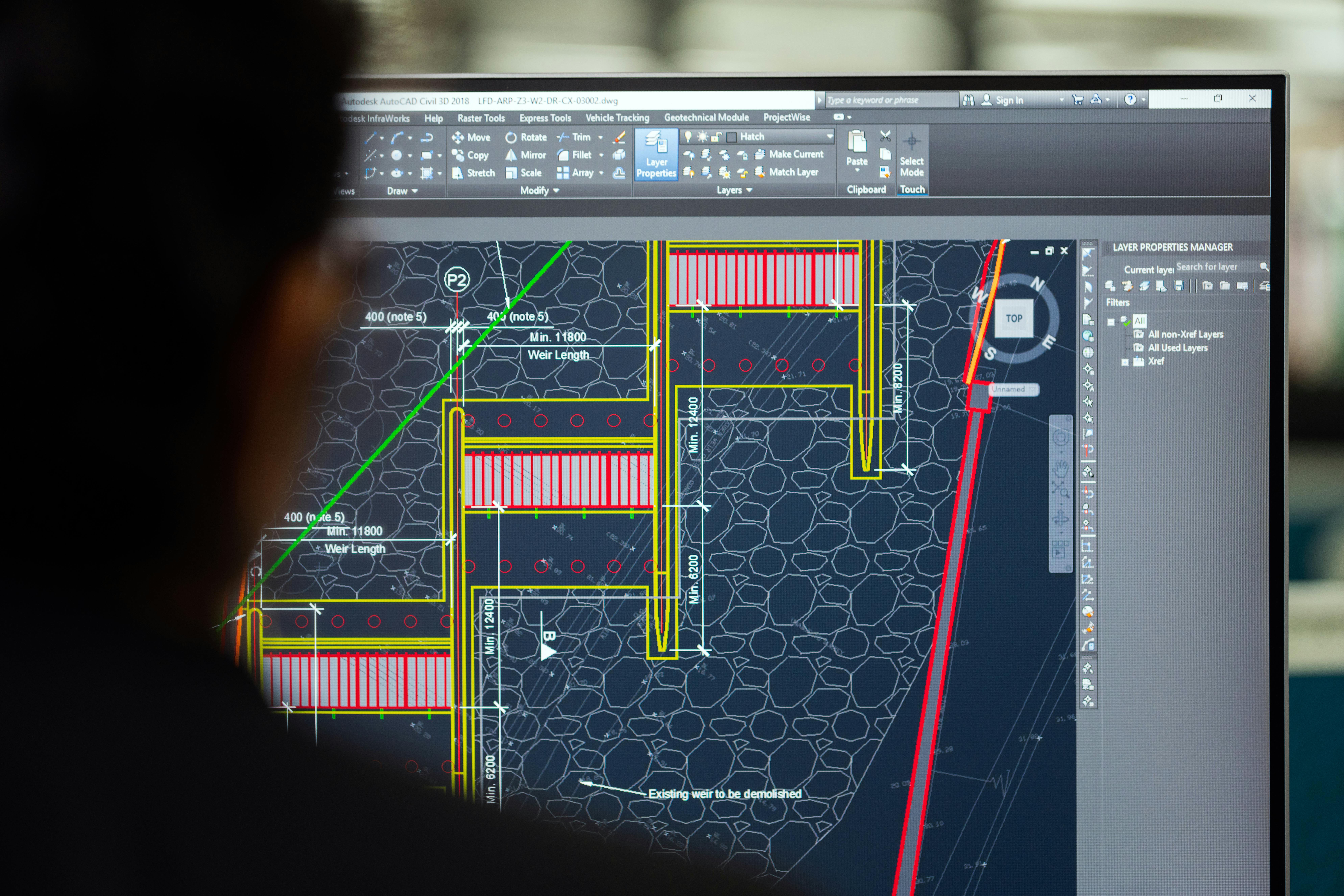
CAD software is primarily CPU intensive, but the GPU plays an increasingly important and evolving role depending on your workflow. For core modeling tasks, file processing, assemblies, and simulations, the CPU does most of the heavy lifting, and single-core clock speed matters more than core count. The GPU takes over for viewport rendering, real-time visualization, ray tracing, and 3D navigation. In 2026, the line between the two is blurring fast, with major tools like AutoCAD 2026, Revit 2026, and Mastercam 2026 actively shifting more workloads onto the GPU than ever before. But if you only had to pick one to prioritize, the CPU still wins for most users.
Why This Question Is More Complicated Than It Looks
Most people expect a clean answer here: either the CPU or the GPU wins. The reality is that CAD workflows are split across both components, and which one becomes your bottleneck depends entirely on what you are doing at any given moment.
Drafting a 2D floor plan in AutoCAD is almost entirely CPU-bound. Rendering a photorealistic 3D product visualization in KeyShot or SOLIDWORKS Visualize is almost entirely GPU-bound. Running a finite element analysis (FEA) simulation in ANSYS or SOLIDWORKS Simulation is back to being CPU-bound. And displaying a complex 3D assembly in the viewport in real time is a shared responsibility between both.
The safest way to think about it is this: the CPU is responsible for thinking, and the GPU is responsible for showing. Once you internalize that distinction, the hardware decisions become much clearer.
What the CPU Does in CAD
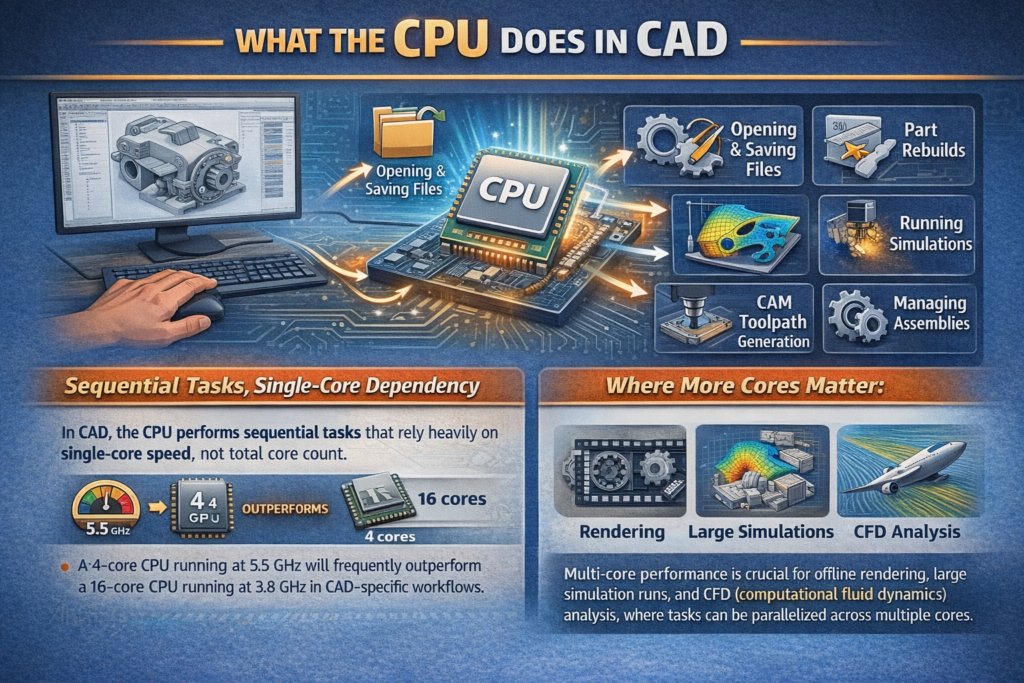
The CPU handles virtually every computational and logical operation in a CAD workflow. This includes opening and saving files, executing part rebuilds, processing constraints and mates in assemblies, running simulations and analysis tools, generating toolpaths in CAM software, and managing parametric relationships between components.
The important nuance here is that most of these tasks are sequential rather than parallel, meaning they are bottlenecked by how fast a single CPU core runs, not how many cores the CPU has. Puget Systems’ hardware recommendations for AutoCAD confirm exactly this, noting that a CPU with the highest operating frequency gives the best overall performance for general modeling tasks, even when comparing it to chips with significantly more cores.
This is counterintuitive to a lot of people who assume more cores always equals more speed. In CAD, a 4-core CPU running at 5.5 GHz will frequently outperform a 16-core CPU running at 3.8 GHz for everyday modeling work. Where multi-core performance does matter is in offline rendering, large simulation runs, and CFD (computational fluid dynamics) analysis, tasks that can be parallelized effectively across multiple threads.
What the GPU Does in CAD
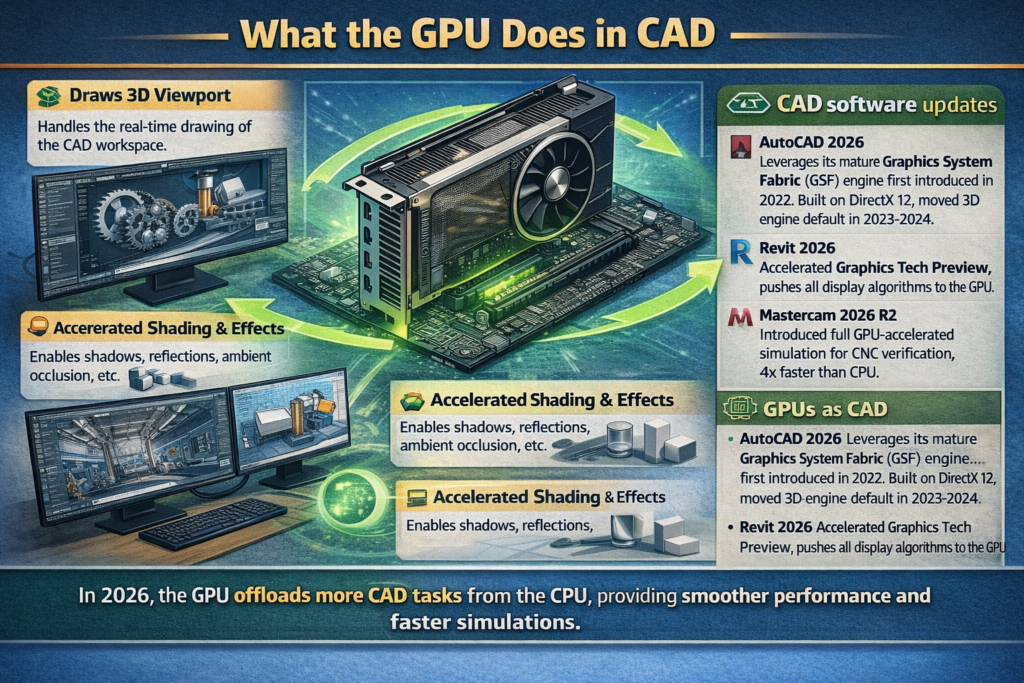
The GPU handles everything related to displaying and visualizing your work. This includes drawing the 3D viewport, applying real-time shading and materials, enabling features like shadows, ambient occlusion, and reflections, processing hardware-accelerated rendering, and driving high-resolution or multi-monitor setups.
In 2026, the GPU’s role in CAD has grown substantially. AutoCAD 2026 fully leverages its mature Graphics System Fabric (GSF) engine, which was first introduced as a tech preview in AutoCAD 2022 and became the default 3D engine around 2023 and 2024. Built on DirectX 12, GSF offloads significantly more drawing tasks from the CPU to the GPU, resulting in noticeably smoother navigation of complex 3D models. Revit 2026 introduced its Accelerated Graphics Tech Preview, which pushes all display algorithms to the GPU, including silhouette calculation and scene scaling based on model size.
Meanwhile, Mastercam 2026 R2 introduced full GPU-accelerated simulation for CNC verification, reducing a 90-minute CPU simulation to just 22 minutes with GPU acceleration. That is roughly a 4x speedup that directly affects production schedules, not just rendering previews.
How CAD Workflows Split Between CPU and GPU
Here is a clear breakdown of which component handles which tasks across a typical CAD workflow:
| Task | Primary Component | Notes |
|---|---|---|
| 2D drafting and editing | CPU | Mostly single-core dependent |
| File open and save | CPU | Heavily I/O and CPU-bound |
| Part modeling and rebuilds | CPU | Single-core clock speed is critical |
| Assembly constraints and mates | CPU | Can stress both CPU and RAM |
| Parametric feature operations | CPU | Sequential, not parallelizable |
| FEA and CFD simulations | CPU (multi-core) | Benefits from high core count |
| CAM toolpath generation | CPU (multi-core) | Parallelizes well |
| 3D viewport navigation | GPU + CPU | GPU acceleration increasingly critical |
| Real-time shading and materials | GPU | Requires certified or high-VRAM GPU |
| Ray tracing and path tracing | GPU | Needs dedicated RT cores (RTX) |
| Offline photorealistic rendering | GPU or CPU | Depends on render engine |
| Large assembly display | GPU (VRAM) | VRAM is the main bottleneck |
| Multi-monitor setups | GPU | Display output is entirely GPU |
Does CAD Need a Workstation GPU or a Gaming GPU?

This is one of the most debated questions in the CAD community, and in my experience the answer has shifted considerably over the past few years.
Workstation GPUs, such as the Nvidia RTX 4000 Ada, RTX 5000 Ada, and AMD Radeon Pro series, carry ISV (Independent Software Vendor) certifications from Autodesk, Dassault Systèmes, and other CAD vendors. These certifications mean the GPU has been tested specifically with that software, with validated drivers that reduce crashes, graphical artifacts, and stability issues in professional workflows.
Gaming GPUs, on the other hand, are substantially cheaper for the same raw performance. The VRAM and shader core counts on a modern RTX 5080 dwarf those of many midrange workstation cards. Many professionals now run gaming GPUs in their CAD workstations with excellent results, particularly for SOLIDWORKS, AutoCAD, and Fusion 360.
The honest verdict in 2026 is that workstation GPUs are worth the premium in mission-critical environments where stability and driver certification matter above all else. For freelancers, students, and smaller studios, a high-end gaming GPU delivers strong performance at a much lower cost. As the SOLIDWORKS 2026 hardware recommendations from Javelin Technologies note, the latest Intel Core Ultra CPUs offer the best balance of high single-threaded speeds for CAD and up to 24 cores for simulation workloads, and the GPU recommendation scales with how much visualization work is in your pipeline.
Pro Tip: If you are running SOLIDWORKS, AutoCAD, or Revit and debating between a workstation GPU and a gaming GPU, look up the specific ISV certification list for your software before buying. Many Nvidia RTX consumer cards are now on Autodesk’s certified list, meaning you get certified stability without the workstation price premium. A certified driver with a gaming GPU often beats an uncertified workstation card for real-world stability.
CAD Hardware Requirements by Software in 2026
Different CAD tools have very different hardware personalities. Here is how the major platforms break down:
| Software | CPU Priority | GPU Priority | VRAM Recommended | Key Notes |
|---|---|---|---|---|
| AutoCAD 2026 | High (single-core) | Medium to High | 4GB min, 8GB+ recommended | Fully leverages mature GSF engine on DirectX 12 |
| SOLIDWORKS 2026 | Very High (single-core) | Medium | 4GB min, 8GB+ recommended | RealView and rendering benefit heavily from certified GPU |
| Revit 2026 | High (single-core) | Medium to High | 4GB min, 8GB+ recommended | Accelerated Graphics Tech Preview pushes display to GPU |
| Fusion 360 | High | Medium | 4GB min | Cloud-based compute offloads some CPU demand |
| CATIA | Very High | Medium to High | 8GB+ recommended | Complex assemblies are extremely CPU and RAM intensive |
| Rhino 3D | High (single-core) | Medium | 4GB min | Rendering via Cycles or V-Ray shifts load to GPU |
| Mastercam 2026 | High (multi-core) | Medium to High | 8GB+ recommended | New GPU simulation delivers up to 4x faster verification |
| Blender (CAD use) | High (multi-core) | Very High | 16GB+ recommended | Cycles GPU rendering is massively GPU dependent |
| ANSYS | Very High (multi-core) | Low to Medium | 4GB min | FEA and CFD are CPU and RAM bound |
What Single-Core Speed Actually Means for CAD
When hardware guides say CAD is single-core dependent, they mean that the most common everyday operations, such as opening a file, executing a rebuild, or recalculating a mate constraint, can only use one CPU thread at a time because each step depends on the result of the previous step.
Think of it like baking a cake. You cannot frost it until it has cooled. You cannot cool it until it has baked. You cannot bake it until you have mixed the batter. No matter how many cooks you have in the kitchen, the process is sequential. Adding more CPU cores does not make any of those individual steps faster. Only a faster single core does.
This is why a $300 Intel Core Ultra 5 245K running at 5.2 GHz can comfortably outperform a $600 workstation CPU with 24 cores for routine CAD modeling. The high-core-count chip shines in simulations and rendering, but most users are not rendering all day. They are modeling, modifying, and rebuilding, and those tasks need raw single-threaded horsepower.
Recommended Hardware for CAD Workstations in 2026
CPU Recommendations
For general CAD use, prioritize high single-core clock speed over core count. The Intel Core Ultra 7 265K and Core Ultra 9 285K are strong choices, offering excellent single-core performance with enough cores to handle simulation tasks. AMD’s Ryzen 9 9950X is another excellent option for users who mix heavy simulation work with daily modeling. For production-level simulation and FEA, AMD Threadripper or Intel Xeon W series processors with high core counts become more relevant.
GPU Recommendations
For viewport quality and real-time visualization, aim for at least 8GB of VRAM in 2026, with 16GB being the recommended target for complex assemblies or large architectural models. The Nvidia RTX 4000 Ada and RTX 5000 Ada are the leading workstation GPU options. For users comfortable with gaming GPUs, the RTX 5080 (16GB GDDR7) or RTX 4080 Super offer excellent performance at a better price point. AMD’s Radeon Pro W7800 is a strong workstation option on the AMD side, and SOLIDWORKS Visualize 2026 now supports native GPU acceleration on RDNA 2 and newer AMD hardware.
RAM Recommendations
32GB of RAM is the practical minimum for serious CAD work in 2026. Large assemblies in SOLIDWORKS or CATIA, combined with background applications, can easily saturate 32GB, so 64GB is the recommended target for heavy users. For FEA and CFD simulations, 128GB or more may be appropriate.
Storage
A fast NVMe SSD dramatically reduces file open and save times in CAD, which are some of the most CPU and I/O intensive operations in daily workflows. This is an often-overlooked upgrade that delivers noticeable everyday improvements.
2026 Trends: The GPU Is Getting More Important in CAD
The historical answer to the CPU vs GPU question in CAD was simple: CPU wins, GPU is secondary. That answer is becoming less accurate with every new software release, and there are a few specific reasons why.
DirectX 12 adoption. AutoCAD’s GSF engine and Revit 2026’s Accelerated Graphics Tech Preview are both built on DirectX 12, which enables much more efficient GPU utilization compared to older DirectX 11-based rendering. In AutoCAD’s case, the GSF foundation has been maturing since its 2022 tech preview debut, and the 2026 release represents the most GPU-optimized version of the engine yet.
Real-time rendering integration. Tools like Enscape, Twinmotion, and Lumion, which are deeply embedded in architecture and product design workflows, are almost entirely GPU-dependent. As these tools become a standard part of the design process rather than a finishing step, the GPU becomes a daily driver rather than an occasional helper.
GPU-accelerated simulation. Mastercam 2026 R2’s GPU simulation is an early sign of a broader trend. Tasks that have historically been locked to the CPU because of precision requirements are now being ported to GPU compute with equivalent accuracy. Expect more CAD and simulation tools to follow this path through 2026 and beyond.
AI-assisted design. Generative design features, AI-assisted drafting tools, and machine learning-based optimization (increasingly common in tools like Fusion 360 and Creo) lean on GPU tensor cores for acceleration. This is a new category of GPU demand that did not exist in CAD workflows just two or three years ago.
For a comprehensive visual walkthrough of GPU acceleration in Revit 2026, This Revit Accelerated Graphics tutorial on YouTube does an excellent job of demonstrating the real-world performance difference in complex architectural models.
Frequently Asked Questions
Is CAD software CPU or GPU intensive?
CAD software is primarily CPU intensive for modeling, file operations, and simulations. The GPU handles viewport display, real-time visualization, and rendering. In 2026, leading CAD platforms are shifting more workloads to the GPU, but the CPU, specifically single-core clock speed, remains the most important component for everyday modeling tasks.
Does SOLIDWORKS use the CPU or GPU more?
SOLIDWORKS is primarily CPU-bound for its core functions including rebuilds, mates, and opening files. Single-core clock speed is the most critical hardware spec. The GPU becomes important for RealView graphics, Visualize rendering, and smooth navigation of large assemblies.
Does AutoCAD use the GPU?
Yes. AutoCAD uses the GPU for hardware-accelerated viewport rendering through its Graphics System Fabric (GSF) engine built on DirectX 12, which has been the default 3D graphics engine since around 2023 and 2024. Enabling hardware acceleration in AutoCAD’s settings (Options > System > Graphics Performance) is strongly recommended for smooth 3D navigation.
How much VRAM do I need for CAD software?
For most CAD workflows in 2026, 8GB of VRAM is a practical minimum. Large assemblies, complex architectural models, or real-time rendering tools like Enscape and Twinmotion benefit from 16GB or more. Professional workstation cards with 24GB or 48GB are recommended for the most demanding simulation and visualization environments.
Is a workstation GPU necessary for CAD?
Not always. Workstation GPUs offer ISV certification, validated drivers, and better stability guarantees for professional software. However, many modern gaming GPUs, particularly from Nvidia’s RTX lineup, now appear on certified driver lists for AutoCAD and SOLIDWORKS. For budget-conscious users, a certified gaming GPU often provides excellent performance at a fraction of the workstation GPU cost.
Does more RAM help with CAD performance?
Yes, significantly. CAD software loads entire model files and assembly data into RAM. Running out of RAM causes the system to use slower virtual memory, creating major slowdowns. 32GB is the recommended minimum for serious CAD work, and 64GB is advisable for large assemblies or multi-application workflows.
Is Fusion 360 CPU or GPU intensive?
Fusion 360 is primarily CPU intensive for modeling and CAM operations. Its cloud-compute model offloads some of the heaviest simulation tasks to Autodesk’s servers, reducing local CPU demands compared to desktop-installed CAD tools. The GPU matters mainly for viewport quality and local rendering workflows.
What CPU clock speed is recommended for CAD software?
For most CAD applications, aim for a CPU with a boost clock speed of at least 4.5 GHz, with 5.0 GHz or higher being ideal. The Intel Core Ultra 7 265K, Core Ultra 9 285K, and AMD Ryzen 9 9950X are strong current choices that balance high single-core performance with enough multi-core headroom for simulation tasks.
Does CAD software use multiple CPU cores?
It depends on the task. Everyday modeling operations like rebuilds, mates, and file operations are largely single-threaded. Simulation, rendering, and toolpath generation in CAM software can use multiple cores effectively. For mixed workflows, a CPU with 8 to 16 high-frequency cores offers a practical balance.
What is the best GPU for SOLIDWORKS in 2026?
For certified workstation performance, the Nvidia RTX 4000 Ada or RTX 5000 Ada are strong choices. For users preferring a gaming GPU, the RTX 5080 (16GB GDDR7) offers excellent performance and is appearing on more vendor certification lists. AMD users can consider the Radeon Pro W7800, especially with SOLIDWORKS Visualize 2026 now supporting native GPU acceleration on RDNA 2 and newer hardware.
Bottom Line
CAD software is primarily CPU intensive, and single-core clock speed is still the most important hardware spec for everyday modeling work in any major platform. But the GPU is no longer an afterthought. With AutoCAD 2026 running on its fully matured GSF engine, Revit 2026 pushing display workloads onto the GPU, and Mastercam 2026 delivering 4x simulation speedups through GPU compute, the GPU’s role in CAD is growing every release cycle. For a well-balanced CAD workstation in 2026, invest first in a fast single-core CPU, then pair it with a GPU offering at least 8GB of VRAM and a certified driver for your specific software. That combination covers both the work you do today and the increasingly GPU-accelerated workflows coming in future software updates.