
Ubuntu does not strictly require a dedicated GPU. Ubuntu Server runs perfectly without one. Ubuntu Desktop requires some form of graphics capability, but integrated graphics built into your CPU handles that just fine. A dedicated GPU only becomes necessary for gaming, 3D rendering, AI/ML workloads, or other graphics-intensive tasks.
If you’ve ever asked yourself whether Ubuntu needs a graphics card to run, you’re definitely not alone. It’s one of those questions that sounds simple on the surface but actually has a few layers to it depending on what you’re planning to do with your system.
I’ve set up Ubuntu across all kinds of hardware over the years, from powerful workstations loaded with NVIDIA GPUs to barebones server builds with no display hardware whatsoever. And the honest answer is: it really comes down to which version of Ubuntu you’re running and what you need it to do.
Let’s break it all down properly.
What Version of Ubuntu Are You Running?
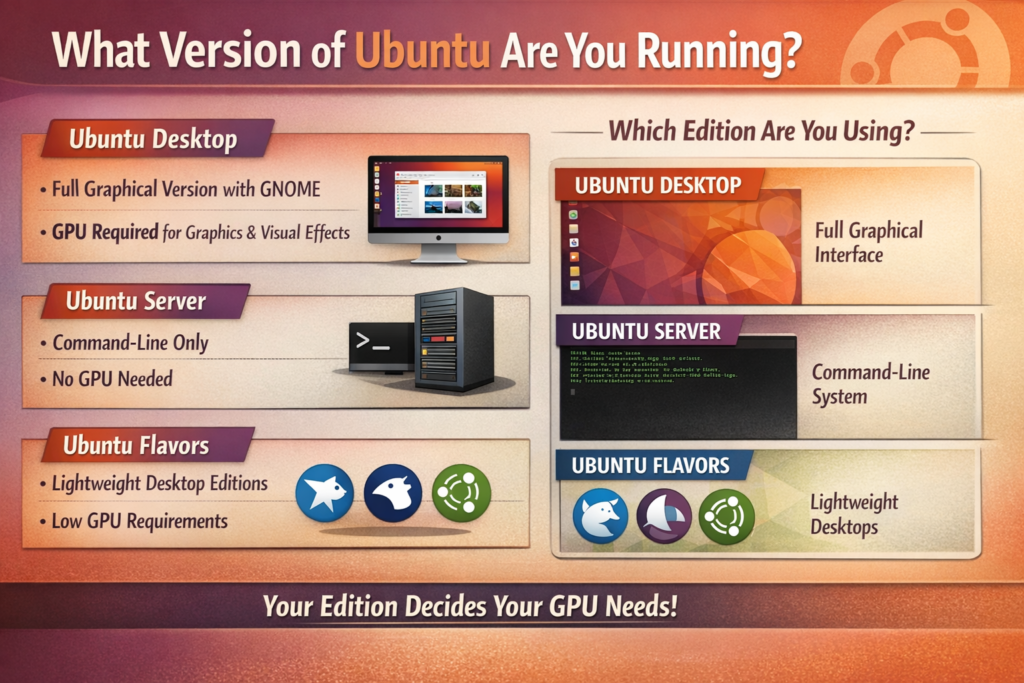
The GPU requirement for Ubuntu depends heavily on which edition you’re installing.
This is the first question you need to settle before anything else. Ubuntu isn’t a single, one-size-fits-all operating system. It comes in several distinct editions, each with different hardware expectations.
Ubuntu Desktop is the full graphical version that most people picture when they think of Ubuntu. It ships with the GNOME desktop environment and requires some level of graphics rendering capability to function. This is the edition where GPU requirements become relevant.
Ubuntu Server is a completely command-line based operating system with no graphical interface by default. It has no desktop to render, no animations, no visual effects, and therefore no need for a GPU at all.
Ubuntu Flavors like Xubuntu, Lubuntu, and Ubuntu MATE are lightweight desktop editions built on the same Ubuntu base but using different, less demanding desktop environments. These are significantly easier on graphics hardware than the standard Desktop edition.
Understanding which edition matches your use case is the foundation of this whole conversation. Once you know that, the GPU question largely answers itself.
Ubuntu Desktop GPU Requirements
Ubuntu Desktop requires a GPU with 3D acceleration capability, but integrated graphics more than meet that bar.
According to Ubuntu’s official system requirements page, the minimum hardware needed to run Ubuntu Desktop includes a 2 GHz dual-core processor, 4 GB of RAM, 25 GB of storage, and a 3D acceleration-capable GPU with at least 256 MB of VRAM, along with a display of at least 1024×768 resolution.
That phrase “3D acceleration-capable GPU” sounds more demanding than it really is. In practice, nearly every integrated graphics solution made in the last decade easily meets this requirement. What Ubuntu Desktop actually needs under the hood is OpenGL 2.0 support or higher. This is the standard that powers the GNOME desktop environment, including its window rendering, animations, and visual transitions.
Without at least this minimum graphics capability, Ubuntu Desktop will either fall back to a stripped-down low-graphics mode, boot to a terminal prompt, or display errors during the desktop loading process. But again, this threshold is low enough that even budget-tier integrated graphics clears it without any issues.
The recommended specs for a comfortable Ubuntu Desktop experience are a quad-core processor, 8 GB of RAM, 50 GB of storage, and a dedicated GPU for graphics-intensive tasks. But those are recommendations, not hard requirements.
Ubuntu Server: No GPU Needed

Ubuntu Server has no GPU requirement at all.
This is one of the things I appreciate most about Ubuntu Server. It’s designed to run in headless environments where there is no monitor, no keyboard attached permanently, and no graphical interface of any kind. You manage it entirely through the command line, locally or over SSH from another machine.
The minimum hardware for Ubuntu Server is modest by any standard: a 1 GHz processor, as little as 1 GB of RAM for cloud images (1.5 GB for ISO installs), and roughly 2.5 GB of disk space. No GPU is listed anywhere in those requirements, and for good reason.
Home lab enthusiasts building NAS boxes, Plex servers, Pi-hole setups, game servers, or development backends on Ubuntu Server can skip the GPU entirely. The system runs completely fine without any display hardware. I’ve personally run Ubuntu Server builds on old Intel Core machines with no dedicated GPU and with iGPU disabled in BIOS, and everything worked without a hitch.
If you’re building a backend service machine of any kind, Ubuntu Server is probably the right choice, and GPU cost simply doesn’t enter the equation.
Can You Run Ubuntu Desktop Without a Dedicated GPU?
Yes, absolutely. Integrated graphics are sufficient for everyday Ubuntu Desktop use.
This is probably the most practically important answer in this article. If you have a modern Intel or AMD processor with integrated graphics, you can run a fully functional Ubuntu Desktop environment without spending a cent on a dedicated graphics card.
Intel integrated graphics work out of the box on Ubuntu with zero additional setup required, as covered in the next section. AMD’s integrated Radeon graphics, found in Ryzen APUs, are equally well supported through the open-source AMDGPU driver. Both solutions handle typical desktop workloads like web browsing, document editing, video calls, light coding, and media playback without any problem.
Where integrated graphics starts to show its limits is when you push Ubuntu into more demanding territory. Gaming requires a dedicated GPU for anything beyond simple 2D titles. Professional 3D work in tools like Blender demands dedicated VRAM. AI and machine learning workloads that rely on CUDA (NVIDIA) or ROCm (AMD) are completely off the table with integrated graphics alone.
But for a large portion of Ubuntu users, particularly developers, students, home users, and content writers, integrated graphics is genuinely all you need.
Integrated vs. Dedicated GPU on Ubuntu
Here’s a full side-by-side breakdown of how integrated and dedicated graphics compare across real Ubuntu use cases:
Which GPU Brands Does Ubuntu Support?
Ubuntu officially supports GPUs from Intel, AMD, and NVIDIA, each with a different driver experience.
Intel graphics are the most seamlessly supported option on Ubuntu. Intel’s graphics are handled by the open-source xe driver for newer chips (Tiger Lake and later, including Arc and Battlemage dedicated GPUs) or the legacy i915 driver for older hardware. Both are built directly into the Linux kernel, so Intel graphics work the moment you boot Ubuntu with no extra steps, no additional downloads, and no configuration needed. This makes Intel-based systems extremely beginner-friendly for Ubuntu, whether you’re running an 11th Gen laptop or a modern Arc-equipped desktop.
AMD GPUs, both integrated and dedicated, are supported through the open-source AMDGPU driver, which is also included in the mainline Linux kernel. Modern AMD Radeon cards (RX 400 series and newer) install and run without any proprietary driver required, which is a significant advantage. PhoenixNAP’s detailed Ubuntu system requirements guide covers the specifics of AMD driver support well, including which hardware falls under open-source coverage.
NVIDIA GPUs are where the setup gets a little more involved. Ubuntu can detect NVIDIA hardware out of the box, but for full performance, hardware video acceleration, and CUDA compute support, you need to install NVIDIA’s proprietary drivers. Ubuntu simplifies this through the “Additional Drivers” tab in Software and Updates, or via the ubuntu-drivers autoinstall command in the terminal. It’s a one-time setup, and by 2026 it’s far more reliable than it used to be.
What Happens If Ubuntu Has No GPU at All?

Ubuntu Server runs normally with no GPU. Ubuntu Desktop cannot load its graphical environment without at least basic display hardware.
If you install Ubuntu Desktop on a machine that has absolutely no GPU (no integrated, no dedicated, nothing), the GNOME desktop environment will fail to render. The system will typically boot to a terminal login prompt or display an error. Ubuntu Desktop genuinely needs some form of display hardware to launch its graphical session.
There is a useful middle ground worth knowing about, though. You can install Ubuntu Desktop using a temporary GPU or connected monitor, then after setup, configure the system to run headlessly without any GPU going forward. Once the desktop environment is disabled and you’re accessing the machine through SSH, the GPU becomes irrelevant.
There are also automated installation methods (like Ubuntu’s autoinstall/preseed approach) that can handle headless Desktop installs without a monitor at all, but those are more advanced configurations typically reserved for enterprise deployments.
For the average user, the practical rule is simple: Ubuntu Server works with no GPU, Ubuntu Desktop needs at least integrated graphics.
Pro Tip: Setting up a headless Ubuntu server but only have Ubuntu Desktop installation media? Install normally with a temporary monitor or GPU, then run
sudo systemctl set-default multi-user.targetto disable the graphical environment permanently. The machine will boot straight to a command-line interface from then on, and you can manage it entirely through SSH. No GPU needed after that point.
Step-by-Step: Running Ubuntu Without a Dedicated GPU
Step 1: Identify Your Graphics Hardware
Open your system specs or check the CPU model. Intel Core (most generations) and AMD Ryzen APUs include integrated graphics. Pure server CPUs like Intel Xeon Scalable (non-F series) and AMD EPYC often do not include integrated graphics, making them unsuitable for Ubuntu Desktop without an add-in GPU.
Step 2: Choose the Right Ubuntu Edition
For a headless server or no display hardware at all, choose Ubuntu Server. For a desktop experience with integrated graphics, Ubuntu Desktop works great. For older or low-spec hardware with limited integrated graphics, go with Lubuntu (LXQt) or Xubuntu (Xfce).
Step 3: Proceed with Normal Installation
Ubuntu’s installer detects integrated graphics automatically. The installation process for Desktop with integrated graphics is identical to one with a dedicated GPU. No special steps needed.
Step 4: Check for Driver Recommendations
After installation, open “Software and Updates” and click the “Additional Drivers” tab. Ubuntu will scan your hardware and list any recommended proprietary drivers. For Intel integrated graphics, this tab will likely show nothing extra is needed. For NVIDIA or some AMD cards, a driver recommendation may appear.
Step 5: Verify GPU Detection
Run this command in a terminal to confirm Ubuntu has correctly identified your graphics hardware:
sudo lshw -C display
This lists all detected display hardware along with the driver being used. If it shows your integrated or dedicated GPU with a valid driver, you’re in good shape.
Step 6: Disable Desktop Environment for Headless Use (Optional)
If converting a Desktop install to a server-style headless setup, run:
sudo systemctl set-default multi-user.target
To restore the graphical desktop later:
sudo systemctl set-default graphical.target
Switching Between Integrated and Dedicated GPUs on Ubuntu
Many laptops and some desktops ship with both integrated and dedicated graphics (NVIDIA Optimus or AMD hybrid setups). Ubuntu can manage both, switching between them based on workload.
By default, Ubuntu typically routes normal desktop activity through integrated graphics to preserve battery life, while handing GPU-intensive applications to the dedicated card. For gaming, 3D rendering, and other demanding tasks, you want to confirm the dedicated GPU is being used. The It’s FOSS guide on switching between Intel and NVIDIA graphics on Ubuntu is one of the clearest walkthroughs out there for configuring NVIDIA Prime and managing GPU switching on hybrid setups.
Running the dedicated GPU full-time on a laptop is possible but noticeably shortens battery life. The hybrid approach Ubuntu uses by default strikes a solid balance between performance and power efficiency.
Ubuntu GPU Requirements by Use Case
Ubuntu and GPUs in 2026: What’s New
The GPU experience on Ubuntu has genuinely improved a lot, and 2026 is arguably the best year yet to be running Linux from a hardware compatibility standpoint.
NVIDIA Open-Source Kernel Modules Have Matured
NVIDIA started open-sourcing portions of its GPU kernel modules back in 2022, and by 2025 to 2026 that transition has matured significantly. Ubuntu 24.04 LTS, the current long-term support release, handles NVIDIA driver management with noticeably less friction than earlier versions. And with Ubuntu 26.04 LTS “Resolute Raccoon” dropping on April 23, 2026, that experience is set to improve further still, as 26.04 ships with a Linux 6.20 kernel and refined driver tooling out of the box. Conflicts during driver updates are less common, and the overall experience is much more polished than it was even two years ago.
It’s also worth noting that Canonical has bumped the minimum RAM requirement for Ubuntu 26.04 Desktop from 4 GB to 6 GB. The GPU minimums themselves remain unchanged, but if you’re planning a fresh install on the new LTS release, factor that memory bump into your hardware check.
AMD Continues to Lead on Linux
AMD’s open-source AMDGPU driver remains the gold standard for GPU support on Linux. If you’re choosing a dedicated GPU specifically for Ubuntu in 2026, AMD Radeon cards offer the most seamless experience with no proprietary driver setup required for standard use. This has made AMD increasingly popular in the Linux and open-source community.
GPU Compute for Local AI Is a Major 2026 Trend
One of the biggest shifts in how people use Ubuntu right now involves local AI workloads. Running large language models, image generation pipelines, or fine-tuning neural networks locally requires serious GPU compute power. NVIDIA GPUs with CUDA support are still the dominant choice for this, and Ubuntu remains the preferred operating system for AI/ML infrastructure at every level from individual developers to enterprise data centers.
ARM and Embedded GPU Support Is Expanding
Ubuntu’s support for ARM-based single-board computers and embedded systems has expanded considerably. The Raspberry Pi 5, for example, runs Ubuntu well and uses its VideoCore GPU through Mesa drivers. These embedded GPU solutions are more than adequate for basic Ubuntu Desktop use on compact hardware.
Wayland Has Become the Default Display Server
Starting with Ubuntu 22.04 and fully embraced in 24.04, Wayland is now the default display server, replacing the older Xorg system. Wayland generally performs better with modern GPU drivers and introduces improved security and smoother rendering. For most users this change is transparent, but it’s worth knowing if you’re troubleshooting GPU-related display issues on older NVIDIA cards, some of which had Wayland compatibility quirks that have since been resolved.
Lightweight Ubuntu Flavors: A Great Option for Low-End Graphics
If your hardware has very limited integrated graphics or you’re working with an older system, the standard Ubuntu Desktop with GNOME may feel sluggish. Lightweight Ubuntu flavors are an excellent alternative.
Lubuntu uses the LXQt desktop environment and is about as lightweight as a full Linux desktop gets. It runs on as little as 1 GB of RAM and works on very old or low-powered integrated graphics chips without any issues. This is my go-to recommendation for repurposing hardware from 2012 to 2016.
Xubuntu uses Xfce and sits in a sweet spot between Lubuntu’s austerity and full Ubuntu’s polish. It needs a minimum of 2 GB of RAM and handles older integrated graphics comfortably while still offering a visually organized desktop experience.
Ubuntu MATE is a bit more visually refined than Xubuntu but still significantly lighter than GNOME-based Ubuntu Desktop. It’s a solid choice for mid-range older hardware where you want something that looks good but doesn’t demand much from the GPU.
All three of these options work well with the kinds of older integrated graphics that might struggle with full GNOME, and they’re all officially maintained and supported Ubuntu projects.
For a clear walkthrough of Ubuntu system requirements across different hardware scenarios, This YouTube overview of Ubuntu system requirements breaks things down in an accessible way and is worth a watch if you’re still figuring out the best Ubuntu edition for your specific hardware.
Frequently Asked Questions
Does Ubuntu need a GPU to install?
Ubuntu Desktop requires some form of display output to complete its graphical installer. Integrated graphics covers this easily. Ubuntu Server’s text-based installer works without any GPU at all.
Can Ubuntu run without integrated graphics?
Ubuntu Server can run indefinitely with no graphics hardware. Ubuntu Desktop needs at least basic display capability to render its graphical environment, though post-installation it can be configured for headless use.
Does Ubuntu work with NVIDIA GPUs?
Yes, fully. Ubuntu supports NVIDIA GPUs with both open-source (Nouveau) and proprietary drivers. The proprietary NVIDIA driver is recommended for full performance and CUDA access, and Ubuntu makes installation straightforward through the Additional Drivers tool.
What is the minimum GPU for Ubuntu Desktop?
A GPU supporting 3D acceleration with at least 256 MB of VRAM and OpenGL 2.0 compatibility. Nearly all integrated graphics solutions made in the past ten years exceed this minimum.
Is AMD or NVIDIA better for Ubuntu?
AMD currently has the edge for out-of-box usability on Ubuntu due to its fully open-source driver stack. NVIDIA wins on raw GPU compute performance and CUDA support for AI workloads, but requires proprietary driver installation. For general desktop use in 2026, both are solid choices.
Can I run Ubuntu on a PC with no graphics card at all?
Ubuntu Server runs perfectly with no GPU. Ubuntu Desktop cannot render its graphical environment without some form of display hardware, whether integrated or dedicated.
Will Ubuntu run on a laptop without a dedicated GPU?
Yes. Most modern laptops with Intel or AMD integrated graphics run Ubuntu Desktop smoothly. Everyday tasks like browsing, coding, and media playback all work well on integrated graphics.
Does Ubuntu use GPU for performance acceleration?
Yes. Ubuntu uses the GPU for rendering the desktop, running GPU-accelerated apps, and with the right drivers, compute workloads like video transcoding, AI inference, and 3D rendering.
What happens if my GPU isn’t supported by Ubuntu?
Ubuntu will attempt to use a generic VESA or framebuffer driver, which allows basic display output but without hardware acceleration. Performance will be poor and the desktop experience will be degraded. Checking GPU compatibility before installation is always recommended.
Is Ubuntu good for GPU-accelerated AI workloads in 2026?
Ubuntu is the leading operating system for AI and machine learning in 2026. With proper NVIDIA driver and CUDA installation, or AMD ROCm setup, Ubuntu provides a mature and well-supported environment for GPU-accelerated AI workloads at every scale.
Bottom Line
Ubuntu doesn’t require a dedicated GPU. Servers need none at all, and for desktop use, integrated graphics handles everyday computing without any trouble. Only step up to a dedicated GPU when your workload genuinely demands it, whether that’s gaming, AI, 3D work, or high-end video production. With Ubuntu 26.04 LTS just around the corner and GPU driver support across Intel, AMD, and NVIDIA at an all-time high on Linux, this is a genuinely great time to build or upgrade a Ubuntu system regardless of your hardware situation.