Skip to content
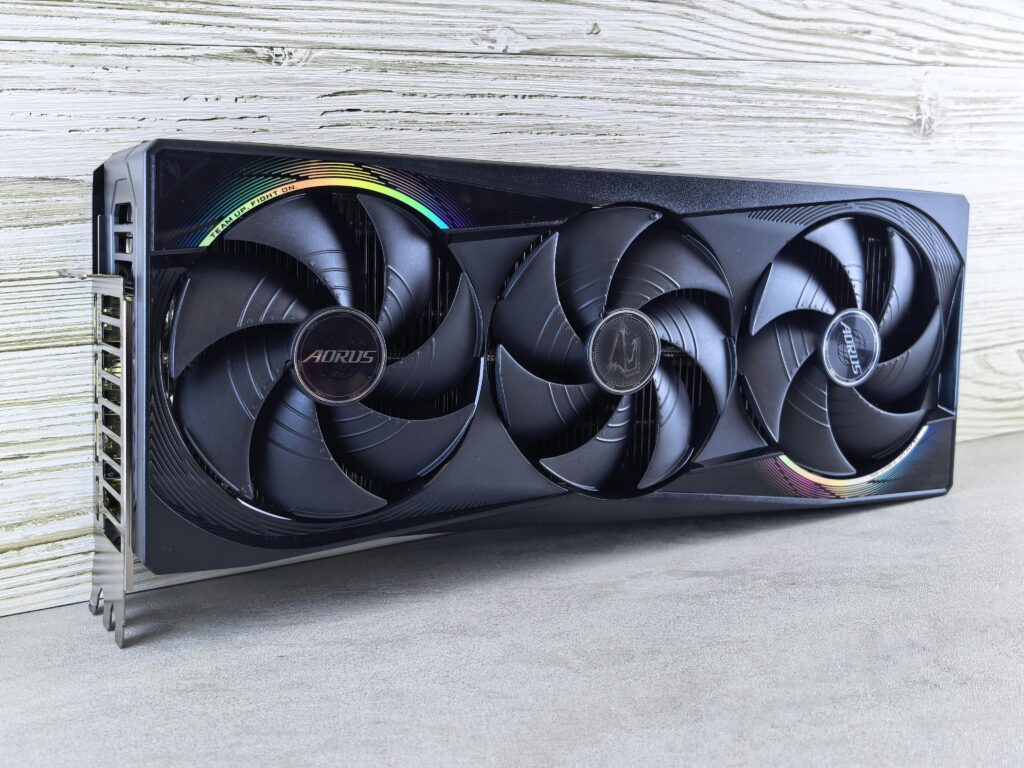
Yes, you should remove your GPU when moving your PC in most situations, especially for long-distance moves, bumpy roads, or any trip involving a shipping service. Modern GPUs are heavy, and when left installed, road vibrations and sudden jolts can stress the PCIe slot, flex the PCB, and in worst-case scenarios crack solder joints or damage the connector. That said, for short, careful car trips on smooth roads, leaving it installed is often fine if you take a few precautions. This guide covers when to remove it, when you can get away with leaving it in, and exactly how to protect it either way.
Why This Decision Actually Matters
GPU sizes have changed dramatically over the past few years. The RTX 5090, for example, weighs over 4 pounds and spans nearly 14 inches in length. When a card that heavy is cantilevered off a PCIe slot with nothing supporting its far end, it creates significant leverage on the connector. Under normal stationary use, this manifests as GPU sag, which is already a well-documented concern. Under the vibrations and sudden movements of a car trip or shipping journey, that force compounds rapidly.
The risk is not just theoretical. As GPU Sniper’s analysis of GPU sag and transport risks details, the combined weight and length of modern graphics cards can cause damaged PCIe slots, cracked solder joints, and in extreme cases total GPU failure, whether from prolonged sag or sudden physical stress. Your GPU does not need to visibly snap to suffer internal damage. Micro-fractures in solder joints and PCB warping are invisible to the naked eye but can cause intermittent crashes, display artifacts, and GPU detection failures weeks after the move.
In my opinion, for any move involving more than 30 minutes of driving or any road conditions you would not call perfectly smooth, removing the GPU is simply the smarter call. The 10 minutes it takes to remove and reinstall it is far cheaper than a repair bill or a replacement card.
When You Should Definitely Remove the GPU
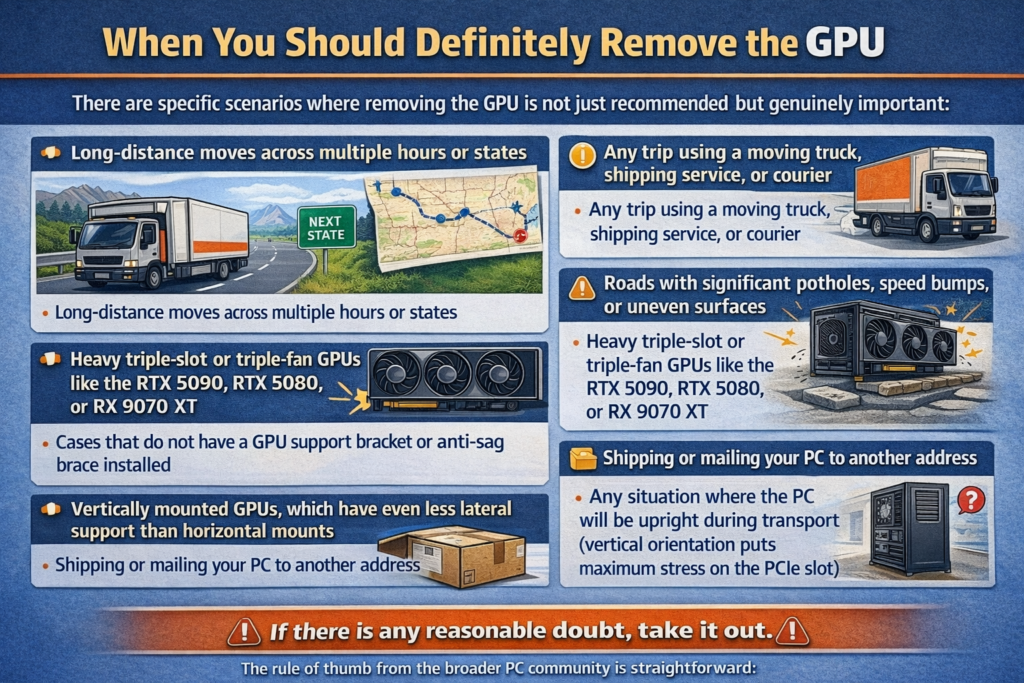
There are specific scenarios where removing the GPU is not just recommended but genuinely important:
- Long-distance moves across multiple hours or states
- Any trip using a moving truck, shipping service, or courier
- Roads with significant potholes, speed bumps, or uneven surfaces
- Heavy triple-slot or triple-fan GPUs like the RTX 5090, RTX 5080, or RX 9070 XT
- Cases that do not have a GPU support bracket or anti-sag brace installed
- Vertically mounted GPUs, which have even less lateral support than horizontal mounts
- Shipping or mailing your PC to another address
- Any situation where the PC will be upright during transport (vertical orientation puts maximum stress on the PCIe slot)
The rule of thumb from the broader PC community is straightforward: if there is any reasonable doubt, take it out.
When You Can Probably Leave It In
There are situations where leaving the GPU installed is a reasonable judgment call, and plenty of people have done so without issue:
- A short drive of 30 minutes or less on smooth roads
- The PC is laid on its side with the motherboard facing down, so the GPU’s weight is supported by the case floor rather than hanging from the PCIe slot
- The GPU is a shorter, lighter single or dual-slot card
- The case has a solid GPU support bracket or anti-sag brace installed
- The interior of the case is padded with anti-static foam or soft material to prevent any component movement
- You have filled the empty space inside the case with expanding foam packets like InstaPak Quick RT. This is how system integrators ship pre-built PCs. The foam expands to perfectly mold around the GPU, locking it in place and completely removing the stress from the PCIe slot.
- You are transporting the PC by hand with no vehicle involved (moving it from one room to another, for example)
Even in these scenarios, the risk is never zero. Tom’s Hardware’s community thread on moving a PC short distances highlights how GPU weight, PCIe connector quality, road conditions, and case build quality all interact differently depending on the build, and a situation that is fine for one person’s setup can be problematic for another’s. If the GPU is worth more than the 10 minutes of effort to remove it, the math is pretty clear.
Pro Tip: If you decide to leave the GPU installed for a short move, lay the PC on its side so the motherboard is parallel to the ground and the GPU is facing upward. This position removes the gravitational leverage on the PCIe slot entirely and is the single most effective thing you can do to reduce transport risk without removing any components.
The Real Risk: What Happens to a GPU During Transport
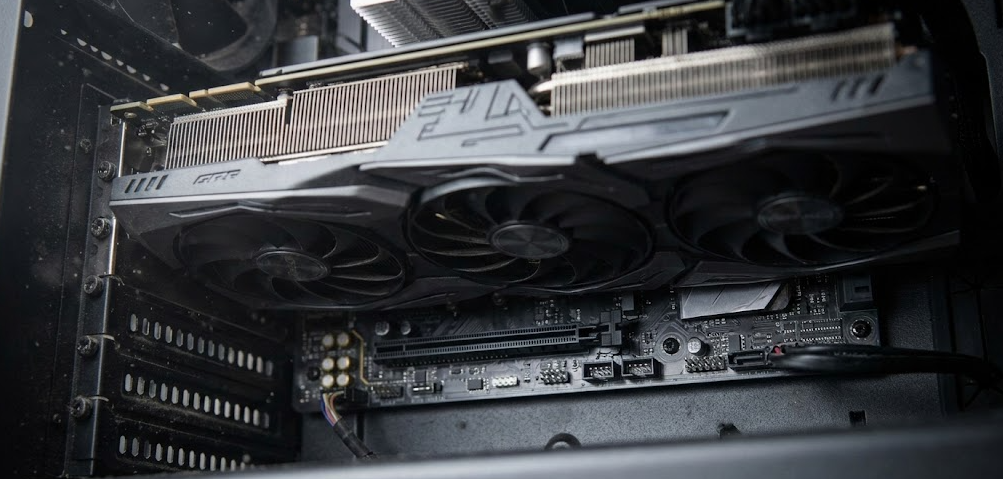
Understanding the specific failure modes helps you make a more informed decision.
PCIe slot stress and connector damage. When a PC travels upright in a vehicle, every bump and vibration causes the GPU to oscillate up and down on the PCIe connector. Over a long trip, this cyclic stress can loosen the connection, damage the locking latch, or in severe cases physically crack the PCIe slot on the motherboard. Replacing a motherboard because of a damaged PCIe slot is far more expensive than removing the GPU for transport.
PCB flexing and solder joint cracking. Modern GPUs have long, heavy PCBs. When the card is subjected to vibration or sudden impact, it can flex slightly. This flexing stresses the solder joints between the GPU chip and the board, as well as between the memory chips and the PCB. Cracked solder joints typically cause intermittent failures, display glitches, or driver crashes that are difficult to diagnose and expensive to fix.
Thermal pad displacement. On high-end triple-fan cards with large heatsink assemblies, severe jolts during transport can shift thermal pads that sit between the GPU die, VRAM chips, and the heatsink. If thermal pads lose contact, heat management is compromised and you may not notice the issue until temperatures spike under load weeks later.
Power connector stress. The 16-pin (12VHPWR) connector used on RTX 40 and 50 series cards has well-documented sensitivity to being physically stressed or bent. A hard bump during transport can worsen an already snug connector fit, increasing the risk of overheating issues that have been reported with that connector family.
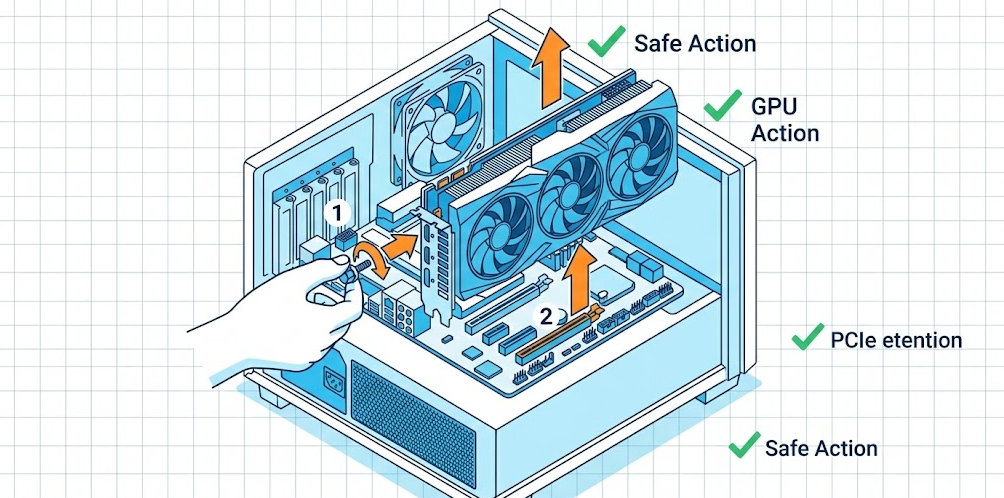
How to Remove Your GPU Safely: Step-by-Step
Removing a GPU is straightforward even if you have never done it before. Here is exactly how to do it correctly, in the right order.
Step 1: Power down and unplug completely
Shut down your PC fully and unplug the power cable from the wall. Do not just put it to sleep. Wait 30 seconds after unplugging to let any residual charge in the capacitors dissipate.
Step 2: Ground yourself
Touch a grounded metal object, like a metal door frame or the unplugged PC case itself, to discharge any static electricity from your body before touching components. If you have an anti-static wrist strap, use it.
Step 3: Remove the side panel
Take off the side panel of your case. Most modern cases use thumbscrews at the back. Set the panel safely aside.
Step 4: Disconnect power cables
Disconnect all PCIe power cables from the GPU. On RTX 40 and 50 series cards this is the single 16-pin 12VHPWR connector. On older cards it may be one or two 8-pin connectors. Press the release clip and pull straight out without yanking or bending.
Step 5: Release the PCIe locking latch first
Look at the end of the PCIe slot on the motherboard, the end farthest from the back of the case. There will be a small plastic locking latch. Press it down or push it outward to release it. Do this while the GPU is still screwed into the case. This is critical: if you unscrew a heavy modern GPU first, its entire weight will immediately drop onto this tiny plastic latch, which can snap it or physically rip the PCIe slot off the motherboard before you can react.
Step 6: Unscrew the GPU bracket
While supporting the GPU slightly with one hand to prevent it from dropping, use your other hand to unscrew the one or two screws holding the GPU’s metal bracket to the back of the case. Keep these screws in a small bag so they do not get lost.
Step 7: Lift the GPU straight out
With the latch released and the screws removed, gently lift the GPU straight up and out of the slot. Do not rock it aggressively side to side. Hold it by the edges of the cooler shroud or PCB and avoid touching the gold connector fingers on the bottom.
Step 8: Store it safely
Place the GPU into its original box if you still have it. If not, follow the packing steps in the next section.
How to Pack Your GPU for Moving: Step-by-Step
If you are packing your GPU without its original box, here is how to do it properly. Exit Technologies’ complete GPU shipping guide is an excellent reference for anyone packing a GPU without original packaging, and the steps below are aligned with those best practices.
Step 1: Use an anti-static bag
Place the GPU into an anti-static bag before anything else. Anti-static bags are designed to dissipate electrostatic charges and protect the card’s sensitive circuitry during handling. You can find them at most electronics or shipping stores for a few dollars. Do not use regular plastic bags or paper directly on the PCB as these provide no protection against static discharge.
Step 2: Wrap in bubble wrap
Wrap the bagged GPU in at least 2 to 3 layers of bubble wrap, making sure every edge and corner is covered. The goal is to cushion against any impact or compression.
Step 3: Choose the right box
Use a box that fits the GPU snugly with about 2 inches of padding clearance on all sides. A box that is too large allows the GPU to shift during transit. A box that is too tight provides no cushioning.
Step 4: Fill all gaps with foam or padding
Pack all remaining space in the box with high-density foam, additional bubble wrap, or air pillows. Avoid loose packing peanuts for GPUs, as they can shift and leave voids. The GPU should not be able to move inside the box when you shake it.
Step 5: Seal and label
Seal the box securely with packing tape on all seams. If shipping, label it as Fragile and This Side Up. Consider the double-box method for shipping: place the packed GPU box inside a slightly larger outer box with additional padding between them for maximum protection.
Should You Also Remove Other Components When Moving?
The GPU is the most commonly discussed component to remove for transport, but it is not the only one worth considering.
| Component | Remove for Transport? | Notes |
|---|---|---|
| GPU | Yes (recommended) | Heavy and cantilevered off PCIe slot |
| Large air CPU cooler | Recommended for long trips | Towers like Noctua NH-D15 can stress the motherboard under vibration |
| AIO liquid cooler | Usually fine | Pump and radiator are better supported than large air towers |
| Hard disk drives (HDDs) | Yes, for long or rough trips | Spinning platters are sensitive to vibration and shock |
| NVMe and SATA SSDs | No | Solid-state storage has no moving parts |
| RAM | No | Sits flat and is well-secured by retention clips |
| CPU | No | Seated and locked in socket, very low risk |
| Power supply | No | Secured by multiple screws, very stable |
The two most important components to protect beyond the GPU are large air CPU coolers and any remaining hard disk drives. A Noctua NH-D15 or similar tower cooler weighs over 1 kg and creates significant leverage on the CPU socket when the PC is moved. For long moves, removing it and packing it separately is worth the effort.
Transporting the Rest of the PC: Best Practices
Once the GPU is removed, here is how to handle the rest of the system for transport.
Lay it on its side. Orient the PC so the motherboard faces downward. This distributes the weight of all remaining components more evenly and removes lateral stress from any remaining installed cards or coolers.
Pack the interior. Stuff the empty space inside the case with anti-static foam or soft anti-static packing material to prevent any residual components from rattling. As this Step-by-step guide on safely transporting a desktop PC on YouTube explains, tightly packing the interior cavity of your PC case is one of the most effective ways to prevent component damage during transport, especially for heavier components with less anchoring.
Use the original PC box if you have it. Original PC case boxes often have molded foam inserts designed for that specific case. If you kept it, this is the ideal outer packaging for a shipped PC.
Do not stack anything on top. Even in a car, avoid placing other items on top of the PC case. Compression from above can stress the case structure and the components inside.
Secure it in the vehicle. A seatbelted PC on the back seat with surrounding luggage to prevent lateral movement is far safer than a PC sliding around in an open trunk.
2026 Context: Why Modern GPUs Are More Vulnerable Than Ever
This question has become more urgent in 2026 than it was even three years ago, and the reason is simple: GPUs are bigger and heavier than ever before.
The RTX 5090, released in early 2025, is one of the largest and heaviest consumer graphics cards ever made. Its triple-fan heatsink assembly and large PCB make the transport risk meaningfully higher than it was for a GTX 1080 in 2017. Even the RTX 5080 with 16GB of GDDR7 is a substantial card by any measure.
AMD’s RX 9070 XT, while more compact than Nvidia’s flagship cards, is still a dual or triple-slot card depending on the board partner model, and shares the same physics-based vulnerability when installed in a moving vehicle.
Beyond size, the 12VHPWR connector used on recent Nvidia cards has a documented sensitivity to physical stress. Any transport that puts lateral or angular force on that connector is a risk factor that simply did not exist in previous GPU generations. Removing the GPU eliminates this concern entirely.
Frequently Asked Questions
Should I remove my GPU when moving my PC?
Yes, in most cases. Removing the GPU eliminates the risk of PCIe slot stress, solder joint cracking, and connector damage during transport. For short, careful car trips on smooth roads with the PC lying on its side, leaving it in is generally acceptable, but removal is always the safer choice.
Is it safe to transport a PC with the GPU installed?
It can be, under the right conditions. Laying the PC on its side with the motherboard parallel to the ground removes most of the gravitational stress on the PCIe slot. For short trips on smooth roads, many users transport their PCs this way without issue. For long trips or shipping, removal is strongly recommended.
Can moving a PC damage the GPU?
Yes. Vibration and sudden jolts can stress the PCIe slot, flex the GPU PCB, crack solder joints, and displace thermal pads. These issues may not show up immediately but can cause intermittent crashes, display artifacts, and reduced GPU performance or lifespan.
What is the best way to transport a GPU?
Remove it from the case, place it in an anti-static bag, wrap it in 2 to 3 layers of bubble wrap, and pack it in a snug box with foam padding on all sides. Use the original retail box if you still have it, as it is purpose-built for the card’s dimensions.
Do I need to remove the CPU cooler when moving my PC?
For large air CPU coolers like the Noctua NH-D15 or Be Quiet Dark Rock Pro, removal is recommended for long-distance moves. AIO liquid coolers are generally fine to leave installed since the pump and radiator provide better structural stability than tall tower coolers.
Can I ship my PC with the GPU still installed?
This is not recommended. Shipping services subject packages to significant drops, vibrations, and positional changes that are far more severe than a careful car trip. Always remove the GPU, CPU cooler, and any HDDs before shipping a PC. If removal is truly not an option, use expanding foam packets like InstaPak Quick RT inside the case to immobilize the GPU completely before shipping.
How do I prevent static damage when handling a removed GPU?
Always use an anti-static bag for storage and transport. Ground yourself before touching the card by touching an unplugged metal surface or using an anti-static wrist strap. Never slide a GPU across carpet or fabric surfaces, and avoid touching the gold PCIe connector fingers.
What if I do not have the original GPU box?
An anti-static bag combined with multiple layers of bubble wrap and a snugly fitting cardboard box with foam padding is an effective alternative. Anti-static bags are inexpensive and available at most electronics stores. The key is to immobilize the GPU completely so it cannot move or shift during transit.
Does GPU orientation matter during transport?
Yes. Keeping the PC on its side so the GPU faces upward with the PCIe slot facing down toward the case floor removes gravitational leverage from the connector. Transporting a PC upright means the GPU is hanging sideways off the slot, which is the highest-stress orientation for transport.
What is the correct order to remove a GPU to avoid damaging the PCIe slot?
Always release the PCIe locking latch before unscrewing the bracket. If you unscrew the bracket first, the full weight of the card drops onto the small plastic latch, which can snap it or damage the motherboard slot. Release the latch while the card is still screwed in, then unscrew the bracket and lift the card straight out.
Bottom Line
Yes, you should remove your GPU when moving your PC, and it is genuinely one of the easiest and most impactful steps you can take to protect an expensive component. Modern GPUs are heavier and larger than ever, and the PCIe slot was not engineered to handle the stresses of road vibration over long distances. For short, controlled moves on smooth roads with the PC laid on its side, leaving it installed is a reasonable judgment call, especially with proper foam packing inside the case. For anything else, the 10 minutes it takes to remove, bag, and pack the GPU properly is some of the best insurance you can buy for a component that may have cost several hundred to several thousand dollars.