

The “gateway connect failed: Error: pairing required” message is one of the most common errors new and existing OpenClaw users encounter — and it almost always looks more alarming than it is. In most cases, it does not mean your installation is broken. It means your gateway is running correctly but your device (CLI, dashboard, or node) has not been authorized yet, or its authorization has become stale. This guide covers every known root cause and fix in 2026.
BTW, you can also read our top OpenClaw Mini PC recommendations (with technical benchmark testing numbers and simple & clear differences).
In case you want quick OpenClaw PC recomendations, and you’re looking for a ROBUST & POWERFUL PC that can both run OpenClaw and also give you the ability and option to run local LLMs (for eg. to operate your OpenClaw instance for free), then this ACEMAGIC M5 PC is unbeatable in terms of performance at the $799 price point (*currently in launch offer). For commercial use-cases and advanced LLM hosting, MINISFORUM MS-S1 is the undisputed king.
What Does “Pairing Required” Actually Mean?
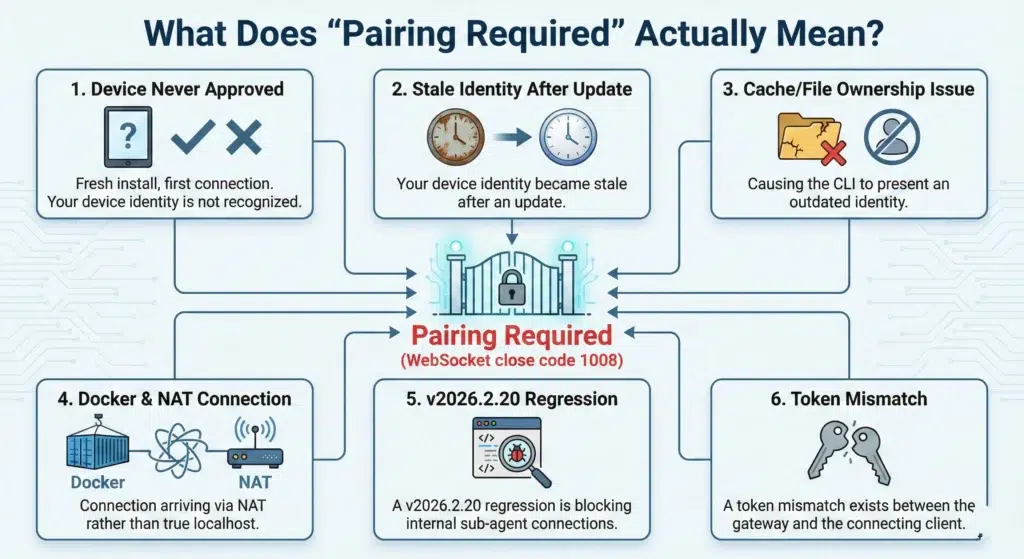
OpenClaw uses a device identity and pairing system to control which clients are authorized to communicate with your gateway. Every connection — whether from your browser dashboard, the CLI, or a remote node — must present a valid device identity that the gateway recognizes and has approved.
When the gateway responds with pairing required (WebSocket close code 1008), it means one of the following:
- Your device has never been approved (fresh install, first connection)
- Your device identity became stale after an update
- A cache or file ownership issue is causing the CLI to present an outdated identity
- You are running inside Docker and the connection is arriving via NAT rather than true localhost
- A v2026.2.20 regression is blocking internal sub-agent connections
- A token mismatch exists between the gateway and the connecting client
As OpenClaw Directory’s complete pairing required fix guide explains, “gateway connect failed” typically indicates a wrong URL, while “pairing required” specifically indicates an approval state — a distinction that helps you narrow down the root cause quickly. The fix depends entirely on which root cause applies to your situation. Work through the sections below in order.
Fix 1: The Standard Fix — Approve the Pending Device (Most Common)
This resolves the error for the majority of users on a fresh install or after connecting a new node. The gateway has received your connection request and placed it in a Pending state, but it needs explicit administrator approval before allowing access.
Step 1: List pending devices
bashopenclaw devices list
Look for any device showing a Pending status. Copy the Request Code (not the Device ID — these are different values).
Step 2: Approve the pending device
bashopenclaw devices approve <REQUEST_ID>
Paste the request code from Step 1 in place of <REQUEST_ID>.
Step 3: Verify
Open http://localhost:18789 in your browser (or your gateway’s URL). The “pairing required” error should be gone and OpenClaw should connect successfully.
If openclaw devices list returns nothing pending or returns its own error, move to Fix 2.
Fix 2: After an Update — Stale Device Identity (Very Common Post-Update)
This is the root cause for users who hit the error after running sudo openclaw update. As of version 2026.2.19, OpenClaw changed its authentication to default to token mode. Running the update as sudo creates root-owned cache files and leaves the CLI with a stale device identity that has outdated permission scopes — causing the gateway to reject reconnection attempts with pairing required.
The complete fix sequence:
bash# Fix file permissions broken by sudo update
sudo chmod -R a+rX /usr/lib/node_modules/openclaw/
sudo rm -rf /tmp/jiti

# Restore ownership of your OpenClaw config to your user
sudo chown -R $USER:$USER ~/.openclaw

# Stop the gateway service
systemctl --user stop openclaw-gateway.service

# Clear both device identity directories (clearing only one won't work)
rm -rf ~/.openclaw/devices/
rm -rf ~/.openclaw/identity/

# Force reinstall the gateway service unit
openclaw gateway install --force

# Reload and restart
systemctl --user daemon-reload
systemctl --user start openclaw-gateway.service
Critical note: You must clear both ~/.openclaw/devices/ AND ~/.openclaw/identity/. Clearing only one leaves the CLI reconnecting with its old device identity, which has outdated scopes — the gateway will keep rejecting it with pairing required even after the restart.
After completing this sequence, run openclaw devices list and approve any pending device as described in Fix 1.
Pro tip going forward: Always run openclaw gateway install --force after every update. The systemd unit does not auto-update and will continue pointing to the old version’s entry point, causing MODULE_NOT_FOUND crashes if skipped.
Fix 3: Docker Deployments — Token Mismatch & the v2026.2.20 Regression
Docker users on Windows, macOS, and Linux frequently encounter a specific variant of this error. Connections arriving via Docker’s bridge network (172.x.x.x) are not always treated as trusted localhost connections by the gateway’s auth layer.
Important version note: If you are running v2026.2.20, this is a known regression tracked in GitHub Issue #12210. The gateway incorrectly treats internal sub-agent connections (like sessions_spawn) and browser tool calls as external devices, blocking execution with a 1008: pairing required error even when the device is already paired. Adding trustedProxies (Option A below) is the verified workaround without downgrading.
Option A: Add trustedProxies to your config (fixes #12210)
To stop the gateway from blocking internal Docker IPs, add your Docker subnet to trusted proxies in your openclaw.config.json:
json{
  "gateway": {
    "trustedProxies": ["172.18.0.0/16"]
  }
}
Use docker inspect <container-id> to find your specific Docker IP subnet — the exact range varies per machine. After saving, restart your container:
bashdocker compose restart
Option B: The Windows pending.json fix
For users running OpenClaw locally on Windows via Docker Desktop, the fastest community-verified fix is to manually bypass the silent block. As confirmed in this YouTube walkthrough of Docker installation fixes for Windows, navigate to:
textC:\Users\YourUsername\.openclaw\devices\pending.json
Open the file, change "silent": false to "silent": true, save the file, and refresh your browser. This surfaces the pending device request that was previously being suppressed, allowing you to approve it normally via openclaw devices approve.
Option C: Approve device via Docker exec
bash# List devices to find the pending request ID
docker compose exec openclaw-gateway \
  node dist/index.js devices list

# Approve the pending device using the Request ID (not Device ID)
docker compose exec openclaw-gateway \
  node dist/index.js devices approve <REQUEST_ID>
Option D: Downgrade to v2026.2.17
If the trustedProxies fix does not resolve the issue in your specific Docker environment, downgrading to v2026.2.17 — the last stable version before the regression was introduced — is the definitive workaround until a patch is released for GitHub Issue #12210.
Option E: Run the gateway natively (bypass Docker NAT entirely)
Running the gateway natively on your host machine rather than inside a container eliminates the NAT problem entirely, since all connections arrive as genuine localhost. As OpenClaw Directory’s fix guide notes, avoiding the Docker NAT path for dashboard connections is the most reliable long-term solution for Windows Docker Desktop users.
Fix 4: Remote Node Connection Fails Silently (No Pending Request Appears)
This specific variant — where openclaw node run exits immediately with node host gateway closed (1008): pairing required and no pending request appears in openclaw devices list — is a known bug filed as GitHub issue #4833.
The root cause: when connecting to a remote gateway (e.g., via Tailscale or a VPN), the CLI fails to generate a Device Identity automatically, so it never creates a pending pairing request for the administrator to approve.
Workaround (manually provide identity flags):
bashopenclaw node run \
  --node-id my-node \
  --display-name "My Node" \
  [your other flags here]
Providing --node-id and --display-name explicitly forces the CLI to create a proper device identity, which then generates a pending request that you can approve with openclaw devices approve.
Fix 5: WhatsApp QR Code Stuck at “Logging In”
This is a separate but related pairing issue — not a gateway auth error but a channel-level pairing failure. If your WhatsApp QR code scans successfully but the connection freezes at “logging in” and never completes, this is a known issue with the Baileys QR linking library used by OpenClaw.
Step 1: Clear WhatsApp credentials
bashrm -rf ~/.openclaw/credentials/whatsapp
Or for older ClawdBot installs:
bashrm -rf ~/.clawdbot/credentials/whatsapp
Step 2: Remove and re-add the WhatsApp channel completely
bashopenclaw channels remove whatsapp
openclaw channels add
Follow the onboarding prompts and select WhatsApp when asked.
Step 3: Try the pairing code method instead of QR
If QR linking continues to fail, web.whatsapp.com supports a “Link with phone number” method that uses a pairing code rather than a QR scan. This method bypasses the Baileys QR bug entirely and has proven reliable for users where QR consistently fails.
Step 4: Re-link periodically
WhatsApp sessions expire and require re-linking. Running openclaw channels login --channel whatsapp and re-scanning the QR code resolves session expiry silently.
Fix 6: The openclaw doctor Command (Catch-All Fix)
For Docker deployments where the exact root cause is unclear, OpenClaw’s built-in diagnostic and auto-repair command resolves most common config and gateway issues in one step:
bash# Standard install
openclaw doctor --fix

# Docker deployment
docker exec -it openclaw-YOUR-ID-openclaw-1 openclaw doctor --fix
After running doctor, restart your container:
bashdocker compose -p openclaw-YOUR-ID restart
The doctor --fix command checks your config file and automatically repairs the most common issues — including auth configuration mismatches that cause pairing required errors. It’s the fastest first step for Docker users before diving into manual fixes.
Fix 7: Gateway Token Mismatch
A distinct but visually similar error that often appears alongside pairing issues:
textgateway connect failed: Error: unauthorized: gateway token mismatch
(set gateway.remote.token to match gateway.auth.token)
This means the token your CLI or dashboard is using to connect does not match the token the gateway is configured to accept. As Rik Banerjee’s Linux Pulse guide to fixing Docker pairing on Ubuntu notes, this token mismatch wall is one of the most common places users get stuck immediately after resolving the initial pairing error.
Fix: Open your openclaw.config.json and ensure gateway.remote.token matches gateway.auth.token exactly — including case, spaces, and any special characters. Then restart the gateway:
bashsystemctl --user restart openclaw-gateway.service
# or for Docker:
docker compose restart
Fix 8: Restart the Gateway Service
Sometimes the gateway process crashes or enters a broken state that causes all incoming connections to be rejected with pairing required. A clean restart is the simplest fix to attempt before anything else if your setup was previously working:
bash# systemd (standard Linux install)
systemctl --user restart openclaw-gateway.service

# Docker
docker compose restart

# Manual CLI restart
openclaw gateway restart
Quick Diagnostic Reference
Use this to map your specific situation to the right fix immediately:
| Situation | Fix |
|---|---|
| Fresh install or new node — never connected before | Fix 1: openclaw devices list + openclaw devices approve |
Error appeared after sudo openclaw update | Fix 2: Clear devices/ + identity/, then openclaw gateway install --force |
| Running Docker (especially v2026.2.20) | Fix 3: Add trustedProxies to config or edit pending.json |
| Running Docker on Windows Desktop | Fix 3B: Edit pending.json, change "silent": false → "silent": true |
openclaw node run exits immediately, nothing pending | Fix 4: Add --node-id and --display-name flags |
| WhatsApp QR scans but freezes at “logging in” | Fix 5: Clear credentials, remove and re-add channel |
| Docker, cause unclear | Fix 6: openclaw doctor --fix + restart container |
| Error mentions “token mismatch” | Fix 7: Match gateway.remote.token to gateway.auth.token |
| Setup was working before, broke suddenly | Fix 8: Restart the gateway service |
FAQ: OpenClaw Pairing Required Error
Why does “pairing required” appear even when my token is correct?
A correct token satisfies the authentication check, but a separate device pairing approval is also required. These are two distinct security layers. Even with the right token, if the device hasn’t been approved via openclaw devices approve, the gateway will reject the connection with pairing required.
Why is there nothing in openclaw devices list after the error?
This typically means the CLI failed to generate a device identity before connecting — most commonly when connecting to a remote gateway without --node-id and --display-name flags (Fix 4). It can also happen if the gateway process is not actually running — verify with systemctl --user status openclaw-gateway.service.
Do I need to re-approve my device after every restart?
No — approved device identities persist across gateway restarts. You only need to re-approve after clearing ~/.openclaw/devices/, running openclaw gateway install --force, or if the device identity files become corrupted or root-owned after a sudo update.
Why did “pairing required” start after I updated to v2026.2.20?
Version 2026.2.20 introduced a regression (GitHub Issue #12210) where the gateway incorrectly classifies internal Docker sub-agent connections as external devices. Adding your Docker subnet to trustedProxies in openclaw.config.json is the verified fix. Downgrading to v2026.2.17 is the alternative if trustedProxies doesn’t resolve it in your environment.
Can I disable pairing requirements entirely?
Setting auth.mode: "none" is an invalid configuration in current OpenClaw versions. There is no supported way to disable the pairing system — it is a core security feature. The correct approach is always to approve pending devices rather than attempting to bypass the system.
How do I find my gateway URL and port?
The default gateway dashboard runs at http://localhost:18789. If you’ve changed the bind address or port in your config, check openclaw.config.json under gateway.bind and gateway.port. For remote VPS deployments, replace localhost with your server’s IP address.
What is the pending.json file and is it safe to edit?
pending.json stores device pairing requests in a queue. Changing "silent": false to "silent": true simply makes the pending request visible so you can approve it through the normal flow — it does not bypass security, it just surfaces the request that was previously being suppressed. It is safe to edit on Windows Docker Desktop installations where the standard approval flow is blocked.
Final Thoughts
The pairing required error has a clear fix path for every environment — the challenge is knowing which one applies to your setup. For most users on a fresh install, approving the pending device via openclaw devices list + openclaw devices approve resolves it in under two minutes. For Docker on Windows, the pending.json silent fix is the fastest route. For v2026.2.20 regressions, trustedProxies is the patch until GitHub Issue #12210 is resolved officially.
For a comprehensive step-by-step walkthrough of deploying OpenClaw on a VPS with Docker — including gateway token setup, device pairing, Telegram connection, and security hardening — this Full OpenClaw setup tutorial by Meticsmedia covers the complete deployment flow and is one of the most thorough beginner-to-production guides available in 2026.


