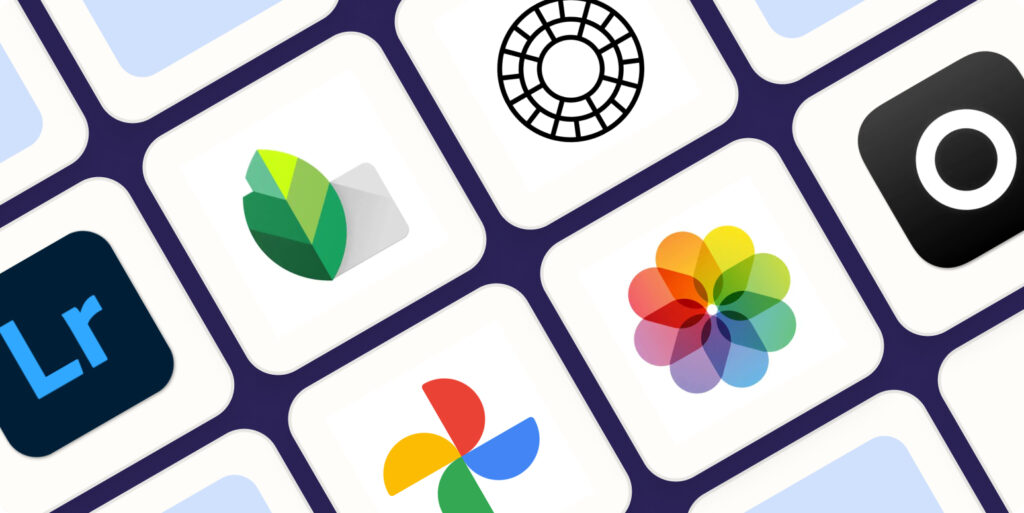
The best fully free photo editing apps for iPhone in 2026 are Snapseed, Adobe Lightroom Mobile (free tier), Darkroom (free tier), VSCO (free tier), and Adobe Photoshop Express — but there are some important differences between them that could change which one is right for you.
If you just want the fastest answer: Snapseed is the single best completely free photo editing app for iPhone, with zero ads, zero in-app purchases, and a feature set that rivals paid apps. And as of May 2026, it just got a massive v4.0 update that makes it even better. But depending on your editing style, one of the other apps on this list might actually suit you better. Let me break it all down.
Snapseed is the best fully free iPhone photo editing app. It is developed by Google, completely free with no ads or subscriptions, supports RAW editing, and just received a landmark v4.0 overhaul in May 2026 that added a redesigned UI, Smart Masking, Bloom, Halation, HSL controls, and a built-in camera. For color grading specifically, Adobe Lightroom Mobile’s free tier is a close second. Both apps are available on the App Store right now.
Why “Fully Free” Matters More Than You Think
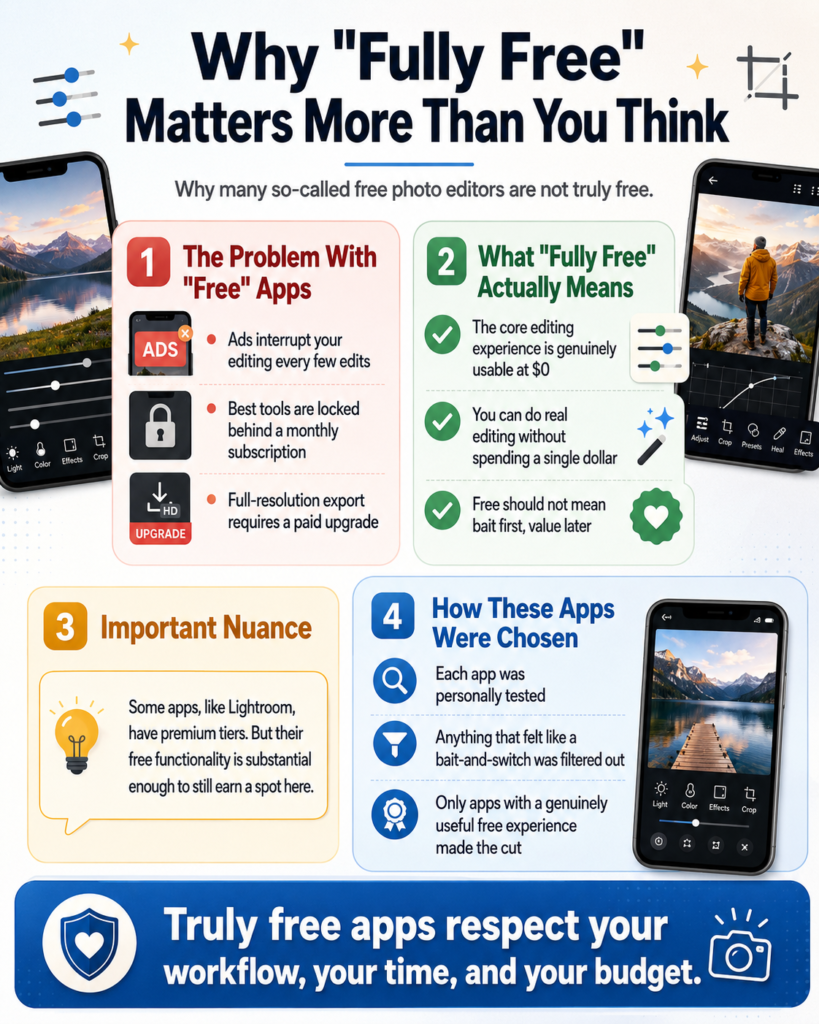
The App Store is absolutely packed with photo editors that claim to be free. But dig a little deeper and most of them either hit you with ads every few edits, lock their best tools behind a monthly subscription, or require a paid upgrade to export in full resolution. Some, like Pixlr, now impose hard daily save limits that make genuine free use practically impossible. That is not truly free.
For this article, “fully free” means apps where the core editing experience is genuinely usable without spending a single dollar. Some apps like Lightroom have premium tiers, but their free functionality is substantial enough to earn a spot here. I have tested each of these apps personally and filtered out anything that felt like a bait-and-switch.
The Best Fully Free Photo Editing Apps for iPhone in 2026
1. Snapseed — Best Overall Free Photo Editor
Snapseed has always been the gold standard for completely free mobile photo editing, and in May 2026, Google made it even harder to ignore. After two years of relative quiet, Google dropped a landmark v4.0 update on May 8, 2026, and it is one of the most significant overhauls the app has ever received.
The UI Refresh: The interface received a complete visual redesign with a new homepage grid that surfaces your recently edited photos for faster access, three reorganized editor tabs, and a streamlined Favorites bar so you can pin your most-used tools for a much smoother workflow. The swipe-gesture system that long-time users loved is still there, but the overall experience feels considerably more intuitive and modern.
New Cinematic Tools: The update introduced two standout new tools that are genuinely exciting for creative photographers. Bloom creates a soft, dreamy optical diffusion around light sources for a cinematic, ethereal finish. Halation simulates the red-orange fringe glow you get with classic analog film stock, particularly around highlights. These are the kinds of effects that used to require desktop plugins or expensive third-party apps, and they are now completely free inside Snapseed.
Beyond the new tools, v4.0 also added Smart Masking (one-touch subject and background selection with impressive precision), Color HSL controls (individual hue, saturation, and luminance adjustment per color channel), Dehaze, and a brand new Snapseed Camera mode with real-time film emulation built directly into the viewfinder. The full tool count now sits at 30-plus, all completely free, with no ads anywhere in the app.
Wirecutter’s comprehensive photo app testing consistently names Snapseed the best free photo editing app for both iOS and Android, and after this update, that recommendation is stronger than ever.
Best for: All-around editing, cinematic film effects, RAW editing, non-destructive workflows.
Truly free? Yes. No ads, no subscriptions, no watermarks, ever.
2. Adobe Lightroom Mobile (Free Tier) — Best for Color Grading
Adobe Lightroom is the industry standard for professional photo editing, and its mobile app brings a serious chunk of that power to iPhone for free. The free tier gives you access to light adjustments, color mixing, tone curves, presets, and the ability to organize your photo library. These are genuinely powerful tools that many working photographers use daily.
The learning curve is steeper than Snapseed, but if you want precise, professional-quality color grading on your phone, nothing in the free tier touches Lightroom. The Color Mix panel, which lets you shift the hue, saturation, and luminance of individual colors independently, is something most apps charge a subscription for.
The limitations are real though. Lightroom’s premium features, including AI masking, cloud sync, and advanced healing tools, are locked behind a subscription. The free version also requires a free Adobe account. But if you can work within those limits, the free tier delivers serious value.
Best for: Color grading, preset workflows, professional-style edits.
Truly free? Free tier is generous; premium tools require a subscription.
3. Darkroom (Free Tier) — Best for Speed and Workflow
Darkroom takes a different approach from most photo editors. Instead of importing photos into a separate library, it edits directly in your iPhone camera roll. That sounds like a small detail, but it makes a huge difference in day-to-day speed. No import step, no waiting, no juggling two libraries.
The free version includes a solid set of editing tools: basic adjustments, curves, color grading, and a handful of quality filters. The interface is beautifully designed, arguably the cleanest of any app on this list. Batch editing is also available on the free tier, so you can apply the same look to multiple photos at once.
Premium features like video editing, additional filter packs, and custom fonts are paid. But for photo editing specifically, the free tier holds up well, especially for users who want a fast, friction-free workflow.
Best for: Fast editing, clean UI, batch editing, camera roll integration.
Truly free? Free tier is solid for photos; video and premium filters are paid.
4. VSCO (Free Tier) — Best for Aesthetic Filters
VSCO built its reputation on film-inspired filters, and even the free tier gives you access to a curated set that genuinely looks better than the filters baked into most competitors. If you shoot a lot of lifestyle, portrait, or travel content and want a consistent, aesthetic look without spending hours on manual adjustments, VSCO is hard to beat.
The free version includes basic editing tools alongside a selection of the app’s classic presets. The paid VSCO membership unlocks significantly more presets and features, but the free experience is still worthwhile for the filters alone.
One thing worth noting: VSCO has shifted more features behind its subscription in recent years. It is still useful for free, but not as generous as Snapseed or Lightroom’s free tier in terms of raw editing power.
Best for: Film aesthetic, lifestyle photography, social media content.
Truly free? Limited but usable free tier; more filters require a subscription.
5. Adobe Photoshop Express — Best Free App for Quick Fixes and Beginner Editing
Photoshop Express is Adobe’s lighter, more accessible mobile editor, and it remains one of the most genuinely free editing apps available on iPhone. Unlike Lightroom, it does not require cloud sync or an ongoing subscription to use effectively, and unlike Pixlr (see the note below), it does not hit you with crippling daily save limits.
The free version includes one-touch Auto Enhance, healing and spot removal tools, a solid selection of filters and effects, basic adjustments, collage creation, background removal, and Adobe Firefly-powered Generative Fill for AI-based content editing. For a free app, that is a remarkably capable feature set.
In my experience testing beginner-friendly editors, Photoshop Express is one of the easiest to pick up and get great results from within the first few minutes. The interface is clean, the tools are clearly labeled, and the one-touch enhancement options do a solid job without any manual work.
Amateur Photographer’s 2026 app roundup highlights Photoshop Express as a strong free option for casual users who want recognizable Adobe quality without the Lightroom learning curve.
Best for: Beginners, quick fixes, AI-assisted edits, collage creation.
Truly free? Yes, with a free Adobe account. No daily save limits.
A Note on Pixlr: Pixlr used to appear on lists like this one, but as of early 2026 it no longer qualifies as a genuinely free app. Free users are now hard-limited to 3 saves per day, after which the app throws up a paywall requiring you to subscribe to Pixlr Plus. For anyone doing real editing, hitting that cap in a single session is easy. We have replaced it on this list with Photoshop Express, which is actually free.
Comparison Table: Best Free iPhone Photo Editing Apps 2026
Step-by-Step: How to Get Started with Snapseed 4.0 on iPhone
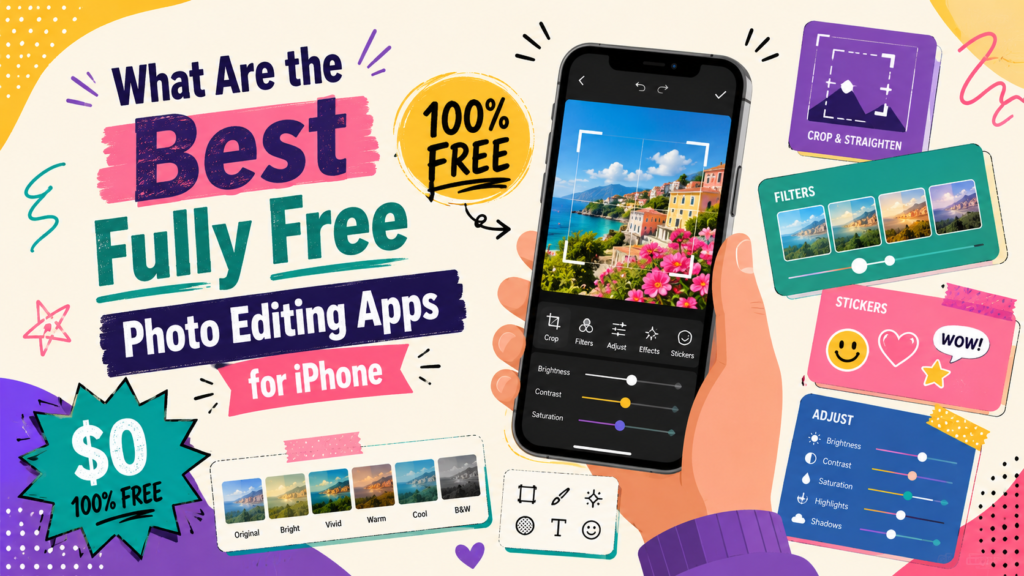
If you are new to Snapseed after the v4.0 update, here is a quick walkthrough to get your first edit done in under five minutes.
Step 1: Download or Update Snapseed
Open the App Store, search “Snapseed,” and install or update to version 4.0. It is free with no account required. The update began rolling out on May 8, 2026 on both iOS and Android.
Step 2: Open a Photo
Tap the “+” button on the new homepage grid or tap “Add Photo” to select an image from your camera roll. You can also shoot directly using the new Snapseed Camera mode, which lets you apply real-time film filters before you even take the shot.
Step 3: Choose Your Tools
Tap “Tools” at the bottom. All 30-plus tools are laid out in a grid. Start with “Tune Image” for basic adjustments like brightness, contrast, saturation, and shadows. Pin your most-used tools to the new Favorites bar at the top for faster access in future sessions.
Step 4: Try Smart Masking
Tap the Smart Masking tool and tap on your subject. Snapseed will automatically detect and select the subject or background with impressive precision. From there you can apply adjustments to just that area without affecting the rest of the photo.
Step 5: Add a Cinematic Look with Bloom or Halation
Tap “Bloom” in the tool grid to add a soft dreamy glow around light sources. For a more analog film feel, try “Halation,” which simulates the warm red-orange fringe you see on classic film stock. Both tools have intensity sliders so you can dial in exactly how subtle or dramatic the effect is.
Step 6: Review Your Stacks
Tap the “Stacks” icon at the top right to see every edit as a non-destructive layer. Tap any step to modify or delete it. Your original photo is always preserved.
Step 7: Export Your Photo
Tap “Export” at the bottom right and choose “Save” to save a copy to your camera roll at full resolution, or “Share” to send it directly. No watermarks, no quality compression, no paywall.
Pro Tip: In Snapseed 4.0, stack the new Halation tool on top of the Film simulation tool for a layered analog look that is genuinely difficult to distinguish from shots taken on real film. Use Halation at around 30 to 40% intensity so the effect stays subtle. It is one of the most convincing free film emulation combinations available on any mobile app right now.
2026 Trends: What’s Changing in Mobile Photo Editing
Mobile photo editing in 2026 has shifted noticeably toward AI-assisted tools. Features like AI sky replacement, automatic subject masking, and intelligent noise reduction, which used to be desktop-only, are now showing up in mobile apps. Snapseed’s new Smart Masking is a direct response to this trend, and it holds up well against paid competitors.
The challenge for free users is that most AI features are being pushed behind premium tiers across the industry. Adobe has steadily moved its most advanced AI tools like Generative Remove and Lens Blur to the paid tier in Lightroom. Snapseed, by contrast, included Smart Masking entirely for free in the v4.0 update, which makes it even more impressive as a no-cost offering.
For a comprehensive look at everything new in Snapseed 4.0, This detailed YouTube walkthrough of Snapseed 4.0’s full feature set covers the redesigned UI, Smart Masking, the new cinematic tools, and the Snapseed Camera mode in full detail. It is genuinely worth watching before you dive in.
Another trend worth watching is computational photography integration. Apps are working more closely with iPhone’s built-in processing, especially on the iPhone 15 and 16 series, to pull more detail from RAW files directly in-app. Darkroom and Lightroom are both ahead of the curve on this, but Snapseed’s improved RAW Develop tool in v4.0 has closed that gap meaningfully.
Frequently Asked Questions
What is the best completely free photo editing app for iPhone with no subscription?
Snapseed is the best fully free photo editing app for iPhone. It has no ads, no in-app purchases, no subscription, and no watermarks. The May 2026 v4.0 update added Smart Masking, Bloom, Halation, Color HSL, and a built-in camera, all completely free.
Is Adobe Lightroom really free on iPhone?
Adobe Lightroom offers a free tier on iPhone that includes a solid range of editing tools including light adjustments, color mixing, and presets. Advanced features like AI masking, cloud sync, and Generative Remove require a paid Adobe subscription.
Does Snapseed edit RAW photos on iPhone?
Yes. Snapseed fully supports RAW photo editing on iPhone at no cost. The v4.0 update improved the RAW Develop tool, and you can use all of Snapseed’s tools on RAW files including Curves, Selective Adjust, Smart Masking, and Healing.
What is the best free photo editing app for beginners on iPhone?
Adobe Photoshop Express or VSCO’s free tier are easier starting points for beginners due to their more intuitive interfaces. Snapseed 4.0’s redesigned UI is considerably more approachable than older versions, but Photoshop Express still has the gentler learning curve.
Are there any truly free photo editing apps with no ads on iPhone?
Yes. Snapseed and Darkroom’s free tier both operate without ads. Snapseed is completely free with no paid tier at all.
Is Pixlr still a good free photo editing app in 2026?
Not really. Pixlr’s free tier is now capped at 3 saves per day, after which you hit a hard paywall. For any regular editing use, this limit is frustrating and makes it impractical as a “free” app. Adobe Photoshop Express is a much better free alternative.
Can I use Lightroom Mobile without an Adobe account?
No. Lightroom Mobile requires a free Adobe account even on the free tier. The account is free to create and does not require a credit card.
Which free iPhone photo editor is best for Instagram and social media?
For social media content, VSCO’s free tier is great for consistent aesthetic filters, while Snapseed gives you more precise control over composition and selective adjustments. Both export at full resolution for free.
What is new in Snapseed 4.0?
Snapseed 4.0, released May 8, 2026, includes a fully redesigned interface with a new homepage grid and Favorites bar, Smart Masking, Color HSL controls, Dehaze, the new Bloom and Halation cinematic tools, batch editing, and the Snapseed Camera mode with real-time film emulation. All features are free.
Which App Should You Actually Download?
Here is the honest short version. If you only download one app, make it Snapseed. It is the most powerful, the most genuinely free, and with the v4.0 update it is now also one of the most modern-feeling editors on the App Store. There is a reason it consistently tops these lists, and the new cinematic tools make it even harder to argue against.
If you care specifically about color grading and want a more professional workflow, add Adobe Lightroom’s free tier alongside it. The two complement each other well. Use Lightroom for color work and Snapseed for everything else.
For social media creators who want a consistent aesthetic without spending time on manual adjustments, VSCO’s free filter selection remains one of the better options. And for true beginners who want something immediately intuitive, Adobe Photoshop Express is a genuinely solid pick with no save limits and no subscription required.
Bottom Line
Snapseed is the best fully free photo editing app for iPhone in 2026, and the May 2026 v4.0 update made that gap even wider. It is powerful, ad-free, now features genuinely impressive AI masking and cinematic tools, and remains completely free with no caveats. Download it, spend 20 minutes exploring the new Bloom and Smart Masking tools, and you will have a mobile editing setup that handles almost everything a photographer needs, at zero cost.