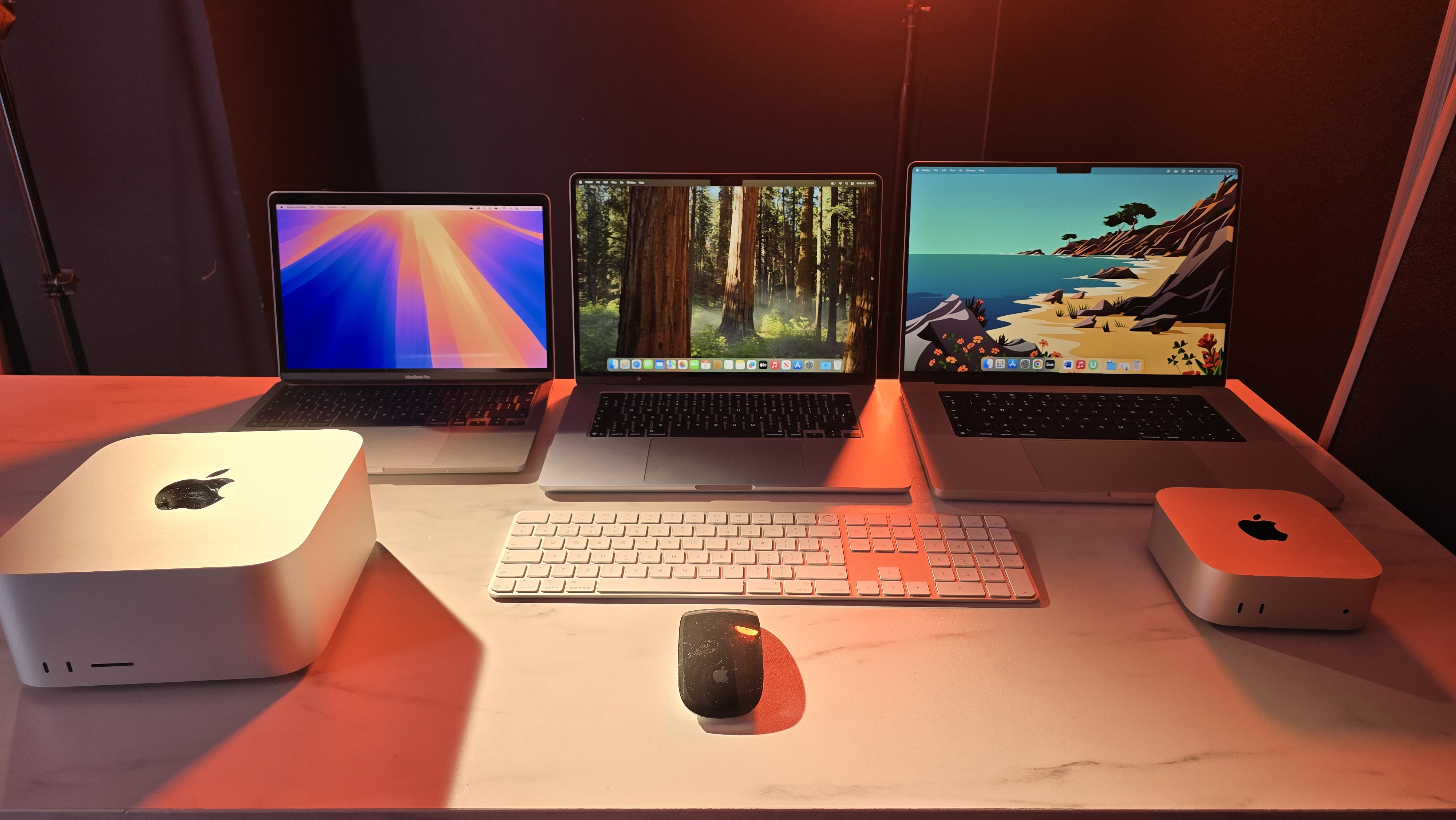
For most OpenClaw users in 2026, the Mac Mini M4 with 16GB to 24GB of RAM is the best overall choice. It runs OpenClaw silently around the clock, delivers Apple Silicon efficiency, and nails the sweet spot between price and performance. But the right answer for you actually depends on how you plan to use OpenClaw: as a portable daily driver, a 24/7 always-on agent server, or a local AI inference powerhouse. Each platform has a clear use case, and this guide breaks down exactly which one fits yours.
If you can afford it, you should definitely consider the newly launched (updated on May 4th, 2026) — ACEMAGIC M1A Pro (Check Price Here).
In short this PC would let you run multiple local LLMs (free LLM calls), substantially reducing your AI credit costs. Often by $1000s of dollars for a week of heavy/full-time usage. Don’t buy it if you need a basic OpenClaw machine and don’t have a commerical use-case, because then it would be an overkill! OpenClaw can easily run on a cheaper machine!
OpenClaw has become one of the defining tools of 2026. What started as a niche open-source project has turned into the AI agent of choice for developers, content creators, indie business owners, and power users who want a personal AI assistant that actually does things rather than just chatting. It automates file management, sends messages on your behalf, manages calendars and notes, triggers web automations, and runs all of it through your favorite chat app like Telegram, Discord, or iMessage.
But before any of that can happen, you need to pick the right hardware to run it on. And in 2026, that conversation almost always comes down to three contenders: the Mac Mini, a laptop (MacBook or Windows), or a Windows Mini PC. Each brings something genuinely different to the table, and none of them is the right choice for every single person.
I have spent a good chunk of time researching, comparing benchmarks, and going through real-world setups for all three platforms. Here is everything you need to know to make the right call.
Understanding How OpenClaw Uses Hardware
Before diving into the comparison, it helps to understand what OpenClaw actually demands from your machine. OpenClaw itself is a Node.js runtime, and as a standalone background service, it is surprisingly lightweight. It does not chew through RAM on its own, does not need a dedicated GPU, and does not require a particularly fast CPU to keep running.
The hardware demands scale dramatically depending on how you use it.
In cloud API mode, where OpenClaw routes requests to Anthropic, OpenAI, or DeepSeek on remote servers, a basic system with 8GB of RAM and a modern CPU runs it without stress. The machine is mostly just routing commands and executing file operations locally while the heavy AI thinking happens in the cloud.
In local model mode, where you run models through Ollama or a similar inference engine directly on your hardware, the equation changes completely. A 7B parameter model like Llama 3 or Mistral 7B needs roughly 4 to 6GB of RAM just to load its weights. Add macOS or Windows sitting at 4GB at idle, and add OpenClaw itself, and you are already pushing 12GB before you open a single browser tab. Anything larger than a 7B model needs even more headroom.
According to ACEMAGIC’s hardware guide for OpenClaw, “16GB of RAM is the absolute floor, and 32GB is the realistic baseline for responsive agent execution.” That is a useful anchor point as we compare platforms.
Key Hardware Requirements for OpenClaw (2026):
- Minimum RAM for cloud API mode: 8GB (16GB strongly preferred)
- Minimum RAM for local model mode (7B): 16GB
- Minimum RAM for local model mode (30B+): 32GB or more
- Operating System: macOS 12+, Windows 10+, or modern Linux
- Runtime: Node.js 22 or later
- Storage: 10GB free minimum; 100GB+ if running multiple Ollama models
- CPU: Any modern quad-core processor works for cloud mode
- Network: Stable broadband connection for cloud API and webhook automations
Option 1: Mac Mini M4 (The Always-On Powerhouse)
The Mac Mini M4 is, in the opinion of most serious OpenClaw users and reviewers in 2026, the gold standard dedicated OpenClaw host. It is small enough to hide behind a monitor, draws almost no power at idle, runs completely silently, and sits on macOS, which is the smoothest platform for OpenClaw setup and daily operation.
The Mac Mini M4 uses Apple’s M4 chip, built on TSMC’s 3nm process. The chip features a 10-core CPU, 10-core GPU, a 16-core Neural Engine, and 120 GB/s of memory bandwidth. Apple also offers the Mac Mini M4 Pro with a 14-core CPU, 20-core GPU, and up to 273 GB/s of memory bandwidth for users who need serious local inference headroom.
Wirecutter’s current recommendation describes the Mac Mini M4 as “the best mini PC for most people,” and that verdict holds firmly for OpenClaw use specifically. The combination of macOS compatibility, efficiency, and the M4’s Neural Engine makes it the most natural OpenClaw host on the market right now.
Mac Mini M4 Pricing (2026):
- $599: M4, 16GB RAM, 256GB SSD (cloud API use, entry local models)
- $799: M4, 16GB RAM, 512GB SSD (cloud API with model storage room)
- $999: M4, 24GB RAM, 512GB SSD (recommended floor for local model users)
- $1,199: M4, 32GB RAM, 1TB SSD (strong local model performance)
- $1,399: M4 Pro, 24GB RAM, 512GB SSD (serious local inference)
- $1,999+: M4 Pro, 64GB RAM, 1TB SSD (maximum configuration for heavy multi-model workflows; the M4 Pro also offers 24GB and 48GB tiers below this)
The 16GB base model at $599 handles cloud API mode beautifully and can manage smaller local models like Llama 3.1 8B. For users who want to run larger 24B or 32B models locally alongside OpenClaw, the 24GB configuration at $999 is the practical floor. At idle, the Mac Mini M4 draws just 3 to 4 watts of power, making it one of the most economical always-on machines ever reviewed for this kind of workload. Under heavy CPU load it peaks at around 40 to 45 watts, which is still remarkably efficient compared to Windows Mini PCs at similar performance levels.
One important limitation: the Mac Mini M4 is a desktop. It stays on your desk, plugged in, connected to a monitor or running headless. It does not travel with you. If you need your OpenClaw agent to be available from a portable machine you carry daily, the Mac Mini is a server, not a companion device.
Mac Mini M4 for OpenClaw: Who It Is For:
Users who want a dedicated, always-on, silent OpenClaw host that sits at home or in the office and runs their AI agent workflows continuously, 24 hours a day.
Option 2: Laptop (MacBook or Windows)
A laptop is the most natural choice for users who live and work on the go. Your OpenClaw instance travels with you. Your agent is available during commutes, at coffee shops, and at client sites. It is the most personal form of the personal AI agent concept.
The trade-off is significant: a laptop is not designed to run continuously 24/7. Running OpenClaw as a persistent background service on a laptop that you close, carry around, and regularly put to sleep creates disruptions. If your laptop is in standby mode when a scheduled automation triggers, that automation simply does not fire. For some use cases that is acceptable. For users who want reliable always-on automations, including scheduled tasks, message responses, and webhook triggers, it can be a real problem.
MacBook Options for OpenClaw:
The MacBook Neo at $599 with 8GB RAM works well in cloud API mode, but its fixed RAM cap makes it unsuitable for local model inference with anything above 3B parameters. For context on why Apple fixed the RAM, I covered that in detail in my MacBook Neo review, where the engineering trade-off of repurposing the iPhone 16 Pro’s A18 Pro silicon to hit $599 is explained fully.
The MacBook Air M4 with 16GB RAM is the step-up portable choice for OpenClaw. It handles cloud API mode flawlessly, manages 7B local models reasonably well, and brings the full macOS setup advantage to a portable form factor. This step-by-step walkthrough on setting up OpenClaw on a Mac covers the installation process across all Apple Silicon MacBook models, including the M4, and is worth bookmarking if you are going the MacBook route.
The MacBook Pro M4 Pro with 24GB or more is technically one of the best OpenClaw laptops available, but spending $1,999 or more on a laptop primarily to run an AI agent is hard to justify unless it also serves as your main development machine.
Windows Laptop Options for OpenClaw:
Windows laptops can run OpenClaw, but with an extra layer of friction. The OpenClaw installer and its underlying scripts are built for Unix-like environments. On Windows, users typically run OpenClaw through WSL (Windows Subsystem for Linux), which works but adds setup steps and occasional compatibility quirks. The Dell XPS 15 with 32GB RAM and a 14-core Intel Core i7-13700H handles OpenClaw confidently, but at $1,700 it is a premium investment. The Framework Laptop 16 with AMD Ryzen 7 7840HS and 32GB RAM is another strong option at $1,400, with the added bonus of an upgradeable modular design.
Battery life is another factor worth considering. Running an LLM inference session through Ollama while on battery will drain a MacBook Air in roughly 4 to 6 hours. Cloud API mode is far gentler on battery and is the practical way to run OpenClaw portably day-to-day.
Option 3: Windows Mini PC (The Upgradeable Challenger)
Windows Mini PCs are the most overlooked contender in this conversation, and honestly they deserve more attention. While the Mac Mini dominates the mindshare in OpenClaw communities, a well-chosen Windows Mini PC running Ubuntu or another Linux distribution can match or beat it for local model inference, often at a lower cost and with the key advantage of upgradeable RAM.
As TerminalBytes notes in their 2026 analysis of OpenClaw Mini PC alternatives, certain Windows Mini PC configurations can run 30B+ parameter models locally while OpenClaw handles your messaging in the background, with Oculink support for adding an external GPU down the line. That is a level of flexibility the Mac Mini simply cannot match at any price tier.
The key machines to know in 2026:
Beelink SER9 Pro AI: Powered by an AMD Ryzen AI 9 HX 370, this machine comes with 32GB of DDR5 RAM upgradeable to 96GB, a 2TB NVMe SSD, and AMD RDNA 3.5 iGPU. It handles 7B to 13B local models confidently, and the upgradeable RAM means you can grow into larger model workloads over time. Street price lands around $550 to $650, making it directly competitive with the Mac Mini M4 base model. It also includes an Oculink port, which is worth understanding if you are thinking long-term. Oculink provides a near-desktop-class PCIe connection to the outside world, meaning you can buy this Mini PC today, run local models on the integrated GPU, and plug in an RTX 4090 or RTX 5090 externally at any point in the future if your OpenClaw local model workloads outgrow what the integrated hardware can handle. That kind of upgrade path simply does not exist on any Mac.
ACEMAGIC F5A: Also built around the AMD Ryzen AI 9 HX 370 with support for up to 64GB of RAM (128GB configurations are exclusive to the MAX-series chips like the Ryzen AI MAX+ 395 found in the M1A PRO+). Features an Oculink port for external GPU expansion. The barebone model starts lower, and ACEMAGIC even offers an OpenClaw-preinstalled edition that eliminates all setup friction for first-time users. The F5A delivers up to 80 TOPS (trillion operations per second) of AI processing power.
ACEMAGIC M1A PRO+: The high end of the Windows Mini PC spectrum for OpenClaw. Powered by the AMD Ryzen AI MAX+ 395 with 128GB of LPDDR5x RAM at 8000 MT/s, this is the most RAM-dense compact machine in this comparison by a significant margin. That headroom is shared between system memory and the massive integrated Radeon 8060S GPU, which means 70B models will still hit memory pressure in practice. Where it genuinely shines is on 32B models like Qwen2.5 or DeepSeek-R1-Distill, where real-world user reports put inference speeds at a highly usable 11 to 15 tokens per second under Linux with llama.cpp. For serious multi-agent local inference workflows, this is one of the most capable compact machines available in 2026, though pricing reflects that premium.
The biggest caveat for Windows Mini PCs is the operating system. OpenClaw runs most smoothly on macOS or Linux. Running it on Windows directly introduces occasional compatibility issues, slower cold starts, and the WSL dependency for full functionality. The sweet spot is to install Ubuntu or another Linux distribution on a Windows Mini PC, which gives you all the hardware advantages of the x86 platform combined with the Unix environment that OpenClaw was built for. That extra setup step is a genuine barrier for less technical users, but for developers and power users comfortable with Linux, it is a one-time cost.
The Ultimate Comparison Table
| Factor | Mac Mini M4 | MacBook (M4 Air/Pro) | Windows Mini PC |
|---|---|---|---|
| Starting Price | $599 (16GB) | $1,099 (MacBook Air M4) | $400 to $650 (32GB AMD) |
| Max RAM | 32GB (M4) / 64GB (M4 Pro) | 32GB (M4 Pro Max) | 96GB to 128GB (upgradeable) |
| RAM Upgradeable | No (soldered) | No (soldered) | Yes (on most models) |
| Memory Bandwidth | 120 GB/s (M4) | 120 GB/s (M4 Air) | 51 to 100+ GB/s (varies) |
| Best OS for OpenClaw | macOS (native, easiest) | macOS (native, easiest) | Linux (best) or WSL on Windows |
| OpenClaw Setup Difficulty | Easy (15 min) | Easy (15 min) | Medium (Linux) / Hard (WSL) |
| Cloud API Mode | Excellent | Excellent | Excellent |
| Local Models (7B) | Great (16GB+) | Good (16GB+) | Great (32GB+) |
| Local Models (30B+) | Limited (needs M4 Pro) | Very limited | Excellent (64GB+ configs) |
| 24/7 Always-On | Ideal (plugged in, silent) | Not ideal (battery cycles) | Great (plugged in) |
| Power at Idle | 3 to 4 watts | 2 to 3 watts (varies) | 8 to 15 watts (varies) |
| Portability | None (desktop) | Full | None (desktop) |
| iMessage Integration | Yes (macOS native) | Yes (macOS native) | No |
| External GPU Support | No | No | Yes (Oculink on select models) |
| Best Use Case | Dedicated home AI server | Portable daily driver | High-RAM local model server |
Side-by-Side: Which Platform Wins Each Category
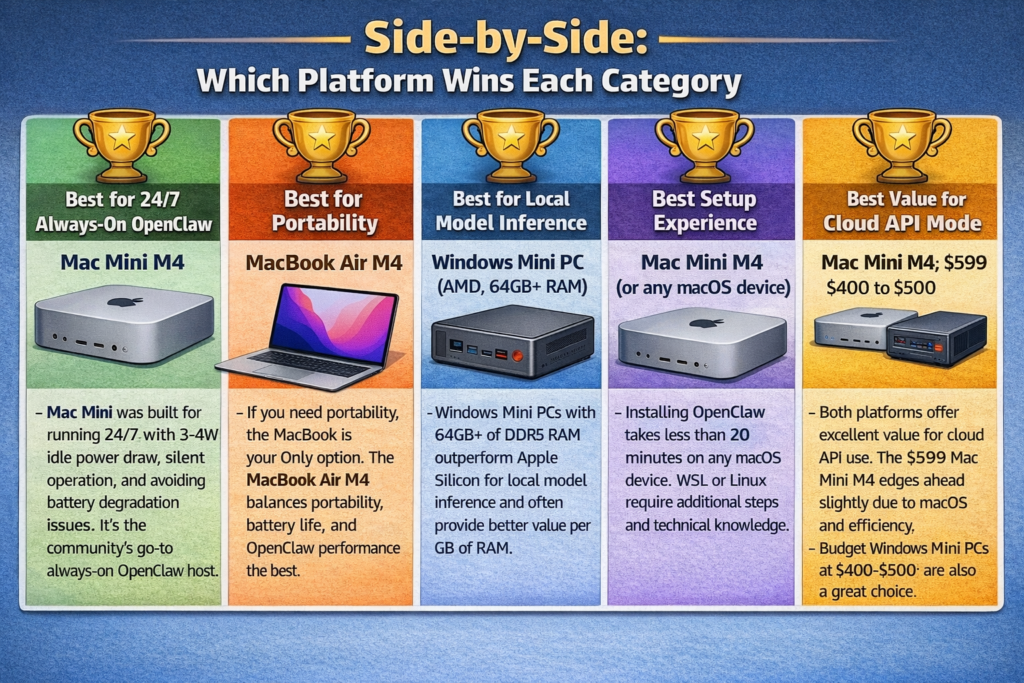
Best for 24/7 Always-On OpenClaw: Mac Mini M4
The Mac Mini was practically built for this use case. At 3 to 4 watts at idle, it costs almost nothing to run continuously. It sits silently with no fan noise at light loads, handles scheduled automations without interruption, and never risks the battery degradation that comes from running a laptop 24/7. The entire OpenClaw community points to the Mac Mini M4 as the go-to always-on host, and the data backs that up completely.
Best for Portability: MacBook Air M4
There is no competition here. If you need your OpenClaw agent to travel with you, a MacBook is your only real option from this comparison. The MacBook Air M4 with 16GB RAM balances portability, battery life, and OpenClaw performance better than any Windows laptop in its class. Just manage your expectations around 24/7 scheduling reliability and local model headroom.
Best for Local Model Inference: Windows Mini PC (AMD, 64GB+ RAM)
If running large local models through Ollama alongside OpenClaw is your primary goal, a high-RAM Windows Mini PC on Linux wins outright. The Mac Mini M4 Pro with 64GB RAM is the closest Apple Silicon challenger, but Windows Mini PCs with 96GB of upgradeable DDR5 RAM often undercut it significantly on price per gigabyte. Community benchmarks show machines like the Beelink SER9 Pro AI achieving competitive inference speeds on 13B to 30B models in Linux, making them genuinely compelling for this specific workload.
Best Setup Experience: Mac Mini M4 (or any macOS device)
macOS wins this category without debate. OpenClaw’s installer was written for Unix-like systems, and on macOS the entire process from a fresh machine to a running OpenClaw instance takes under 20 minutes. On Windows, the path through WSL adds meaningful complexity. On Linux, it matches macOS for smoothness once the OS is installed, but getting to a configured Linux environment is its own project for less technical users.
Best Value for Cloud API Mode: Mac Mini M4 at $599 (or Windows Mini PC AMD at $400 to $500)
For pure cloud API OpenClaw use with no local model inference, the $599 Mac Mini M4 base model and budget AMD Windows Mini PCs with 16GB RAM are both excellent value propositions. The Mac Mini edges ahead due to the macOS setup experience and Apple Silicon efficiency. But if you are already comfortable with Linux, a $450 Beelink EQ13 or similar unit running Ubuntu is a legitimate budget alternative.
Step-by-Step: Choosing the Right Platform for Your OpenClaw Setup
Step 1: Identify Your Primary Use Case
Ask yourself whether you mostly want cloud API automation (lightweight, network-dependent) or local model inference (heavyweight, privacy-first, runs offline). This single decision narrows your options significantly.
Step 2: Decide Whether You Need Portability
If the answer is yes, you need a laptop. If the answer is no, a desktop form factor (Mac Mini or Windows Mini PC) gives you better always-on reliability and more RAM headroom per dollar.
Step 3: Set Your RAM Target
For cloud API mode only: 16GB is comfortable, 8GB is workable.
For local 7B models: 16GB minimum, 24GB preferred.
For local 13B to 30B models: 32GB minimum, 48GB preferred.
For 70B models: 64GB or more.
Step 4: Pick Your OS Preference
If you want the easiest possible OpenClaw experience, pick macOS. If you are comfortable with Linux, any platform works equally well. If you are Windows-native and not willing to use WSL or dual-boot, be prepared for a slightly bumpier setup experience.
Step 5: Match Platform to Budget
- Under $600, cloud API only: Mac Mini M4 base or budget Windows Mini PC on Linux
- $600 to $1,000, local 7B models: Mac Mini M4 24GB or Beelink SER9 with 32GB
- $1,000 to $1,500, portable daily driver: MacBook Air M4 16GB
- $1,500 to $2,000, serious local inference: Mac Mini M4 Pro 48GB or ACEMAGIC F5A with 64GB
- $2,000+, maximum local inference: ACEMAGIC M1A PRO+ 128GB on Linux
Step 6: Configure Your OpenClaw Mode
Once your hardware is chosen, install OpenClaw using the platform-specific setup guide. On macOS, use Homebrew and npm. On Linux, use curl and npm directly. For always-on use on a desktop, run openclaw service install to register it as a startup service that survives reboots automatically.
Pro Tip: If you are running the Mac Mini or a Windows Mini PC as a dedicated headless OpenClaw server, set up Tailscale on the machine before anything else. Tailscale creates a secure private network tunnel that lets you access your OpenClaw dashboard at
http://localhost:8080from any device anywhere in the world, including your phone, without exposing any ports to the public internet. It takes about five minutes to configure and completely eliminates the need for any port forwarding or VPN setup. Most OpenClaw server users who go headless regret not doing this on day one.
2026 Trends Shaping the Hardware Decision
The hardware conversation around OpenClaw in 2026 is shifting fast, and a few trends are worth understanding before you spend money.
Apple Silicon efficiency is defining the always-on server category. The M4’s 3 to 4 watts at idle is a genuinely remarkable figure. Running a Mac Mini as an always-on OpenClaw server adds roughly $3 to $5 per month to your electricity bill at typical US rates. A comparable Windows Mini PC at 10 to 15 watts at idle costs two to four times more to run annually. For multi-year deployments, that gap compounds meaningfully.
AMD Ryzen AI chips are closing the gap on Apple Silicon for local inference. The Ryzen AI MAX+ 395 with 128GB of unified memory is legitimately competitive with the Mac Studio M4 Ultra for LLM inference workloads, and it does so at a lower system price in Windows Mini PC form factors. The AI processing race between AMD and Apple is genuinely exciting to watch right now, and 2026 is the year Windows Mini PCs went from “interesting alternative” to “serious contender.”
The upgrade ceiling matters more than the starting specs. One of the most underappreciated arguments for Windows Mini PCs is that you can grow your RAM as your needs evolve. A Mac Mini you buy today with 16GB is a Mac Mini with 16GB forever. A Windows Mini PC you buy today with 32GB can become a 96GB machine with a $150 RAM upgrade when your local model workflows outgrow the base configuration.
OpenClaw’s own roadmap favors local-first workflows. The development direction for OpenClaw in 2026 is pushing toward more on-device processing, better local model AgentSkills, and reduced dependence on paid API tokens. That trajectory suggests that RAM and local inference capability will matter more for OpenClaw users over the next 12 to 18 months than they do today.
Frequently Asked Questions
Which is better for OpenClaw: Mac Mini or Windows Mini PC?
For ease of setup, always-on efficiency, and cloud API workflows, the Mac Mini M4 is the better choice for most users. For local model inference with large models at lower cost, a Windows Mini PC running Linux with 64GB or more of RAM is the stronger option. The right answer depends on how you plan to use OpenClaw.
Can you run OpenClaw on a laptop 24/7?
Technically yes, but it is not ideal. Running a laptop continuously creates battery degradation over time, and putting the laptop to sleep interrupts scheduled automations and webhook triggers. For reliable 24/7 OpenClaw operation, a desktop form factor like the Mac Mini or a Windows Mini PC is strongly preferred.
How much RAM do I need for OpenClaw in 2026?
For cloud API mode (Claude, GPT-4o, DeepSeek): 16GB is comfortable, 8GB is workable. For local 7B models through Ollama: 16GB minimum, 24GB preferred. For 30B+ models: 32GB minimum, 48GB or more for a comfortable experience.
Is Windows good for running OpenClaw?
It works, but macOS and Linux work more smoothly. OpenClaw’s installer was designed for Unix-like environments. On Windows, most users run it through WSL, which adds setup complexity. Running Ubuntu on a Windows Mini PC gives you all the hardware benefits of x86 with the smooth Unix-native OpenClaw experience.
Can I run OpenClaw on a MacBook Neo?
Yes, and it runs well in cloud API mode. The MacBook Neo’s 8GB of fixed RAM limits local model inference to small 1B to 3B parameter models, but for API-connected OpenClaw workflows, the machine handles it comfortably. Full details are in our dedicated MacBook Neo OpenClaw review.
What is the cheapest way to run OpenClaw well in 2026?
The $599 Mac Mini M4 base model in cloud API mode is arguably the best value entry point, combining easy setup, macOS compatibility, all-day efficiency, and reliable performance. Budget AMD Windows Mini PCs with 16GB of RAM running Ubuntu are a close alternative at $400 to $500 for users comfortable with Linux.
Is the Mac Mini M4 Pro worth the premium over the base M4 for OpenClaw?
For cloud API mode only, no. The base M4 with 16GB handles it easily and the extra cost is not justified. For users who want to run 24B, 30B, or larger local models with full context windows and multiple simultaneous agent tasks, the M4 Pro’s higher memory bandwidth and larger RAM ceiling make a meaningful real-world difference.
Does OpenClaw work on Linux Mini PCs?
Yes, and Linux is arguably the best platform for OpenClaw if you are comfortable using it. The installer works natively without any compatibility layers, startup service configuration is clean, and Linux’s resource efficiency means more RAM headroom for OpenClaw and local models compared to Windows running the same hardware.
Should I use a Mac Mini or build a dedicated server for OpenClaw?
For the vast majority of personal and small-business users, a Mac Mini M4 or a Windows Mini PC running Linux is far simpler and more practical than a dedicated server build. Full server builds make sense for enterprise-scale multi-agent deployments or users running multiple simultaneous OpenClaw instances with 70B+ models. For everyone else, the compact desktop options are the better choice in 2026.
What is Oculink and why does it matter for OpenClaw?
Oculink is a compact high-speed connector that provides a near-desktop-class PCIe connection between a Mini PC and an external GPU enclosure. For OpenClaw users focused on local model inference, this means you can buy a capable Windows Mini PC today and add an RTX 4090 or RTX 5090 externally at any point in the future when your AI workloads outgrow what the integrated GPU can handle. It is a future-proofing option that no Mac offers at any price point.
Bottom Line
For most users running OpenClaw in 2026, the Mac Mini M4 with 16GB to 24GB of RAM is the clear winner. It delivers the best combination of setup simplicity, silent always-on operation, power efficiency, and macOS-native performance at a price that is hard to argue with. The $599 base model covers cloud API workflows completely, and the $999 24GB configuration handles most local model use cases confidently.
Laptop users who need portability above all else should look at the MacBook Air M4 with 16GB RAM. It is the best mobile OpenClaw platform available and brings the full macOS setup advantage to a device you carry everywhere.
Users who are serious about local model inference, comfortable with Linux, and want the most RAM per dollar should look closely at high-RAM AMD Windows Mini PCs. The upgradeable RAM ceiling and x86 flexibility make them genuinely compelling for power users whose workloads will outgrow Apple Silicon’s fixed memory tiers over time.