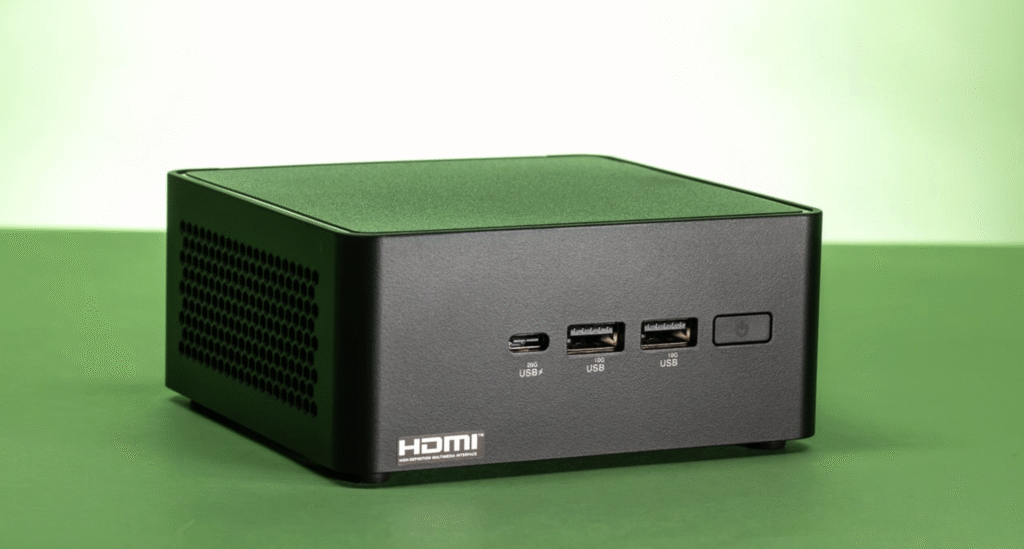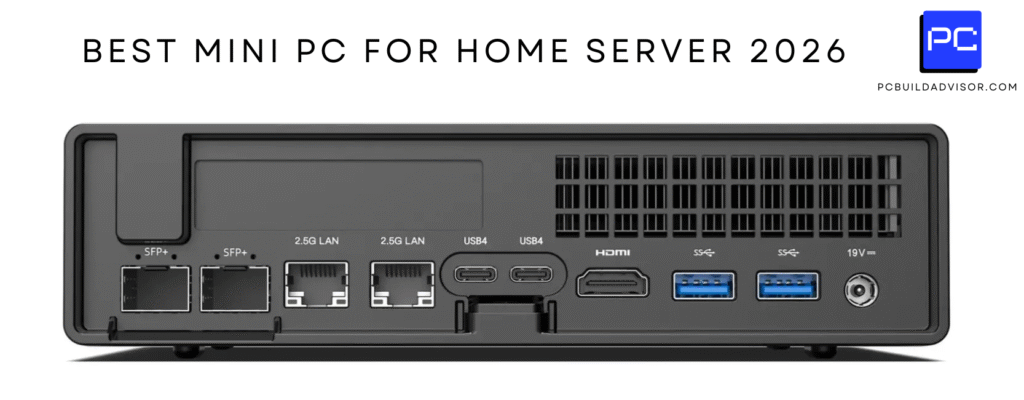
Your mini PC keeps freezing most likely due to overheating, insufficient RAM, a failing or throttled storage drive, outdated drivers, or too many background processes. Because mini PCs pack powerful hardware into a tiny chassis with very limited airflow, they are far more susceptible to these issues than full-sized desktop towers. The good news? Most of these problems are completely fixable at home.
Mini PCs have exploded in popularity over the past few years, and honestly, it is easy to see why. They are compact, energy-efficient, and capable enough to handle everyday computing tasks, light gaming, and even some productivity workloads. But that compact design comes with a trade-off: heat builds up fast, airflow is limited, and components are packed tightly together. When something goes wrong, random freezes are usually the first symptom you notice.
I have spent a lot of time testing and reviewing mini PCs across different brands and price ranges, and freezing is by far the most common complaint I hear from users. Whether your machine is freezing on startup, locking up during everyday use, or stuttering every few minutes, this guide walks you through every major cause and exactly how to fix it.
Why Mini PCs Are Especially Prone to Freezing
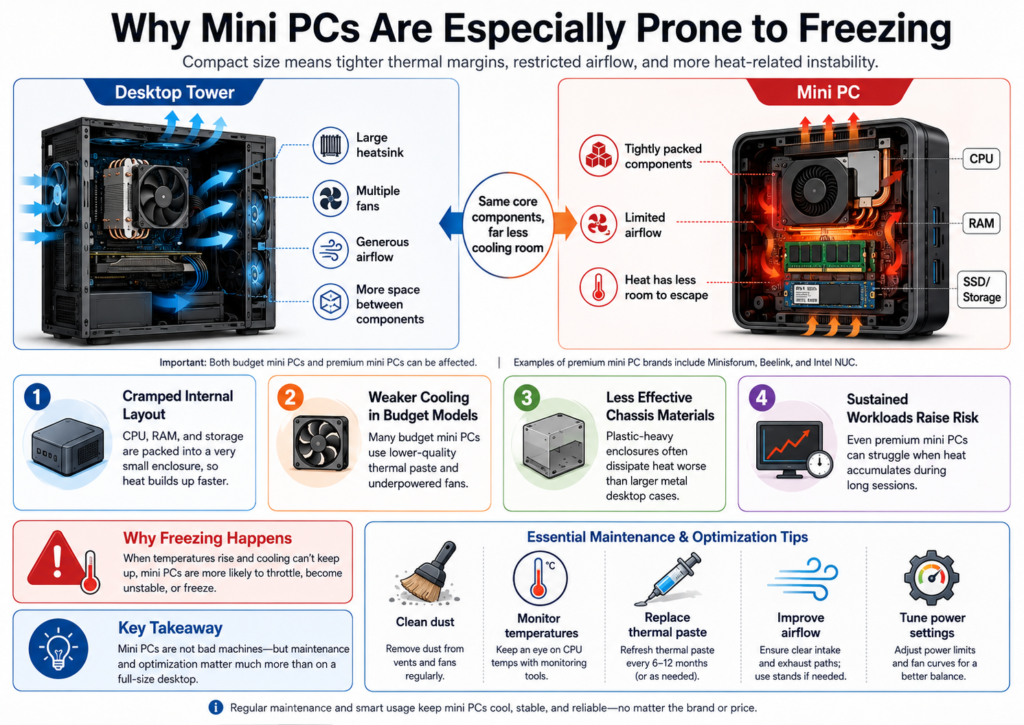
Mini PCs face unique thermal and hardware challenges that standard desktop towers simply do not.
A traditional desktop tower has plenty of room for large heatsinks, multiple cooling fans, and generous airflow between components. Mini PCs have none of that luxury. The CPU, RAM, and storage are all crammed into a unit roughly the size of a paperback book. Any heat that builds up has very limited space to escape.
On top of that, many budget mini PCs ship with lower-quality thermal paste, underpowered fans, and plastic chassis materials that do not dissipate heat well. Even premium mini PCs from brands like Minisforum, Beelink, and Intel (NUC) can struggle with sustained workloads. This is not a dealbreaker, but it does mean that maintenance and optimization matter a lot more with a mini PC than with a larger machine.
The 8 Most Common Reasons Your Mini PC Keeps Freezing
1. Overheating and Thermal Throttling
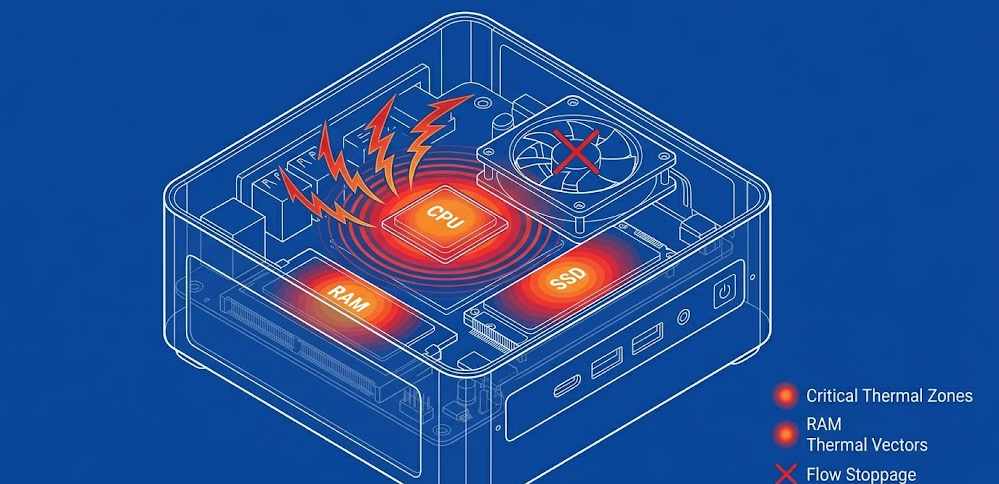
Overheating is the number one cause of mini PC freezing, and it is the first thing you should check. When your CPU or GPU exceeds its safe operating temperature (typically around 90 to 95°C for most modern processors), the system activates a built-in protection mechanism called thermal throttling. This aggressively reduces clock speeds to bring temperatures down. If temperatures continue to rise, the system will freeze or shut down entirely to prevent permanent hardware damage.
In a mini PC, this happens faster and more frequently than in a desktop. Dust buildup in the tiny vents, degraded thermal paste, or even just placing the unit in an enclosed space can push temps into the danger zone surprisingly quickly.
Signs of overheating: The chassis feels very warm, the fan runs at full speed constantly, or the system freezes only during demanding tasks like video playback, gaming, or file transfers.
Fix: Use a free tool like HWMonitor or HWiNFO64 to check your CPU temperatures in real time. Safe idle temps are generally below 60°C, and under full load should stay below 85 to 90°C. If your temps are higher, clean the vents with compressed air, ensure the unit has open space around it, and consider reapplying high-quality thermal paste like Arctic MX-6 or Noctua NT-H1.
2. Failing or Throttled NVMe SSD
This one surprises a lot of people, but your SSD can absolutely cause your system to freeze. NVMe SSDs, which are the standard in virtually all modern mini PCs, generate significant heat under read and write operations. In a mini PC with no SSD heatsink, this heat builds up fast.
When an NVMe drive hits its thermal limit (typically around 70°C), it throttles its performance dramatically, causing the system to stall while waiting for data. If the drive is also aging or has developing bad sectors, the result is freezes, hangs, or very long delays when opening files or launching apps.
One important note for 2026: many high-end mini PCs are now shipping with Gen 5 NVMe SSD support, and Gen 5 drives run significantly hotter than their Gen 4 predecessors. If you have dropped a Gen 5 drive into a compact chassis without active cooling, that drive can hit 80°C or higher during heavy writes and trigger what is best described as a hard thermal lockup. If your mini PC does not specifically include an active-cooled M.2 slot (a small dedicated fan over the heatsink), a Gen 5 drive is genuinely risky in that form factor. Gen 4 remains the safer and more practical choice for passively cooled mini PCs.
Fix: Download CrystalDiskInfo (free) to check your SSD’s health status and temperature. A healthy drive should show “Good” status. If you see “Caution” or “Bad,” the drive needs replacement. For thermal throttling, adding a small M.2 heatsink can drop NVMe temps by 10 to 20°C on Gen 4 drives. For Gen 5, ensure your chassis specifically supports active M.2 cooling before upgrading.
3. Insufficient RAM or Memory Leaks
RAM issues are another very common culprit, especially on entry-level mini PCs that shipped with only 8GB of memory. Windows 11 alone can consume 4 to 5GB of RAM at idle when background processes are factored in, and in 2026 that baseline is even higher with features like Recall, AI-powered Windows Search, and background NPU tasks running on Copilot+ hardware.
For most general users, 16GB is the absolute budget baseline in 2026, not a comfortable target. If you are a developer, running multiple applications simultaneously, or working with any kind of media or data processing, 32GB is the recommended sweet spot for a smooth, frustration-free experience. Think of 16GB the way we used to think of 8GB: technically functional, but uncomfortably tight the moment anything unexpected runs in the background.
When your system runs out of physical RAM, it falls back on the page file (virtual memory) stored on your SSD, which is significantly slower than actual RAM. The system can freeze or become unresponsive while it frantically reads and writes data to storage. Memory leaks, where a program fails to properly release RAM after use, can also gradually eat up your available memory over a long session.
Fix: Open Task Manager (Ctrl + Shift + Esc) and check the Performance tab. If RAM usage consistently sits above 80 to 85% during normal use, you need more memory. Upgrading to 32GB is the recommended move for 2026 workloads. Also check the Processes tab for any app consuming abnormally high memory.
4. Outdated, Corrupt, or Incompatible Drivers
Drivers are the software layer that lets your operating system communicate with hardware components like the GPU, chipset, Wi-Fi adapter, and storage controller. When a driver is outdated, corrupt, or incompatible with a recent Windows update, it can cause system instability that shows up as random freezing, crashes, or black screens.
This is a surprisingly frequent issue after major Windows 11 updates, particularly following the Windows 11 25H2 update cycle. NPU and GPU drivers on newer Copilot+ mini PCs are especially prone to conflicts in the weeks following a major Windows update. Dave’s Computers’ detailed troubleshooting guide specifically highlights that freezing after a Windows update often traces directly back to a driver conflict, and rolling back the problematic driver is frequently the fastest fix.
Fix: Open Device Manager (Win + X > Device Manager) and look for any devices with a yellow warning icon. Right-click and update those drivers. If freezing started after a recent update, try rolling back the driver via Properties > Driver > Roll Back Driver. Always download GPU, NPU, and chipset drivers directly from the manufacturer’s website (Intel, AMD, or NVIDIA) rather than relying solely on Windows Update.
5. Too Many Background Processes and Bloatware
Most mini PCs, especially those from smaller brands, ship with a generous amount of pre-installed software that runs silently in the background. Even on a clean Windows install, apps like OneDrive, Xbox Game Bar, Windows Search indexing, and automatic update services can consume a surprising share of CPU and RAM resources.
The result is a system that feels sluggish and occasionally freezes when you try to do anything demanding, because the processor is already half-busy with processes you did not ask for.
Fix: Open Task Manager and go to the Startup tab. Disable anything you do not recognize or actively use. You can also open Settings > Apps > Startup to manage which programs launch at boot. Trimming startup programs alone can noticeably speed up boot times and reduce mid-session freezes.
6. Corrupt System Files or a Failing Windows Installation
Sometimes the issue is not hardware at all. Corrupt Windows system files, caused by bad updates, sudden power cuts, or software conflicts, can cause unpredictable freezes that are very difficult to diagnose without the right tools.
Fix: Open Command Prompt as Administrator and run these two commands in order:
-
sfc /scannow(scans and repairs corrupt system files) -
DISM /Online /Cleanup-Image /RestoreHealth(repairs the Windows image)
These tools are built into Windows and free to use. If they find and fix issues, run them both a second time to confirm everything is clean.
7. Power Supply or Power Delivery Issues
This is less commonly discussed but very relevant to mini PCs. Many compact machines use external power adapters (bricks) that deliver a fixed wattage. Modern mini PCs with Intel Core Ultra 300-series and AMD Ryzen AI 400-series chips can draw surprisingly high peak wattage under burst loads. If the adapter is aging, underrated for the system’s power draw, or using a poor-quality third-party cable, it may deliver inconsistent power under load, which causes system freezes or sudden shutoffs.
With more units now shipping with 120W GaN bricks or higher, it is worth visually inspecting your adapter cable for any fraying or heat discoloration, which can be a sign of internal resistance building up over time.
Fix: Check that you are using the original power adapter that came with your mini PC. If the adapter feels excessively hot or the cable is damaged, replace it with an OEM-equivalent unit. Never use an underpowered third-party adapter on a mini PC.
8. Faulty Peripherals and USB Devices
Connected USB devices, including hubs, external drives, webcams, and docking stations, can sometimes cause system-wide freezes. If a device has a faulty driver, draws too much power from the USB controller, or sends corrupted data, Windows can get stuck trying to communicate with it.
Fix: Disconnect all non-essential USB devices and see if freezing stops. Reconnect them one by one to identify the culprit. If you use a USB hub, try plugging devices directly into the mini PC instead.
Step-by-Step Freezing Diagnostic Guide
Follow these steps in order to systematically identify the cause of your mini PC’s freezing.
Step 1: Check temperatures first
Download HWMonitor or HWiNFO64 and run it while using your PC normally. Note CPU and SSD temperatures. If CPU hits above 90°C or SSD hits above 70°C (or 75°C+ for Gen 5 NVMe), overheating is your issue. In HWiNFO64 specifically, look for the “Core Thermal Throttling” indicator, which will flag the issue directly.
Step 2: Check RAM usage
Open Task Manager > Performance > Memory. If you are consistently above 80% usage at idle or during light tasks, RAM is likely the bottleneck. Target 32GB for a comfortable 2026 experience.
Step 3: Run SSD health check
Open CrystalDiskInfo and check drive health. Any status other than “Good” needs attention. For Gen 5 drives, watch specifically for temperature peaks above 75°C, which signal imminent thermal lockups.
Step 4: Scan for system file corruption
Run sfc /scannow and then DISM /Online /Cleanup-Image /RestoreHealth in an elevated Command Prompt.
Step 5: Update or roll back drivers
Go to Device Manager and check for flagged devices. Update all drivers, and roll back any recently updated ones if freezing started after a Windows update. Pay special attention to NPU and GPU drivers on Copilot+ mini PCs.
Step 6: Audit startup and background programs
Open Task Manager > Startup tab and disable non-essential programs.
Step 7: Check your power adapter
Confirm you are using the correct OEM adapter and that the cable shows no signs of fraying or heat damage.
Step 8: Disconnect USB peripherals
Remove all non-essential peripherals and test system stability for a few hours.
Pro Tip: If your mini PC freezes specifically during heavy tasks like video playback or file transfers but runs fine at idle, thermal throttling is almost certainly the cause. One of the best quick fixes is to elevate the unit slightly using a small stand or cooling pad to improve airflow from underneath. It sounds too simple, but in my experience testing budget mini PCs, it can drop idle temps by 5 to 8°C and dramatically reduce freeze frequency.
2026 Quick-Reference Maintenance Table
Recommended Tools for Diagnosing Mini PC Freezing
-
HWMonitor / HWiNFO64 – Free real-time temperature and hardware monitoring, with dedicated thermal throttling indicators
-
CrystalDiskInfo – SSD and HDD health status and temperature, essential for Gen 5 NVMe monitoring
-
MemTest86 – Bootable RAM diagnostic tool for detecting memory errors
-
Windows Resource Monitor – Built-in tool for monitoring CPU, RAM, disk, and network in detail
-
Core Temp – Lightweight CPU temperature monitor with per-core readings
-
Malwarebytes Free – Scan for malware that could be causing system instability
2026 Mini PC Trends That Affect Freezing
Mini PCs in 2026 are more powerful than ever, but that power comes with a serious thermal cost. The Intel Core Ultra 300-series (Panther Lake) and AMD Ryzen AI 400-series chips now powering the latest mainstream mini PCs deliver impressive performance but push thermal management to its absolute limits in compact chassis. These newer generation chips feature higher transistor density than their predecessors, which means they generate more heat per square millimeter of die area. Thermal throttling is a more present and immediate concern on the newest units than it ever was on older hardware. XDA Developers’ deep dive on thermal throttling makes this very clear: even on brand-new, premium hardware, throttling happens more often than most users realize.
On the storage side, Gen 5 NVMe adoption in premium mini PCs is accelerating in 2026. The performance gains are real, but so is the heat. Gen 5 drives in passively cooled slots are a ticking clock during sustained workloads, and this is something buyers of new high-end mini PCs need to be aware of before upgrading their storage.
Windows 11’s increasing background resource demands are also a compounding factor. Features like Recall on Copilot+ devices, AI-powered Windows Search, and background NPU processing all contribute to a higher baseline system load than Windows 11 had in 2024. On a mini PC with 16GB of RAM, this can push the system uncomfortably close to its limits during ordinary multitasking. For a hands-on walkthrough of the most effective fixes in action, This YouTube guide covering PC freezing and performance fixes is a solid visual companion to the steps outlined above.
Frequently Asked Questions
Why does my mini PC freeze randomly even when doing nothing?
Random freezes at idle often point to background processes, memory issues, or corrupt system files rather than overheating, since the system is not under thermal stress at idle. Run Task Manager to check for unexpectedly high RAM or CPU usage, and run sfc /scannow to check for file corruption.
Why does my mini PC freeze when watching videos or during streaming?
Video playback is more demanding than it looks. It uses the GPU driver, CPU decoding, network adapter, and RAM simultaneously. A common cause is an outdated GPU or NPU driver. Update your display adapter driver first and check GPU temps with HWMonitor.
Can a mini PC freezing damage my hardware?
Occasional freezes themselves do not typically cause hardware damage. However, if the underlying cause is sustained overheating, that can degrade your CPU and RAM over time. Repeated hard resets (holding the power button) during freezes can also contribute to SSD wear and file system errors.
How hot is too hot for a mini PC in 2026?
For most modern mini PC processors, CPU temperatures above 90°C under sustained load are a cause for concern. Idle temps should generally stay below 50 to 60°C. For Gen 4 NVMe drives, temperatures above 70°C indicate throttling. For Gen 5 NVMe drives, watch for anything above 75°C as a warning sign of an imminent hard freeze.
Should I repaste my mini PC?
Yes, if your unit is more than two years old or you have confirmed high CPU temperatures. Thermal paste degrades over time, and reapplying it with a quality compound like Arctic MX-6 or Noctua NT-H1 can drop CPU temps by 10 to 15°C. The process varies by model, so look up a teardown video for your specific unit before opening it up.
Will a fresh Windows install fix my mini PC freezing?
A clean Windows install can fix freezing caused by corrupt files, bad drivers, and accumulated software bloat. It will not fix hardware problems like overheating or failing RAM. It is worth doing if software-based fixes have not worked, but rule out hardware causes first.
My mini PC freezes only under load. What is the most likely cause?
If freezing consistently happens during demanding tasks but the system is stable at idle, thermal throttling due to overheating is the most likely cause. On a 2026 mini PC with Core Ultra 300 or Ryzen AI 400 series silicon, this is especially common under sustained workloads. Check CPU and SSD temperatures under load using HWiNFO64 and look specifically for the Core Thermal Throttling indicator.
How much RAM does a mini PC need in 2026?
For general users, 16GB is the absolute minimum for Windows 11 in 2026. For developers, content creators, or anyone running multiple applications simultaneously, 32GB is the recommended sweet spot. Background features like Recall and AI-powered Windows services have made 16GB feel tight the same way 8GB felt tight in 2024.
Bottom Line
For most users, mini PC freezing in 2026 comes down to one of three things: overheating in a cramped chassis made worse by denser new-generation chips, not enough RAM for modern Windows workloads, or driver conflicts triggered by Windows updates. Start with temperature monitoring using HWiNFO64, give the vents a clean, and check Task Manager before assuming the worst. In my experience, the majority of freezing issues are solved with these basic steps and no hardware replacement required. Acemagic’s breakdown of PC freezing causes is also a great supplementary read if you want to go deeper on any specific cause.
If you have worked through all the software and thermal fixes and the freezing persists, the next step is to test your RAM with MemTest86 and check your SSD health with CrystalDiskInfo. Those two tools will tell you definitively whether a hardware component is actually failing.