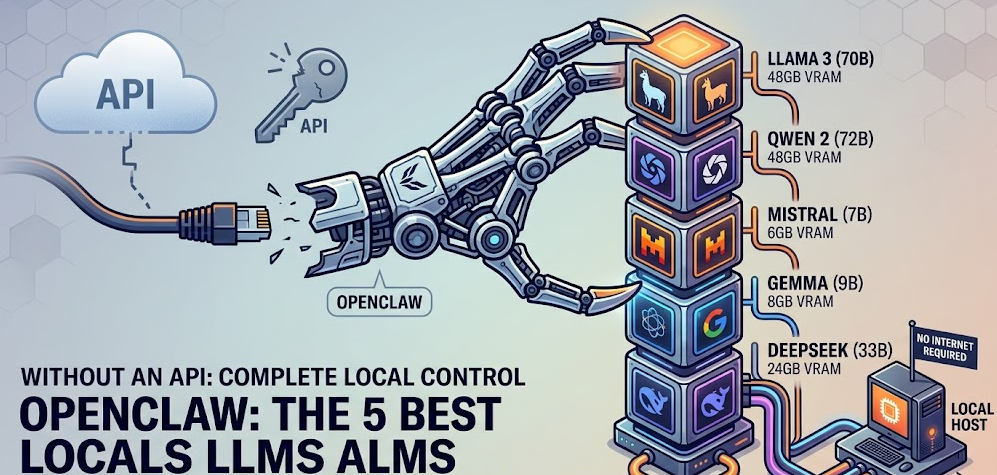
You can run OpenClaw completely free and offline by pairing it with a local LLM served through Ollama or LM Studio instead of a paid cloud API. The five best local models for OpenClaw in 2026 are Llama 4, Qwen2.5-Coder:32B, Mistral 3, DeepSeek-R1:32B, and Command R (35B), each excelling at different tasks within OpenClaw’s agentic workflow. The setup takes roughly 15 to 30 minutes and eliminates API costs entirely.
If you have been using OpenClaw with Claude or GPT-4 through a paid API, you have probably noticed the token costs accumulating, especially on agentic workflows that make dozens of tool calls per task. Every message your assistant reads, every file it processes, every shell command result it interprets goes through the API meter. For repetitive automation tasks, log summarization, JSON cleanup, routing decisions, and the hundreds of small glue operations that make up real agent work, paying per token makes no practical sense.
The alternative is running a local LLM on your own hardware, serving it through Ollama or LM Studio, and pointing OpenClaw at it instead of a cloud provider. Your data never leaves your machine, latency on short tasks is faster than a cloud round-trip, and the cost is literally zero per token once the model weights are downloaded. As documented by Lumadock’s OpenClaw Ollama setup guide, the cost difference compared to cloud APIs is approximately $120 per month versus $0 per month for a typical 200k-tokens-per-day workflow.
This guide covers everything: what OpenClaw is, why local models are the right choice for certain workloads, the five best local models for it in 2026, and the complete step-by-step installation process from scratch.
What Is OpenClaw?
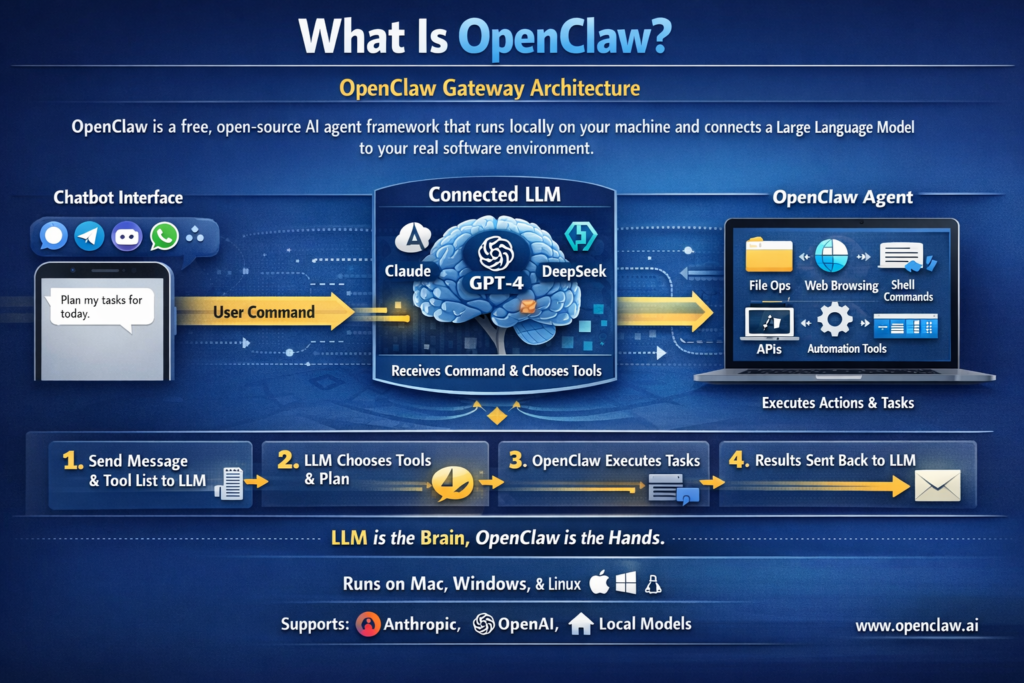
OpenClaw Gateway Architecture
OpenClaw is a free, open-source AI agent framework that runs locally on your machine and connects a large language model to your real software environment. As KDNuggets describes it, it acts as an intermediary between the LLM and your computer, giving the model access to tools it can actually use to get things done. According to the OpenClaw Wikipedia entry, OpenClaw bots run locally and are designed to integrate with an external LLM such as Claude, DeepSeek, or one of OpenAI’s GPT models, and its functionality is accessed through a chatbot within a messaging service such as Signal, Telegram, Discord, or WhatsApp.
When you type a command into your connected chat app, OpenClaw:
- Passes your message to the connected LLM along with a system prompt and available tool list
- The model decides what tools to use and in what order
- OpenClaw executes those tools, which can include reading and writing files, running shell commands, browsing websites, sending emails, controlling APIs, and automating tasks across applications
- Results are fed back to the model, which continues the loop until the task is complete
The key insight is that the LLM is the brain making decisions, and OpenClaw is the hands executing them. This means the quality of your local model directly determines how reliably those multi-step agent loops complete without going off the rails.
OpenClaw’s official website at Openclaw.ai confirms it runs on Mac, Windows, and Linux and supports Anthropic, OpenAI, or local models natively.
Why Run OpenClaw Without an API?
Before jumping into model selection, it is worth being specific about when local models are the right choice for OpenClaw and when they are not.
Local models are the right choice when:
- You run high-volume repetitive tasks where token costs accumulate (cron jobs, log processing, message routing)
- Your agent touches sensitive data: internal documents, customer emails, invoices, private code, credentials
- You need offline operation, for example in a lab environment or on a machine that should not make external API calls
- You want predictable zero-variable cost regardless of how chatty your workflows are
- You are building or testing OpenClaw skills and do not want to pay for every test iteration
Local models are not the right choice when:
- You need complex multi-step planning across many tool calls requiring careful long-form reasoning
- Your task requires very precise output formatting over long text with no deviations
- You are hitting very large context windows that exceed your VRAM headroom
- The task genuinely needs the best possible intelligence and quality matters more than cost
As Lumadock’s guide explains, the practical takeaway is a hybrid setup: let local models handle the cheap, repetitive glue work, and keep a cloud model available via a fallback chain for the tasks that genuinely need it. OpenClaw supports per-agent and per-task model routing natively, so this is not an either-or decision.
Hardware Requirements Before You Start
Your hardware determines which models are actually usable. Running a model too large for your VRAM results in offloading to system RAM, which is dramatically slower and often unusable for agentic real-time work.
| VRAM Available | Usable Models | Notes |
|---|---|---|
| 8GB VRAM | 7B to 8B parameter models (quantized) | Functional but limited; good for light routing tasks |
| 12GB VRAM | 7B to 14B parameter models | The most common entry point; covers most daily automation |
| 16GB to 24GB VRAM | 14B to 35B parameter models | The sweet spot for OpenClaw agentic work |
| 48GB+ VRAM or Apple Silicon (unified memory) | 70B parameter models | Near-cloud-quality performance locally |
| 64GB+ unified memory (Apple Silicon) | 70B+ models comfortably | MacBook Pro M3/M4 Max territory |
Community testing on r/LocalLLM confirms that for OpenClaw specifically, you need models that do not “lose the plot” in an agent loop, which generally means at least a 14B parameter model for reliable multi-step tool use. The r/LocalLLM consensus recommends a 3060 12GB as the minimum GPU for a functional OpenClaw local setup.
Two additional settings that significantly help:
Flash Attention: Set the environment variable OLLAMA_FLASH_ATTENTION=1 before starting Ollama. This reduces VRAM usage as context grows, which matters because agent conversations with tool call history accumulate quickly.
Context Length: Agent tasks benefit from at least 64k tokens of context window. You can set OLLAMA_CONTEXT_LENGTH=65536 (or at minimum 16384) as an environment variable before starting Ollama. Too small a context window causes the agent to become forgetful and erratic mid-task.
The 5 Best Local LLMs for OpenClaw in 2026
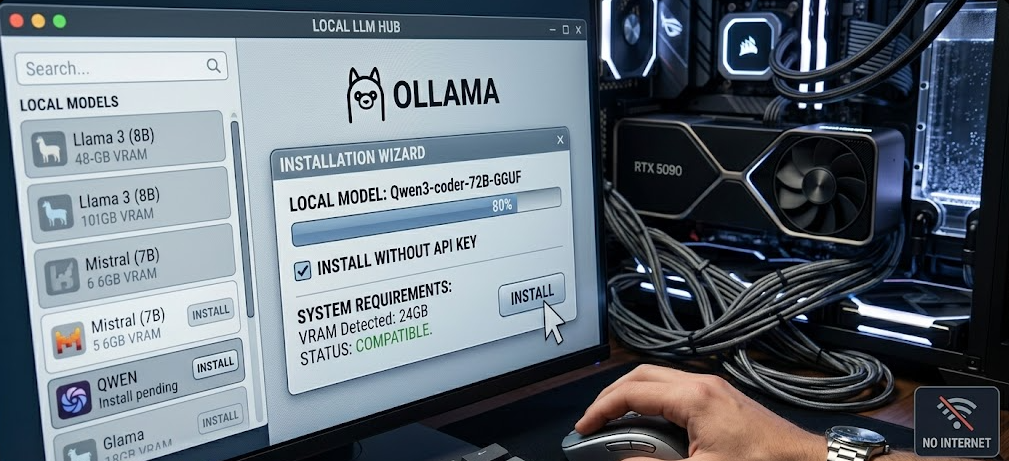
These five models represent the community-tested consensus across Reddit’s r/LocalLLaMA, r/LocalLLM, and r/AI_Agents as of early 2026, specifically evaluated for OpenClaw’s agentic tool-calling workflow rather than raw benchmark performance.
1. Llama 4 (Meta) — Best Overall for Private Local Workflows
Ollama command: ollama pull llama4
Best for: General-purpose OpenClaw tasks, private enterprise workflows, users who want the broadest compatibility and ecosystem support
Minimum VRAM: 16GB (lightweight 8B/14B variant); 48GB+ for larger variants
Llama 4 is Meta’s 2026 open-weight model and has become the default recommendation for local OpenClaw deployments that need reliable, broad-purpose performance. AI For Busy Humans’ 2026 model comparison describes Llama 4 as the best option for private, local, high-control workflows, with strong open-weight multimodal capabilities and the broadest community ecosystem of any open model available. In OpenClaw contexts, Llama 4 handles multi-step tool loops reliably at the lightweight 8B/14B tier, follows system prompt instructions consistently, and maintains coherent agent state across longer task chains better than similarly sized models from earlier generations.
Strengths for OpenClaw: Reliable tool calling, strong instruction following, widely tested with OpenClaw’s TOOLS.md format, excellent community support for troubleshooting
Weaknesses: The smaller lightweight variants can struggle with very complex planning tasks; larger variants require substantial VRAM
Recommended context in Modelfile: 32k to 65k tokens
2. Qwen2.5-Coder:32B (Alibaba) — Best for Code and Technical Workflows
Ollama command: ollama pull qwen2.5-coder:32b
Best for: Code generation, file operations, shell scripting, API automation, developer workflows
Minimum VRAM: 20GB (with quantization); 24GB recommended for smooth operation
Qwen2.5-Coder:32B is consistently the top community recommendation for code-heavy OpenClaw workflows. FlyPix AI’s OpenClaw model guide notes that Qwen 2.5 72B delivers performance close to mid-tier cloud models on many OpenClaw tasks at the 72B tier, and the 32B Coder variant is the practical sweet spot for users with 20 to 24GB VRAM who prioritize development automation. Lumadock’s setup guide explicitly lists qwen2.5-coder:32b as one of the primary recommended pulls for code-heavy workflows and includes it in example configuration files. Community testing shows it handles OpenClaw’s exec, write, and edit tool permissions reliably and follows structured JSON output requirements better than most local models of similar size.
Strengths for OpenClaw: Exceptional at reading and writing code, excellent at parsing and generating structured JSON, reliable with shell command tool calls, strong instruction following on technical tasks
Weaknesses: Less impressive on non-technical tasks like email drafting or general research; heavy VRAM requirement at 32B
Recommended context in Modelfile: 32k to 65k tokens
Recommended custom Modelfile prompt addition:
textUse available tools when needed without asking for permission.
Do not describe the tool call in advance.
Summarize results instead of outputting raw JSON.
3. Mistral 3 (Mistral AI) — Best for Speed, Efficiency, and Automation
Ollama command: ollama pull mistral
Best for: High-frequency automation, message routing, classification tasks, fast responses on limited hardware
Minimum VRAM: 8GB (7B quantized); 12GB for comfortable operation
Mistral 3 is the speed and efficiency champion for OpenClaw workflows that prioritize low latency and high frequency over maximum reasoning depth. AI For Busy Humans describes Mistral 3 as the best option for speed, efficiency, and automation, with excellent cost-to-performance for automation and edge deployments. For OpenClaw, this translates practically to tasks like message routing (is this urgent? is this billing?), classification, short log summaries, and lightweight tool invocations where you need sub-second first-token response times. Mistral 3 also runs comfortably on 8GB VRAM at 7B quantized, making it the most accessible option for users with mid-range hardware who want reliable OpenClaw automation without a GPU upgrade.
Strengths for OpenClaw: Fastest local response times, lowest VRAM requirement of any quality option, reliable for classification and routing, good at format compliance on short outputs
Weaknesses: Noticeably less capable than larger models on multi-step reasoning and complex planning loops; can struggle with tasks that require holding large amounts of context state
Recommended context in Modelfile: 16k to 32k tokens
Best used as: A primary model for lightweight automation agents, or a fast fallback in a model chain where Llama 4 or Qwen2.5-Coder handles the heavy reasoning
4. DeepSeek-R1:32B — Best for Reasoning-Heavy Tasks
Ollama command: ollama pull deepseek-r1:32b
Best for: Complex planning, multi-step reasoning, code debugging, tasks that benefit from chain-of-thought processing
Minimum VRAM: 20GB (with quantization); 24GB recommended
DeepSeek-R1 is the reasoning specialist in this list. It uses an explicit chain-of-thought approach before producing output, which makes it noticeably more reliable on tasks that require working through multiple logical steps before taking an action. For OpenClaw, this means it handles complex planning tasks, debugging workflows, and long task chains better than most same-sized models. Community testing documented on r/LocalLLaMA confirms DeepSeek-R1:70B performs as “a solid model” for OpenClaw, requiring some prompt guidance but delivering thoughtful multi-step execution. The 32B variant runs on more accessible hardware with quantization while retaining most of the reasoning advantage. Till Freitag’s 2026 open-source LLM comparison lists DeepSeek-R1 as one of the top open-weight models specifically for its reasoning architecture.
Strengths for OpenClaw: Best local model for tasks requiring careful planning and multi-step logic, strong at code debugging and analysis, benefits from its reasoning pass before tool invocations
Weaknesses: Slower first-token time due to chain-of-thought reasoning; can be verbose in output; overkill for simple routing or classification tasks; 70B variant requires significant hardware
Important note: DeepSeek-R1 should be configured with reasoning: true in OpenClaw’s provider config. Also set a larger maxTokens value in your config because the model generates reasoning tokens before its final response, which inflates total output token count.
Recommended context in Modelfile: 32k to 65k tokens
5. Command R:35B (Cohere) — Best Balanced Middle Ground
Ollama command: ollama pull command-r
Best for: General everyday OpenClaw tasks, retrieval-augmented workflows, tool calling and function execution, users who want a single model that handles most workflows reliably
Minimum VRAM: ~24GB (with quantization)
Command R is Cohere’s open-weight model that was explicitly designed from the ground up for two things that matter enormously in OpenClaw: retrieval-augmented generation (RAG) and tool use in agentic workflows. While other models on this list are general-purpose models that handle tool calling reasonably well, Command R was architected specifically around the problem of a model reliably calling external functions, interpreting their results, and deciding what to do next. Community discussion on r/LocalLLM consistently highlights Command R as one of the strongest mid-size open-weight options for agentic frameworks precisely because its training explicitly optimized function execution and structured output. In practice, this means it describes tools far less frequently than comparable models and executes them far more reliably on the first attempt, which is the single most important behavioral quality for OpenClaw’s multi-step agent loops.
At 35B parameters with quantization, Command R sits at the practical sweet spot for users with 24GB VRAM: large enough to handle genuinely complex multi-step tasks without hallucinating tool calls, small enough to run comfortably on a single high-end consumer GPU without VRAM-thrashing. Its explicit focus on document grounding and retrieval also makes it the best choice in this list for any OpenClaw workflow that involves reading and synthesizing content from files or fetched web pages before acting on it.
Strengths for OpenClaw: Purpose-built for tool use and function calling, strong at RAG-style document workflows, reliable structured output, excellent at multi-step execution without excessive tool-describing behavior
Weaknesses: Not the strongest at pure code generation compared to Qwen2.5-Coder; the 24GB VRAM requirement makes it inaccessible on mid-range single GPUs below that threshold
Recommended context in Modelfile: 32k to 65k tokens
Recommended custom Modelfile prompt addition:
textUse available tools when needed without asking for permission.
Do not describe the tool call in advance.
Summarize results instead of outputting raw JSON.
Quick Comparison: Which Model for Which OpenClaw Use Case
| Use Case | Recommended Model | Why |
|---|---|---|
| General everyday automation | Command R:35B | Purpose-built for tool use, strong all-rounder |
| Code generation, file editing, shell scripting | Qwen2.5-Coder:32B | Strongest code performance locally |
| Message routing, classification, fast responses | Mistral 3 | Fastest, lightest, runs on 8GB VRAM |
| Complex planning, multi-step logic, debugging | DeepSeek-R1:32B | Explicit reasoning before action |
| Private enterprise, broad compatibility | Llama 4 | Best ecosystem, strong general performance |
| RAG workflows, document retrieval tasks | Command R:35B | Explicitly designed for RAG and grounding |
| Limited hardware (8 to 12GB VRAM) | Mistral 3 | Only quality option at that tier |
| Maximum local quality (48GB+ VRAM) | Llama 4 (70B) or Qwen2.5-Coder:72B | Near-cloud quality fully locally |
Step-by-Step: Complete Installation from Scratch
This section walks through the full process from a clean machine to a working OpenClaw local LLM setup, using Ollama as the model runtime. This is the recommended path for most users.
Part 1: Install Ollama
Ollama is the local LLM runtime that downloads model weights and serves them over HTTP on port 11434. As Pinggy’s 2026 local LLM tool comparison confirms, Ollama has become the go-to solution for running LLMs locally, supporting one-line model downloads, cross-platform operation on Windows, macOS, and Linux, and an OpenAI-compatible API that OpenClaw can connect to natively.
macOS:
Download the official macOS app from ollama.com, unzip it, and drag it to your Applications folder. When you open it, it will install the necessary command-line tools automatically and launch a background service with a menu bar icon. No Homebrew or terminal commands are needed for the initial install.
Linux (Debian or Ubuntu):
bashcurl -fsSL https://ollama.com/install.sh | sh
sudo systemctl enable --now ollama
Windows:
Download and run the Ollama installer from ollama.com. Ollama installs as a background service and is accessible immediately after installation.
Verify Ollama is running:
bashcurl http://localhost:11434/api/tags
If it returns JSON (even an empty list), the server is running correctly.
Part 2: Set the Critical Environment Variables
Before pulling any models, set these two environment variables to ensure Ollama handles agent workloads properly:
macOS / Linux:
bashexport OLLAMA_FLASH_ATTENTION=1
export OLLAMA_CONTEXT_LENGTH=65536
Windows (Command Prompt):
textset OLLAMA_FLASH_ATTENTION=1
set OLLAMA_CONTEXT_LENGTH=65536
For permanent settings on Linux, add these to your systemd environment file. For macOS, add them to your ~/.zshrc or ~/.bashrc.
OLLAMA_FLASH_ATTENTION=1 reduces VRAM usage as context grows, which is critical for agent conversations that accumulate tool call history. OLLAMA_CONTEXT_LENGTH=65536 ensures the model has enough context window for multi-step agentic tasks.
Part 3: Pull Your Chosen Model
Choose one or more models from the list above and pull them using Ollama. Each model downloads once and is stored locally. Pull times depend on your internet connection and model size.
bash
# Option 1: Best balanced middle ground, purpose-built for tool use (recommended starting point)

ollama pull command-r
ollama pull qwen2.5-coder:32b
ollama pull mistral
ollama pull deepseek-r1:32b
ollama pull llama4
Quick smoke test after pulling:
bashollama run command-r "List three things that are red."
If the model responds sensibly, Ollama is working correctly. Any problem at this stage is Ollama configuration, not OpenClaw.
Part 4: Create a Custom Modelfile (Recommended for Better Tool Use)
Local models often describe tools instead of using them, dump raw JSON in responses, and ask permission for every action. A custom Modelfile bakes in better agentic behavior. This step is optional but strongly recommended.
Create a file named openclaw-agent.Modelfile with the following content (replace command-r with your chosen base model):
text
FROM command-r
PARAMETER num_ctx 65536
SYSTEM “””You are a helpful assistant with access to tools.
Tool behavior:
– Use available tools when needed without asking for permission
– Do not describe the tool call in advance
– Summarize results instead of outputting raw JSON
– If required input is missing, ask a direct question
Keep answers short unless the user asks for detail.”””
Build the custom model:
bashollama create openclaw-agent -f openclaw-agent.Modelfile
Verify it appears in your model list:
bashollama list
Part 5: Install OpenClaw
Method A: Official one-command installer (recommended for most users)
bashcurl -fsSL https://openclaw.ai/install.sh | bash
Method B: NPM install (for developers and VPS deployments)
bashnpm install -g openclaw@latest
Verify the installation succeeded:
bashopenclaw --version
You should see a version number such as v2026.x.x. If you see “command not found,” close and reopen your terminal, then try again.
Part 6: Connect OpenClaw to Ollama
You have two main options. Method A is the fastest and recommended for most users. Method B gives you explicit control over every setting and is better for advanced setups.
Method A: Ollama’s built-in OpenClaw launcher (fastest)
Ollama ships a direct OpenClaw integration command that installs and configures the connection automatically:
bashollama launch openclaw
To configure without starting the service:
bashollama launch openclaw --config
This handles everything automatically and is the best starting point.
Method B: Manual OpenClaw configuration for full control
Use this method if Ollama runs on a different machine, you need custom context settings, or you want explicit fallback chains. Edit your OpenClaw config file (located at ~/.openclaw/openclaw.json on Mac and Linux, or C:Usersusername.openclawopenclaw.json on Windows) to include the following:
json{
"models": {
"providers": {
"ollama": {
"baseUrl": "http://127.0.0.1:11434",
"apiKey": "ollama-local",
"api": "ollama",
"models": [
{
"id": "command-r",
"name": "Command R 35B",
"reasoning": false,
"input": ["text"],
"cost": { "input": 0, "output": 0, "cacheRead": 0, "cacheWrite": 0 },
"contextWindow": 8192,
"maxTokens": 65536
}
]
}
}
},
"agents": {
"defaults": {
"model": {
"primary": "ollama/command-r",
"fallbacks": ["ollama/llama4", "ollama/mistral"]
}
}
}
}
Note on the API key field: OpenClaw requires an API key value to be present even though Ollama does not validate it. Any non-empty string works. "ollama-local" is the convention used in OpenClaw’s official Ollama provider documentation.
Note for DeepSeek-R1: If using DeepSeek-R1, add "reasoning": true to its model entry and increase maxTokens significantly (e.g., 131072), because the model generates reasoning tokens before its final response.
Part 7: Configure Tool Permissions
Local models need explicit permission to execute tools. Without this, the model describes what it wants to do rather than doing it. Add the following to your OpenClaw config:
json{
"tools": {
"profile": "coding",
"allow": ["read", "exec", "write", "edit"],
"exec": {
"host": "gateway",
"ask": "off",
"security": "full"
}
}
}
Important: This is a permissive configuration that assumes OpenClaw is running on a dedicated machine you control. If your setup is shared or exposed to a network, review OpenClaw’s security documentation at docs.openclaw.ai/gateway/security and restrict the allow list to only the permissions your workflows actually need.
Part 8: Start the Gateway and Verify
Start the OpenClaw gateway:
bashopenclaw gateway start
Verify everything is connected:
bash# 1. Confirm Ollama is running and models are present
curl http://localhost:11434/api/tags
openclaw models list
openclaw gateway status
Run these three test commands in your connected chat interface (WhatsApp, Telegram, Discord, Signal, or the OpenClaw TUI):
"What time is it?"— Should execute a time lookup tool call and return the current time"List files in the current directory"— Should use the exec tool to runlsordirand return the results"Summarize this JSON:"followed by pasting a small JSON object — Should return a clean plain-English summary
If all three work, your local OpenClaw setup is fully operational.
Setting Up a Hybrid Local + Cloud Fallback (Recommended)
For the most practical setup, keep your local model as the primary for everyday automation but maintain a cloud model as a fallback for tasks the local model genuinely cannot handle. OpenClaw supports this natively through its fallback chain configuration:
json{
"agents": {
"defaults": {
"model": {
"primary": "ollama/command-r",
"fallbacks": [
"ollama/qwen2.5-coder:32b",
"anthropic/claude-sonnet-4-20250514"
]
}
},
"overrides": {
"deep-analysis": {
"model": {
"primary": "anthropic/claude-sonnet-4-20250514"
}
}
}
}
}
This configuration means: use Command R locally for everything by default, fall back to Qwen2.5-Coder:32B for code tasks if the primary struggles, and fall back to Claude Sonnet for anything neither local model can handle. The “deep-analysis” agent override always uses Claude for tasks where you explicitly need maximum reasoning quality. Lumadock’s guide describes this exact pattern as the practical sweet spot: “local models buy you predictable cost” for the 80% of tasks that are routine, while cloud remains available for the 20% that genuinely need it.
Common Problems and Fixes
Problem: OpenClaw can reach Ollama but responses are empty.
Switch to native API mode. Set "api": "ollama" with "baseUrl": "http://127.0.0.1:11434" in your provider config. Avoid the openai-completions API mode for Ollama unless you have a specific reason to use it, as it is the most common cause of empty responses.
Problem: The model “talks about tools” but never actually uses them.
Check your tool permissions configuration. Ensure "ask": "off" is set and that the tool types you need (exec, write, read, edit) are included in the allow array. Also try adding the Modelfile system prompt from Part 4 of the installation guide, which instructs the model to use tools directly without describing them first.
Problem: Models appear in ollama list but not in openclaw models list.
Use explicit provider config (Method B in Part 6) and define the model list manually. This bypasses the auto-discovery mechanism and directly tells OpenClaw which models are available.
Problem: Agent becomes forgetful or erratic mid-task.
Your context window is too small. Increase OLLAMA_CONTEXT_LENGTH to at least 32768 and ideally 65536. Also confirm OLLAMA_FLASH_ATTENTION=1 is set to manage VRAM usage as the context grows.
Problem: Gateway keeps asking for approval even with "ask": "off" configured.
This can happen due to security policy and session state. Restart the gateway with openclaw gateway restart. If it recurs consistently, compare your current config against the security documentation at docs.openclaw.ai/gateway/security.
Problem: DeepSeek-R1 is extremely slow to respond.
This is expected due to its chain-of-thought reasoning pass before generating the final response. It is normal for first-token latency to be several seconds higher than other models. For tasks where you need this model’s reasoning quality, the wait is worth it. For fast routing tasks, use Mistral 3 instead.
Problem: Ollama not detected by OpenClaw at all.
Confirm Ollama is running with curl http://localhost:11434/api/tags. Then confirm the API key value is set: either via export OLLAMA_API_KEY="ollama-local" in your shell, or via openclaw config set models.providers.ollama.apiKey "ollama-local". The key value does not need to be real, it just needs to exist.
Adding a Messaging Channel (Optional but Recommended)
One of OpenClaw’s best features is that you can interact with your local AI agent through your actual daily chat apps rather than a terminal. During or after onboarding, run the wizard to connect a channel:
bashopenclaw onboard --install-daemon
The wizard will ask which messaging platforms you want to connect. Telegram is the fastest and most reliable option for initial setup. WhatsApp, Discord, and Signal are also supported. Once connected, you send messages to a bot in that app and OpenClaw handles them using your local model, with no API calls to any cloud service.
Pro Tip: If you are on Apple Silicon (M2, M3, or M4 MacBook Pro or Mac Mini with 24GB+ unified memory), you are in the best position of anyone for local OpenClaw operation. Apple Silicon uses unified memory shared between the CPU and GPU, which means a MacBook Pro M3 Max with 48GB RAM can comfortably run Llama 4 or Qwen2.5-Coder:32B fully in-memory with fast inference, no dedicated GPU required. Combined with the Mac Mini M4’s excellent price-to-performance ratio for always-on server operation, Apple Silicon machines have become the preferred hardware platform for local OpenClaw deployments that need genuine quality without cloud API costs. For Windows and Linux users, any GPU with 16GB or more VRAM provides a solid foundation for the 14B to 35B model tier that covers most OpenClaw workflows well.
Frequently Asked Questions
Does running OpenClaw locally with Ollama really cost nothing?
Once the model weights are downloaded, yes, inference is completely free. There are no per-token charges, no subscription fees, and no API keys required. The only cost is electricity and the upfront hardware you already own.
Can I switch between local and cloud models without reinstalling OpenClaw?
Yes. OpenClaw’s model routing is entirely configuration-based. You can add a cloud provider API key and switch the primary model in your config at any time. The hybrid fallback setup described in this guide is the recommended approach.
What happens to my data when running OpenClaw locally?
With a local Ollama setup, your prompts, tool outputs, file contents, and conversation history never leave your machine. No data is sent to any external server. This is the primary privacy advantage of local operation compared to cloud API usage.
How do I update Ollama models when newer versions are released?
Run ollama pull modelname again. Ollama checks whether the remote model has changed and downloads only if a newer version is available. Run ollama list to see which models you have and their current versions.
Which model should I start with if I have no idea?
Start with command-r if you have 24GB VRAM, or mistral (7B) if you have 8GB VRAM. Both are well-tested with OpenClaw and will work out of the box with minimal configuration. Once you have the setup working, you can pull additional models and experiment.
Can I run Ollama on a separate machine from OpenClaw?
Yes. Change the baseUrl in your provider config from http://127.0.0.1:11434 to the LAN IP of the machine running Ollama, for example http://192.168.1.50:11434. This is a common pattern where OpenClaw runs on a small always-on server and Ollama runs on a dedicated GPU machine.
Do I need an internet connection to use OpenClaw with local models?
After the initial Ollama and OpenClaw installation and model download, no. The entire stack runs offline once the model weights are on disk. This is one of the key advantages for privacy-sensitive environments.
Why is Command R particularly well-suited for OpenClaw?
Cohere designed Command R from the ground up for two specific capabilities: retrieval-augmented generation and tool use in agentic frameworks. Unlike general-purpose models that handle tool calling as a secondary capability, Command R’s training explicitly optimized function execution and structured output, which are exactly the behaviors that determine how smoothly an OpenClaw agent loop runs. In practice, this means fewer “I will now use the exec tool to…” descriptions and more direct, correct tool invocations on the first attempt.
Bottom Line
Running OpenClaw without an API is not a compromise, it is the right architecture for the majority of what OpenClaw actually does day to day. Repetitive automation, file operations, log processing, message routing, and shell scripting do not need GPT-4. They need a reliable local model with good tool-calling behavior, a fast enough response time, and enough context window to maintain state across a multi-step task. The five models covered here, Llama 4, Qwen2.5-Coder:32B, Mistral 3, DeepSeek-R1:32B, and Command R:35B, cover every tier of that requirement from an 8GB GPU up to a full 48GB Apple Silicon workstation.
This YouTube walkthrough of installing OpenClaw with local models on Windows 11 is an excellent visual companion to the written steps above, covering AMD GPU driver setup, WSL installation, and the full OpenClaw to local model connection process from a completely fresh Windows machine.