
Updating your GPU drivers is one of the most impactful things you can do for your PC’s performance, stability, and gaming experience. The process is straightforward once you know the right steps, but there are a few important things worth knowing before you dive in, including which method actually works best for your specific card and setup.
In this guide, I’ll walk you through every method, from the simplest one-click auto-update to the clean install nuclear option using DDU. Whether you’re on NVIDIA, AMD, or Intel Arc, this guide has you covered for 2026.
What Is a GPU Driver and Why Does It Matter?
A GPU driver is the software that acts as the bridge between your graphics card and your operating system. Without it, your PC would have no idea how to communicate with your GPU effectively. Think of it as the translator that lets Windows and your games actually talk to your graphics hardware.
Keeping your GPU drivers updated means better game performance, access to new features like NVIDIA DLSS 4 or AMD FSR 4, improved stability, and security patches. PCMag’s thorough driver update guide puts it simply: graphics cards receive constant iterative updates, and even within a single card architecture, your GPU can evolve significantly through driver updates alone.
Quick Answer: How Do I Update My GPU Drivers?
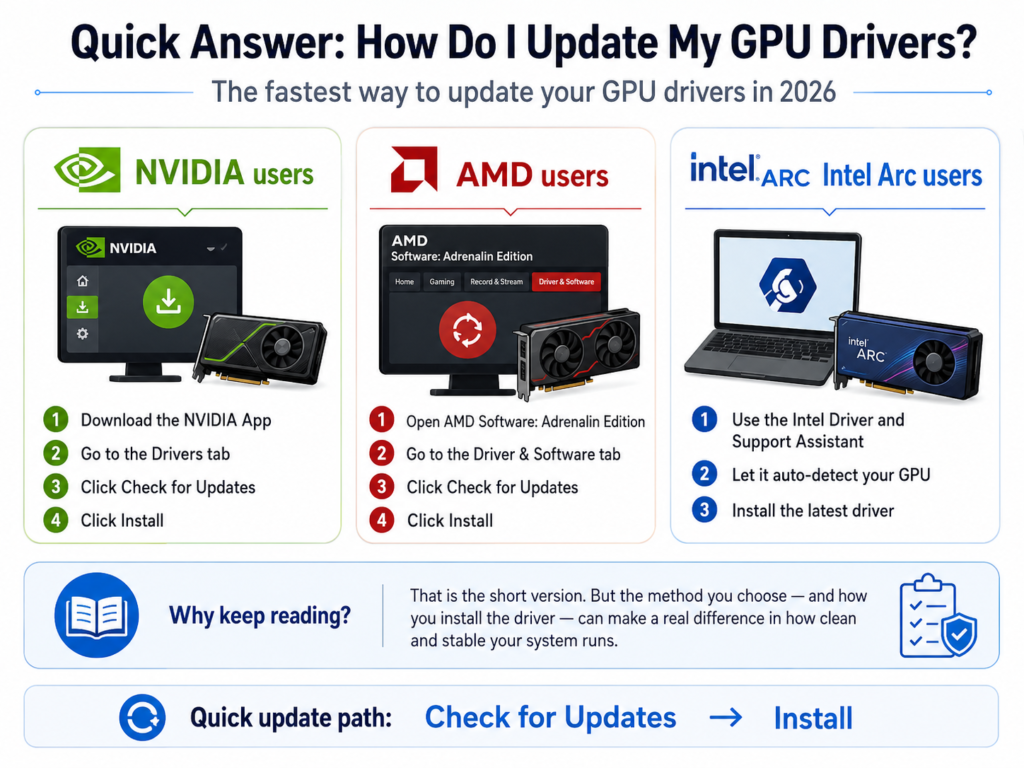
The fastest way to update your GPU drivers in 2026:
-
NVIDIA users: Download the NVIDIA App, go to the Drivers tab, click Check for Updates, then Install.
-
AMD users: Open AMD Software: Adrenalin Edition, go to the Driver & Software tab, click Check for Updates, then Install.
-
Intel Arc users: Use the Intel Driver and Support Assistant to auto-detect and install the latest driver.
That is the short version. But keep reading, because the method you choose and how you install the driver can make a real difference in how clean and stable your system runs.
How to Check Your Current GPU Driver Version
Before updating, it is worth knowing what you currently have installed. Here is how to check it in about 30 seconds.
Step 1: Press Windows + R on your keyboard to open the Run dialog.
Step 2: Type dxdiag and press Enter.
Step 3: When the DirectX Diagnostic Tool opens, click the Display tab.
Step 4: Look under the “Driver” section. You will see the current driver version listed there.
Alternatively, you can right-click your desktop, open your GPU’s control panel (NVIDIA App, AMD Software, or Intel Graphics Command Center), and the current driver version is usually displayed on the home screen.
How to Update NVIDIA GPU Drivers in 2026
NVIDIA made a significant change at the end of 2024 that every NVIDIA user should know about. GeForce Experience has been officially retired and replaced by the NVIDIA App. NVIDIA officially ceased support for GeForce Experience with driver version 566.36, and the new NVIDIA App now serves as the single unified GPU control center, combining the functionality of both GeForce Experience and the old NVIDIA Control Panel.
In my experience using the NVIDIA App since it launched, it is genuinely a much cleaner experience. It is faster, does not require a login to use basic features, and the UI is actually intuitive.
Method 1: Using the NVIDIA App (Recommended)
-
Download and install the NVIDIA App from nvidia.com if you have not already.
-
Open the NVIDIA App.
-
Click on the Drivers tab in the left sidebar.
-
Click Check for Updates (or it may already show an available update).
-
Click Download.
-
Once downloaded, click Install.
-
Choose Express Installation for a standard update or Custom Installation if you want to do a clean install (more on that below).
-
Restart your PC when prompted.
Method 2: Manual Download from NVIDIA’s Website
-
Go to nvidia.com/drivers.
-
Select your GPU series, product, and operating system.
-
Click Search, then Download.
-
Run the downloaded .exe file.
-
Follow the on-screen prompts and choose Express or Custom Install.
-
Restart your PC.
For a great visual walkthrough of the process, check out this Step-by-step NVIDIA driver update video for 2026 which covers both the NVIDIA App method and manual installation clearly.
Game Ready Driver vs Studio Driver: Which Should You Choose?
If you primarily use your PC for gaming, always go with the Game Ready Driver. If you do creative work like video editing or 3D rendering, the Studio Driver is the more stable and reliable choice.
How to Update AMD GPU Drivers in 2026
AMD’s driver software is called AMD Software: Adrenalin Edition, and as of May 2026, the latest version is 26.5.1. AMD has continued to release consistent monthly driver updates, and the Adrenalin software makes the process very smooth.
Method 1: Using AMD Software: Adrenalin Edition (Recommended)
-
If you do not have it installed, download AMD Software: Adrenalin Edition from amd.com/support.
-
Open AMD Software.
-
Click the Settings gear icon in the top right corner.
-
Navigate to the Driver & Software tab.
-
Click Check for Updates.
-
If an update is available, click Download, then Install.
-
Restart your PC when prompted.
Method 2: AMD Auto-Detect and Install Tool
AMD also offers a lightweight auto-detect tool that you can run directly without needing the full Adrenalin software installed. Just visit amd.com/support, click the auto-detect option, and the tool will scan your system and pull the correct driver automatically.
Method 3: Manual Download
-
Go to amd.com/support.
-
Select your GPU product family and model.
-
Choose your operating system.
-
Download the latest driver package.
-
Run the installer and follow the prompts.
Pro Tip: If you are on a laptop, AMD specifically recommends using OEM-provided drivers (from your laptop manufacturer’s website like Dell, HP, or Lenovo) rather than the standard AMD driver package. Generic AMD drivers can sometimes cause compatibility issues on laptops because OEM drivers are customized for the specific hardware configuration of your machine.
How to Update Intel Arc GPU Drivers in 2026
Intel’s Arc GPU lineup has matured significantly by 2026, and driver quality has improved dramatically from the early days. Intel provides two main ways to keep your drivers current.
Method 1: Intel Driver and Support Assistant (Recommended)
-
Download the Intel Driver and Support Assistant from intel.com.
-
Install and run it.
-
It will automatically scan your system and identify available driver updates.
-
Click Download next to the graphics driver update.
-
Install and restart.
Method 2: Manual Download
-
Go to intel.com/arc-drivers.
-
The latest validated driver for Intel Arc A-Series and B-Series, as well as Intel Core Ultra integrated graphics, is available there.
-
Download the appropriate driver for your hardware.
-
Run the installer.
As of April 2026, Intel removed older graphics driver versions (below 32.0.101.6987 for Arc cards) from its Download Center, so you will only find current, optimized drivers available for download.
How to Update GPU Drivers on Windows 11 via Device Manager
This method works for any GPU brand, but it is generally considered the least reliable way to get the very latest driver. Windows Update and Device Manager often lag behind the manufacturer’s own driver releases. That said, it is useful in a pinch.
-
Right-click the Start button and select Device Manager.
-
Expand the Display Adapters section.
-
Right-click your GPU and select Update Driver.
-
Choose Search automatically for updated driver software.
-
Windows will search for and install a driver if one is available.
As Microsoft notes, driver updates through Windows Update are generally recent and stable, but for gaming performance, always prefer the manufacturer’s own software for the absolute latest driver.
The Clean Install Method Using DDU (For Maximum Stability)
This is the method experienced PC users reach for when troubleshooting serious issues like frequent crashes, black screens, stuttering, or major driver conflicts. Display Driver Uninstaller, or DDU, is a free tool that completely wipes every trace of your old GPU driver, including registry entries, folders, and driver store remnants, before you install a fresh one.
While testing different driver workflows over the years, I have found that a DDU clean install almost always resolves stubborn driver-related issues that a normal update install leaves behind. It takes about 10 extra minutes, but it is absolutely worth it if you are having problems.
Step-by-Step: Clean GPU Driver Install with DDU
-
Download DDU from wagnardsoft.com. Also download your new GPU driver installer from NVIDIA, AMD, or Intel’s website and save it locally.
-
Disconnect from the internet (unplug ethernet or disable Wi-Fi) to prevent Windows from auto-installing a driver during the process.
-
Boot into Safe Mode. Go to Settings > System > Recovery > Advanced Startup > Restart Now. Then choose Troubleshoot > Advanced Options > Startup Settings > Restart. Press F4 to boot into Safe Mode.
-
Run DDU once your PC boots into Safe Mode.
-
In the DDU interface, set the device type to GPU and select your GPU brand.
-
Click Clean and Restart (if you are staying with the same GPU) or Clean and Shutdown (if you are swapping hardware).
-
After your PC restarts into normal Windows, install your new driver from the installer you saved in Step 1.
-
Restart once more when the installation is complete.
-
Reconnect to the internet.
GPU Driver Update Methods Compared
Should You Always Update to the Latest GPU Driver?
This is a question I see come up constantly, and the honest answer is: generally yes, but not always blindly on day one. NVIDIA in particular has had instances in 2024 and 2025 where newly released drivers introduced bugs before being patched a week later.
A smart approach for 2026:
-
For gamers: Update when a new Game Ready Driver drops for a title you are actively playing.
-
For stable productivity setups: Wait 3 to 7 days after a new driver releases to let early adopters flag any major bugs in forums before you install.
-
If your system is stable: Do not feel pressured to update every single release. Stability is worth preserving.
-
If you are experiencing issues: Always try a driver update (or even a rollback to a previous version) as your first troubleshooting step.
How to Roll Back a GPU Driver If Something Goes Wrong
Sometimes a new driver introduces new problems. Rolling back is simple.
-
Open Device Manager.
-
Expand Display Adapters and right-click your GPU.
-
Select Properties.
-
Click the Driver tab.
-
Click Roll Back Driver if the option is available.
If Roll Back Driver is greyed out, it means Windows does not have a previous version stored. In that case, use DDU to clean everything and manually install the specific older driver version from the manufacturer’s website.
GPU Driver Update: 2026 Trends to Know
A few things have changed or matured in the GPU driver landscape heading into 2026 that are worth being aware of:
-
NVIDIA App is now fully established. GeForce Experience is gone for good. The NVIDIA App handles everything from driver updates to in-game overlays, performance monitoring, and GPU overclocking in one unified interface.
-
AMD FSR 4 driver support. AMD’s Adrenalin drivers now include full support for FidelityFX Super Resolution 4, which uses machine learning on RDNA 4 GPUs (like the RX 9070 series) for upscaling quality that competes directly with NVIDIA’s DLSS 4.
-
Intel Arc driver maturity. Intel’s Arc driver cadence has become much more reliable in 2026, with consistent monthly updates and noticeably better game compatibility than the early Arc launch days.
-
AI-powered driver features. Both NVIDIA and AMD are now rolling out more AI-driven features directly into their drivers, including frame generation and latency reduction tools that require up-to-date drivers to function.
-
Windows 11 24H2 driver compatibility. Make sure your GPU driver is updated to a version that is explicitly compatible with the Windows 11 24H2 (October 2024) and 25H2 updates to avoid known compatibility conflicts.
20 Frequently Asked Questions About Updating GPU Drivers
1. How often should I update my GPU drivers?
For most users, updating every 4 to 6 weeks is a good rhythm. Gamers who want the best performance for new releases should update whenever a Game Ready or WHQL-certified driver drops for their current games.
2. Will updating GPU drivers improve FPS?
Yes, in many cases it can. New drivers often include game-specific optimizations that can meaningfully improve frame rates, sometimes by 5 to 15% in newly supported titles.
3. Is it safe to update GPU drivers?
Yes, it is generally safe. The worst case scenario in a failed update is needing to roll back or use DDU to clean install. Always save your important work before running any driver installation.
4. Do I need to uninstall old drivers before installing new ones?
For routine updates through the official software (NVIDIA App, AMD Adrenalin), no. The installer handles the update process automatically. For a clean install to fix issues, yes, use DDU.
5. What is DDU and do I need it?
DDU stands for Display Driver Uninstaller. It is a free tool that completely removes all GPU driver files and registry entries. You do not need it for normal updates, but it is the best solution for fixing stubborn driver-related problems.
6. Can updating GPU drivers cause problems?
Occasionally, yes. New driver releases can sometimes introduce bugs. If you experience issues after updating, roll back to the previous driver version.
7. What is the difference between a Game Ready Driver and a Studio Driver?
Game Ready Drivers are optimized for gaming and are updated frequently to support new game releases. Studio Drivers are optimized for content creation applications and prioritize stability over cutting-edge updates.
8. How do I know if my GPU drivers are up to date?
Open the NVIDIA App or AMD Software, go to the Drivers section, and click Check for Updates. If it says your driver is up to date, you are good to go.
9. Do GPU driver updates also update the BIOS or firmware?
No, GPU driver updates are software updates only. GPU BIOS/vBIOS updates are a completely separate process and are rarely needed by regular users.
10. Is GeForce Experience still available in 2026?
No. NVIDIA officially retired GeForce Experience at the end of 2024 and replaced it with the NVIDIA App, which handles all the same functions plus more.
11. Should I use Express Install or Custom Install?
Express Install is fine for most users. Choose Custom Install if you want to do a clean installation (which resets all GPU settings and removes old driver remnants without needing DDU).
12. Can I update GPU drivers without internet access?
Yes. Download the driver installer on another device, transfer it via USB, and run it on the offline PC. This is actually recommended when doing a DDU clean install.
13. Why does Windows Update install a different (older) driver than what I installed?
This is a known Windows behavior. You can prevent Windows from overwriting your driver by going to Group Policy settings or using a tool like “Show or Hide Updates” to block that specific driver update from Windows Update.
14. Are laptop GPU drivers the same as desktop GPU drivers?
Generally, no. Laptop GPU drivers often need to come from your laptop’s OEM (Dell, HP, ASUS, Lenovo, etc.) for full compatibility, though AMD and NVIDIA also offer notebook driver packages on their own sites.
15. What is a WHQL-certified driver?
WHQL stands for Windows Hardware Quality Labs. A WHQL-certified driver has been tested and approved by Microsoft. These are generally more stable than non-WHQL “hotfix” drivers released between major updates.
16. How do I update GPU drivers on Windows 10 vs Windows 11?
The process is identical. The NVIDIA App, AMD Adrenalin, and Intel Driver Support Assistant all work on both Windows 10 and Windows 11.
17. What happens if I install the wrong GPU driver?
If you install an incompatible driver, Windows will either reject it or your display may malfunction. Boot into Safe Mode, use DDU to remove it, and install the correct driver.
18. Does updating GPU drivers delete my games or game settings?
No. GPU driver updates only affect the graphics driver software. Your games, files, and in-game settings are completely unaffected.
19. How do I update GPU drivers for Intel integrated graphics?
Download and run the Intel Driver and Support Assistant from intel.com. It will automatically detect your integrated GPU and install the latest compatible driver.
20. What is the latest NVIDIA driver version in 2026?
NVIDIA releases drivers frequently, sometimes multiple times per month. Always check the NVIDIA App or nvidia.com/drivers for the current latest version, as it changes regularly.
Bottom Line
Keeping your GPU drivers updated is one of the easiest high-impact maintenance tasks you can do for your PC. For most users, the NVIDIA App or AMD Adrenalin Software handle it with just a couple of clicks. If you are having persistent performance issues or crashes, a DDU clean install is almost always the fix. And if you are on Intel Arc in 2026, the driver situation has improved a lot, so do not neglect those updates either.


