The “OpenClaw port 18789 is already in use” error means another process has claimed the port that OpenClaw’s gateway service needs to start, and until that conflict is resolved, your OpenClaw instance cannot launch. The good news is that this is one of the most common and most fixable OpenClaw errors out there, and in most cases it takes less than five minutes to resolve. But before you just kill a process and move on, there are a few things worth understanding so the problem does not come back.
Port 18789 is OpenClaw’s primary gateway port. When another process is already bound to it, OpenClaw fails to start. The fastest fix is to identify and kill the conflicting process using lsof -i :18789 (Mac/Linux) or netstat -ano | findstr :18789 (Windows), then restart OpenClaw. A simple reboot also works in most cases. The most common culprit in 2026 is a leftover legacy ClawdBot process that was not cleanly removed during migration to OpenClaw.
What Is OpenClaw and Why Does Port 18789 Matter?
OpenClaw is a self-hosted, open-source AI agent runtime that runs locally on your machine and connects AI models like Claude or GPT to real-world tasks through messaging platforms like Discord, Telegram, and WhatsApp. As DigitalOcean’s 2026 overview explains, it functions as a long-running Node.js service, essentially acting as a personal AI assistant that stays running in the background and executes tasks on your behalf.
At the heart of everything is the Gateway process, and that gateway binds to port 18789 by default. Every agent connection, every command, every channel communication passes through this port. If something else has claimed it, OpenClaw cannot start, and nothing works.
Here is a quick breakdown of OpenClaw’s full port architecture, because understanding this saves a lot of debugging time:
All of these bind to 127.0.0.1 (loopback) by default, which means they only accept local connections unless you explicitly configure otherwise.
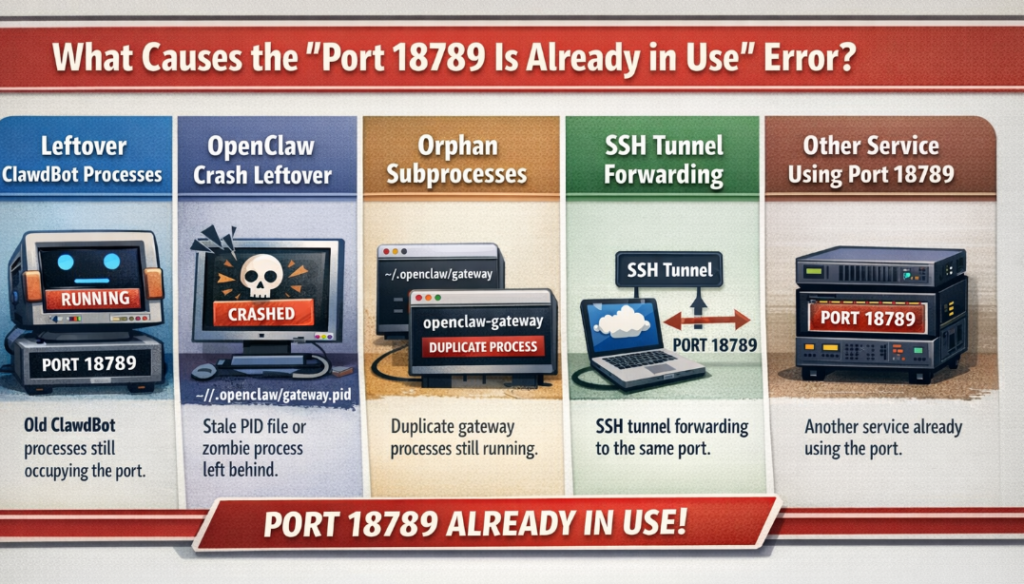
What Causes the “Port 18789 Is Already in Use” Error?
The error itself is straightforward, but what is actually causing it can vary. Based on community reports and the OpenClaw GitHub issues tracker, here are the most common culprits:
1. Leftover ClawdBot processes
This is the number one cause in 2026. OpenClaw was originally known as ClawdBot, and many users who migrated to the rebranded version still have old ClawdBot processes running in the background, occupying port 18789.
2. A previous OpenClaw session that crashed without cleaning up
When OpenClaw crashes ungracefully, it sometimes leaves a zombie process or a stale PID lock file at ~/.openclaw/gateway.pid. A new instance then sees the port as occupied.
3. Duplicate gateway processes from orphan subprocess spawning
A known bug in some OpenClaw versions causes the gateway to spawn a duplicate openclaw-gateway subprocess that persists even after the main service restarts, locking the port.
4. SSH tunnels forwarding to the same port
If you have an active SSH tunnel pointing to port 18789, it will block OpenClaw from binding.
5. Another development service or tool using port 18789
Rare, but it does happen. Any service configured to use this port will cause the conflict.
Pro Tip: Before doing anything else, try running
openclaw doctor --fixfrom your terminal. This automated repair tool catches and fixes roughly 60% of port and configuration issues without you having to manually dig through processes. It is always the smart first step.
How to Fix OpenClaw Port 18789 Already in Use
Step 1: Run the Automated Doctor First
openclaw doctor --fixThis command checks for port conflicts, JSON syntax errors, permission issues, missing directories, and outdated settings. It resolves the majority of issues automatically. If it fixes the problem, you are done. If not, proceed to Step 2.
Step 2: Find the Process Holding Port 18789
On macOS and Linux:
lsof -nP -iTCP:18789 -sTCP:LISTENOr the simpler version:
lsof -i :18789On Linux (alternative):
ss -tlnp | grep 18789On Windows (PowerShell as Administrator):
netstat -ano | findstr :18789This gives you the Process ID (PID). On Windows, take that PID and run:
tasklist /FI "PID eq [YOUR_PID_HERE]"That tells you the name of the process holding the port. Now you know exactly what you are dealing with.
Step 3: Kill the Conflicting Process
Once you have the PID, terminate it:
macOS / Linux:
kill -9 [PID]Windows:
taskkill /F /PID [PID]If the conflicting process is a leftover ClawdBot instance (very common), use this targeted cleanup instead:
pkill -f clawdbotStep 4: Remove Stale PID Lock Files
If OpenClaw previously crashed without a clean shutdown, a stale lock file may be tricking the system into thinking a process is already running. Check for it:
ls ~/.openclaw/gateway.pidIf it exists and no real OpenClaw process is running, delete it:
rm ~/.openclaw/gateway.pidThen try restarting OpenClaw normally.
Step 5: Restart OpenClaw
openclaw gateway restartOr do a full stop-and-start:
openclaw gateway stop

# Wait about 5 seconds

openclaw gateway start
At this point the port conflict should be resolved and OpenClaw should launch cleanly.
The ClawdBot Legacy Problem (Most Common Cause in 2026)
If you recently migrated from ClawdBot to OpenClaw, this section is especially important. As This YouTube walkthrough documents in detail, the old .clawdbot legacy files and service processes do not always get cleaned up during migration, and they will silently hold onto port 18789, sabotaging every new OpenClaw startup.
Here is the full ClawdBot cleanup procedure:
Step 1: Stop the ClawdBot service
systemctl --user stop clawdbot-gateway.serviceStep 2: Kill any remaining processes
pkill -f clawdbotStep 3: Uninstall the package
npm uninstall -g clawdbotStep 4: Remove the old systemd service file (Linux)
rm ~/.config/systemd/user/clawdbot-gateway.service

systemctl --user daemon-reload
Step 5: Verify nothing is left running
ps aux | grep clawdbotIf that last command returns nothing, you are clean. Now restart OpenClaw and the port conflict should be gone for good.
Platform-Specific Fixes
Different operating systems have their own quirks when it comes to port binding and service management. Here is what to watch for on each platform.
macOS
On macOS, OpenClaw registers a launchd job to manage the gateway lifecycle. If this job becomes corrupted or holds a stale reference, it will keep re-launching a process that grabs port 18789 before your clean OpenClaw instance can.
Fix it by unloading and reinstalling the launch agent:
launchctl unload ~/Library/LaunchAgents/com.openclaw.gateway.plist

openclaw gateway install
Also worth checking: if you are switching between Local and Remote connection modes, macOS sometimes hits a race condition where the launchd job does not unload cleanly before an SSH tunnel binds the port. Always unload the launch agent manually before mode-switching.
Linux (systemd)
Check the service status first:
systemctl --user status openclaw-gateway.serviceIf it shows as failed, check the journal for the specific error:
journalctl --user -u openclaw-gateway.service -n 50Common Linux-specific causes include Node.js not being on PATH for the systemd environment, or the HOME environment variable not being passed correctly to the service, which causes OpenClaw to look for its config in the wrong place.
A minimal correct systemd unit file looks like this:
[Service]

Type=simple

User=youruser

Environment=HOME=/home/youruser

ExecStart=/home/youruser/.npm-global/bin/openclaw gateway run

Restart=on-failure
After editing the unit file, reload and restart:
systemctl --user daemon-reload

systemctl --user restart openclaw-gateway.service
Windows
On Windows, OpenClaw runs as a scheduled task rather than a traditional service. Check its status with:
schtasks /Query /TN "OpenClaw Gateway" /VIf the task is failing, it is usually due to a permission change or an update that moved the executable path. Re-register the task by running this in an elevated (Administrator) PowerShell:
openclaw gateway installWindows Defender Firewall can also quietly block loopback connections on port 18789 even when the port shows as listening. If OpenClaw starts but the app still reports it as unavailable, add a firewall exception:
New-NetFirewallRule -DisplayName "OpenClaw" -Direction Inbound -LocalPort 18789 -Protocol TCP -Action AllowWhat If Killing the Process Does Not Work?

In some cases, even after killing the conflicting process, the port appears stuck. This is the TIME_WAIT state, where the OS holds the port briefly after a connection closes. It typically lasts 30 to 60 seconds.
Wait about a minute, then try again:
lsof -i :18789If the port is now free, restart OpenClaw normally. Stack Junkie’s OpenClaw troubleshooting guide also recommends a full reboot as a reliable reset in stubborn cases, since the new service simply needs to grab the port first on a fresh start.
How to Change OpenClaw’s Default Port (If Needed)
If you genuinely cannot free up port 18789 because another critical service needs it, you can configure OpenClaw to use a different port entirely:
openclaw config set gateway.port 3001Or edit ~/.openclaw/config.json and update the gateway.port value. After saving:
openclaw gateway restartMake sure you also update any agent configurations or client tools that connect to OpenClaw, since they will need to point to the new port.
Troubleshooting Table: Causes and Fixes at a Glance
Checking OpenClaw Gateway Health
Once the conflict is resolved and OpenClaw is running, run these commands to confirm everything is healthy:
# Check overall status

openclaw status --allopenclaw doctor
openclaw gateway status
A healthy output shows Runtime: running, your channels connected, and no pending errors. If openclaw status --all shows the gateway running but something still feels off, check the logs:
macOS:
cat ~/.openclaw/logs/gateway.logLinux:
journalctl --user -u openclaw-gateway.service -n 200 --no-pagerTemporary logs (all platforms):
cat /tmp/openclaw/openclaw-YYYY-MM-DD.logHow to Prevent This Error From Happening Again
A little maintenance goes a long way. Here is what I recommend based on keeping OpenClaw stable over longer periods:
-
Always stop OpenClaw cleanly before rebooting. Run
openclaw gateway stopbefore shutting down your machine. Clean shutdowns dramatically reduce the frequency of post-reboot port conflicts. -
Run
openclaw doctorafter every update. OpenClaw updates sometimes rename config keys. Running the doctor immediately after upgrading catches any compatibility issues before they cause problems. -
Set up a health check script. Running
openclaw status --allin a short automated script or cron job lets you catch issues before they cause downtime. -
Back up your config before making changes. Copy
~/.openclaw/config.jsonbefore editing settings. Recovery is much faster when you have a known good backup. -
Do not edit
jobs.jsonorgateway.pidwhile the Gateway is running. Changes made to these files while the service is live can get overwritten or cause state corruption.
Frequently Asked Questions
What is OpenClaw port 18789 used for?
Port 18789 is OpenClaw’s primary gateway port. It handles all WebSocket and HTTP connections from AI agents like Claude Code and Cursor, routes requests to other services, manages authentication, and hosts the Control UI when enabled. If this port is unavailable, no part of OpenClaw can function.
Why does the error keep coming back after I restart?
If the error reappears on every restart, the most likely cause is a ClawdBot legacy process or service that automatically starts up and reclaims the port before OpenClaw can. Follow the full ClawdBot cleanup steps in this guide to remove it permanently.
Can I run OpenClaw on a different port?
Yes. Run openclaw config set gateway.port <new_port> to assign a custom port, then restart the gateway. Just make sure any agent or client tools that connect to OpenClaw are updated to use the new port.
Is a simple reboot enough to fix this?
Often yes. A reboot clears zombie processes, TIME_WAIT states, and stale lock files in one shot. It is a perfectly valid quick fix. The important thing is to identify why the conflict happened in the first place so it does not repeat.
Does OpenClaw work on Windows?
Yes, OpenClaw runs on Windows, macOS, and Linux. Windows has some unique considerations around firewall rules and scheduled task management, but the core port conflict troubleshooting steps are the same across all platforms.
What is the difference between “connection refused” and “port already in use”?
“Port already in use” means something else has claimed the port and OpenClaw cannot bind to it on startup. “Connection refused” means nothing is listening on the port at all, usually because OpenClaw is not running. They require different fixes: the first requires freeing the port, the second requires starting the service.
What if openclaw doctor --fix does not solve it?
Work through the manual steps in this guide: find the conflicting process with lsof or netstat, kill it, remove any stale PID files, and restart. If the issue persists, check the gateway logs for a more specific error message.
Bottom Line
The “OpenClaw port 18789 is already in use” error looks alarming but is almost always a quick fix. In 2026, the most common cause is a lingering ClawdBot process left over from migration, and a targeted cleanup resolves it permanently. For everything else, openclaw doctor --fix combined with a port check using lsof covers the vast majority of cases. The key is not just fixing it once, but understanding what caused it so you can prevent it from disrupting your workflow again.