Hardware Accelerated GPU Scheduling (HAGS) is a Windows feature that allows your GPU to take direct control of its own memory management and task scheduling, instead of relying on your CPU to handle those jobs. In theory, this reduces CPU overhead, lowers input latency, and delivers smoother frame rates. But whether it actually helps your system depends on your hardware and use case, and there are some important trade-offs to understand before enabling it.
If you have spent any time digging through Windows display settings or following PC optimization guides online, you have probably come across a toggle labeled “Hardware Accelerated GPU Scheduling.” It sounds like the kind of thing you should definitely turn on, right? More hardware acceleration equals better performance, so the logic seems obvious.
But here is the thing: it is not that simple. After years of covering PC hardware and watching this feature evolve since its launch, I can tell you that HAGS is one of those settings where the real-world results depend heavily on your specific setup. It can genuinely help in some cases, and in others it can quietly hurt your performance or introduce instability you might not even trace back to this setting.
There is also one scenario in 2026 where HAGS is not optional at all, and that is if you own an NVIDIA RTX 4000 or RTX 5000 series GPU and want to use DLSS Frame Generation. More on that shortly, because it changes the conversation entirely for a lot of users.
This guide breaks down everything you need to know about Hardware Accelerated GPU Scheduling in plain language, including how it works, when to enable it, and what to expect in 2026 with modern GPUs and driver support.
How Traditional GPU Scheduling Works
To understand what HAGS does, you first need to understand what happens without it. In a standard Windows PC, the CPU and GPU are constantly communicating. When you are running a game or a graphics-intensive application, the CPU is responsible for queuing up frame data, managing task priorities, and then sending instructions to the GPU to render each frame.
The CPU uses what is called a high-priority scheduling thread to manage this entire process. That thread decides what gets sent to the GPU and when, essentially acting as a traffic controller for your graphics pipeline. This works, but it introduces latency because every frame has to pass through the CPU’s scheduling queue before the GPU ever sees it. The CPU has to schedule the frame, prioritize it, package it, and then hand it off to the GPU.
As Microsoft’s DirectX Developer Blog explains, this traditional model means the GPU is always waiting on the CPU to organize and hand off work, which creates a bottleneck, particularly in CPU-limited scenarios where the processor is already stretched thin.
What Is Hardware Accelerated GPU Scheduling?
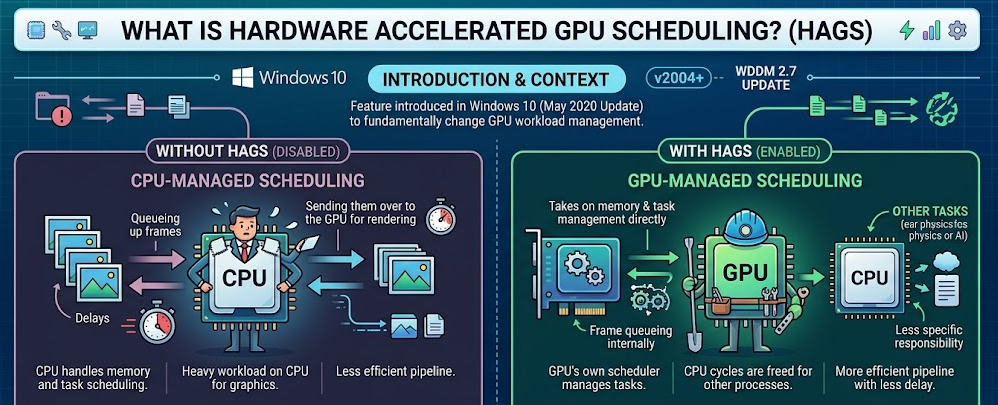
Hardware Accelerated GPU Scheduling, often abbreviated as HAGS, is a feature introduced in Windows 10 version 2004 (May 2020 Update) as part of the Windows Display Driver Model (WDDM) 2.7 update. It fundamentally changes who is in charge of the GPU’s workload.
With HAGS enabled, the GPU takes on the job of managing its own memory and task scheduling directly. Instead of the CPU queuing up frames and sending them over to the GPU for rendering, the GPU’s own dedicated scheduler handles that process internally. The CPU steps back from this specific responsibility, freeing up its cycles for other tasks.
In practical terms, this is like the difference between a manager who micromanages every small task their team does, versus one who delegates and trusts their team to self-organize. The result, when it works well, is a more efficient pipeline with less back-and-forth delay between the CPU and GPU.
How HAGS Works: A Step-by-Step Breakdown

Step 1: Frame Data is Generated
The game engine or application generates frame data on the CPU, including geometry, physics, and game logic calculations.
Step 2: Traditional Path (Without HAGS)
The CPU’s high-priority scheduling thread organizes this data, assigns priority levels, queues it up, and then sends it to the GPU for rendering. The GPU waits for CPU instructions before executing.
Step 3: HAGS Path (With HAGS Enabled)
The GPU’s dedicated hardware scheduler receives the workload directly. It manages its own VRAM allocation, task prioritization, and execution queue without waiting for the CPU to handle those steps. The GPU essentially becomes self-directing for scheduling purposes.
Step 4: Frame Delivery
With HAGS, because the GPU is managing its own queue, it can process and deliver frames with less round-trip delay between the CPU and GPU. This is where the latency reduction comes from.
Step 5: CPU Overhead Reduction
Because the CPU no longer needs to run that high-priority scheduling thread at the same intensity, it frees up compute resources that can be used for game logic, AI calculations, or other background tasks.
HAGS On vs. Off: The Full Comparison
The Real Benefits of Hardware Accelerated GPU Scheduling
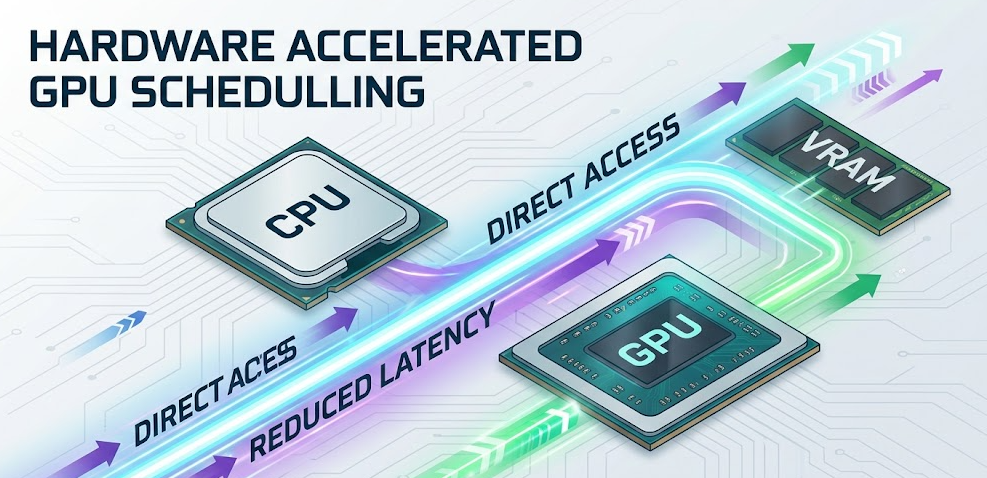
When HAGS works as intended, the benefits are genuine, even if they are often modest rather than dramatic. Here is what you can realistically expect:
Reduced CPU Overhead
This is the most consistent benefit. By offloading scheduling tasks from the CPU to the GPU’s dedicated scheduler, HAGS reduces the CPU’s workload during graphics-intensive tasks. If you are running a CPU-limited system, where the processor is already near its limit, this can actually translate into a meaningful performance improvement.
Lower Input Latency
HAGS can reduce the delay between a GPU scheduling decision and the actual rendering of a frame, which translates to lower input-to-display latency. For competitive gamers where milliseconds genuinely matter, this is one of the more appealing theoretical benefits.
Smoother Frame Pacing
Because the GPU is managing its own work queue without waiting for CPU handoffs, frame pacing can become more consistent. This means fewer micro-stutters, even if raw FPS numbers do not change dramatically.
Freed CPU Resources
With the CPU no longer running a high-priority GPU scheduling thread at full intensity, those freed cycles can go toward other processes. In games with heavy CPU loads like open-world titles or simulation games, this can create a more balanced system.
Better Battery Life on Laptops
This is an often overlooked benefit. On laptops, reducing CPU overhead during GPU-intensive tasks can lead to more efficient power usage, meaning slightly better battery life during gaming or creative work sessions.
The Drawbacks: When HAGS Can Hurt Your System
Here is where things get nuanced, and honestly, this is the part most quick-fix guides skip over.
Driver and Hardware Compatibility Issues
HAGS does not play nicely with all hardware and driver combinations. Older GPU drivers, certain GPU models, and specific software configurations can experience crashes, black screens, or performance drops when HAGS is enabled. In my experience reviewing systems across different GPU generations, this is most common when drivers are not fully up to date.
Potential FPS Drops in Some Workloads
As PCWorld’s testing on Windows 11 systems highlights, HAGS does not universally improve performance. Some users actually see lower frame rates, particularly on NVIDIA GPUs in specific rendering tasks. The gains, when they exist, tend to be in the range of 1 to 5 percent rather than massive jumps.
The 8GB VRAM Trap
This is a critical warning that does not get enough attention. If your GPU has 8GB of VRAM or less, such as the RTX 4060 or RTX 4060 Ti, you need to be especially careful with HAGS at higher resolutions. When you hand the GPU full control of its own memory scheduling but it does not have enough physical VRAM to hold all scene assets, the self-management pipeline can choke badly. The result is severe stuttering, texture pop-in, and frame time spikes that can make games feel unplayable. This is most likely to occur at 1440p or 4K with modern titles that push VRAM usage aggressively. If you are on an 8GB card, test your specific games carefully before committing to HAGS at higher resolutions.
Video Editing and Encoding Complications
Some video production workflows, particularly those involving GPU-accelerated denoising or certain codec rendering pipelines, can actually run slower with HAGS enabled. The GPU’s self-managed scheduling can sometimes create synchronization conflicts with software that expects the CPU to be in control of task ordering.
Streaming and Capture Software Conflicts
OBS Studio has historically flagged HAGS as a potential source of capture issues and frame drops when streaming. If you are a streamer or content creator running GPU-intensive capture alongside your game, this is worth keeping in mind.
Is HAGS Good for Gaming?
For gaming, HAGS is generally a net positive on modern hardware, but the performance gains are often smaller than you might hope. On a high-end system with a current-generation GPU (like the RTX 4000 or 5000 series, or AMD’s RX 7000 or 9000 series) and updated drivers, enabling HAGS is unlikely to cause problems and may provide a small, consistent improvement in latency and frame pacing.
Where HAGS makes a more noticeable difference is in CPU-limited gaming scenarios. If you are running a mid-range CPU paired with a powerful GPU and playing CPU-heavy games, HAGS can genuinely take some pressure off the processor and smooth out performance. On the other hand, if you are GPU-limited, meaning the GPU is already the clear bottleneck, HAGS does not really change your ceiling.
This in-depth performance breakdown on YouTube tests HAGS On versus Off across multiple real game titles and benchmarks, and it is well worth a watch if you want to see raw numbers before deciding.
Competitive gamers playing titles like Valorant, CS2, or Apex Legends at high frame rates tend to report the most consistent benefits, where even a small reduction in input latency is perceptible and valuable.
HAGS for Video Editing and 3D Rendering
For creative professionals, the answer is more cautious. HAGS can help in some 3D rendering workflows where the GPU is managing complex scene data and benefits from self-directed task management. Users working in real-time rendering engines like Unreal Engine 5 or GPU-accelerated 3D applications have reported smoother viewport performance with HAGS enabled.
However, for video editing workflows, particularly in Adobe Premiere, DaVinci Resolve, or applications using GPU-accelerated effects and denoising, the results are inconsistent. Some editors report no change, while others see slowdowns, particularly in export times. The safest approach for professional creative work is to benchmark your specific workflow with HAGS on and off before committing to either setting.
Hardware and Software Requirements for HAGS
Not every system can run Hardware Accelerated GPU Scheduling. Here is exactly what you need:
Operating System: Windows 10 version 2004 (May 2020 Update) or later, including all versions of Windows 11.
GPU Requirements:
-
NVIDIA: GeForce GTX 1000 series (Pascal) or newer
-
AMD: Radeon RX 6000 series (RDNA 2) or newer. While the RX 5000 series (RDNA 1) was briefly tested with HAGS in early beta drivers back in 2020, AMD never delivered stable, official support for that generation. Modern AMD drivers do not expose the HAGS toggle for RDNA 1 hardware, so RX 5700 XT owners should not expect to find this option.
-
Intel: Arc series GPUs (fully supported)
Driver Requirements: Your GPU driver must support WDDM 2.7 or later. As of 2026, any driver released in the past two to three years for a supported GPU will meet this requirement.
System RAM: No specific requirement, but systems with adequate RAM (16GB or more) will generally benefit more from HAGS because the GPU can manage VRAM more efficiently without system memory bottlenecks.
VRAM Consideration: This is important. If your GPU has 8GB of VRAM or less, HAGS can introduce significant stuttering at 1440p or 4K resolutions. When the GPU self-manages its memory but runs short on physical VRAM, the scheduling pipeline struggles badly. This is not a theoretical risk; it is a documented and widely reported issue on cards like the RTX 4060 and RTX 4060 Ti when pushed at higher resolutions.
How to Enable or Disable HAGS in Windows 11

Enabling or disabling HAGS takes less than two minutes. Here is exactly how to do it:
Step 1: Click the Start button and open Settings (the gear icon).
Step 2: Navigate to System, then click on Display.
Step 3: Scroll down and click on Graphics (under the Related Settings section).
Step 4: Click on Change default graphics settings at the top of the page.
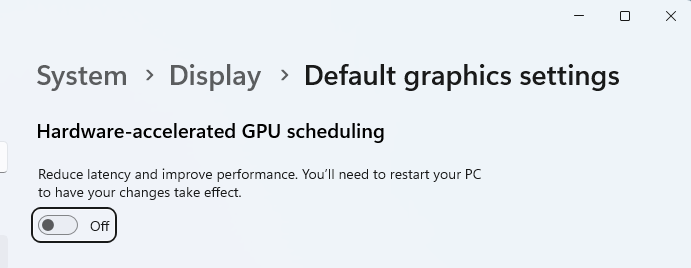
Step 5: You will see a toggle labeled Hardware-accelerated GPU scheduling. Click the toggle to turn it On or Off.
Step 6: Restart your computer. The change does not take effect until after a full restart.
If the toggle is greyed out or not visible, it means your GPU or driver does not meet the requirements for HAGS, or your Windows version is too old.
Pro Tip: Before enabling HAGS, make sure your GPU drivers are fully up to date. Seriously, do this first. A huge portion of the crashes and instability reports tied to HAGS come down to outdated drivers rather than the feature itself. Head to GeForce Experience, AMD Adrenalin, or Intel Arc Control and grab the latest driver before flipping that switch. It takes five minutes and can save you hours of troubleshooting.
HAGS in 2026: The DLSS Frame Generation Requirement
When HAGS launched in 2020, driver support was patchy and results were inconsistent enough that most experts recommended leaving it off. By 2023 and 2024, it had matured considerably, with NVIDIA and AMD both significantly improving their WDDM 2.7+ driver support.
In 2026, there is one development that has made HAGS non-negotiable for a large portion of NVIDIA users: DLSS Frame Generation. NVIDIA’s Frame Generation technology, introduced with DLSS 3 on RTX 4000 series cards and carried forward with DLSS 4 on the RTX 5000 series, will not activate in any game unless HAGS is enabled in Windows. This is not a soft recommendation or a performance suggestion. It is a hard technical requirement enforced at the driver level. If you own an RTX 4070, RTX 4080, RTX 5090, or any other RTX 40 or 50 series GPU and you want DLSS Frame Generation to work, HAGS must be on, full stop.
This single fact is arguably the biggest reason most RTX 40 and 50 series owners are using HAGS today, even people who would otherwise prefer to leave it off. It is worth being direct about: if you bought a high-end NVIDIA card and paid a premium for Frame Generation performance, disabling HAGS means that feature is completely off the table.
As iRendering’s comprehensive 2025-2026 analysis notes, users running GPU-intensive workflows like 3D rendering or real-time game engines also consistently report reduced CPU load and smoother performance with HAGS enabled, which is a meaningful additional win for high-demand creative work.
The broader 2026 trend reinforcing HAGS adoption is the explosion of AI-driven GPU workloads. With NVIDIA DLSS 4 Multi Frame Generation, AMD FSR 4, and integrated AI upscaling becoming mainstream across virtually every major game release, the GPU is now managing exponentially more varied and complex workloads than it did in 2020. HAGS becomes increasingly valuable in this environment because it allows the GPU to self-manage these heavier, more dynamic workloads without being bottlenecked by CPU task handoffs.
Who Should Enable HAGS (And Who Should Not)
Enable HAGS if you:
-
Have a modern GPU (RTX 3000 series or newer, RX 6000 series or newer, or Intel Arc)
-
Are running fully updated GPU drivers
-
Play competitive games where low latency matters
-
Own an NVIDIA RTX 4000 or 5000 series card and want to use DLSS Frame Generation (HAGS must be enabled for this to work, without exception)
-
Use a CPU-heavy game alongside a powerful GPU
-
Are doing real-time 3D rendering or viewport work
Consider leaving HAGS off if you:
-
Are using video editing or denoising workflows that depend on GPU acceleration
-
Are streaming with OBS and experiencing capture issues
-
Have an older GPU with aging driver support
-
Have noticed system instability after enabling it (crashes, black screens)
-
Are running a GPU-limited scenario where the GPU is already the clear bottleneck
-
Are gaming on a graphics card with 8GB of VRAM or less at higher resolutions (HAGS can cause severe stuttering when VRAM maxes out, particularly at 1440p and 4K)
Frequently Asked Questions
What does Hardware Accelerated GPU Scheduling actually do?
It moves the responsibility for GPU memory management and task scheduling from your CPU to a dedicated hardware scheduler built into your GPU. This reduces CPU overhead and can lower input latency and improve frame pacing in supported hardware and software configurations.
Does HAGS increase FPS?
It can, but the gains are typically modest, usually between 1 and 5 percent in most gaming scenarios. The bigger benefit tends to be reduced input latency and smoother frame pacing rather than raw FPS jumps. CPU-limited systems tend to see more noticeable improvements than GPU-limited ones.
Is HAGS required for DLSS Frame Generation?
Yes, absolutely. NVIDIA DLSS Frame Generation (available on RTX 4000 and 5000 series GPUs) requires HAGS to be enabled in Windows with no exceptions. If HAGS is off, DLSS Frame Generation will not activate in any game, regardless of your settings inside the game or the NVIDIA app. This applies to both DLSS 3 and DLSS 4.
Should I turn on Hardware Accelerated GPU Scheduling in Windows 11?
For most users with a modern GPU and up-to-date drivers, yes. It is worth enabling as a default in 2026, and it is mandatory if you want DLSS Frame Generation on an RTX 40 or 50 series card. However, if you are a video editor, content creator, or streamer, benchmark your specific workflow first because HAGS can occasionally reduce performance in those use cases.
Does HAGS cause stuttering?
It can in some cases. Stuttering tied to HAGS is most commonly reported on older GPU models, outdated drivers, or on GPUs with 8GB of VRAM or less when pushed to higher resolutions. If you experience new stuttering after enabling HAGS, checking your VRAM usage and updating your drivers are the first two troubleshooting steps.
Does Hardware Accelerated GPU Scheduling work with NVIDIA GPUs?
Yes. NVIDIA GTX 1000 series and newer GPUs support HAGS. NVIDIA’s driver support has improved significantly since 2022, and on RTX 3000, 4000, and 5000 series cards with current drivers, it generally works well and is required for Frame Generation.
Does HAGS work with AMD GPUs?
Yes, but only from the RX 6000 series (RDNA 2) onward. AMD never officially released stable HAGS support for the RX 5000 series (RDNA 1), so modern Adrenalin drivers do not expose the toggle for that generation. If you have an RX 6600 or newer, you are fully supported.
Does enabling HAGS affect CPU temperature?
Not directly, but because HAGS reduces the CPU’s scheduling workload during GPU-heavy tasks, you may see a modest reduction in CPU temperature and power draw under graphics-intensive loads.
Is Hardware Accelerated GPU Scheduling the same as GPU acceleration?
No, they are related but different. GPU acceleration broadly refers to offloading any computational task from the CPU to the GPU. HAGS specifically refers to the GPU taking control of its own scheduling and memory management within the Windows Display Driver Model. HAGS is a subset of the larger concept of GPU acceleration.
Does HAGS help with VR gaming?
It can. VR is particularly sensitive to input latency and frame timing consistency, both of which HAGS can improve when working correctly. Users on Meta, SteamVR, and Windows Mixed Reality have reported smoother experiences with HAGS enabled on modern hardware.
Will HAGS work on a laptop?
Yes, as long as your laptop has a supported dedicated GPU and you are running the required version of Windows. Laptops with NVIDIA or AMD discrete GPUs from 2021 onward that meet the RDNA 2 or GTX 1000 series threshold should support HAGS, and you may also benefit from added efficiency and battery life improvement.
Bottom Line
Hardware Accelerated GPU Scheduling is a mature and genuinely useful feature in 2026, and for RTX 4000 and 5000 series owners it is no longer optional if you want DLSS Frame Generation. For everyone else with a modern, supported GPU and updated drivers, it is a low-risk optimization worth enabling. Just update your drivers first, be mindful of the VRAM ceiling if you are on an 8GB card, and if you run video editing or streaming workflows, take a few minutes to benchmark both settings rather than assuming HAGS will automatically help across the board.