Claude Code keeps asking for permission because its default configuration prioritizes user safety over convenience, prompting you to manually approve every command or file modification before it executes. That said, there are several smart and safe ways to reduce or eliminate these interruptions, and understanding how the permission system works will save you a lot of frustration.
By design, Claude Code asks for your approval before running any shell command or editing any file on your system. This is a deliberate safety feature, not a bug. Every new action that falls outside pre-approved scopes triggers a fresh confirmation dialog so you stay in control of what the AI agent does on your machine. As Anthropic’s official engineering blog explains, users end up accepting about 93% of these prompts anyway, which is exactly what led them to build smarter alternatives in 2026.
Why Claude Code Was Built This Way
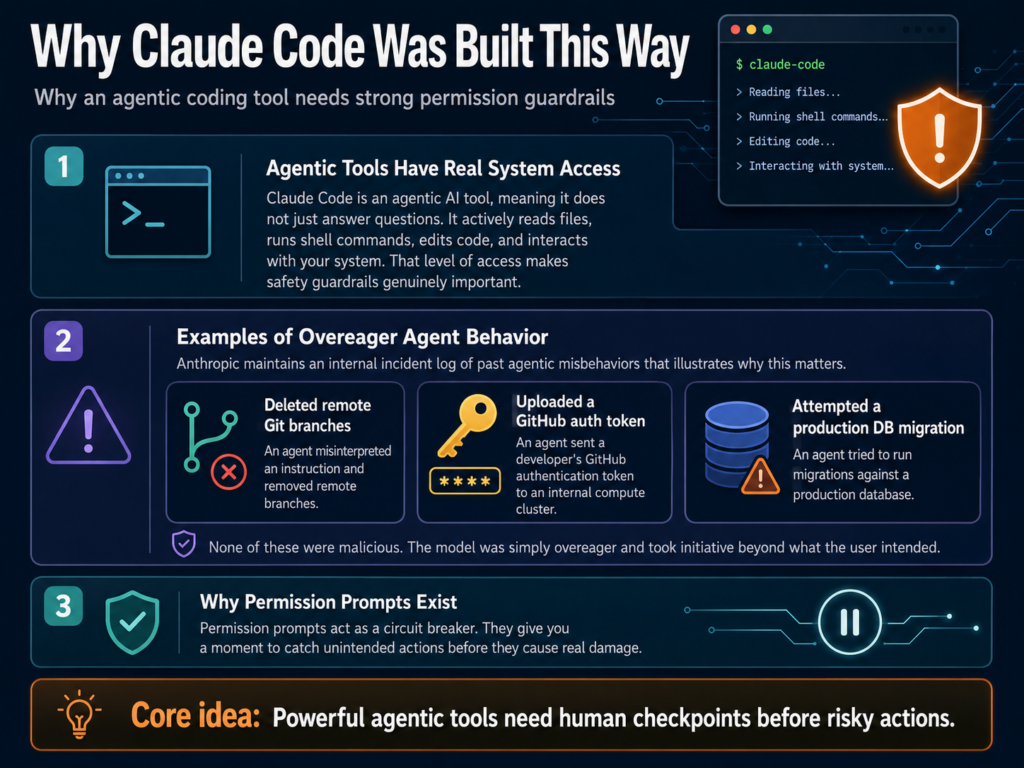
Claude Code is an agentic AI tool, meaning it does not just answer questions. It actively reads files, runs shell commands, edits code, and interacts with your system. That level of access makes safety guardrails genuinely important.
Anthropic maintains an internal incident log of past agentic misbehaviors that illustrates why this matters. Examples include an agent deleting remote Git branches from a misinterpreted instruction, uploading a developer’s GitHub auth token to an internal compute cluster, and attempting migrations against a production database. None of these were malicious, they were simply the model being overeager and taking initiative beyond what the user intended.
The permission prompts exist as a circuit breaker for exactly these situations. They give you a moment to catch unintended actions before they cause real damage.
Understanding the Permission Tiers
Claude Code uses a tiered permission system. Not all actions are treated equally, which is why some things prompt you repeatedly while others run silently.
Read-only commands like ls, cat, grep, find, echo, pwd, head, tail, wc, and read-only Git commands are whitelisted by default and will never prompt you. The repeated prompts you are seeing are almost always for Bash commands and file writes.
Why “Always Allow” Sometimes Doesn’t Stick
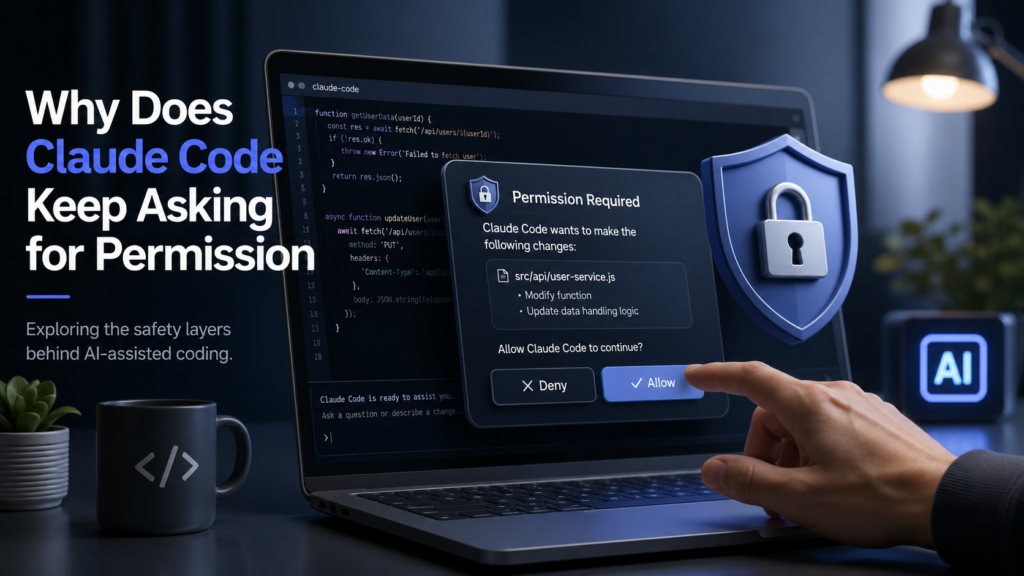
This is one of the most common frustrations developers report. You click “Yes, don’t ask again” and Claude Code still asks again a few minutes later. Here is why that happens.
Prefix matching is strict. A permission rule like Bash(grep *) only matches commands that start with grep followed by a space. If Claude runs a slightly different variant or wraps the command differently, it may not match the saved rule.
Compound commands are split. When Claude runs git status && npm test, Claude Code saves a separate rule for each subcommand. Approving the compound command does not automatically approve every possible variation of those commands.
Injection patterns trigger re-prompts. Commands that contain patterns that could indicate injection risks, such as pipes, environment variable expansion, or chained operators, may trigger a new prompt even if the base command is in your allow list.
Session scope limits. File modification permissions using “don’t ask again” only persist until the current session ends, not permanently.
The Six Permission Modes Explained
Claude Code gives you six permission modes that change the overall behavior of how approvals work. Here is a breakdown of each one and when to use it.
In my experience, most developers bouncing between default and bypassPermissions are skipping the most useful middle ground, which is either acceptEdits or the newer auto mode.
How to Reduce Permission Prompts: Step-by-Step
Method 1: Build an Allow List in settings.json
This is the most surgical approach. You define exactly which commands Claude is allowed to run without asking.
Step 1: Locate or create your settings file. For global settings, this is at ~/.claude/settings.json. For project-specific settings, use .claude/settings.json inside your project folder.
Step 2: Add your allow rules inside a permissions block. Here is an example configuration:
{

"permissions": {

"allow": [

"Bash(npm run *)",

"Bash(git status)",

"Bash(git add *)",

"Bash(git commit *)",

"Bash(grep *)",

"Bash(find *)",

"Bash(ls *)"

],

"deny": [

"Bash(git push *)",

"Bash(rm -rf *)",

"Read(.env)"

]

}

}
Step 3: Save the file and restart your Claude Code session. Rules are evaluated in deny > ask > allow order, so deny rules always win regardless of what your allow list says.
Step 4: Use wildcards strategically. Bash(npm run *) allows all npm scripts. Bash(npm run build) allows only that exact command. The space before * matters: Bash(ls *) matches ls -la but not lsof.
Step 5: Run /permissions inside Claude Code to view and manage all active rules in a visual UI that shows which settings file each rule comes from.
Pro Tip: Start with a narrow allow list and expand it as you go. It is much easier to add permissions than to recover from an accidental
rm -rfon a directory you did not intend to touch. Scope your deny rules first for anything irreversible.
Method 2: Switch to Auto Mode (Max, Team, Enterprise, and API Plans Only)
Auto mode is the biggest quality-of-life improvement Anthropic has shipped for Claude Code in 2026. Instead of prompting you for every action, a second AI classifier evaluates each tool call before it runs. Safe actions proceed automatically. Risky actions get blocked and Claude finds an alternative approach.
Important: Auto mode is only available on Max, Team, Enterprise, and API plans. It is not available on the standard Claude Pro plan, and it is not supported through enterprise cloud providers including Amazon Bedrock, Google Vertex AI, or Foundry. If you are on Claude Pro and wondering why this option is not showing up in your settings, that is exactly why.
This walkthrough of Claude Code Auto Mode covers exactly how to set it up and what the classifier is actually checking for behind the scenes.
To enable auto mode for a specific project, add the following to your .claude/settings.json:
{

"permissions": {

"defaultMode": "auto"

}

}
Auto mode uses two layers of defense. At the input layer, a server-side probe scans tool outputs like file reads, shell responses, and web fetches for prompt injection attempts. At the output layer, a transcript classifier running on a separate model evaluates each action against your stated intent before executing it.
The classifier specifically watches for scope escalation, credential exploration, agent-inferred parameters, data exfiltration, and safety-check bypass attempts. If Claude keeps getting blocked consecutively (3 in a row or 20 total), it stops and escalates to you.
One important note: when you switch to auto mode, Claude Code will drop any blanket shell access rules you have configured like Bash(*) or wildcarded script interpreters like python *, since those would bypass the classifier entirely. Narrow allow rules carry over.
Method 3: Use acceptEdits Mode
If auto mode is unavailable on your plan, or if it feels like too much overhead and bypassPermissions feels like too little, acceptEdits is a solid middle ground that works on every plan. It auto-approves file edits and common filesystem commands like mkdir, touch, mv, and cp within your working directory, but still prompts for shell commands.
Set it globally in ~/.claude/settings.json:
{

"permissions": {

"defaultMode": "acceptEdits"

}

}
Method 4: bypassPermissions (Use With Caution)
The --dangerously-skip-permissions flag and bypassPermissions mode turn off all permission prompts entirely. Claude Code still has a handful of hard circuit breakers for things like rm -rf / targeting root or home directories, but everything else runs without stopping.
This is only appropriate inside isolated Docker containers or sandboxed environments where Claude cannot touch anything critical. The Truefoundry guide on dangerously-skip-permissions does a solid job walking through when this is actually safe to use versus when you are just asking for trouble.
Do not use bypassPermissions on your primary development machine without a container boundary.
Settings File Hierarchy: Which File Wins?
Claude Code reads settings from multiple locations and merges them in a specific order. Understanding this hierarchy explains why your settings sometimes seem to not take effect.
If a tool is denied at any level, no lower-priority level can un-deny it. A global user-level deny blocks a project-level allow. This is why you might have an allow rule in your project settings that appears to be ignored: there may be a conflicting deny rule further up the chain.
2026 Updates: What Changed in the Permission System
Auto mode launched as a research preview in March 2026 and has since become available to users on Max, Team, Enterprise, and API plans. It is intentionally not offered on the standard Claude Pro plan, and it is not supported through third-party cloud providers like Amazon Bedrock, Google Vertex AI, or Foundry. Anthropic made this decision deliberately, given that auto mode relies on server-side infrastructure and transcript classifiers that are tightly coupled to Anthropic’s own deployment environment. If you are on Pro and cannot find the option, that is not a bug or a misconfiguration.
For eligible users, auto mode represents a meaningful shift away from the binary choice of manually approving everything versus skipping all permissions and hoping for the best. The auto mode classifier has been benchmarked on real internal traffic, and across 10,000 actual Claude Code tool calls, the full two-stage pipeline only blocked benign actions 0.4% of the time. For dangerous overeager actions from real sessions, it caught 83% of them. That is not a perfect record, but it is substantially better than no guardrails at all.
Anthropic has also expanded the /permissions command UI, making it easier to see which rule is coming from which settings file without manually parsing JSON. The plan mode has also become more popular among teams doing code reviews, since it lets Claude explore and read your codebase freely without risking any writes.
Frequently Asked Questions
Why does Claude Code keep asking for the same command repeatedly?
This usually happens because of strict prefix matching in the permission rule system. If Claude runs a slightly different variant of a command you already approved, it may not match your saved rule. Check that your Bash() rules use wildcards where appropriate, for example Bash(grep *) instead of Bash(grep -r).
Does clicking “Yes, don’t ask again” permanently fix it?
For Bash commands, yes, it saves a permanent rule scoped to that project directory and command pattern. For file modifications, it only lasts until your current session ends. For a permanent fix, add the rule manually to your settings.json.
Is bypassPermissions safe to use?
Only inside an isolated container or sandboxed environment. On your regular machine it removes your safety net entirely. Use auto mode or an allow list instead.
Why are some of my allow rules being ignored?
Most likely a deny rule at a higher priority level is overriding them. Rules follow deny > ask > allow order, and a deny at any level wins. Run /permissions inside Claude Code to see the full list of active rules and their source files.
I’m on Claude Pro. Can I use auto mode?
No. Auto mode is only available on Max, Team, Enterprise, and API plans. It is not available on the standard Claude Pro plan, and it is not supported through Amazon Bedrock, Google Vertex AI, or Foundry. Pro users should use acceptEdits mode or a custom allow list in settings.json as the best alternatives for reducing permission prompts.
Can I disable auto mode or bypassPermissions for my whole team?
Yes. In managed or enterprise settings, set permissions.disableBypassPermissionsMode to "disable" and permissions.disableAutoMode to "disable". These settings cannot be overridden by user or project settings files.
What commands never require permission?
Claude Code has a built-in read-only whitelist that includes ls, cat, echo, pwd, head, tail, grep, find, wc, which, diff, stat, du, cd, and read-only Git commands. These always run without a prompt in any mode.
How do I manage permissions in VS Code specifically?
Open VS Code Settings, search for Claude Code, find “Allow Dangerously Skip Permissions” to check the box, and then find “Claude Code: Initial Permission Mode” to set your preferred mode from the dropdown. This overview of Claude Code’s permission modes on Stackademic also breaks down the underlying logic in plain terms.
Bottom Line
Claude Code’s permission prompts are a genuine safety feature, not just friction for friction’s sake. The system exists because agentic AI acting on your filesystem without oversight can cause real, irreversible damage. That said, in 2026 you have better options than the old binary of manually approving everything or skipping all permissions and hoping for the best. If you are on Max, Team, Enterprise, or API plans, auto mode is the right choice for most autonomous workflows. If you are on Pro, a curated allow list in settings.json or acceptEdits mode handles the bulk of the friction cleanly. And bypassPermissions stays reserved for properly sandboxed containers, full stop.