I follow live sports and stream matches myself, so I know a reliable laptop can make the difference between a smooth broadcast and frustrating lag. This guide focuses on machines that handle live sports streaming, from affordable everyday models to higher‑end systems that keep frame rates and multitasking steady.
I’ll show options that balance performance, portability, and price so you can pick a laptop that fits how you stream the World Cup 2026 and other live events.
Top Picks
|
Category |
Product |
Score |
|---|---|---|
|
🏆 Best Budget 15in |
80/100 |
|
|
💼 Best Portable Workhorse |
78/100 |
|
|
🎯 Best For macOS Streamers |
95/100 |
|
|
🚀 Best For High-FPS Gaming Streams |
88/100 |
|
|
⭐ Best Screen & Battery |
90/100 |
|
|
💰 Best Ultra-Cheap |
65/100 |
|
|
🔰 Best AI-Powered |
87/100 |
|
|
🎨 Best For Students & Streaming |
70/100 |
How I Choose Laptops for Sports Streaming
When I evaluate laptops for live sports and World Cup streaming I focus on a few nonnegotiables: a responsive processor and enough RAM to run your streaming software and browser tabs without stalling, a fast SSD for quick load times, and reliable networking like Wi‑Fi 6 or an Ethernet option to avoid dropouts. Display quality and refresh rate matter if you watch fast action at the source, but for many streamers a crisp 1080p screen is enough.
I also check ports for HDMI or USB‑C capture devices, webcam and microphone quality for live commentary, thermal performance to prevent throttling, and battery life if I need to stream on the move. For software compatibility I make sure the laptop can run OBS Studio or Streamlabs and that the OS supports any capture drivers.
Finally I separate choices by budget tiers: entry ($200–$500), mid ($500–$900), and premium (>$900) so you can match features to what you actually need.
I reach for the Aspire Go when I want a straightforward laptop that covers streaming, schoolwork, and casual media without fuss. The 15.6″ FHD IPS screen makes matches and highlights look crisp and the Ryzen 3 processor handles browser tabs and streaming apps comfortably. It’s not a powerhouse for high-end gaming, but for watching and broadcasting live sports with a capture device, video calls, and everyday multitasking it hits a useful sweet spot.
If you want a clean, no-frills machine that’s easy to carry and set up for a live stream, this one earns a solid recommendation from me.
What People Say
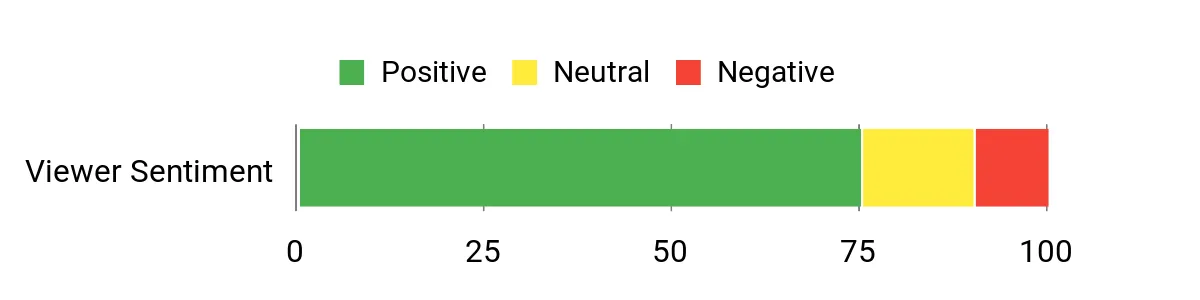
I’ve noticed buyers commonly praise how easy the Aspire Go is to use and its value for everyday tasks. People point out fast Wi‑Fi connections, sharp display quality for videos, and generally smooth performance for streaming and schoolwork. Some also mention limited memory and the lack of a backlit keyboard as small trade-offs for the price and form factor.
Overall Sentiment: Positive
Long-Term Value
Choosing a modest, efficient laptop like this often means lower power draw and fewer headaches over time. The SSD boots quickly and keeps performance consistent, and for most casual streamers you won’t need frequent component upgrades.
You might consider external storage or an SSD upgrade later, but for everyday streaming and remote work the build is practical and keeps ownership costs predictable.
When It Helps
|
Situation |
How It Helps |
|---|---|
|
Home Streaming Setup |
HDMI output and Wi‑Fi 6 let me plug in capture devices and stream reliably, while the 15.6″ display is large enough to monitor chat and stream output. |
|
Student or Remote Work |
The lightweight chassis and responsive SSD make it easy to take to class or meetings, run video calls, and keep notes without lag. |
|
On-the-Go Commentary |
Built‑in webcam and decent microphone support let me record or commentate from a café or event when I need a quick live clip. |
Versatility
I find the Aspire Go versatile for media, streaming, schoolwork, and light content creation. It won’t replace a high-end workstation, but it adapts well between watching matches, editing short clips, and general productivity.
Practicality
Practicality is a strong point here: full‑size chiclet keyboard, HDMI out for external capture or monitors, and a 128GB SSD for fast boots. Storage is modest so I use external drives for larger video files, but day-to-day performance stays smooth.
Customization
|
Feature |
Customization Level |
|---|---|
|
RAM |
Limited |
|
Storage (SSD) |
Moderate |
|
Display Settings |
Good |
|
Operating Mode (Windows S) |
Moderate |
Fun Factor
For watching and streaming live sports the Aspire Go delivers enjoyable visuals and smooth video playback. It’s not aimed at hardcore gamers, but casual FIFA sessions and highlight reels look and feel satisfying.
Travel Friendliness
At about 3.8 pounds and a 15.6″ footprint, I find it easy to slip into a backpack for short trips. It’s not the smallest option, but the balance of screen size and portability works well when I need to stream or edit on the move.
Key Benefits
- Crisp 15.6″ FHD IPS display for watching fast sports action
- Efficient Ryzen 3 CPU and SSD for snappy everyday use
- Wi‑Fi 6 and HDMI output make streaming setups straightforward
- Lightweight enough to move between rooms and events
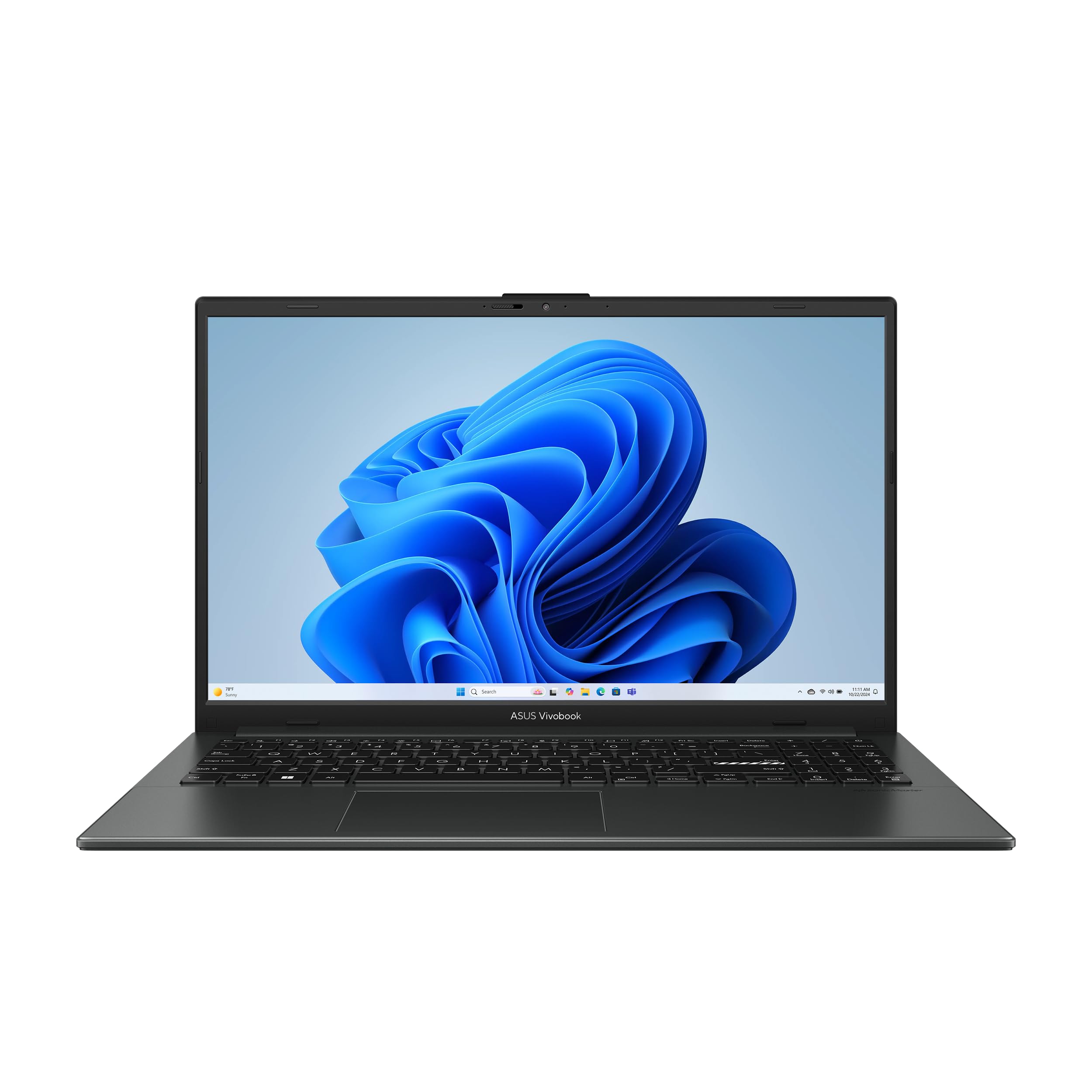
I reach for the Vivobook Go when I want a portable laptop that feels sturdy without being bulky. The 15.6″ FHD screen and Ryzen 3 chip handle streaming and multitasking smoothly, and the 180° hinge plus camera shutter make it easy to share content or close up for privacy. It’s a good fit for students, casual streamers, and anyone who needs a reliable everyday machine that travels well. If you want something fast to boot, comfortable for long viewing sessions, and thoughtfully designed, this is a practical pick.
What People Say
People often highlight the Vivobook Go’s light, sturdy design and smooth everyday performance. Buyers like the responsive feel from DDR5 and the convenience of the lay-flat hinge and camera shutter.
A common downside mentioned is the device arriving with Windows in S mode, which can limit installing some apps unless changed.
Overall Sentiment: Neutral

Long-Term Value
With modern DDR5 RAM and an SSD, the Vivobook Go stays snappy over time and needs fewer maintenance fixes. It’s not built for heavy upgrades, but for everyday streaming and schoolwork it reduces friction and keeps replacement costs lower over several years.
When It Helps
|
Situation |
How It Helps |
|---|---|
|
Campus and Classes |
Thin and light design fits a backpack easily, and the display plus speakers are ideal for watching highlights between lectures. |
|
Casual Streaming |
Built‑in webcam and solid screen let me stream or join watch parties without needing extra kit. |
|
On-the-Go Content Share |
The 180° hinge and camera shutter make it simple to show clips or close the device quickly for privacy. |
Versatility
This laptop covers a range of everyday uses from streaming matches to light content editing and document work. It won’t replace a dedicated workstation, but it switches between roles smoothly.
Practicality
I appreciate the practical touches like HDMI output, several USB ports, and fast charging. Storage is decent at 256GB and the SSD keeps apps and the OS responsive, though heavy media creators may want extra external storage.
Customization
|
Feature |
Customization Level |
|---|---|
|
RAM |
Limited |
|
Storage (SSD) |
Moderate |
|
Operating Mode (Windows 11 Home / S) |
Moderate |
Fun Factor
For watching FIFA clips or casual FIFA matches the Vivobook Go delivers a pleasant experience—smooth playback and a big enough screen to enjoy the action.
Travel Friendliness
At roughly midweight for a 15.6″ laptop, it’s easy to carry between classes or cafes. The design feels solid, so I don’t worry about daily bumps.
Key Benefits
- Slim, durable build that’s easy to carry
- 15.6″ FHD screen that looks good for sports and video
- Fast DDR5 memory and SSD for responsive everyday use
- Privacy-friendly camera shutter and 180° hinge for flexible setups
I reach for the M4 MacBook Air when I want a laptop that stays out of the way while I focus on streaming or editing clips. The M4 delivers responsive performance for OBS or quick edits, the high‑resolution display makes action look vivid, and the lightweight chassis makes it easy to move between home and a café.
For anyone who prefers macOS and values battery life, portability, and smooth multitasking, this Air is a practical pick for streaming FIFA matches and handling everyday creative work.
What People Say
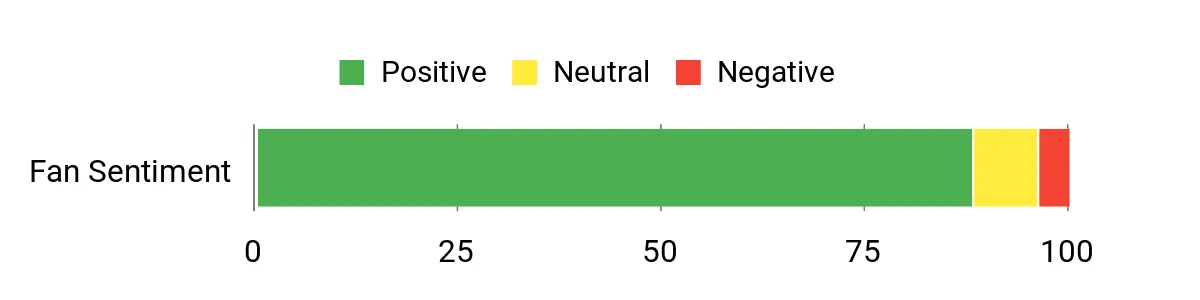
Buyers frequently mention that refurbished units arrived in excellent condition and performed like new, with strong battery life and fast responsiveness. People also appreciate the lightweight build and the quality of the display, making it a go-to for watching matches or doing quick edits.
A few note the usual caution when buying renewed items, but most report a smooth experience.
Overall Sentiment: Positive
Long-Term Value
Because the M4 is energy efficient and very capable, you’re less likely to feel forced into an early upgrade. The combination of long battery life and reliable performance means lower running costs over time and fewer interruptions when producing streams or editing clips.
When It Helps
|
Situation |
How It Helps |
|---|---|
|
Home Streaming |
The fast processor and crisp display make it easy to monitor stream quality, chat, and source video without bogging down the system. |
|
On-the-Go Commentary |
Lightweight design and long battery life let me record or commentate from a café or a stadium wing without hauling extra gear. |
|
Quick Editing |
The unified memory and SSD speed up small edits and exports, so I can clip highlights between matches. |
Versatility
This Air adapts easily from streaming and video playback to productivity and light creative tasks. It’s especially handy if you use Apple apps or move between devices in the Apple ecosystem.
Practicality
I value the practical mix of performance and portability here: reliable battery life, a backlit keyboard for late games, and enough storage for daily projects. For heavy media libraries I add external storage, but for most streaming tasks it’s a tidy, trouble‑free machine.
Customization
|
Feature |
Customization Level |
|---|---|
|
Unified Memory |
Minimal |
|
Internal Storage |
Limited |
|
External Ports/Adapters |
Moderate |
|
macOS Software |
High |
Fun Factor
Watching fast sports and FIFA highlights feels lively on the high‑res panel, and the smooth performance makes replaying key moments satisfying. It’s a pleasure to use for both viewing and light editing.
Travel Friendliness
At roughly 1.24 kilograms and a compact footprint, it’s one of the easiest laptops to carry for streaming duties away from home, whether I’m heading to a friend’s place or a match viewing spot.
Key Benefits
- Efficient M4 chip for smooth streaming and multitasking
- Sharp high‑resolution display for clear sports action
- Very low weight and compact design for easy portability
- Long battery life that supports extended viewing and editing
- macOS ecosystem and tight software/hardware integration
I reach for the Nitro V when I want frame‑smooth gameplay and confident streaming from the same machine. The 165Hz panel makes fast sports and FIFA matches feel fluid, while the RTX 4050 helps with game capture and stream overlays.
It runs warm and it’s best used plugged in, but for midweight gaming, live broadcasting, and editing short clips it delivers the kind of responsiveness I look for. If you want a laptop that prioritizes speed and visuals for streams, this is a strong choice with a few realistic trade‑offs.
What People Say
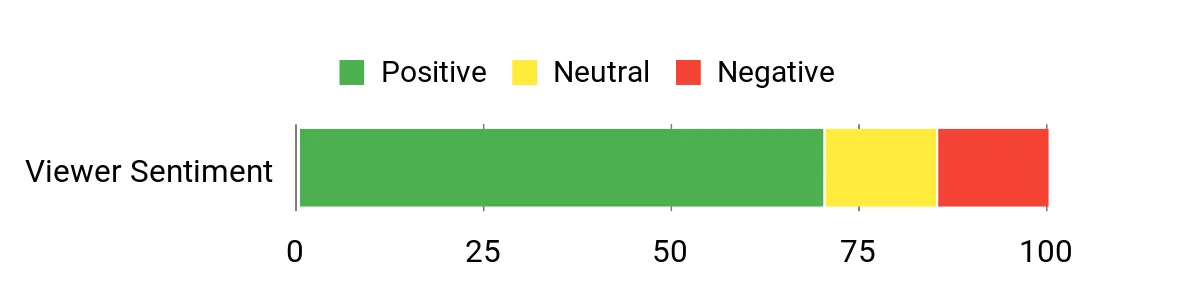
People tend to praise the Nitro V for strong visuals and solid performance at 1080p, noting how the display and GPU make games and live streams look crisp. Others appreciate the speed of the SSD and the port selection for capture gear.
The common downsides people mention are heat and fan noise under load and the desire to upgrade RAM for heavier multitasking.
Overall Sentiment: Positive
Long-Term Value
A capable GPU and modern SSD mean the Nitro V will stay useful longer for streaming and gaming, but some users recommend adding more RAM to avoid future bottlenecks. Budgeting for a RAM upgrade can extend useful life without replacing the whole laptop, making it a practical midterm investment.
When It Helps
|
Situation |
How It Helps |
|---|---|
|
High-FPS Streaming |
The 165Hz display and RTX GPU help maintain high frame rates and clean capture, keeping live sports and FIFA gameplay smooth for viewers. |
|
Capture Device Setups |
Multiple ports and an Ethernet jack make connecting capture cards and wired internet straightforward, reducing latency and connection drops. |
|
Desktop Replacement |
With a strong CPU/GPU combo and Gen4 SSD, it can stand in for a desktop for gaming and streaming when plugged into power and external displays. |
Versatility
The Nitro V handles a mix of gaming, streaming, and light content work well, shifting from play sessions to broadcast duties without much setup fuss. It’s less ideal for quiet, battery‑only use or ultra‑portable needs.
Practicality
I find it practical for at‑home streaming rigs thanks to its ports and performance, though the thermal profile means I plan streams with good airflow and a power source nearby rather than relying on battery.
Customization
|
Feature |
Customization Level |
|---|---|
|
RAM |
High |
|
Storage (SSD) |
Moderate |
|
Cooling (Fans/Thermals) |
Moderate |
|
External Peripherals |
High |
Fun Factor
Watching matches and playing FIFA on the Nitro V feels lively because the high refresh rate reduces blur and the GPU keeps visuals sharp, which adds punch to highlight reels and live gameplay.
Travel Friendliness
At around 4.66 pounds and with a thicker chassis, it’s doable to travel with but better suited for trips where I can plug in. For frequent on‑the‑road streaming I prefer something lighter.
Key Benefits
- 165Hz FHD panel for smooth fast‑action viewing and gaming
- Dedicated RTX 4050 GPU for capture, encoding assistance, and higher FPS
- Gen4 SSD and DDR5 memory for snappy load times and responsiveness
- Plenty of ports, including HDMI and Ethernet, for stable streaming setups
I turn to the Vivobook S16 when I want a laptop that looks and performs like a step up from everyday machines. The 16″ Lumina OLED and 16:10 ratio give more vertical space for chat, timelines, and multiple windows while streaming or editing highlights.
The Ryzen AI 7 350 keeps apps responsive and the long battery life means I can work or watch matches for hours between charges. It’s light for its size, has a comfy keyboard and bright colors that make live sports and FIFA clips pop, so I recommend it for creators and serious streamers who also value portability.
What People Say
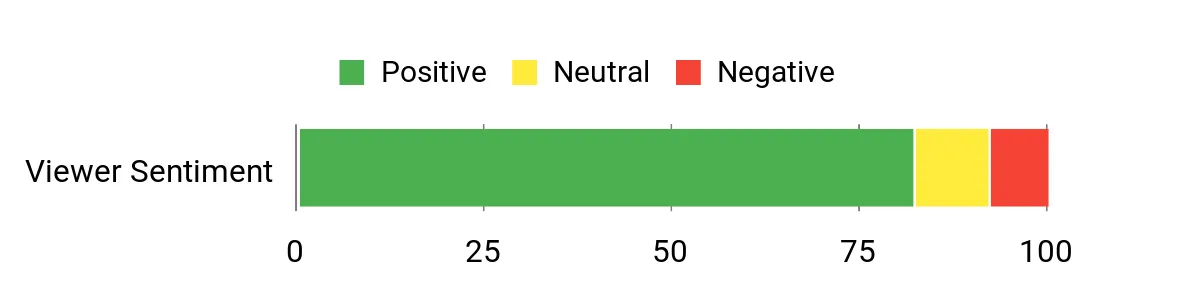
Readers and buyers often mention the display and battery as standout features, noting how the screen makes video content look exceptional and how the battery lasts through long sessions. Many appreciate the speed and responsiveness for day‑to‑day production work, and people often praise the build quality and keyboard feel. A few users point out this is a feature‑packed machine that’s best appreciated by those who make use of its higher performance.
Overall Sentiment: Positive
Long-Term Value
The combination of a capable processor, fast SSD, and strong battery usually means fewer forced upgrades and less downtime. For creators who do regular streaming or editing, the Vivobook S16 can delay replacement cycles and reduce the need for frequent accessory purchases.
When It Helps
|
Situation |
How It Helps |
|---|---|
|
Live Streaming |
The OLED panel and powerful CPU keep stream previews and source feeds smooth, while ports make it easy to attach capture gear and wired internet. |
|
Video Editing |
Plenty of RAM and a fast SSD speed up timeline scrubbing and export times for highlight reels and short clips. |
|
Mobile Workdays |
Lightweight build and long battery life let me move between home, cafés, or events without constantly hunting for outlets. |
Versatility
This laptop suits a broad range of uses from streaming and content creation to office work and media consumption. It’s a solid one‑machine solution if you need both a great screen and capable performance.
Practicality
I like practical touches such as the Copilot key, multiple USB ports, and an HDMI output for external monitors. The one‑stop performance and good battery life reduce the need for extra gear during a typical streaming session.
Customization
|
Feature |
Customization Level |
|---|---|
|
Memory |
Moderate |
|
Storage |
High |
|
Display Calibration |
Good |
|
Peripherals |
High |
Fun Factor
Watching fast action and FIFA highlights on the OLED is genuinely enjoyable; colors are rich and motion feels clear, which makes replays and clips more engaging.
Travel Friendliness
Weighing in at about 3.31 pounds with a slim profile, it’s easy to carry for day trips and work sessions, though I still prefer a padded sleeve for regular travel.
Key Benefits
- Vivid 16″ OLED with 16:10 aspect ratio for clearer match playback and multitasking
- Ryzen AI 7 350 provides smooth multitasking and quick edits
- Long battery life for extended streaming or on‑the‑road work
- Generous port selection and ergonomic keyboard for comfortable sessions
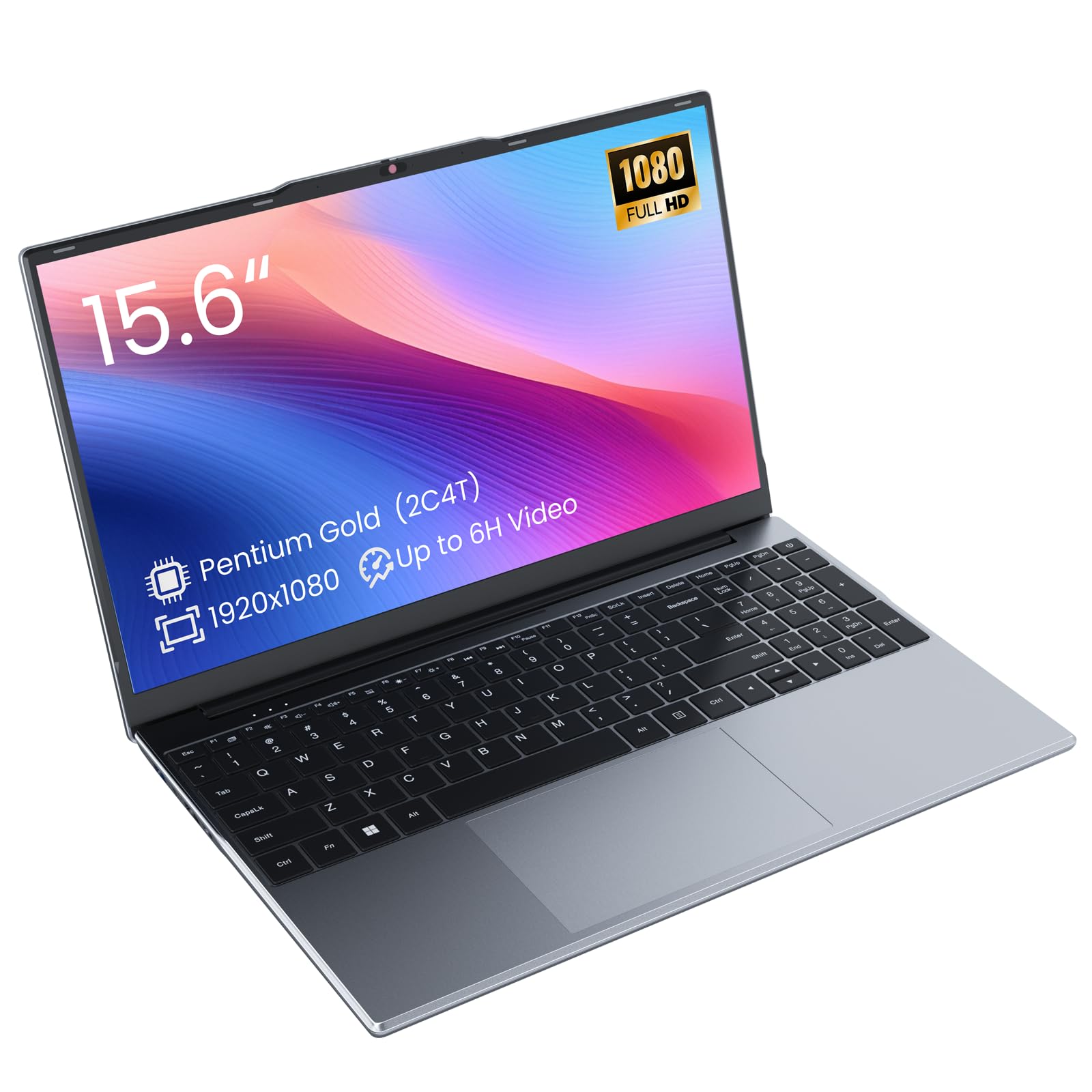
I reach for the DGBook when I need a simple, portable laptop for streaming matches, browsing, and light editing of clips. The 15.6″ Full HD screen is pleasantly large for watching fast sports action and the SSD keeps boot and app load times brisk.
It’s not built for heavy gaming or intensive video work, but for students, secondary workstations, or casual streamers who want a no‑fuss machine it covers the essentials. I’d pair it with an external drive if I’m storing lots of highlights, and it’s an easy option for quick setups and on‑the‑go viewing.
What People Say
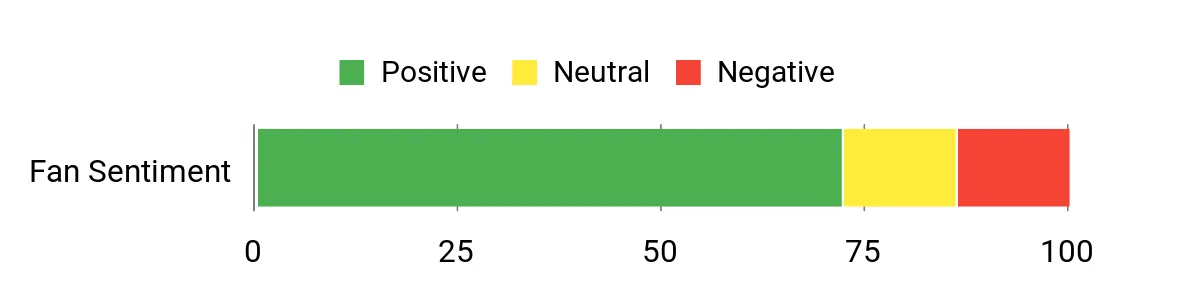
Most buyers appreciate how lightweight and easy to use the DGBook is, and many note the fast responsiveness thanks to the SSD. People mention it makes a reliable second machine for browsing and streaming, though some recommend adding more storage or noting shorter battery life in heavy use.
Overall Sentiment: Positive
Long-Term Value
Because the DGBook focuses on essential components and an SSD, it tends to stay useful for basic streaming and productivity without frequent maintenance. Adding external storage or upgrading RAM later is a low‑cost way to extend its usefulness rather than replacing the whole machine.
When It Helps
|
Situation |
How It Helps |
|---|---|
|
Secondary Streaming Station |
Use it as a dedicated machine for chat monitoring or streaming overlays while your main system handles the heavy lifting. |
|
Student Workload |
Lightweight design and dependable performance make it easy to take notes, watch clips, and join video calls between classes. |
|
Travel and Quick Edits |
Small footprint and HDMI output let me plug into a hotel TV or monitor and do quick trimming of highlights on the go. |
Versatility
The DGBook handles streaming, web browsing, and basic content tasks comfortably. It isn’t a powerhouse, but it’s flexible enough to serve as a reliable everyday or backup laptop.
Practicality
I value the practical combination of a full‑size screen, SSD, and standard ports. For heavier media work I pair it with external drives, but for routine streaming monitoring and watching matches it’s straightforward and dependable.
Customization
|
Feature |
Customization Level |
|---|---|
|
RAM |
Moderate |
|
Storage |
High |
|
External Peripherals |
High |
Fun Factor
Watching live sports and highlight reels feels satisfying on the FHD panel; motion is clear enough for casual FIFA play and replaying key moments.
Travel Friendliness
At a light weight and slim profile, it’s easy to carry between home, classes, and cafés, making it a practical choice when I need a portable streaming setup.
Key Benefits
- Large 15.6″ FHD display that makes sports and highlights easy to follow
- SSD storage for fast boots and responsive everyday use
- Lightweight and portable for carrying between rooms or classes
- Basic connectivity including HDMI for external displays or capture devices
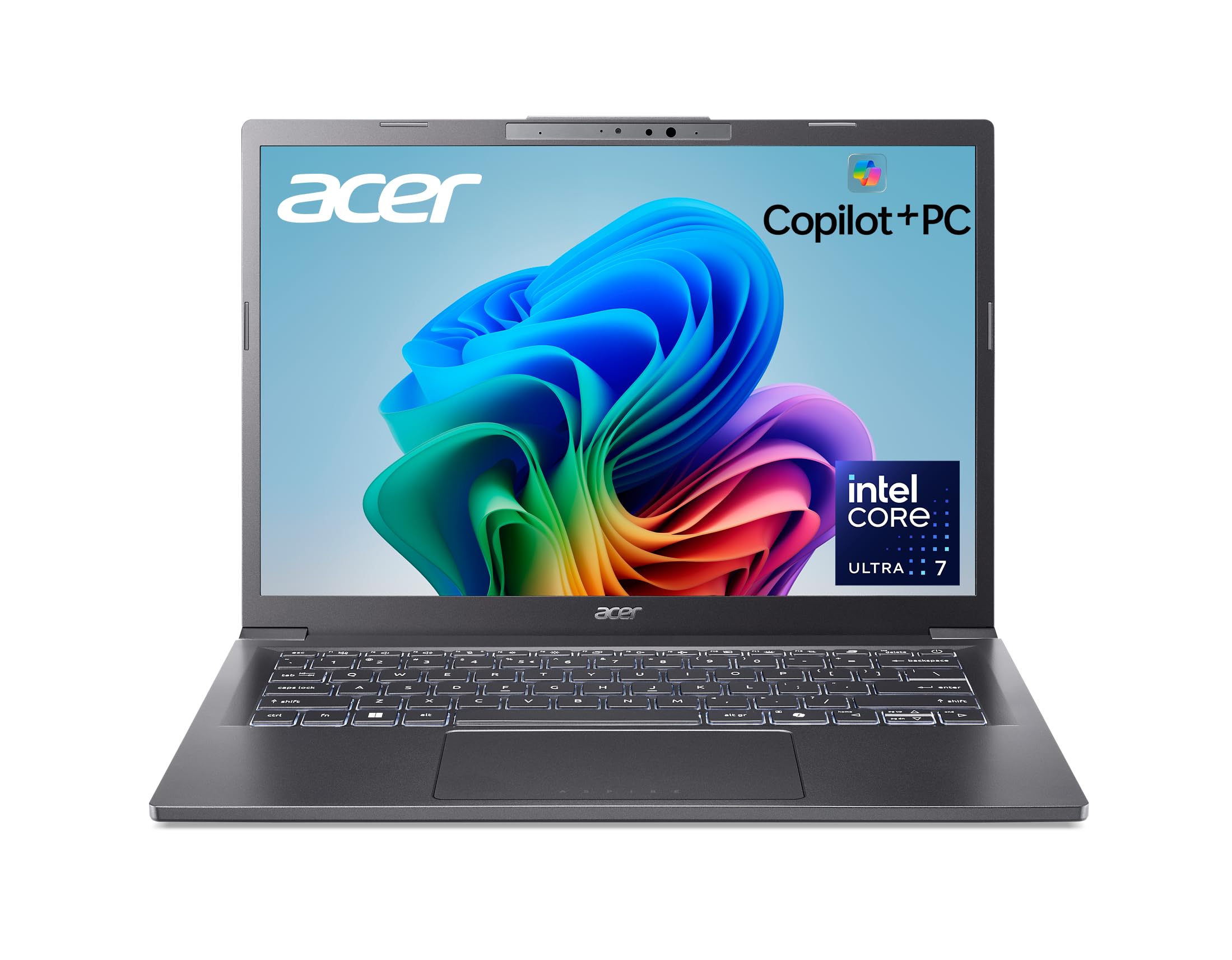
I reach for the Aspire 14 when I want a compact machine that balances performance and battery life. The 14″ WUXGA panel gives me a bit more vertical space for chat, timelines, and multiple windows while streaming, and the Core Ultra 7 plus NPU keeps apps responsive even when I’m running background encoding or AI features. It’s light enough to carry between rooms, has plenty of ports for capture devices and external displays, and the long battery life means fewer interruptions during long viewing or editing sessions. For streamers who want a portable, future‑minded laptop that handles multitasking and wired streaming setups, this is a practical pick.
What People Say
People commonly praise the Aspire 14 for feeling well built and fast out of the box, with many highlighting the battery life and the practical port selection. Buyers also mention that it’s lightweight and quiet in normal use, while a few point out the screen is fine for most tasks but not the standout feature.
Several users note some preinstalled software to remove on first boot.
Overall Sentiment: Positive

Long-Term Value
Thanks to a modern CPU, NPU support, and a roomy SSD, the Aspire 14 tends to remain capable over time without needing immediate upgrades. The strong battery and versatile ports reduce the need for frequent accessory purchases, and adding external storage later is an easy, cost‑effective way to extend its usefulness.
When It Helps
|
Situation |
How It Helps |
|---|---|
|
Live Streaming At Home |
Thunderbolt and HDMI let me attach capture cards and external monitors, while the CPU and NPU keep encoding and background tasks from slowing the stream. |
|
On‑Site Commentary |
Lightweight design and long battery life let me set up temporary commentary stations without hunting for outlets constantly. |
|
Editing Short Highlights |
Fast SSD and responsive CPU speed up clip trimming and exports so I can publish quick highlights between matches. |
Versatility
This laptop moves easily between streaming, light editing, and everyday productivity tasks. It’s especially useful for creators who need a portable hub that can also connect to a more permanent desktop‑style setup.
Practicality
I like the practical mix of ports, solid battery life, and a comfortable keyboard—those daily details make streaming sessions and long editing stints less fussy. The screen is serviceable for video monitoring and multitasking, even if color‑critical work might need an external panel.
Customization
|
Feature |
Customization Level |
|---|---|
|
Memory |
Moderate |
|
Storage |
High |
|
External Displays/Peripherals |
High |
Fun Factor
Watching fast sports and FIFA clips feels smooth thanks to the responsive CPU and clean display proportions, and the quiet operation makes replays and multitasking more enjoyable.
Travel Friendliness
At about 3.1 pounds and a slim profile, it’s easy to carry for day trips and remote streaming sessions, though I still pack a sleeve for protection.
Key Benefits
- Powerful Intel Core Ultra 7 and NPU for smooth multitasking and AI features
- Compact 14″ WUXGA screen that improves vertical workspace for streams and chat
- Long battery life that supports extended streaming or editing sessions
- Multiple ports including Thunderbolt and HDMI for straightforward capture setups
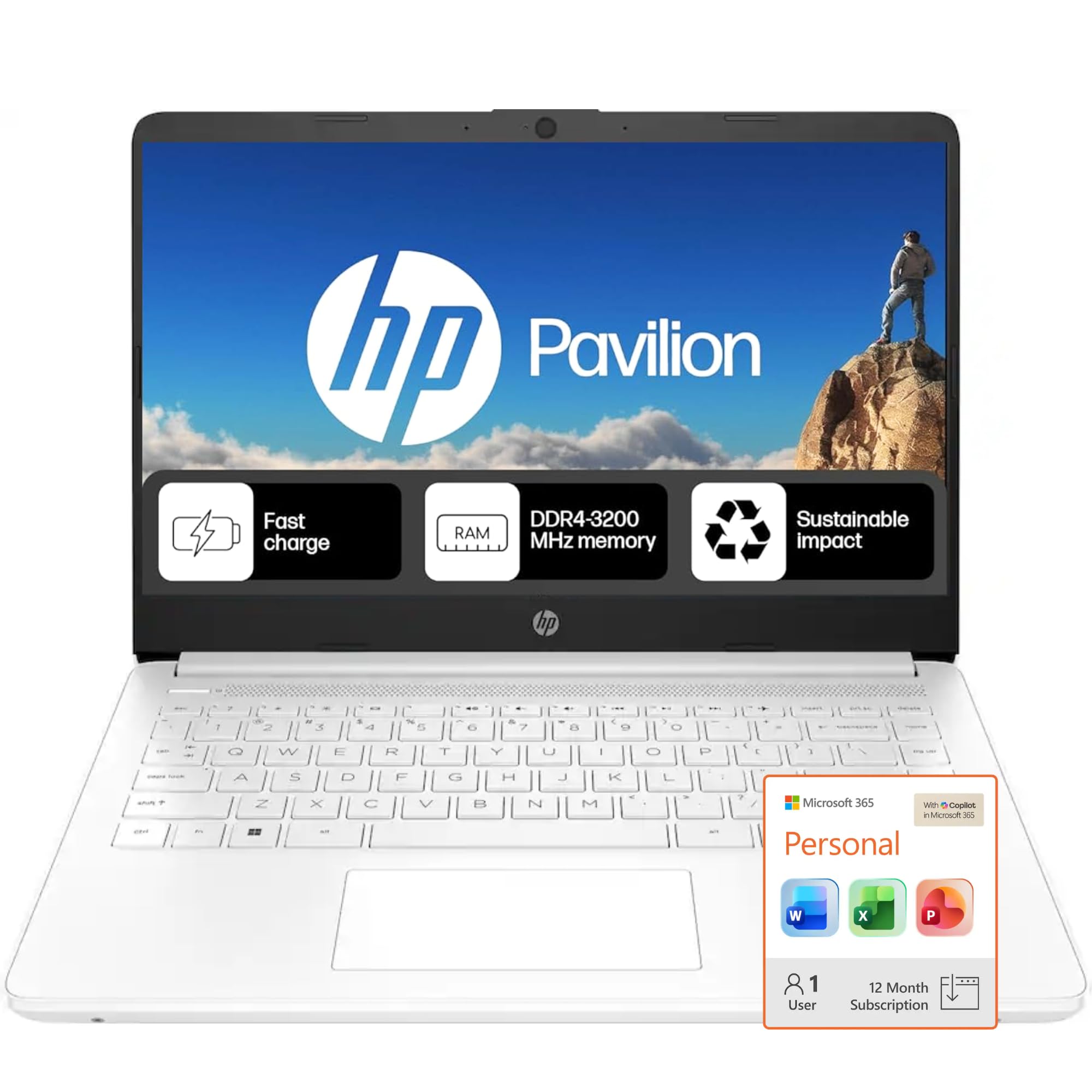
I reach for this HP when I want a simple, dependable laptop for streaming matches, taking notes, and joining video calls. The 14″ screen and dual‑array microphones make it easy to watch highlights and sound clear on commentary, while Fast Charge and decent battery life keep me going through long sessions. It runs Windows 11 in S mode out of the box, which is great for security but means I sometimes switch modes to install certain apps.
For students, casual streamers, or anyone who needs a lightweight everyday machine that just works, this is a practical, low‑fuss option.
What People Say
People often point out how easy the HP is to use and how reliable it feels for everyday tasks. Buyers commonly praise battery life and the sound quality for calls, while a few mention occasional frustrations with the touchpad or limited internal storage.
Overall, most find it a solid, straightforward machine for study and casual streaming.
Overall Sentiment: Positive

Long-Term Value
Because the laptop focuses on essentials—efficient processor, SSD storage, and solid battery life—it tends to stay useful for basic streaming and productivity without constant upgrades. Adding external storage or swapping in a larger SSD later is an affordable way to extend its usefulness as media needs grow.
When It Helps
|
Situation |
How It Helps |
|---|---|
|
Classroom And Study |
Lightweight build and long battery life let me take notes, watch clips, and join online classes without hunting for outlets between sessions. |
|
Casual Streaming And Monitoring |
Dual microphones and HDMI output make it a handy secondary device for monitoring chat, running overlays, or joining watch parties. |
|
Travel And On‑Site Use |
Fast Charge and a compact footprint let me top up quickly and set up a temporary streaming or editing station on the go. |
Versatility
This HP handles streaming, browsing, video calls, and basic editing without fuss. It’s versatile as a primary device for light users or a dependable backup for heavier streaming rigs.
Practicality
I appreciate the practical features like anti‑glare display, HDMI out, and a simple, uncluttered interface. Storage is modest, so I usually pair it with cloud services or an external drive for larger media work.
Customization
|
Feature |
Customization Level |
|---|---|
|
RAM |
Limited |
|
Internal Storage |
Moderate |
|
External Peripherals |
High |
Fun Factor
Watching live matches and replaying highlights feels comfortable on the 14″ screen, and the clear audio makes it easy to follow commentary during close plays.
Travel Friendliness
At around 3.24 pounds and a slim profile, it’s straightforward to carry for day trips, campus use, or quick streaming setups away from home.
Key Benefits
- Lightweight 14″ design that’s easy to carry between rooms or classes
- Dual microphones and HD webcam for clear streaming and video calls
- Fast charge and long battery life for extended viewing or work sessions
- Anti‑glare display and basic ports including HDMI for simple setups
FAQ
What Specs Matter Most For Streaming
When I pick a laptop for live sports streaming I focus on the CPU and RAM first because streaming software and browser tabs can eat resources; a responsive dual‑ or quad‑core CPU and at least 8GB–16GB RAM make a noticeable difference. I also look for an SSD for quick boots and file handling, and reliable networking like Wi‑Fi 6 or an Ethernet port to avoid dropouts.
Ports matter too — HDMI or USB‑C/Thunderbolt for capture devices and an available USB for peripherals keep the setup flexible.
Can A Budget Laptop Handle Live Sports Streams
Yes, but I tune expectations and settings. Lighter machines such as compact 15.6″ models can handle streaming if I keep capture settings sensible, monitor CPU usage, and use an external capture device or encoder when needed.
I also make sure to free up background apps, use an SSD, and prefer wired internet or strong Wi‑Fi to reduce latency; for heavier multitasking or game capture I plan to add RAM or use a more powerful machine.
How Can I Get Smooth Streams With Minimal Hassle
I set up wired Ethernet when possible, run OBS or Streamlabs with hardware encoding if available, and test bitrates and resolution before going live so the stream matches my upload. I keep an eye on temps and have good airflow or a cooling pad to prevent throttling, and I use a second device or phone to monitor chat while the laptop handles encoding. Small things like closing unnecessary tabs, using an external SSD for recordings, and confirming capture card drivers are installed usually prevent the last‑minute panics.
Wrapping Up
I picked options that reflect real streaming needs: stable connectivity, solid CPUs, SSD storage, and practical ports for capture hardware. If you want the simplest reliable option without breaking the bank the Acer Aspire Go or the ASUS Vivobook Go give good performance for $300–$450. If you stream games in high frame rates the Nitro V and the Vivobook S16 are stronger choices that trade portability for speed and visuals. For macOS users the M4 MacBook Air stands out for compatibility, efficiency, and long battery life.
Use my selection criteria to match a laptop to your streaming style and budget so you can focus on producing a smooth World Cup 2026 broadcast rather than troubleshooting hardware during kickoff.
| Product Name | Image | Processor | RAM | Storage | Battery Life | Weight |
|---|---|---|---|---|---|---|
| Acer Aspire Go 15 AI Ready Laptop |
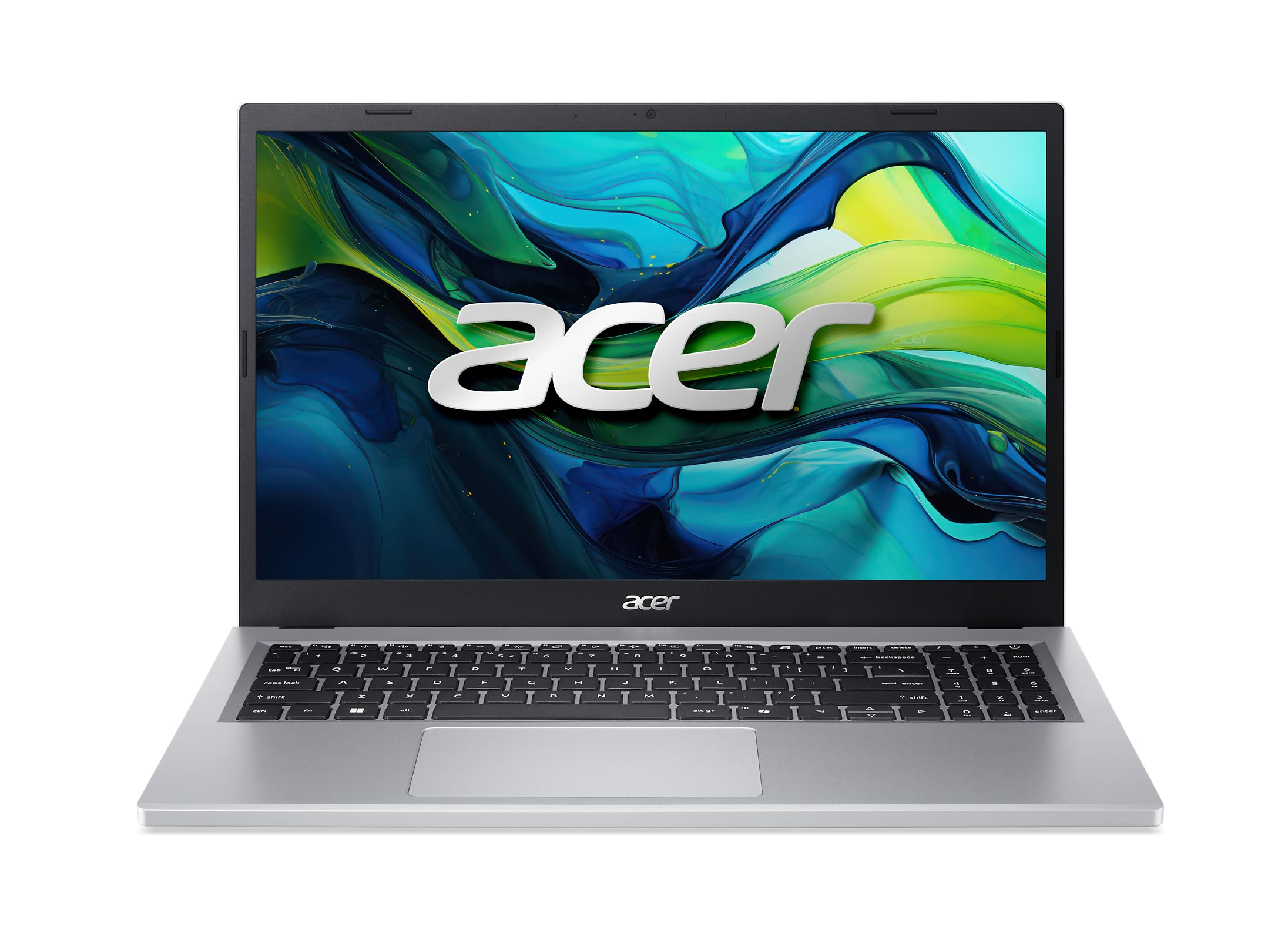 |
AMD Ryzen 3 7320U | 8 GB LPDDR5 | 128 GB PCIe SSD | N/A | 3.8 lbs |
| ASUS Vivobook Go 15.6” FHD Slim Laptop |
 |
AMD Ryzen 3 7320U | 8 GB DDR5 | 256 GB SSD | N/A | 5.5 lbs |
| Apple 2025 MacBook Air with Apple M4 Chip |
 |
Apple M4 | 16 GB Unified | 256 GB SSD | N/A | 1.24 kg |
| Acer Nitro V Gaming Laptop |
 |
Intel Core i5-13420H | 8 GB DDR5 | 512 GB Gen 4 SSD | N/A | 4.66 lbs |
| ASUS Vivobook S16 Laptop |
 |
AMD Ryzen AI 7 350 | 16 GB | 1 TB SSD | Up to 14 hours | 3.31 lbs |
| Phatom 15.6″ FHD Laptop |
 |
Intel Pentium Gold | 4 GB | 128 GB SSD | N/A | 1.57 kg |
| Acer Aspire 14 AI Copilot+ PC |
 |
Intel Core Ultra 7 | 16 GB LPDDR5X | 1 TB SSD | Up to 22 hours | 3.09 lbs |
| HP Home and Student Essential Laptop |
 |
Intel Celeron N4500 | 8 GB | 64 GB SSD | Up to 12 hours | 3.24 lbs |
This Roundup is reader-supported. When you click through links we may earn a referral commission on qualifying purchases.